
Agent Troubleshooting and Logs
Use this article when an agent does not behave as expected. Start by testing the agent in debug mode, check the common problems below, and then review the execution logs. For action settings, see the Agent Actions Reference.
Test an agent in debug mode
Run the agent in debug mode from the Flow Builder. The Debug Log lists each step as it runs, with its completion time, and View Output shows the output of that step. Loop iterations are listed individually. Use the Debug Log to find which step failed and what data it received from the step before it.
Common problems and fixes
| Symptom | Likely cause | What to do |
|---|---|---|
| A step never runs. | The step's Active toggle is off, so it is skipped. | Open the step and turn on Active. |
| A value from an earlier step is not inserted. | The reference syntax or Step ID is wrong. | Use {$.input} or {$.steps.stepId} with the exact Step ID shown under the step's panel title. |
| Branching always takes the same path. | No branch rule matches the previous output, so the Default Branch is used. | Compare each Branch Rule with the actual output of the previous step in the Debug Log, and check which branch is the default. |
| A loop fails before processing any items. | The Array Path does not exist or is not an array, or the array is empty and Empty Array Behavior is Fail Execution. | Check that the path exists in the previous step's JSON output and holds an array. Choose Skip And Continue if empty arrays are expected. |
| A loop stops after the first failing item. | Error Handling is set to Stop on first error. | Choose Continue on error, or Collect Item status to get a per-item report. |
| A loop returns no output. | Output Type is set to None. | Choose Aggregated Result or Last Result. |
| HTML Capture returns nothing. | The CSS selector does not match a unique element on the current page. | Use a selector that uniquely identifies the element, such as an ID. Turn on Enable Fallback to capture the full page when the element is not found. |
| A Teams card is not posted. | The Webhook URL is wrong or is not an Incoming Webhook for the target channel. | Copy the Incoming Webhook URL from the Teams channel again and paste it into the step. |
| Outlook steps cannot send, read or create events. | The Microsoft account is not connected or its authentication has expired. | Open the step and click Connect Microsoft Account, or Reconnect if an account is already connected. |
| A shared mailbox cannot be read or used for events. | The mailbox address is wrong, or the connected account has no permission to that mailbox. | Check the Mailbox address and confirm the connected account has access to the shared mailbox. |
| A calendar event is not created. | The end date and time is not later than the start date and time. | Set an end time after the start time and check the Timezone. |
| An n8n or Zapier connector cannot be saved. | Validation failed: missing or invalid webhook URL, unsupported execution mode, invalid JSON, missing authentication fields, or contradictory settings. | Correct the flagged field. The webhook URL must be a valid HTTPS URL that points to an active webhook. |
| A connector warns about its input or rejects the payload. | The previous step produces plain text instead of JSON. | Set the previous Prompt's Output Type to JSON, or add a Prompt that converts the data to JSON. |
| A connector call times out or fails intermittently. | The external workflow is slow or temporarily unavailable. | Increase the request timeout and configure retry attempts where available. In Synchronous mode, make sure the n8n workflow returns a response. |
| View Execution Details is missing in the logs. | Extended Agent Logs is turned off. | Turn on Enable Extended Agent Logs in Manage Tenant → Agent Settings. |
Review agent execution logs
This feature enables portal users to view agent execution history and inspect execution details when available. It provides a structured UI for monitoring agent activity and supports troubleshooting by exposing detailed execution data in a controlled and user-friendly manner.
The Agent Execution Logs module displays a list of execution records associated with a specific agent. Each record includes essential metadata such as execution start time, duration, and the triggering application.
Extended agent logs setting
Within the Manage Tenant → Agent Settings, an option “Enable Extended Agent Logs” is available to control the level of execution logging.
When Enabled:
• Agent execution logs are captured at an extended level.
• The “View Execution Details” action becomes available, and the input and output data of the agent is displayed.
• Users can access structured and formatted execution stack Readable representation of extended execution data and detailed information is displayed in a modal/dialog for better clarity and troubleshooting.
When Disabled:
• Only basic execution metadata is available in the logs table.
• Extended execution data is not captured or displayed.
• The “View Execution Details” action is hidden.
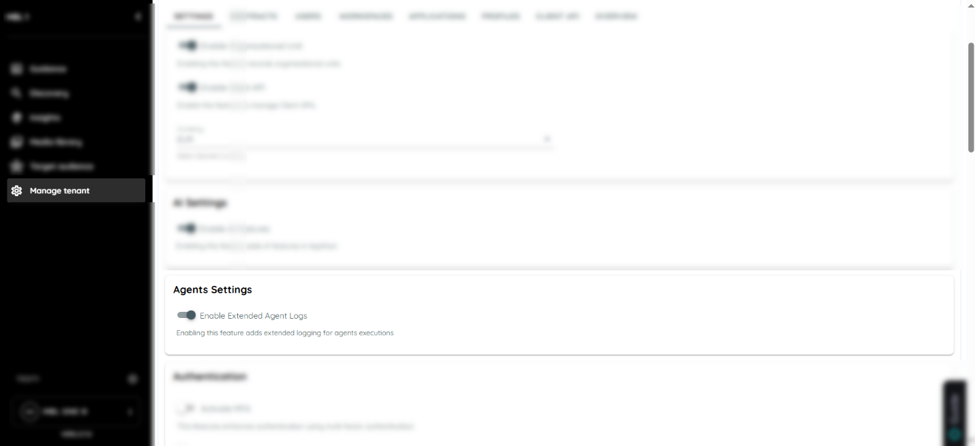
Manage Tenant settings page showing the Agents Settings section
To access agent logs, go to the Agent tab in the portal and identify the specific agent whose execution history you want to review. Open the context menu (three-dot menu) for that agent, and from the list of available options, select Logs to proceed to the execution logs view.
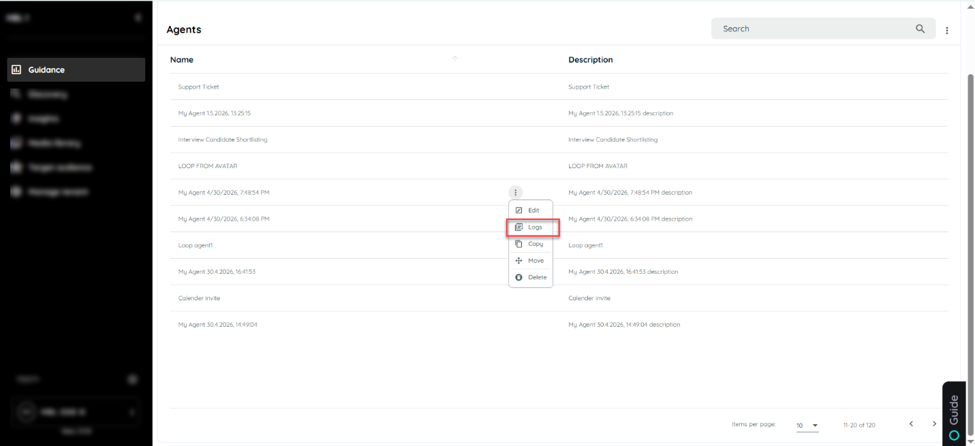
Agents list in the portal with an agent's three-dot menu open and the Logs option highlighted.
After selecting the Logs option, the execution logs page is displayed, providing a comprehensive view of all log entries related to the selected agent. This section allows users to review key execution details, including start time, duration, and the triggering application.
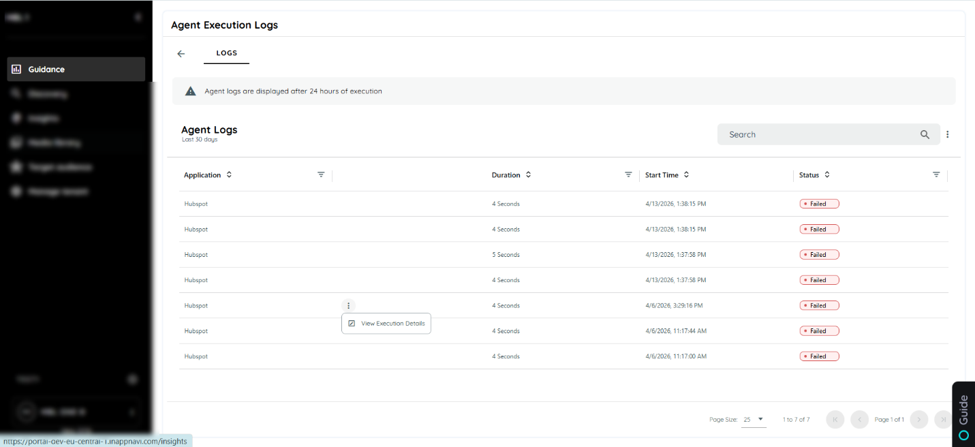
Agent Execution Logs page listing executions with application, duration, start time and status.
Within the logs interface, an Extended Logging option is available to access more detailed execution information. When selected, it opens a comprehensive view of the agent execution logs, including a structured and well-formatted execution stack.
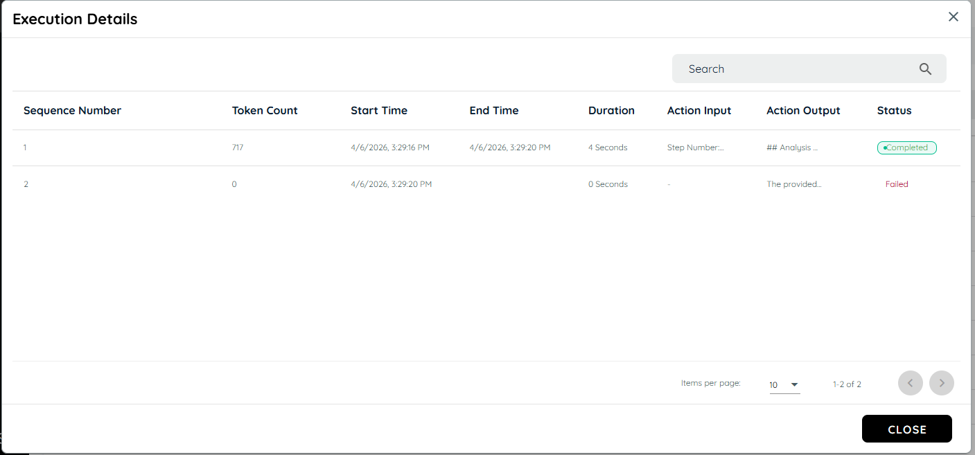
Execution Details dialog
Before you contact support
If the problem persists, collect the following before contacting support:
• The name of the agent and the triggering application.
• The start time of the failing execution from the Agent Execution Logs.
• The step that failed and its output from the Debug Log or Execution Details.
• Whether Extended Agent Logs is enabled for your tenant.
Related articles
Related articles
• Agents
• Agent Actions Reference
• Agent Connector Setup Guides
• Agent Triggers
Updated about 9 hours ago