
AppNavi Element Search
Overview
AppNavi uses element search to locate application elements when recording or playing Route steps and configuring Pins. The search method determines how AppNavi identifies the intended element in the application's Document Object Model (DOM).
AppNavi provides two search methods:
AI Search: Uses a captured element's characteristics to identify a matching element. You can retrain the capture and adjust the search focus between text and position.
Fuzzy Search: Uses captured element information, including its position among its parent's children, classes, and attributes. It supports multiple captures for the same step and checks candidate matches before accepting them.
The appropriate method depends on the application, how its elements change, and how the content needs to behave.
Compare AI Search and Fuzzy Search
| Capability | AI Search | Fuzzy Search |
|---|---|---|
| Main approach | Matches a captured element using a configurable emphasis on text or position. | Uses captured element metadata, including child position, classes, and attributes, to find a match in the DOM. |
| Retraining or recapturing | Supports retraining to refine the capture and its search accuracy. | Supports recapturing elements and adding multiple captures to a step. |
| Handling multiple captures | The documented guide focuses on retraining an element capture. | Tries captures in sequence and stops when it finds an element that passes verification. |
| Verification | Provides an accuracy indicator and configurable deviation thresholds. | Uses Heuristic Search to check whether the candidate's DOM path matches at least 80% of the original captured path. |
| Best starting point | When you need to refine how an element is matched using its text or position. | When you need multiple captures to help locate an element that may change or be difficult to find consistently. |
These methods work differently. Neither guarantees that an element will always be found after application changes.
Which search method should I use?
Use these scenarios as a starting point.
Use AI Search when:
- A captured element is being confused with a similar element.
- The element moves within the same parent container but retains identifiable text.
- You need to adjust how strongly the search relies on text or position.
- You want to retrain a capture and review its displayed accuracy.
For example, a dropdown option named Estimates moves from the first position to the third position within the same parent. You can retrain the capture and increase the emphasis on text so the search can prioritize the option's name.
Read AI Search for retraining, weighting, accuracy thresholds, and troubleshooting.
Use Fuzzy Search when:
- You want to configure multiple captures for the same step.
- An element may be difficult to locate consistently using a single capture.
- You need to recapture an element after the application changes.
- You want AppNavi to try alternative captures if an earlier capture does not find a valid match.
For example, if a step cannot locate its target using the first capture, Fuzzy Search can try the next configured capture. The search stops when a capture finds an element that passes verification, or when no captures remain.
AI Search
AI Search helps AppNavi identify the application elements used by Route steps. It is designed to improve element matching when traditional search methods do not reliably identify the intended element.
For example, a Route may need to find a button inside a dropdown. If the dropdown's contents change or the button moves to a different position, the original capture may no longer identify the correct element. AI Search allows you to refine how AppNavi identifies that element.
AI Search is selected under Search Mode in the Route step settings and is the default search mode.
Who should use this guide?
Use this guide if you:
- Create or maintain Routes in AppNavi.
- Notice that a Route highlights the wrong element.
- Work with dynamic applications where elements move or change.
- Need to improve the reliability of an existing element capture.
Before you start
Make sure you have:
- Access to the AppNavi Portal and the relevant Route.
- Access to the target application where the Route runs.
- Permission to edit the Route and its step settings.
- A way to test the Route in the application.
Recommended: Test the Route before changing its search settings. Identify the exact element the step should find and compare it with the element AppNavi currently highlights.
How AI Search is used
- Create or open a Route.
- Capture the application element associated with a step.
- Open the step settings and locate Search Mode.
- Confirm that AI Search is selected.
- Save the Route and test it in the target application.
Expected result: When the Route reaches the step, AppNavi attempts to identify the captured element using AI Search.
If AppNavi identifies the wrong element or cannot find the intended element, retrain the capture as described below.
For instructions on creating a Route, see Record a Route.
Retrain AI Search
When should you retrain?
Retraining is useful when:
- AppNavi highlights a similar but incorrect element.
- An element changes position within its parent container.
- A dropdown or table contains several similar elements.
- The original capture no longer matches the application layout reliably.
Retraining lets you select the intended element again and adjust the search settings to improve matching.
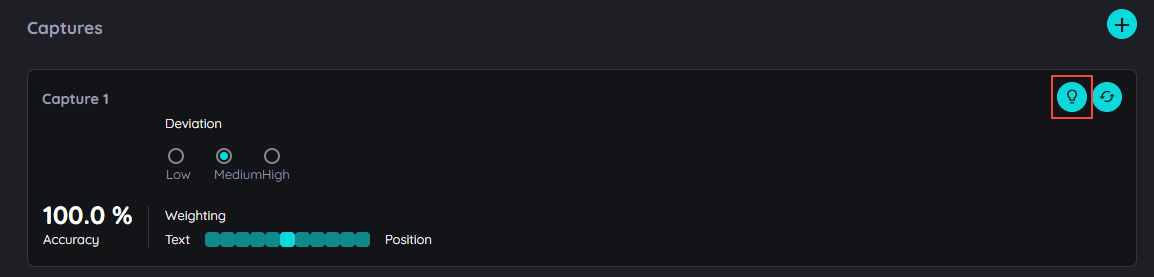
Retrain
Step 1: Open retrain mode
- Open the Route in the editor.
- Locate the step whose element is not being identified correctly.
- Open the capture's retrain option.
- Inspect the elements highlighted in the application.
In retrain mode:
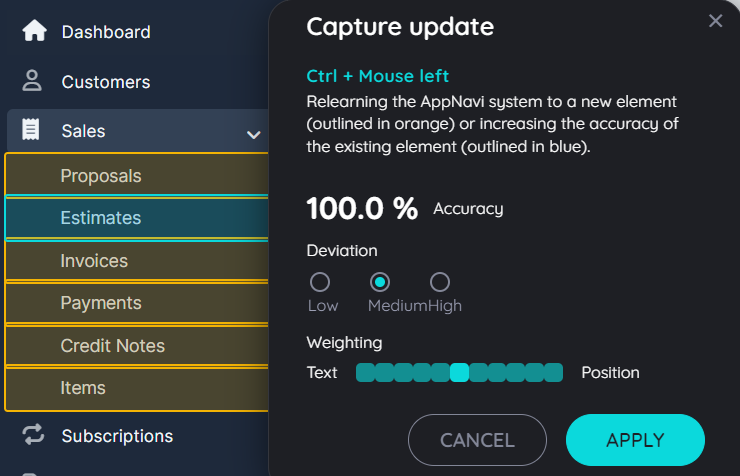
- Blue identifies the currently captured element.
- Orange identifies elements similar to the captured element.
Use these highlights to find the element that the Route should target.
Step 2: Select the correct element
If the currently captured element is wrong, select the intended element from the highlighted options.
To increase the accuracy of the existing capture, hold Ctrl and click the intended element with the left mouse button.
The displayed accuracy helps you assess how closely the search configuration matches the selected element.
Step 3: Adjust the accuracy threshold
AI Search provides three deviation settings:
| Setting | Minimum search accuracy |
|---|---|
| Low | 95% |
| Medium | 85% |
| High | 75% |
The threshold determines the minimum search accuracy required for AppNavi to accept a match. For example, with Medium selected, the element is searched for only when its search accuracy is at least 85%.
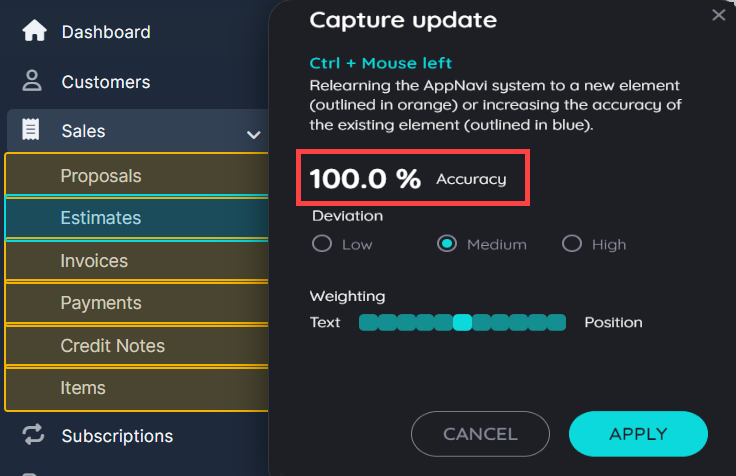
Choose the threshold according to your needs. A higher threshold requires a stronger match, while a lower threshold allows matches with lower scores.
These percentages are search thresholds, not a guarantee that the Route will behave correctly in every application state.
Step 4: Save and test
- Review the selected element and search settings.
- Save the retrained capture.
- Run the Route in the target application.
- Confirm that the step highlights the intended element.
- Repeat the test in relevant application states, especially where the layout or element order changes.
Expected result: The saved capture uses the updated search configuration, and the Route identifies the intended element in the tested scenario.
Choose how AI Search matches an element
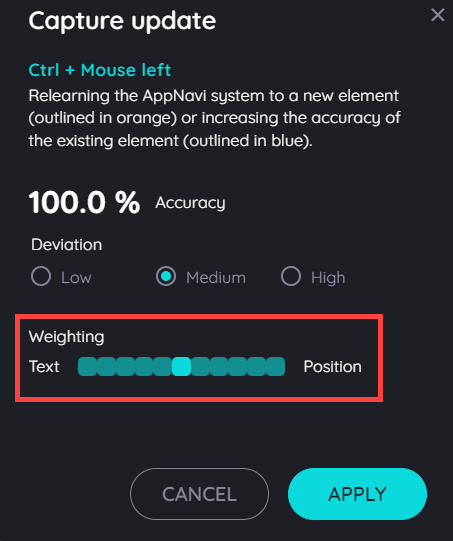
AI Search allows you to adjust the weighting between Text and Position. Choose the weighting based on how the element behaves in the application.
Search by Text
Text weighting prioritizes the element's text when identifying it.
Use this approach when the element may move to a different position but remains within the same parent container and retains identifying text.
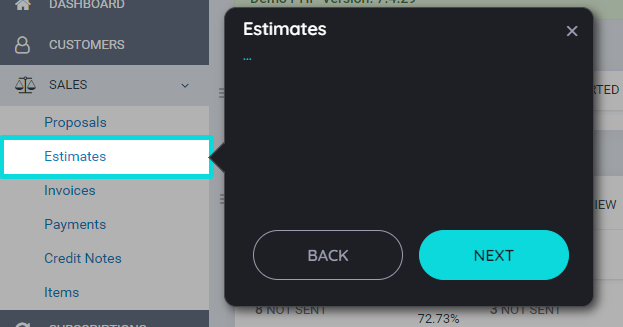
Example: A dropdown contains an option called Estimates. The option moves from the first position to the third position. Text-based matching can help AppNavi identify the option by its text rather than relying primarily on its previous position.
To adjust the setting:
- Open retrain mode for the capture.
- Select the intended element.
- Move the weighting slider towards Text.
- Review the displayed accuracy.
- If needed, hold Ctrl and left-click the intended element to refine the capture.
- Save and test the Route.
Limitation: If the element moves outside its original parent container, text weighting alone may not be sufficient to find it.
Search by Position
Position weighting prioritizes the element's position when identifying it.
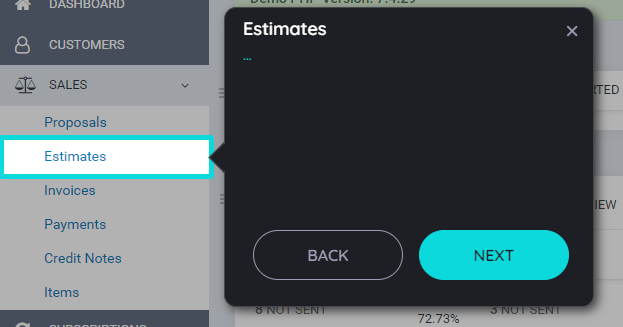
Use this approach when the element's location is a useful indicator of the intended target.
To adjust the setting:
- Open retrain mode for the capture.
- Select the intended element.
- Move the weighting slider towards Position.
- Review the displayed accuracy.
- Save and test the Route.
Important: Position-based matching may identify a similar element at the expected position rather than the original element if the page layout changes. Review the highlighted element carefully before saving.
If an element is removed from its parent container, position weighting may also fail to find it.
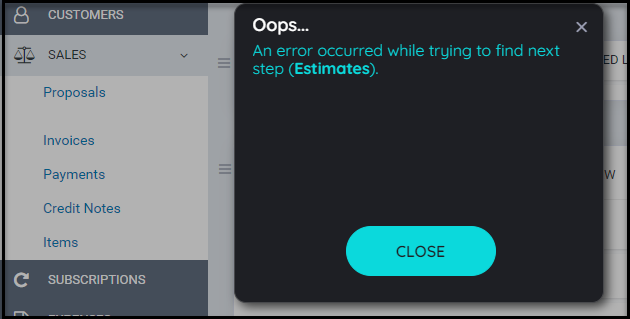
Element Removed
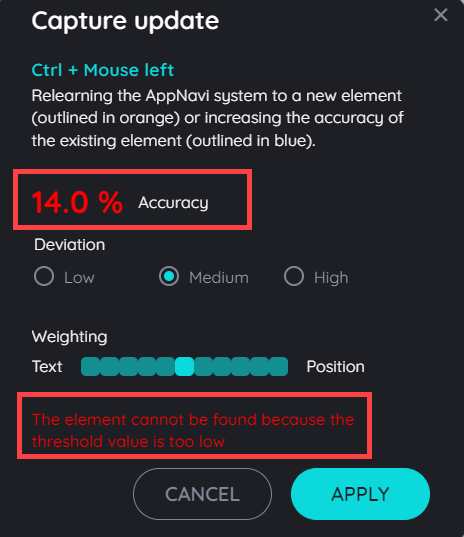
Low Accuracy On Element Not Found
Understand the accuracy indicators
Use the retrain dialog and capture information to assess whether AppNavi can identify the intended element.
| Indicator | Meaning | Recommended action |
|---|---|---|
| High displayed accuracy | The current search configuration provides a stronger match according to the search algorithm. | Test the Route to confirm that the correct element is selected. |
| Low displayed accuracy | The element may be difficult to distinguish from similar elements. | Review the selected element and adjust text/position weighting or retrain the capture. |
| Element highlighted in orange | The element is considered similar to the captured element. | Select it only if it is the intended target. |
| Element marked in red with an information message | The element could not be found in the retrain dialog or planner. | Check whether the element still exists and whether its structure or location has changed. |
Accuracy indicators help diagnose element matching. Always verify the actual result by running the Route.
Troubleshooting
| Problem | What to check | Recommended action |
|---|---|---|
| AppNavi highlights the wrong element | Several elements may have similar text or structure. | Open retrain mode, select the correct element, and test the Route again. |
| The element moved within the same parent container | The element's position may have changed while its text stayed the same. | Move the weighting towards Text and retrain the capture. |
| The element moved to another parent container | The original element structure may no longer match. | Inspect the new element structure and recapture the element if necessary. Text weighting alone may not resolve this case. |
| A similar element appears at the expected position | Position weighting may be favoring the location rather than the element's identity. | Review the selected element and consider increasing text weighting if the element has distinctive text. |
| The element cannot be found | The element may have been removed, changed, or moved outside the expected structure. | Inspect the page and the red missing-element indicator. Recapture the element if required. |
| The Route works on one page state but fails on another | The application layout or available elements may differ between states. | Test the affected states separately and retrain or recapture the element for the required behavior. |
| The search threshold is too strict | The element's match score may be below the selected threshold. | Review the threshold and weighting. Use a lower threshold only after confirming that the intended element is selected reliably. |
Related documentation
- Record a Route — Create a Route and capture application elements.
- AppNavi Element Search — Learn about element search in AppNavi.
- Fuzzy Search — Review the alternative search approach.
Next step: After retraining, test the complete Route in the target application. Confirm that each step targets the intended element before publishing the updated guidance.
Fuzzy Search
Fuzzy search displays accurate results in a minimum time frame as Fuzzy search supports multiple Captures in one Step, it starts with finding element using first Capture, if its able to find the element, its stops the search, else it goes to next Capture, this cycle keeps repeating until it finds the element or there are no Captures left.
Importance of Fuzzy search
In AppNavi, we use other search modes which helped to find the element but sometimes it didn’t find the element accurately.
AppNavi has added Fuzzy Search with optimized search results which helps to find an element more quickly and accurately providing users more confidence to use a system. In Fuzzy Search It goes through every captured element and for each element, it uses its position in the children array of parent, classes and attributes to find it in the DOM.
How Fuzzy Search Works?
Fuzzy search utilizes captured element's metadata (position in the children array of parent, classes and attributes) to locate element in the DOM.
After it finds an element, it runs a verification step called Heuristic Search. In that, it makes sure that path of the element must match atleast 80% of the original captured path. If verification fails, the result is discarded, as a result Fuzzy search either stops with an error or is able to find the element using another Capture.
When the step's search is started, fuzzy search algorithm is scheduled to run every 50 ms for 30 seconds. It stops the search if it finds the element before 30 seconds max limit.
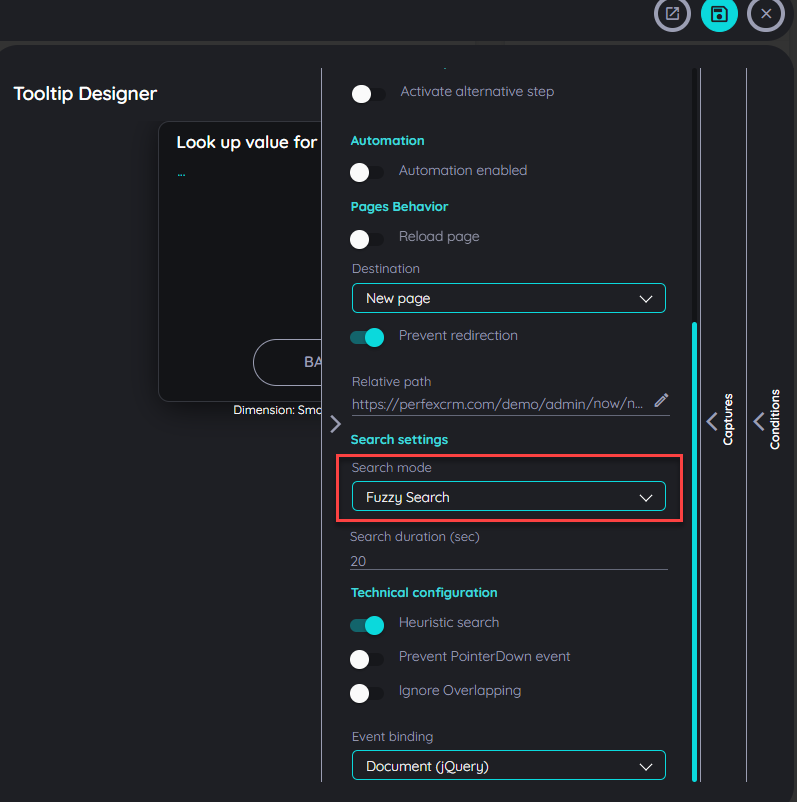
Setting Fuzzy search
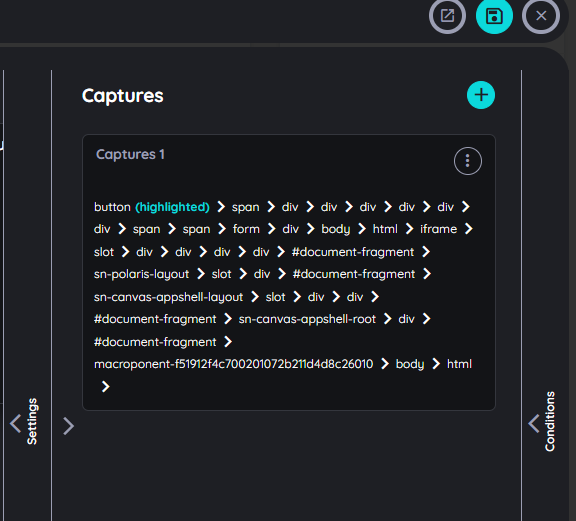
Recapture in Fuzzy Search
Users can recapture the elements which have been captured if any element has been removed or has changed positions.
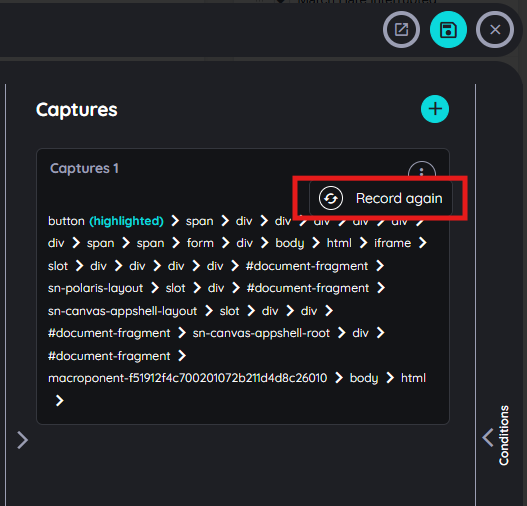
Record Again
Add Captures in Fuzzy Search
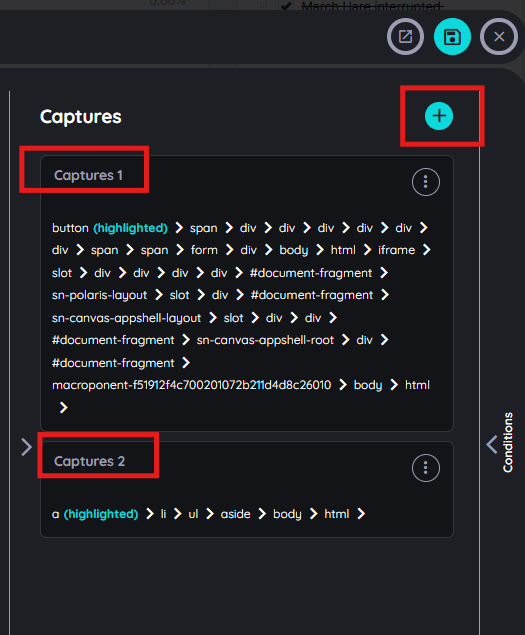
Users can add multiple captures to determine the captured element if any element is not found during the searching in DOM when the element is being adjusted during the search.
Updated 4 days ago