
Auto Logout
Overview
Auto Logout automatically signs users out after they remain inactive for the configured period.
This helps protect user sessions when the AppNavi Portal is left unattended.
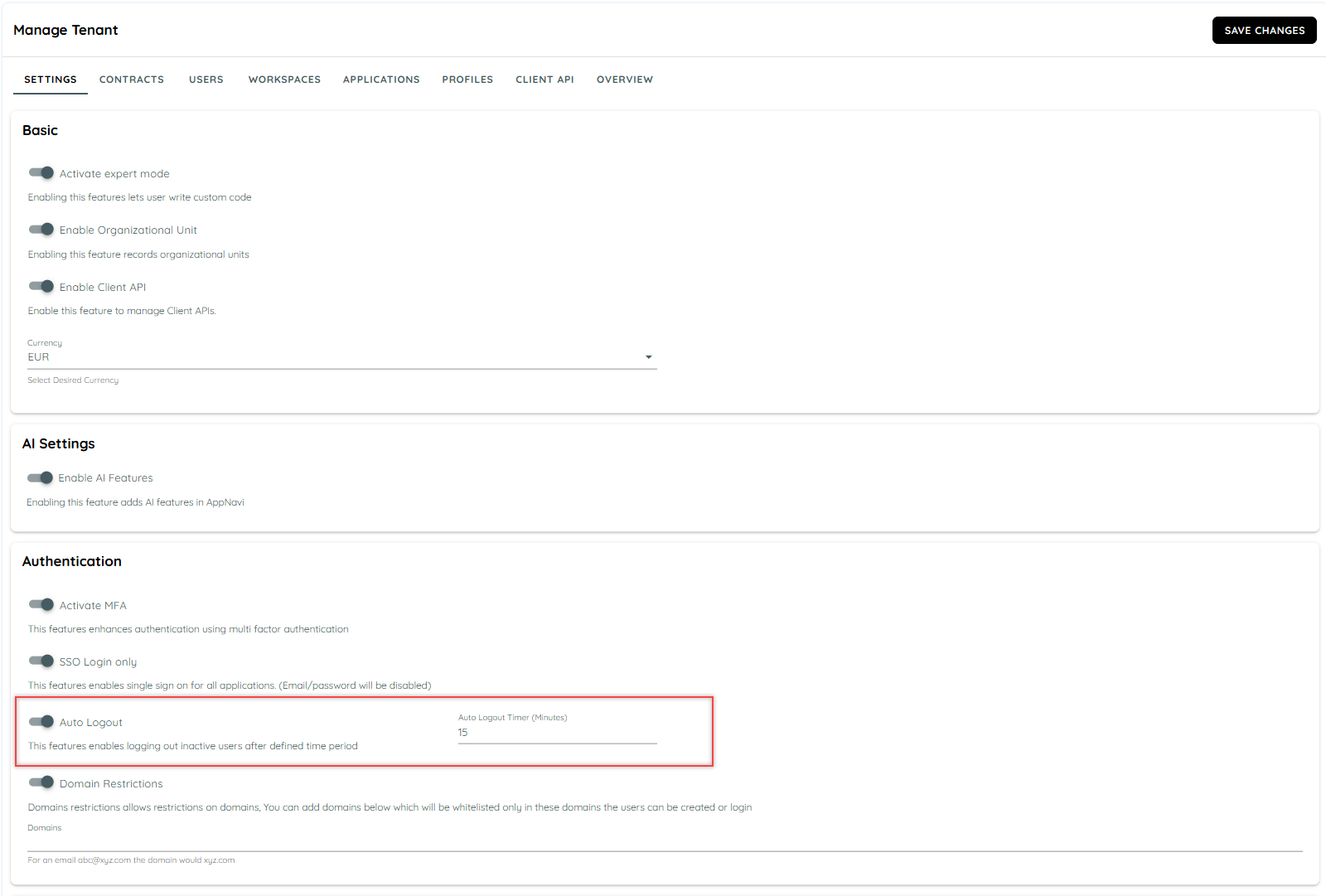
Configure Auto Logout
- Go to Manage Tenant → Settings → Authentication.
- Enable Auto Logout.
- Set the inactivity Timeout.
- Click Save Changes.
- Refresh the page to apply the configuration.
Timeout
- Default: 15 minutes
- Minimum: 10 minutes
- Maximum: 60 minutes
The timeout defines how long a user can remain inactive before being automatically logged out.
Logout Reminder
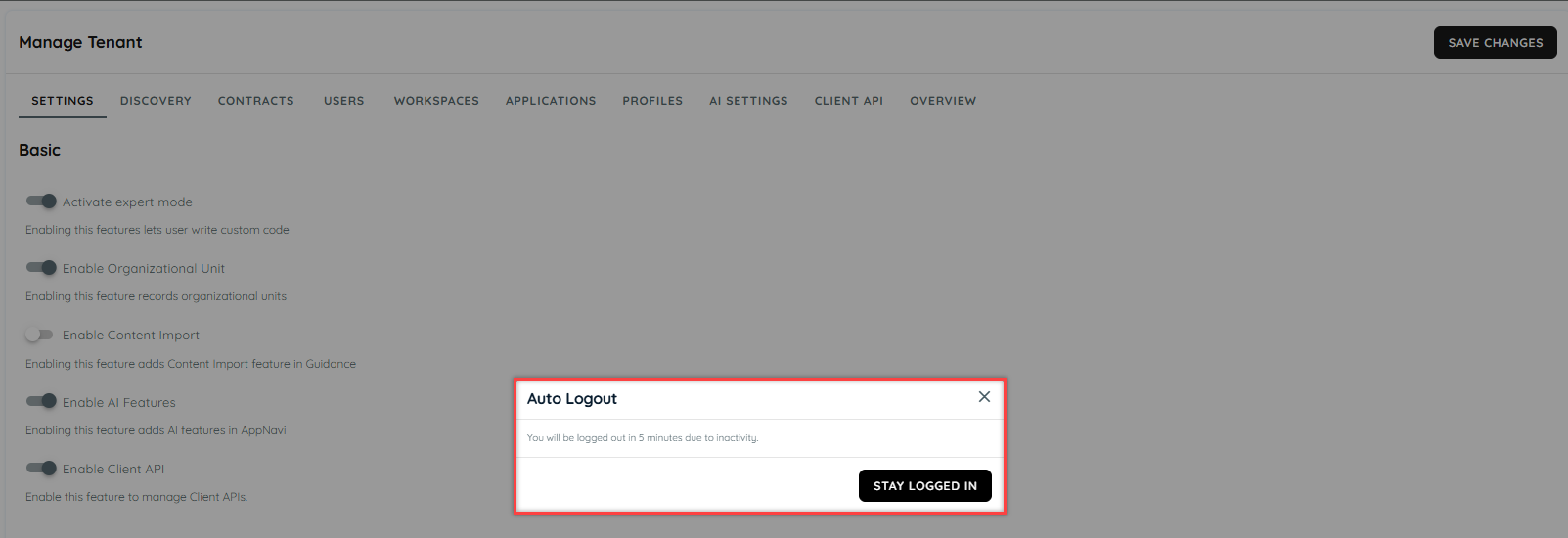
When Auto Logout is enabled, AppNavi displays a logout reminder 10 minutes before the configured inactivity timeout is reached. The reminder gives the user an opportunity to continue their session before they are automatically logged out.
For example, if the timeout is set to 30 minutes:
User becomes inactive → 20 minutes of inactivity → Reminder appears → 10 minutes remaining → Automatic logout at 30 minutes
If the user interacts with the application after the reminder appears, the session can continue and the user is not logged out due to inactivity.
Affected Sessions
Auto Logout applies to user sessions within the configured tenant. When the inactivity timeout is reached, the affected session is logged out and the user must sign in again.
Validate Auto Logout
After saving and refreshing:
- Sign in to the AppNavi Portal.
- Remain inactive.
- Confirm the logout reminder appears 10 minutes before the configured timeout.
- Continue without interaction.
- Confirm the session is automatically logged out when the timeout is reached.
- Repeat the user activity to confirm an active session is not logged out due to inactivity.
Note: After changing the timeout, always save and refresh before validating the new configuration.
Updated about 2 months ago