Discovery Contract
The Discovery Contract is the license required to use AppNavi Discovery features with applications using the AppNavi Avatar Light.
A Discovery Contract must be assigned to the tenant and the relevant applications must be assigned to the contract before Discovery is available for those applications.
This page explains:
- What the Discovery Contract enables
- What you need before activation
- How to assign the contract
- How application assignment affects Discovery
- What Discovery data is collected
- What data is not collected by default
- How to verify that Discovery is working
- Where to find related contract and data protection information
What the Discovery Contract Enables
The Discovery Contract enables Discovery functionality for applications assigned to the contract.
Once the contract is active and assigned to an application, users can use the Discovery features available for that application.
The Discovery Contract also enables the Discovery-related Custom Code APIs.
A Discovery Contract can be used together with other contracts. For example, an application can have:
- Guidance + Discovery
- Insights + Discovery
- Guidance + Insights + Discovery
The available functionality depends on the contracts assigned to the application.
Before You Start
Make sure the following requirements are met before configuring Discovery.
Required Access
You need access to the tenant's contract management area to assign applications to a Discovery Contract.
If you cannot view or manage the required contract, contact your AppNavi Tenant Owner or the person responsible for contract administration.
Required Contract
Your tenant must have an active Discovery Contract.
The contract contains information such as:
- Contract title
- Contract ID
- Contract type
- Contract modules
- Contract lifespan
You can view available contracts from:
Manage Tenant → Contracts
The Contracts page allows you to view contracts and expand a contract to see the applications assigned to it.
Required Application
The application that should use Discovery must be assigned to the Discovery Contract.
Creating or having an AppNavi application alone does not make Discovery available. The application must also be associated with a contract that contains the Discovery module.
How the Discovery Contract Works
The Discovery Contract works at two levels:
1. Tenant level
The Discovery Contract must be available and assigned to the tenant.
2. Application level
The applications that should use Discovery must be assigned to the Discovery Contract.
Only applications assigned to the contract receive the Discovery functionality provided by that contract.
The relationship can be summarized as:
Discovery Contract → Tenant → Assigned Applications → Discovery available
If the contract is available but an application has not been assigned to it, Discovery will not become available for that application.
Assign the Discovery Contract
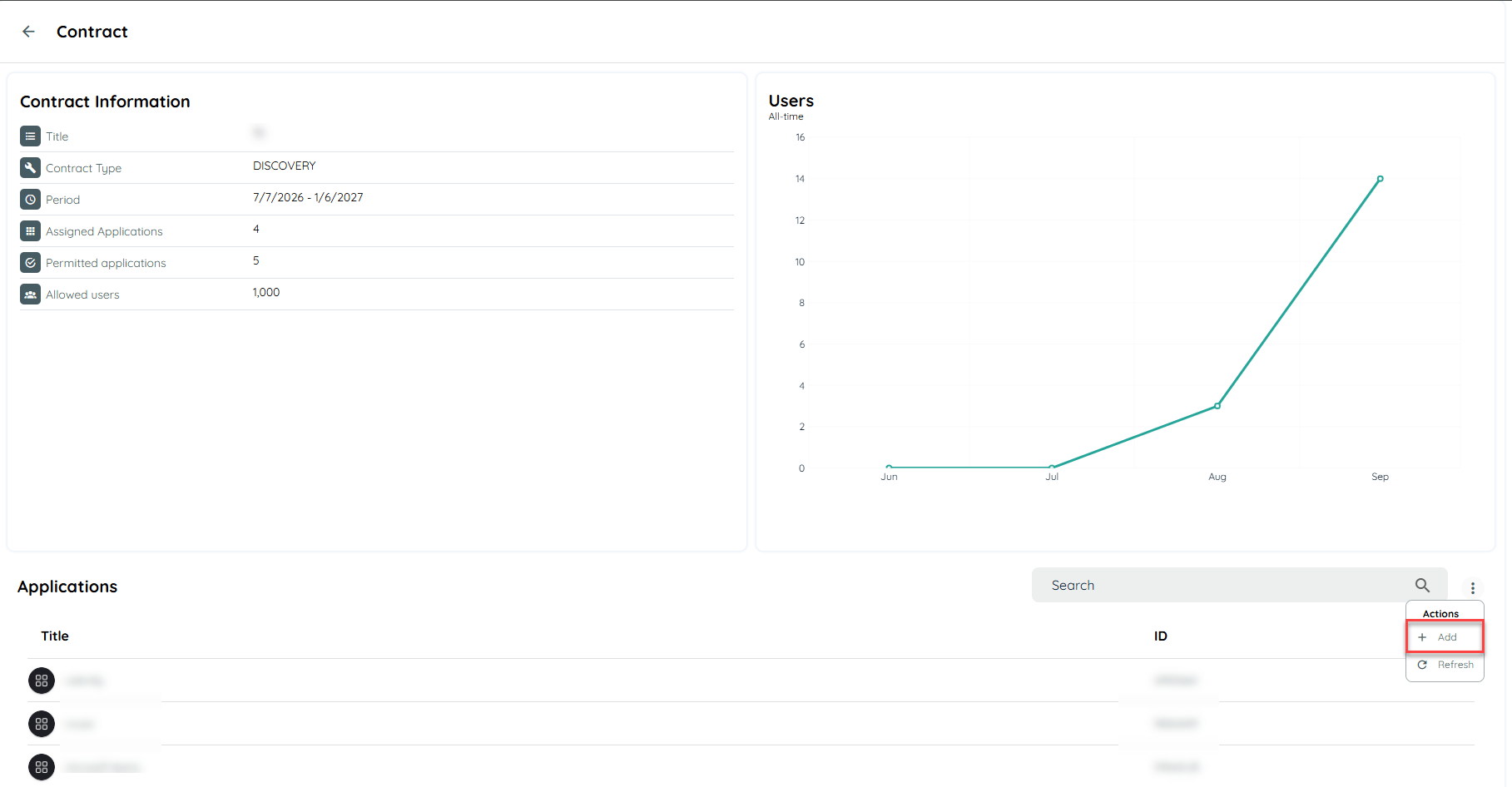
Use the contract management functionality to assign applications to the Discovery Contract.
Steps
- Open the AppNavi Portal.
- Go to Manage Tenant.
- Open the Contracts tab.
- Locate the Discovery Contract.
- Open the contract to view its details.
- Verify that the contract includes the Discovery module.
- Check the contract lifespan to make sure the contract is active.
- Add the required application to the contract.
- Save the contract assignment.
- Open the contract again and confirm that the application is listed.
Discovery Contract
For more information about contracts and application assignment, see Contracts.
Verify the Application Assignment
After assigning the application, verify the assignment before troubleshooting Discovery itself.
- Open Manage Tenant → Contracts.
- Locate the Discovery Contract.
- Expand the contract.
- Find the application you assigned.
- Confirm that the application is listed.
- Check that the contract is still within its active lifespan.
- Open Manage Tenant → Applications.
- Locate the same application.
- Verify that the application is active and configured for the expected workspace.
Enable App Discovery
Assigning the Discovery Contract makes the licensed functionality available, but Discovery recording must also be enabled in the tenant's Discovery settings.
To enable App Discovery:
- Open Manage Tenant.
- Open Discovery Settings.
- Enable App Discovery.
- Select the required Discovery data source.
- Save the configuration.
AppNavi currently documents Extension and Defender API as Discovery data sources. Only one integration type can be active at a time.
For the Chrome Extension integration, Discovery collects activity from users' browsing activities.
For Defender API integration, the available Discovery data and metrics differ from the Chrome Extension integration.

See App Discovery for the detailed Discovery configuration.
Activation Checklist
Use this checklist before considering Discovery ready for use.
| Requirement | Status to verify |
|---|---|
| Discovery Contract exists | Contract is visible under Manage Tenant → Contracts |
| Contract is active | Contract lifespan is valid |
| Discovery module is included | Contract displays the Discovery module |
| Application is assigned | Application appears under the Discovery Contract |
| Application is active | Application is enabled in the tenant |
| App Discovery is enabled | Discovery is enabled under Discovery Settings |
| Data source is configured | Extension or Defender API is selected |
| Discovery data is available | Discovered applications or activity appear in Discovery |
How to Confirm Discovery Is Working
Do not rely only on the contract assignment to confirm that Discovery is working.
After completing the configuration, verify that Discovery data is being generated.
Extension-Based Discovery
If the Chrome Extension is configured as the Discovery data source:
- Confirm that the Discovery Contract is assigned to the application.
- Confirm that App Discovery is enabled.
- Confirm that the Chrome Extension is available to the relevant users.
- Have a test user access a web application that should be discovered.
- Allow the user to interact with the application.
- Open the Discovery area in the AppNavi Portal.
- Check whether the application appears in the discovered application data.
- Verify that usage information is being recorded.
AppNavi Discovery records activity time based on user interaction with the web application. It does not record user inputs. Discovery events are sent once within a 24-hour period for an application when the required conditions are met.
Defender API Discovery
If Defender API is selected as the Discovery data source, verify the Defender integration separately.
The Defender API integration provides different data from the Chrome Extension integration.
For example:
| Capability | Chrome Extension | Defender API |
|---|---|---|
| Discovery events | Full Discovery events | AD user data |
| First Seen / Last Seen | Available | Available |
| App Graph | Available | Not generated |
| Risk Analytics | Available | Not available |
| Discovery application data | Full available data | More limited data |
| Data Classification | Available | Available |
| Data Processing Applications | Available | Available |
These differences are important when validating the result. A Defender API configuration should not be expected to produce exactly the same Discovery data as the Chrome Extension integration.
What Data Does Discovery Collect?
AppNavi Discovery is designed to provide an overview of the web applications used within an organization.
Depending on the configured Discovery integration and available features, Discovery can collect information such as:
- Web applications accessed
- Application URL or origin
- Activity time
- Browser
- Browser language
- Country
- User identifier
- Screen resolution
- Copy and paste activity counts, where applicable
The Discovery Contract documentation states that information about the web applications accessed, the duration users spend on those applications, and optionally the number of copy/paste activities performed on each page is collected. The data is stored securely in the AWS Europe Datacenter.
What Discovery Does Not Collect by Default
AppNavi states that it does not collect personally identifiable information (PII) by default, with specific exceptions and operational data described in its documentation.
The Discovery Contract documentation identifies the following:
- IP addresses in logs for security purposes
- Approximate geographic location, such as country and city
- Masked IP addresses required for ongoing system operation
- A generated user ID used to uniquely identify a user for analytics operations
- Browser information
- Operating system information
- Page URL information
AppNavi states that URL query strings are not recorded because they could contain sensitive information.
The App Discovery documentation also states that Discovery does not record user inputs and instead records interaction time with the page.
For the complete explanation of collected Discovery data, see What data is collected?.
Example of Discovery Data
The following is an example of data transmitted to the AppNavi Analytics API:
{
  "activityTime": 24,
  "appUrl": "https://react.dev",
  "copyCount": 0,
  "pasteCount": 0,
  "countryCode": "DE",
  "eventSentAt": 1742389009452,
  "resolution": "1536x864",
  "userId": "8ddf850205c949b0ad8d700af13a7e6c"
}
This example shows that Discovery analytics can contain usage information such as activity time, application URL, copy/paste counts, country, event timestamp, screen resolution, and a generated user ID.
Privacy and Data Protection
Discovery collects usage information to help organizations understand which web applications are being used.
Because Discovery processes usage-related information, review your organization's privacy and data protection requirements before enabling the feature.
AppNavi follows a data-minimal approach and states that customer data is protected using technical, operational, and contractual security measures. Customer analytics data is encrypted by default.
For detailed information about AppNavi's security and data protection measures, see Security & Data Protection.
For the specific information collected by Discovery, see What data is collected for Discovery.
Important Privacy Considerations
Before activating Discovery, make sure the appropriate internal stakeholders have reviewed the feature where required by your organization's policies.
Consider:
- Which users will be included in Discovery recording.
- Which applications may be discovered.
- Which Discovery data will be processed.
- Whether country or organizational restrictions should be configured.
- Whether additional privacy or employee-consultation requirements apply to your organization.
AppNavi provides Discovery recording filters that can restrict recording by country or organizational unit.
Discovery Data Source
AppNavi supports different ways to provide Discovery data.
Chrome Extension
The Chrome Extension provides Discovery data directly from users' browsing activity.
The extension creates a pseudonym for AppNavi users, allowing users to be tracked across multiple applications while using the AppNavi Extension.
Microsoft Defender API
The Microsoft Defender API provides an alternative to deploying the AppNavi Extension across all devices.
The two integration types provide different data and capabilities, and only one can be active at a time.
See AppNavi Discovery – Microsoft Defender API Integration for the Defender-specific setup.
Contract Combinations
An application can use multiple AppNavi contracts.
For example:
| Contract combination | Available functionality |
|---|---|
| Discovery | Discovery functionality |
| Insights + Discovery | Insights and Discovery functionality |
| Guidance + Discovery | Guidance and Discovery functionality |
| Guidance + Insights + Discovery | Guidance, Insights, and Discovery functionality |
The Avatar operates according to the features provided by the contracts assigned to the application.
Troubleshooting
Discovery Contract is not available
Check whether your tenant has an active Discovery Contract.
If the contract is not listed under Manage Tenant → Contracts, contact your AppNavi administrator or AppNavi support.
Discovery is not available for an application
Check the following:
- The Discovery Contract is active.
- The Discovery module is included in the contract.
- The application is assigned to the Discovery Contract.
- The application is active.
- App Discovery is enabled under Discovery Settings.
- The correct Discovery data source is configured.
The application is assigned but no Discovery data appears
Check:
- Whether App Discovery is enabled.
- Whether the selected data source is configured correctly.
- Whether the Chrome Extension is installed and available to the relevant users when using extension-based Discovery.
- Whether the test user has accessed the web application.
- Whether the application is excluded by Discovery filters or blacklist configuration.
- Whether enough time has passed for the Discovery event to be processed.
App Discovery uses configured recording restrictions and blacklist mechanisms, so an application may not appear if it is excluded by the applicable Discovery configuration.
Discovery data looks different after changing the data source
AppNavi does not combine metrics from the Chrome Extension and Defender API integrations.
When switching sources, previously discovered applications remain visible, but their metrics are updated using data from the currently selected source. A change in displayed metrics after switching sources is therefore expected.
Validation Checklist
Use this checklist after completing the Discovery setup.
Contract
- Discovery Contract is available.
- Discovery module is included.
- Contract is within its active lifespan.
- Required application is assigned to the contract.
Tenant Configuration
- App Discovery is enabled.
- Correct Discovery data source is selected.
- Required Discovery settings are configured.
Application
- Application is active.
- Application is assigned to the Discovery Contract.
- Application is not excluded by applicable Discovery restrictions.
Data Collection
- A test user has accessed a relevant web application.
- Discovery data appears in the Discovery area.
- Application usage information is visible.
- The collected information matches the expected Discovery data source.
Privacy
- Required internal privacy or data protection review has been completed.
- Discovery recording restrictions have been configured where required.
- Relevant users or organizational groups have been considered before activation.
Related Documentation
Contract Management
Use this guide to understand AppNavi contracts and how applications are assigned to contracts.
Discovery Configuration
Use this guide to configure App Discovery and understand how Discovery data is generated.
Discovery Data
What data is collected for Discovery
Use this guide to understand the information collected and transmitted by Discovery.
Defender API
AppNavi Discovery – Microsoft Defender API Integration
Use this guide when Defender API is selected as the Discovery data source.
Security and Privacy
Use this guide for AppNavi's broader security, encryption, and data protection information.
Summary
Before using Discovery, verify these three things:
1. License
An active Discovery Contract is available for the tenant.
2. Assignment
The required application is assigned to the Discovery Contract.
3. Activation
App Discovery is enabled and the required Discovery data source is configured.
After completing these steps, validate the setup by checking that Discovery data is being generated for a test user and appears in the Discovery area.
Discovery is ready when the contract is active, the application is assigned, App Discovery is enabled, and expected Discovery data is visible.
Updated about 1 month ago