Risk Overview
The Risk Overview helps you identify and assess risks associated with applications discovered through AppNavi Discovery.
You can evaluate applications across three risk areas:
- Security
- Compliance
- Legal
Risk information can be assigned to discovered applications and is summarized in the Risk Overview dashboard. You can use the results to identify applications that require further review, apply governance actions, and monitor the risk profile of discovered applications.
This guide explains the complete workflow from configuring risk criteria to reviewing and acting on the results.
Before You Start
Before using Risk Overview, make sure that:
- App Discovery is enabled for your tenant.
- You have access to the Discovery module.
- You have permission to configure Discovery risk settings if you need to change the risk criteria.
- Discovered applications are available for analysis.
For information about enabling and configuring Discovery, see App Discovery.
Tip: If you are setting up Discovery for the first time, complete the Discovery configuration before configuring Risk Overview.
How Risk Assessment Works
Risk assessment follows this process:
Discover applications → Configure risk criteria → Assign risk attributes → Calculate risk → Review Risk Overview → Investigate applications → Take governance action
Risk options are predefined in AppNavi and are provided through the application catalogue.
When a discovered application matches an application already available in the catalogue, AppNavi can automatically provide available application information such as:
- Vendor
- Privacy Policy
- Terms of Service
- Business Capability
- Category
- Risk information
The discovered application can then be reviewed and adjusted according to your organization's requirements.
Risk Categories
AppNavi provides three predefined risk categories.
| Risk Category | What it represents | Example |
|---|---|---|
| Security | Risks related to data breaches, unauthorized access, or system vulnerabilities | An application may expose organizational data or use an insecure authentication method |
| Compliance | Risks related to regulatory or organizational requirements | An application may not meet an organization's required compliance standards |
| Legal | Risks related to legal, contractual, or intellectual property concerns | An application may have terms or licensing conditions that require legal review |
These categories help separate different types of concerns so that the appropriate teams can review them.
Step 1: Configure Risk Criteria
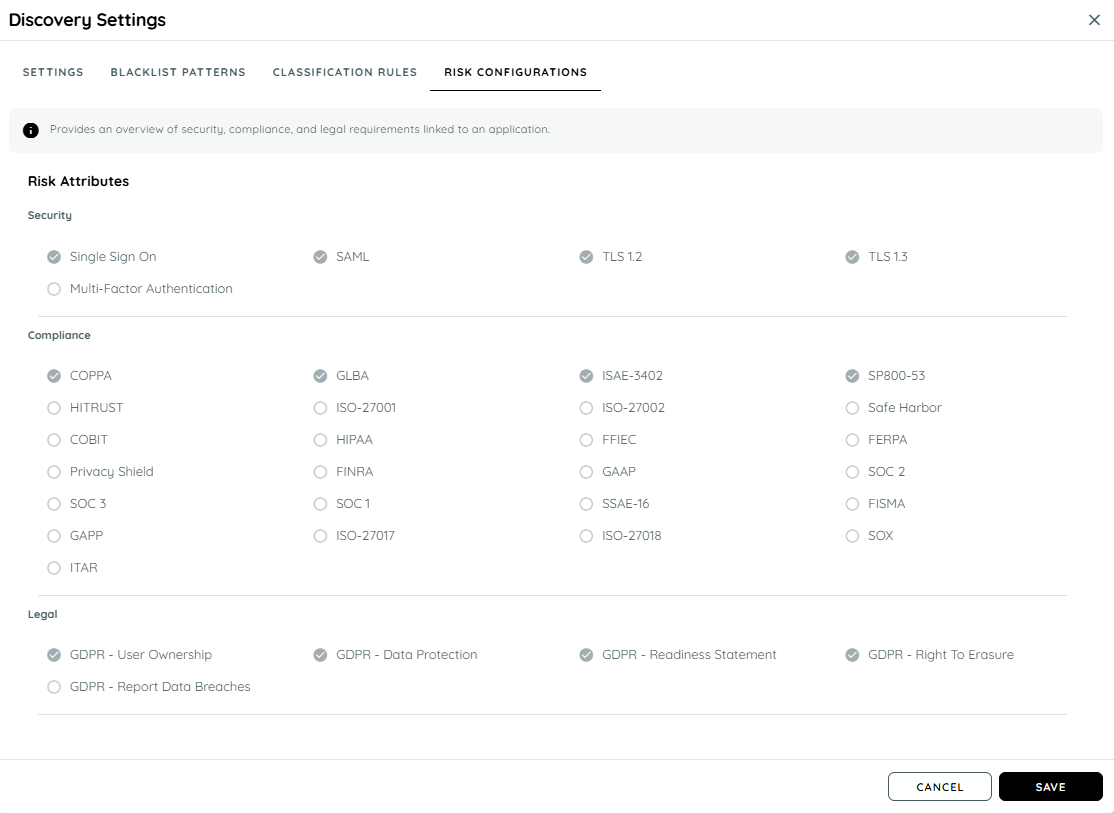
Before reviewing the Risk Overview dashboard, configure which risk attributes are important for your organization.
Risk Configurations
Risk configuration is available under the Discovery settings.
Go to:
Discovery → Settings → Risk
The Risk configuration contains separate settings for:
- Security
- Compliance
- Legal
For each category, select the attributes that should be treated as the organization's relevant risk criteria.
Example
Assume the Security category contains 10 available risk attributes.
If your organization selects 5 attributes as relevant in the Risk configuration, those 5 attributes become the criteria used for the Security risk calculation.
The same approach applies independently to Compliance and Legal.
Important: Risk configuration determines how the risk percentage is calculated. Review and agree on the selected attributes with the teams responsible for security, compliance, and legal governance before changing these settings.
Step 2: Review Discovered Applications
After applications have been discovered, open the Discovery module and review the discovered applications.
You can open an individual discovered application and edit its information.
The application can contain information such as:
- Application title
- Application URL
- Hosting
- Vendor
- Category
- Privacy Policy
- Terms of Service
- Business Capability
- Risk
Open the application's Risk section to review or assign the available Security, Compliance, and Legal risk attributes.
The risk can also be managed for applications classified as Company Apps or Shadow Apps.
Step 3: Assign Risk Attributes
To assign risk attributes to a discovered application:
- Open Discovery.
- Open the Discovered Apps area.
- Find the application you want to review.
- Open the application's actions menu.
- Select Edit App.
- Open the Risk tab.
- Select the applicable Security attributes.
- Select the applicable Compliance attributes.
- Select the applicable Legal attributes.
- Save the changes.
Expected Result
The selected risk attributes are saved for the application and are reflected in the Risk Overview.
Automatic Risk Information from the Catalogue
Some applications may already exist in the AppNavi application catalogue.
When a discovered application matches an application in the catalogue, available catalogue information can be assigned automatically.
This can include:
- Vendor
- Privacy Policy
- Terms of Service
- Business Capability
- Category
- Risk
This reduces the amount of manual classification required for known applications.
However, catalogue information should still be reviewed against your organization's requirements before it is treated as the final governance decision.
Step 4: Understand the Risk Overview Dashboard
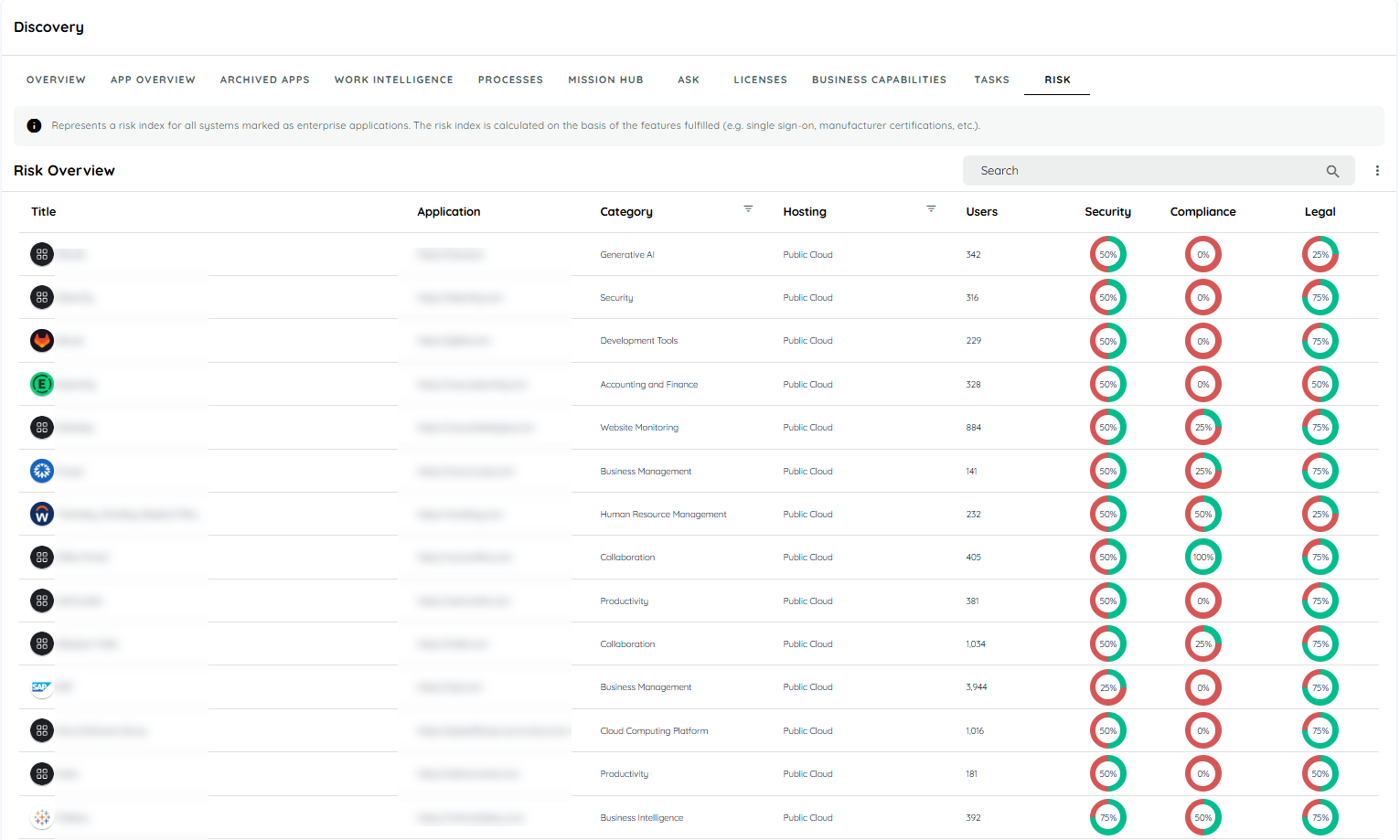
The Risk Overview dashboard summarizes the risk attributes assigned to discovered applications.
The dashboard separates results into:
- Security
- Compliance
- Legal
Use the dashboard to understand how many relevant risk attributes have been selected for the discovered applications and where further review may be required.
How to Read the Risk Charts
Each risk category is represented graphically.
The chart contains two sections:
- Green — percentage of configured risk options that are selected.
- Red — percentage of configured risk options that are not selected.
This provides a quick view of the current risk configuration for each category.
Example
Assume the Security configuration contains 10 relevant attributes.
If an application has 5 of those attributes selected:
5 selected ÷ 10 configured × 100 = 50%
The Security chart therefore represents 50% selected and 50% unselected.
Risk Calculation
The Risk Overview calculation depends on the risk attributes configured by the administrator.
When Risk Is Configured
If risk configuration contains a defined set of attributes, the calculation is based on the selected attributes compared with the configured attributes.
For example:
- 10 Security attributes exist.
- 5 are configured as relevant.
- The application has those same 5 attributes selected.
The configured risk attributes are fully matched, resulting in 100% for that category.
If the application selects the attributes that were not configured as relevant, the result is 0% against the configured criteria.
When Risk Is Not Configured
If no risk configuration has been defined, the calculation is based on:
Selected Attributes ÷ Total Attributes × 100
This means that the result represents the proportion of all available attributes selected for the application.
Important: The Risk Overview percentage should be interpreted according to your configured criteria. It is not automatically a universal security, compliance, or legal severity score.
Investigate a Risk Result
You can select a chart or risk result to investigate the applications contributing to the displayed information.
When you select a chart element, AppNavi displays the relevant risk options for the application in a read-only dialog.
This allows you to understand which attributes are contributing to the displayed result without immediately changing the application's configuration.
Use this investigation step before taking a governance action.
Filters and Analysis
Use Discovery filters to narrow the applications and user activity you want to analyze.
The available Discovery filters include:
- Country
- Organizational Unit
- Department
Selected filters are applied to the Discovery Overview and application overview.
Only applications associated with users matching the selected filters are displayed, and related analytics update according to the selected users.
Example
Suppose you want to review applications used by the Development team in Germany.
Apply:
- Country: Germany
- Organizational Unit: IT
- Department: Development
The Discovery analytics then represent the selected user group instead of the entire tenant.
This can help governance teams investigate whether a particular application is being used by a specific region, organizational unit, or department.
Example: Reviewing a SaaS Application
Suppose your organization discovers a new SaaS application used by several employees.
You can follow this workflow:
1. Discover
The application appears in Discovered Apps because users are accessing it.
2. Enrich
Open Edit App and review information such as:
- Vendor
- Hosting
- Category
- Privacy Policy
- Terms of Service
- Business Capability
3. Assess
Open the Risk tab and select the applicable:
- Security risks
- Compliance risks
- Legal risks
4. Review
Open Risk Overview to see how the application contributes to the tenant's risk picture.
5. Investigate
Select the relevant chart or application to see the associated risk attributes.
6. Govern
Depending on your organization's process, assign the appropriate follow-up task or take the required application governance action.
This creates a repeatable process from application discovery to governance review.
Company Apps and Shadow Apps
Risk information can also be reviewed for applications classified as Company Apps and Shadow Apps.
This allows organizations to apply the same Security, Compliance, and Legal assessment approach to different categories of discovered applications.
For example:
| Application type | Possible governance question |
|---|---|
| Company App | Does the officially approved application continue to meet our requirements? |
| Shadow App | Is this unapproved application safe and appropriate for organizational use? |
| Newly discovered app | Does this application require security, compliance, or legal review? |
The Company Apps classification is managed within Discovery.
Governance Actions
Risk assessment is intended to support governance decisions rather than replace them.
After reviewing an application's risk information, the responsible team can determine the appropriate next action.
Possible actions include:
- Review the application with Security.
- Review the application with Compliance.
- Request Legal review.
- Validate the vendor information.
- Review the application's Privacy Policy.
- Review the Terms of Service.
- Classify the application as a Company App where appropriate.
- Review whether the application should remain in use.
- Assign a follow-up task to the responsible team.
AppNavi Discovery supports assigning tasks to discovered applications so that governance activities can be tracked alongside application information.
Important: AppNavi provides the risk information and classification capabilities. The final decision to approve, restrict, or discontinue an application should follow your organization's governance process.
Export and Reporting
Use Discovery's reporting and export capabilities when risk information needs to be reviewed outside AppNavi or shared with stakeholders.
Discovery provides exportable application and reporting data, including discovered application information and applicable usage and risk-related fields.
Use exports for activities such as:
- Security reviews
- Compliance assessments
- Legal reviews
- Application inventory reviews
- Management reporting
- Audit preparation
- Follow-up with application owners
Note: The exact columns included in an export depend on the Discovery data and features available in your tenant.
Example Governance Workflow
A security team can use Risk Overview as follows:
Discovery identifies an application
↓
Application is enriched with catalogue or manually entered information
↓
Security, Compliance, and Legal attributes are assigned
↓
Risk Overview summarizes the configured risk
↓
Security team filters the data to a country or department
↓
Team investigates the affected applications
↓
Application owner or governance team receives a follow-up task
↓
The team reviews the application and takes the appropriate organizational action
This workflow allows Discovery to function as more than an application inventory. It provides a process for identifying applications, assessing them, and directing them into the organization's governance process.
Recommended Administration Process
For consistent results, use the following process when introducing Risk Overview.
1. Define risk criteria
Security, Compliance, and Legal teams agree which risk attributes are relevant.
2. Configure Risk Settings
An authorized administrator enters the agreed attributes under:
Discovery → Settings → Risk
3. Collect Discovery Data
Enable App Discovery and allow applications to be discovered.
See App Discovery.
4. Review application metadata
Review catalogue information and manually enrich applications where required.
5. Assign application risks
Use the application's Risk tab to select the applicable risk attributes.
6. Review Risk Overview
Use the dashboard to understand the overall distribution of configured risk attributes.
7. Filter the results
Use Country, Organizational Unit, and Department filters when the analysis needs to focus on a particular group of users.
8. Investigate
Open the relevant application or chart result to understand which risk attributes are contributing to the result.
9. Take governance action
Assign follow-up tasks or route the application to the appropriate Security, Compliance, Legal, or application owner team.
10. Export when required
Export the relevant Discovery information for audits, reviews, or stakeholder reporting.
Validation Checklist
Use this checklist after configuring Risk Overview.
Risk Configuration
- Security risk criteria have been reviewed.
- Compliance risk criteria have been reviewed.
- Legal risk criteria have been reviewed.
- The configured attributes match the organization's governance requirements.
Application Assessment
- Discovered applications are available.
- Relevant application metadata has been reviewed.
- Risk attributes have been assigned where required.
- Company Apps and Shadow Apps have been reviewed where applicable.
Dashboard
- Security results are displayed.
- Compliance results are displayed.
- Legal results are displayed.
- Chart percentages reflect the configured risk criteria.
- Selecting a chart result displays the related risk information.
Analysis
- Country filtering works as expected.
- Organizational Unit filtering works as expected.
- Department filtering works as expected.
- The filtered results represent the selected user group.
Governance
- Applications requiring review have been identified.
- Appropriate follow-up tasks have been assigned.
- Relevant stakeholders have received the required information.
- Required reports or exports have been generated.
Common Questions
Does a higher Risk Overview percentage automatically mean that an application is unsafe?
No.
The percentage represents the selected risk attributes according to the configured risk criteria. It should be interpreted within your organization's Security, Compliance, and Legal assessment process.
Who defines the risk criteria?
Users with access to the Discovery risk configuration can select the attributes used for Security, Compliance, and Legal risk calculations.
The selected criteria should reflect the organization's governance requirements.
Can I change the risk assigned to a discovered application?
Yes.
Open the discovered application, select Edit App, open the Risk tab, and update the applicable Security, Compliance, and Legal attributes.
Can catalogue information affect risk?
Yes.
When a discovered application matches an application in the AppNavi catalogue, catalogue information can include risk attributes and other application metadata.
Can I review risk for Company Apps and Shadow Apps?
Yes.
Applications classified as Company Apps and Shadow Apps can also be edited and assigned risk attributes.
Can I analyze risk for a specific department?
Use the Discovery filters to select the required Department. You can also combine Department with Country and Organizational Unit filters to narrow the analysis further.
Related Documentation
- App Discovery — Configure Discovery and review discovered applications.
- Company Apps — Classify and manage applications approved for company use.
- Discovery Contract — Understand the licensing requirements for Discovery.
- Contracts — Review contracts and application assignments.
- Security & Data Protection — Review AppNavi security and data protection information.
- AppNavi Public APIs — Access Discovery application data programmatically.
Summary
Risk Overview provides a central view of Security, Compliance, and Legal risks associated with applications discovered through AppNavi Discovery.
The recommended workflow is:
Configure risk criteria → Discover applications → Assign or review risk attributes → Analyze the Risk Overview → Filter and investigate → Take governance action → Export results
Use the Risk Overview as an assessment and governance aid. The actual decision to approve, restrict, or take further action on an application should follow your organization's established Security, Compliance, Legal, and application governance processes.
Updated 27 days ago