
Multilanguage
Multilanguage lets you offer your AppNavi content in several languages, so users can work with it in the language they understand best. You can translate routes, pins, posts, news, collections, NPS (Net Promoter Score) and info content.
Who This Is For
Content authors and administrators who create AppNavi content for users who speak different languages.
Before You Begin
• You have permission to edit the content you want to translate.
• The content already exists in its original language.
• The language you want to add is supported. See Supported Content Languages.
How Multilanguage Works
Each content item can have versions in several languages. AppNavi shows users the version that matches the language setting of their browser, if the content has been translated into that language.
Translation Options
When you add a language, you choose how the new language version starts:
• Empty: the new language starts with no content. You add the text yourself, which gives you full control over the translation.
• Copy: the new language starts with a copy of the existing content, which you then edit.
• Translate Automatically: AppNavi translates the content into the selected language for you, so it is available without manual input.
Add a Language to Your Content
This is the first task most customers do with Multilanguage.
- Open the content you want to translate and choose to add a new language. The New language dialog opens.
- In Select language, choose the language, for example German.
- In Language region, choose the region, for example Switzerland.
- Under Select, choose Empty, Copy or Translate Automatically.
- Click Apply.
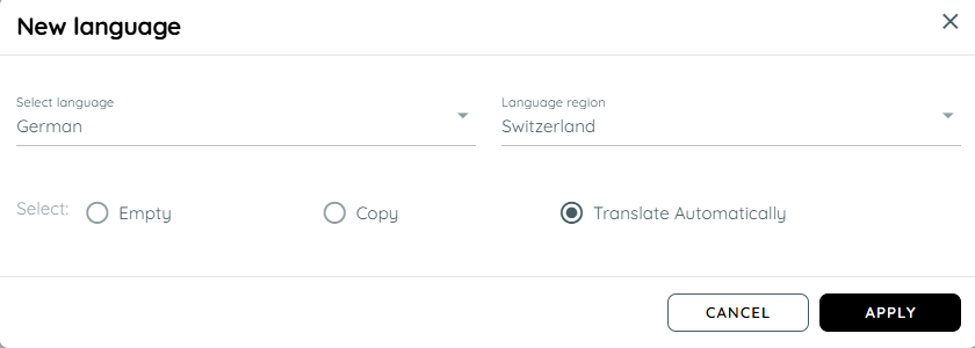
The New language dialog, set up to add German (Switzerland) with automatic translation.
Expected Result
• The content has a new version in the selected language and region.
• If you chose Empty or Copy, add or edit the text in the new language.
• If you chose Translate Automatically, review the translated text before you publish it.
• Users whose browser is set to that language now see the translated content.
Next Steps
• Content Language Translation: translate content in more detail.
• Supported Content Languages: check which languages are available.
• AppNavi Editor: create and edit the content you want to translate.
• Getting Started: return to the onboarding overview.
Updated 23 days ago