
AppNavi Editor
Overview
The AppNavi Editor is where you create and format the content users see in Routes, Pins, Posts, and Announcements. You can combine text with links, images, videos, icons, iframes, and connected Routes to explain a task or provide relevant information within an application.
The editor is available in the AppNavi Portal and in the client-side planners. In the planners, content is edited within a step's tooltip or a Pin's content area. In the Portal, the editor is available on supported content-editing pages.
Use this page as your starting point for creating content. Choose a task below for instructions specific to the content type you want to create.
Who should use this guide?
This guide is for AppNavi content authors, application administrators, and anyone responsible for creating or maintaining in-app guidance.
Before you start
Make sure you have:
- Access to the AppNavi Portal or the relevant client-side planner.
- Permission to create or edit the required content.
- Access to the target application if you need to capture or test application elements.
- The text, links, images, videos, or other resources you want to include.
- A clear idea of what users need to understand or do.
Recommended: Write the main instruction first. Add media or formatting only when it helps users understand the task or find the next action.
Choose what you want to create
Routes guide users through a process step by step. Use them for onboarding, recurring tasks, software rollouts, or workflows where users need instructions in the context of an application.
Start here: Routes and Route creation
Pins provide contextual help near a specific application element. Depending on their configuration, Pins can display a hint, start a Route, or display an Announcement.
Start here: Pins and Pin configuration
Posts make useful information available through the AppNavi Avatar. Use them for reference material or explanations that users may need to access on demand.
Start here: Content management
Announcements display important messages directly within an application. Use them for release updates, process changes, reminders, and other information users should notice.
Start here: Content management and publication
Use the editor's formatting tools to make content clear and consistent. If your organization has defined reusable text-style presets, you can apply them where supported.
Start here: Standard Text Styling
Understand the editor
The editor provides different options depending on the content type and editing context. The following sections explain the main content elements documented for Route tooltips.
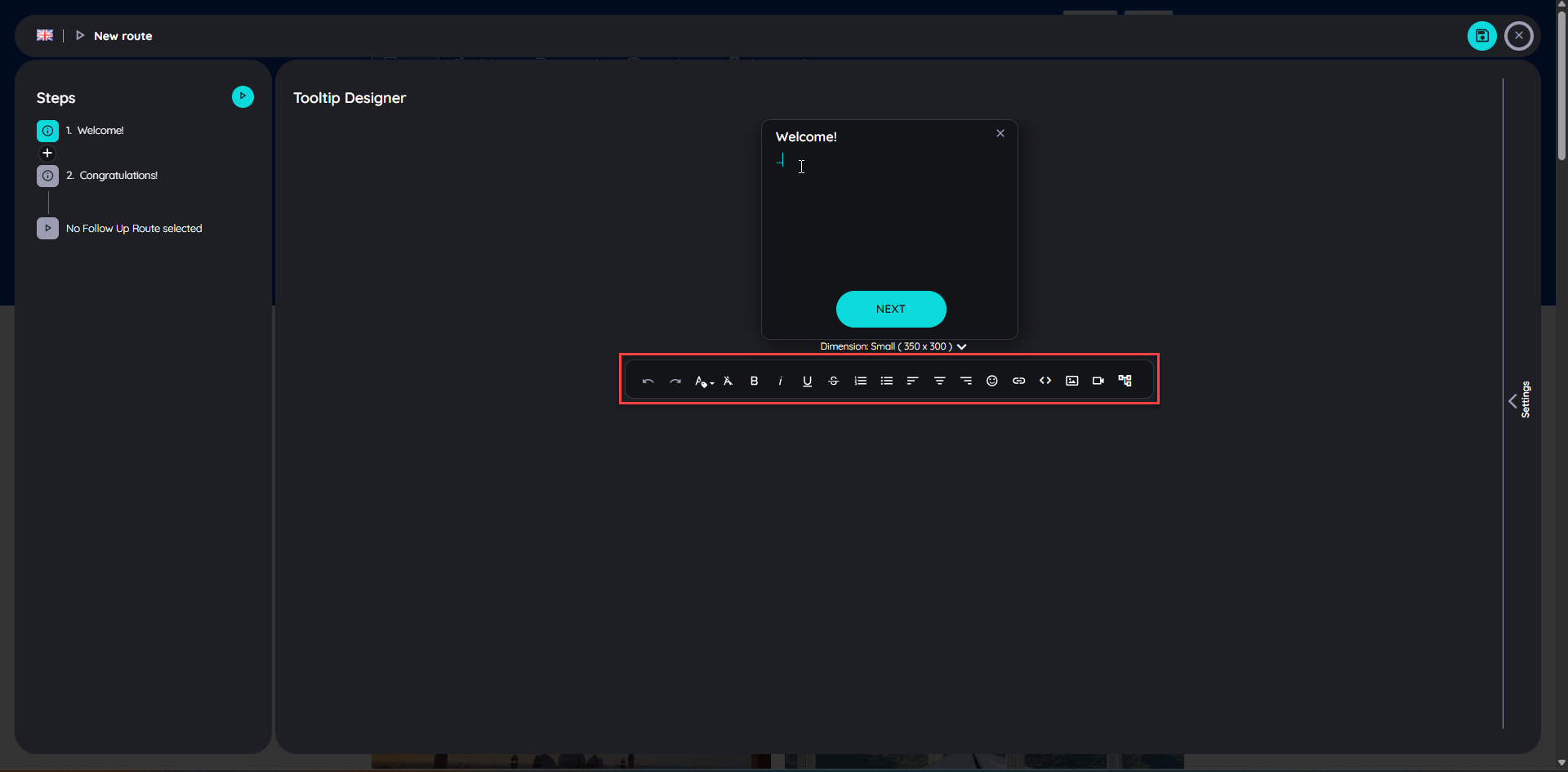
Editor
Text and paragraph formatting
Use text to explain the action a user should perform or provide context about an application element.
To format text in a Route step:
- Open the Route in Edit mode.
- Select the required step in the Flow section.
- Click the headline or text in the tooltip in the Details section.
- Enter your text or select existing text.
- Apply the available formatting options.
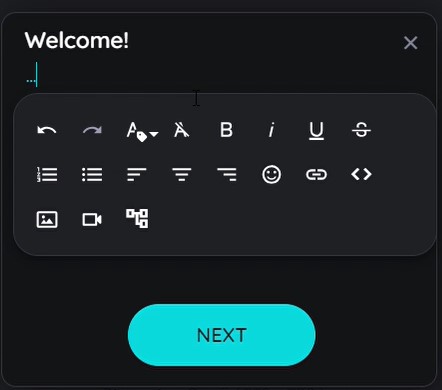
The editor supports text formatting such as bold, italic, underline, and strikethrough, as well as paragraph formatting such as ordered lists, unordered lists, and text alignment.
Other editor options include undo and redo, clearing formatting, and applying an inline CSS class.
Expected result: The text appears with the selected formatting in the tooltip.
Links
Use links to direct users to relevant documentation, internal knowledge resources, or other web pages without requiring them to search for the resource themselves.
To add a link:
- Open the relevant Route and select a step.
- Click inside the tooltip text.
- Select the Link option.
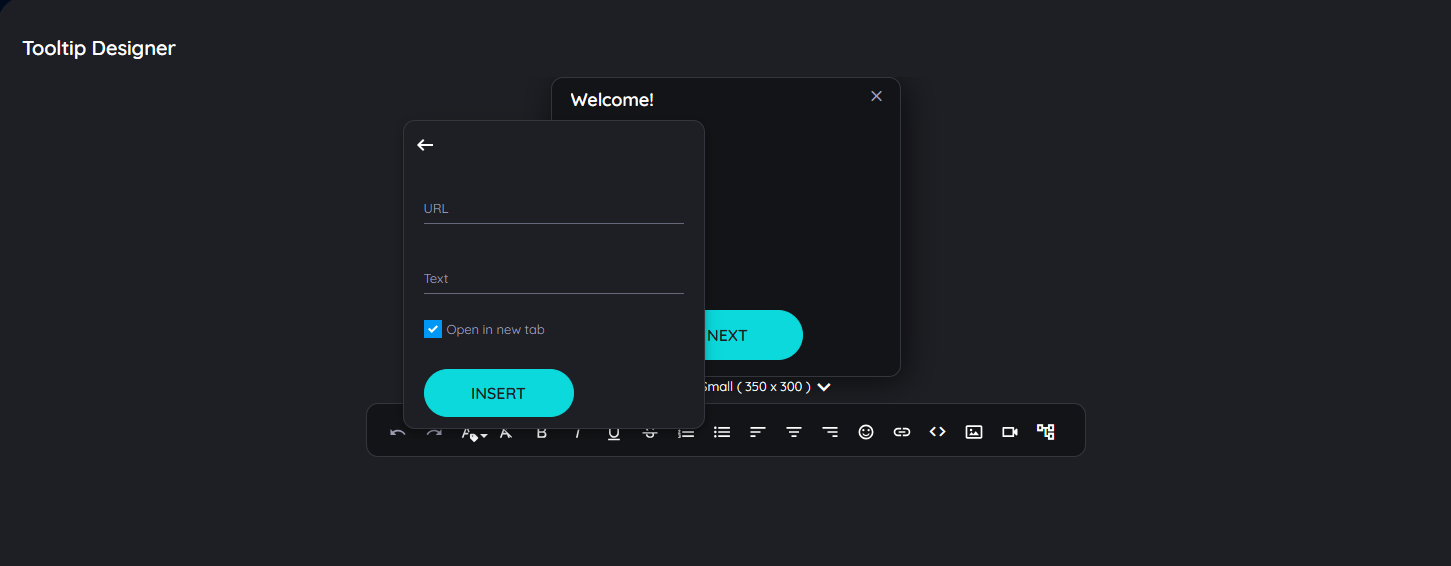
- Enter the display text and destination URL.
- Confirm the change.
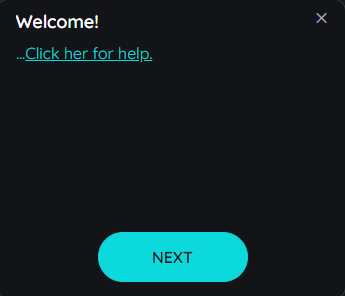
Expected result: The tooltip displays the link using the text you provided.
Recommended: Use descriptive link text such as “Open the expense policy” instead of a generic label such as “Click here.” Test the destination to ensure that users can access it.
Images
Images can help users recognize application elements, understand a process, or follow visual instructions.
To add an image:
- Open the relevant Route and select a step.
- Click inside the tooltip and select Image.
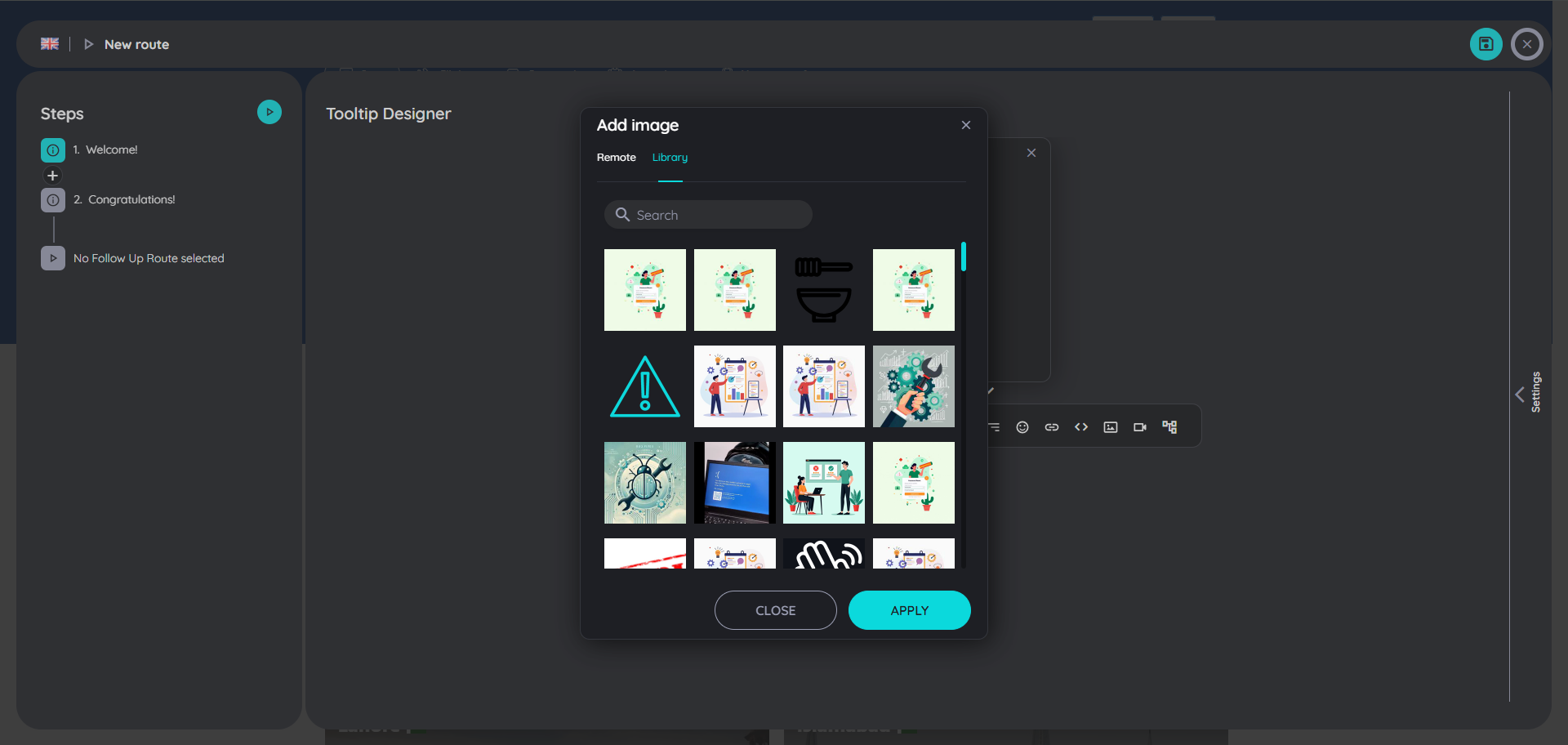
- Choose the Remote tab to use an image URL, or the Library tab to select an image from the media library.
- For a remote image, enter the URL and check the preview.
- Set the image size in pixels or percentage.
- Select OK to confirm, or Cancel to discard the change.
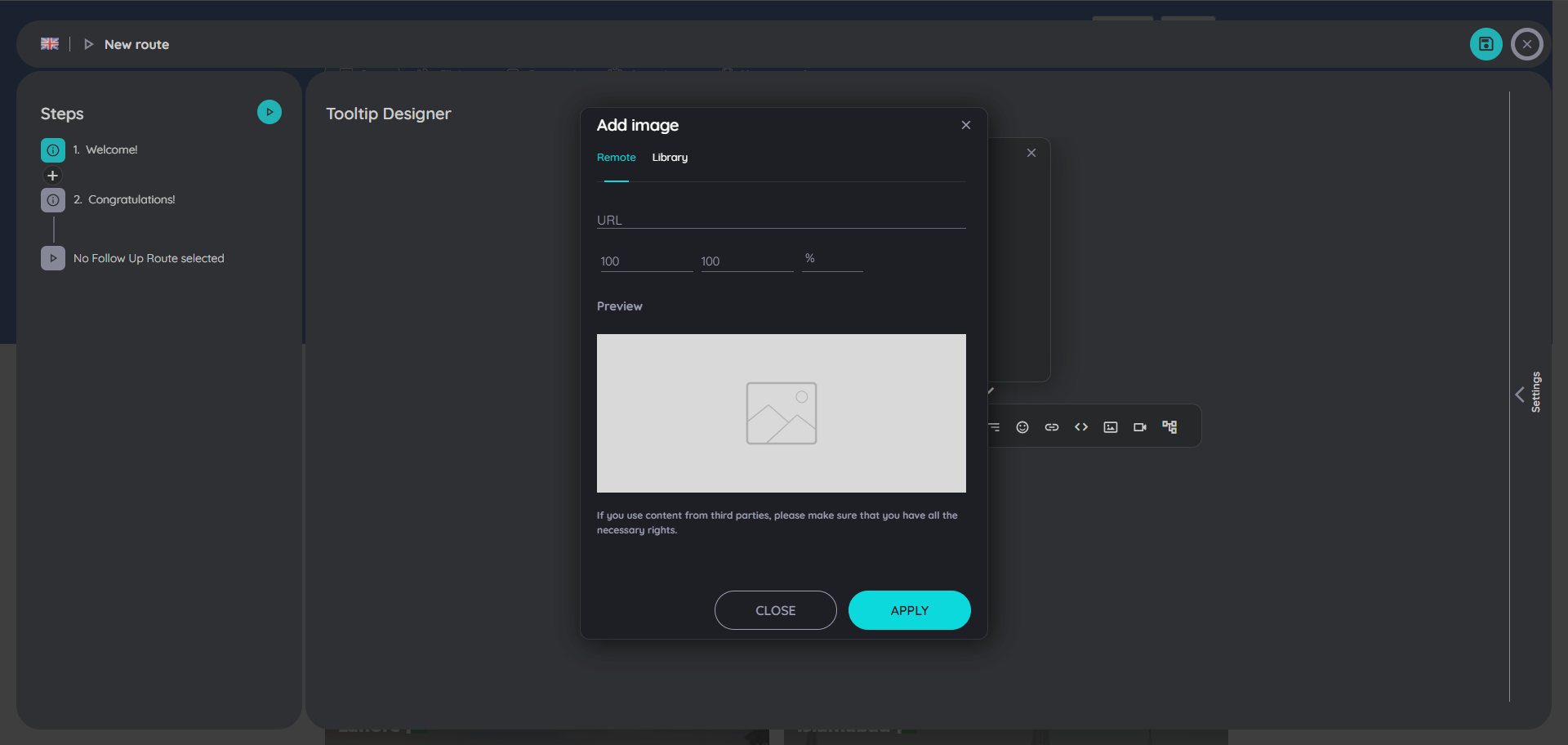
Expected result: The image appears in the tooltip at the configured size.
Important considerations:
- JPG and PNG images inserted into content are uploaded to the media library, virus-checked, and retained until deleted from the library.
- Other file formats may be used, but are not uploaded to the media library through the documented process.
- If a remote image is removed or its URL changes, it may no longer display.
- AppNavi does not check whether uploaded content infringes copyright. Only use images you are authorized to use.
Videos
Videos can provide demonstrations or explanations for tasks that are difficult to describe in text alone.
To add a video:
- Open the relevant Route and select a step.
- Click inside the tooltip and select YouTube Video.
- Enter the video URL and review the preview.
- Set the video size in pixels or percentage.
- Select OK to confirm, or Cancel to discard the change.
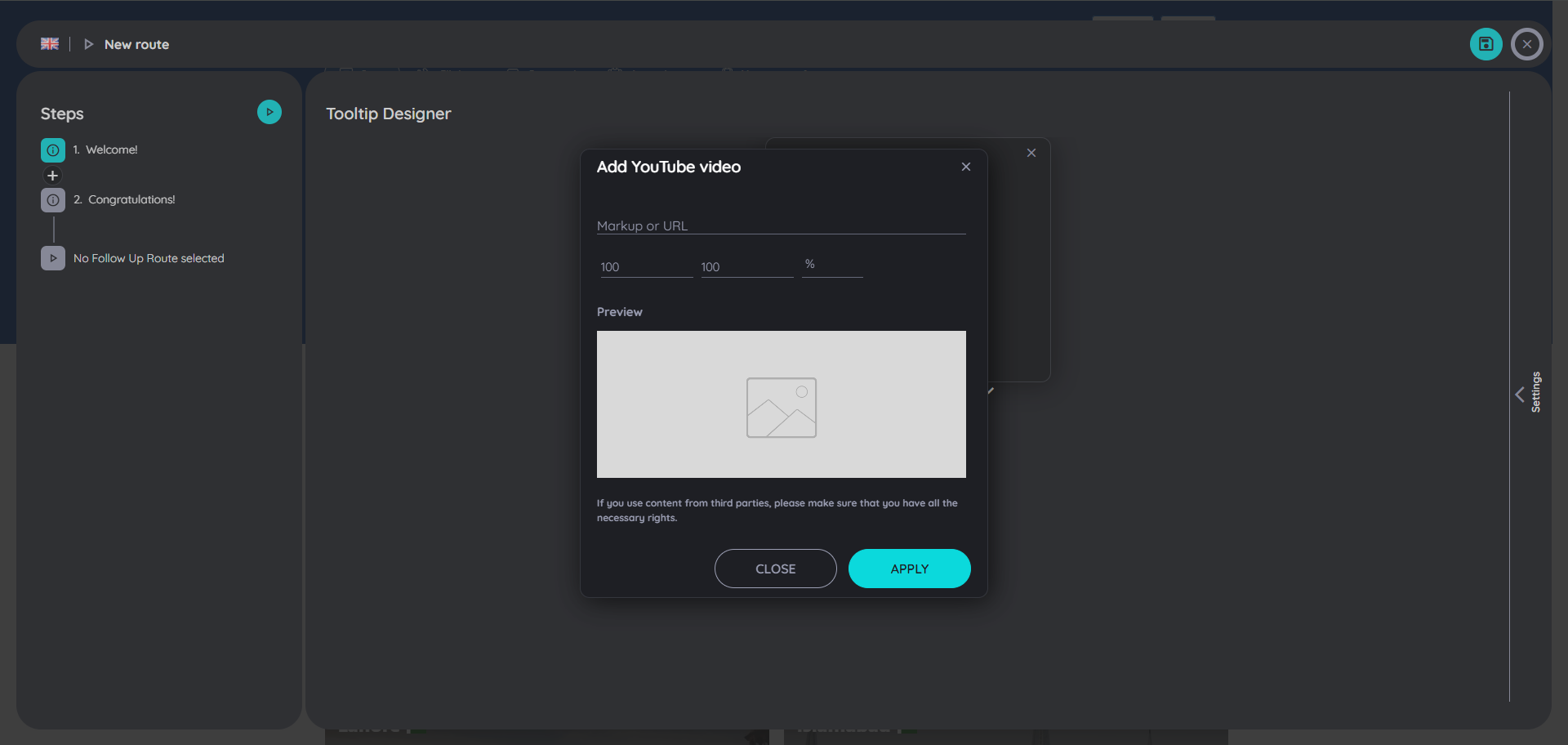
Expected result: The video is embedded in the tooltip at the configured size.
Iframes
An iframe can display supported external content inside a tooltip. Examples include knowledge resources, surveys, and chatbot solutions.
To add an iframe:
- Open the relevant Route and select a step.
- Click inside the tooltip and select iframe.
- Enter the URL of the content to embed.
- Review the preview.
- Set the iframe size in pixels or percentage.
- Select OK to confirm, or Cancel to discard the change.
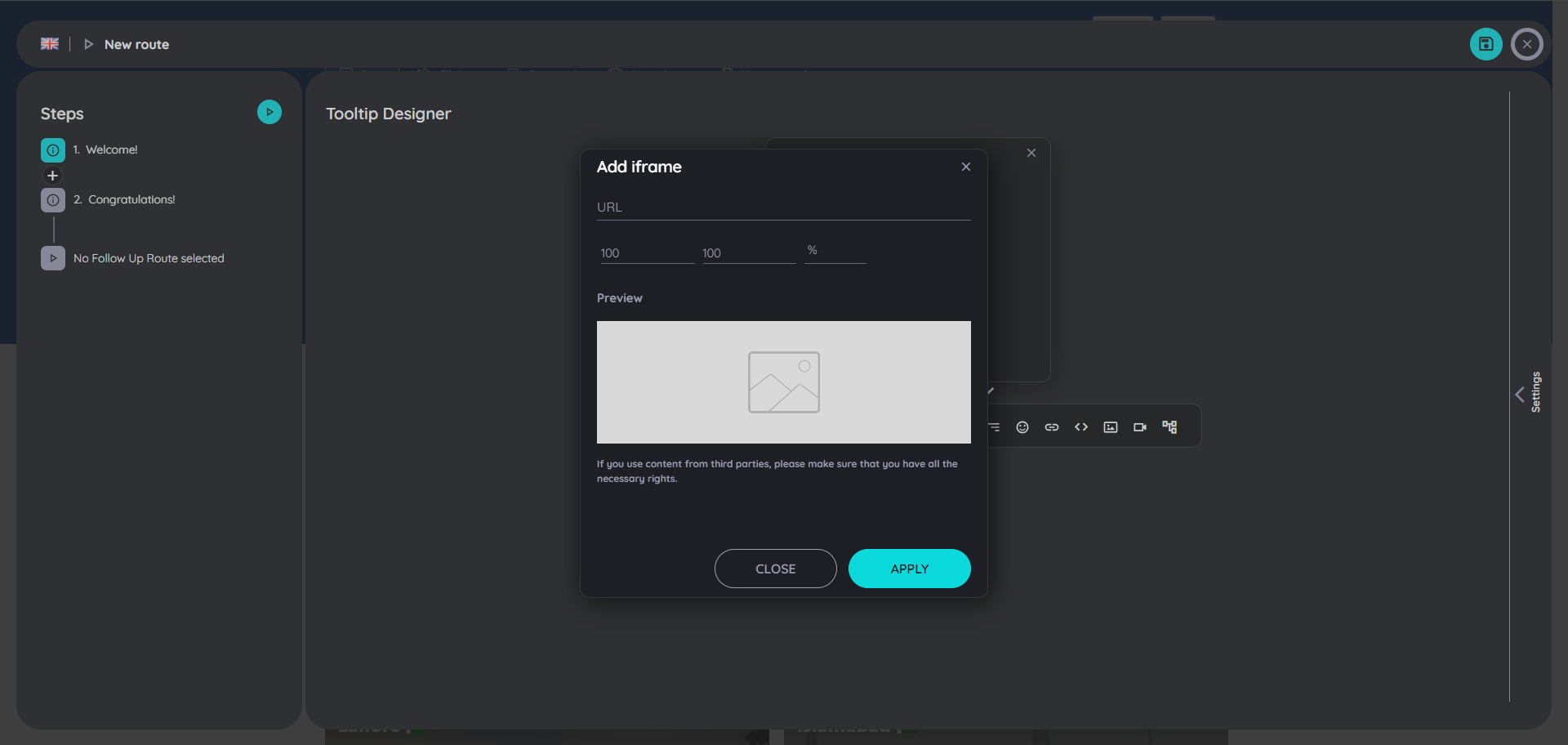
Expected result: The embedded content appears in the tooltip if the external resource permits embedding and is accessible to the user.
Important: An external website may block iframe embedding or require the user to authenticate. If the preview or published content does not display, check the destination URL, access permissions, and the external site's embedding restrictions.
Connected Routes
Connected Routes let you link one Route to another from the content. Use them when a user may need a related procedure or a follow-up task.
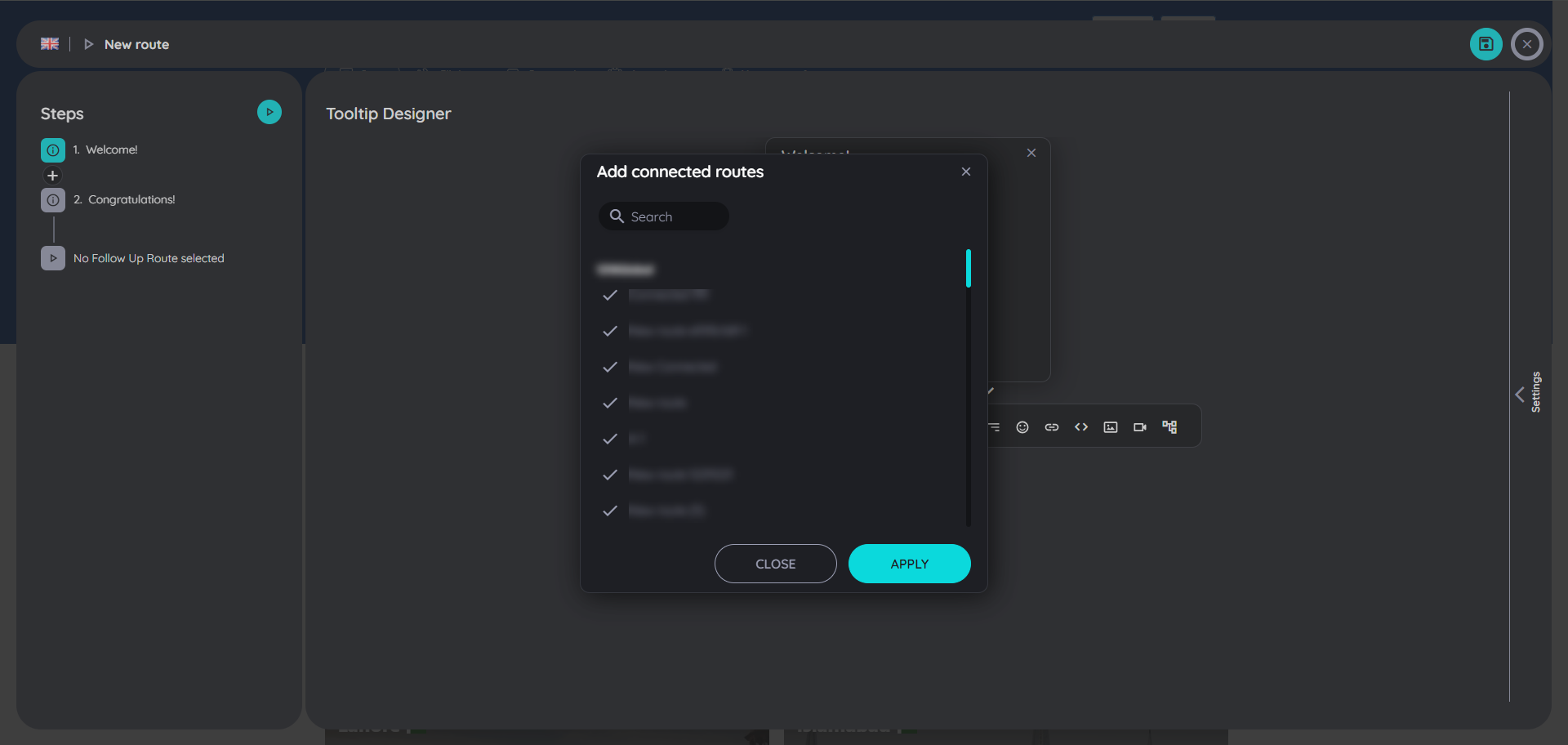
See Working with Connected Routes for the relevant instructions.
Step-by-step content creation workflow
Use this workflow whenever you create or update content in the editor.
- Choose the content type. Decide whether the user needs a guided process, contextual help, reference information, or an important announcement.
- Open the editor. Go to the relevant content's Edit page or open the appropriate client-side planner.
- Select the content area. For a Route, select the required step in the Flow section and click its tooltip in Details.
- Add the main instruction. Use short, direct language that tells the user what to do or explains why the step matters.
- Add supporting content. Include links, images, videos, icons, iframes, or connected Routes where they help the user complete the task.
- Review formatting and layout. Check readability, link text, media size, and the amount of information displayed.
- Save your changes. Use the save controls available in the relevant editor or planner.
- Test the result. Preview or run the content in the target application and confirm that it behaves as intended.
- Publish the content. Assign and publish it to the intended application and audience.
Expected result: The content is saved, tested, and published to the intended location.
Save, publish, and verify
Saving and publishing are separate parts of content management. A saved change is not necessarily visible to every intended user.
After editing content:
- Save the changes in the relevant editor.
- Open Guidance in the Portal.
- Go to Applications and select the target application.
- Open the application's three-dot menu and select Manage Content.
- Locate the relevant content type.
- Assign and publish the content as required.
- If you edited already published content, republish it so the updated version becomes available to public users.
- Open the target application and verify the result.
Publication settings can control the date range, target audience, display restrictions, and other visibility options.
See Content Publication for the complete workflow.
Troubleshooting
| Problem | What to check |
|---|---|
| The editor does not appear | Confirm that you opened a supported content-editing page or selected the relevant step or content area. |
| Formatting does not look right | Select the affected text and review its formatting. Use Clear formatting if pasted text contains unwanted styles. |
| A link does not work | Check the URL and confirm that the intended audience can access the destination. |
| An image does not appear | Verify the remote URL or media library item. If it is remotely hosted, confirm that the resource is still available. |
| A video or iframe does not display | Verify the URL and whether the external resource allows embedding. |
| Changes are not visible to users | Check whether the content was saved, assigned to the correct application, published, and republished after editing. |
| The content appears for the wrong audience | Review the publication settings, including target audience and display restrictions. |
Related documentation
- Guidance — Understand the main AppNavi content types and how they work together.
- Content Management — Learn how content is managed and reused across applications and workspaces.
- Content Publication — Assign, publish, unpublish, and republish content.
- Standard Text Styling — Configure and use standard text-style presets.
- AppNavi Editor Components — Review the editor's available formatting and content components.
- Contents — Browse the existing task guides for Routes, Pins, Posts, Announcements, and Collections.
Next step: Choose the content type you want to create, follow its task guide, and return to this page whenever you need help with formatting, media, or editor behavior.
Content can be designed in many ways by using AppNavi Editor. AppNavi editor is use to create content like route, pin, post, announcement in variety of way like: the editor can add text and format it, can add links of any page or web, add images for visual understanding, videos for interactive understanding, material icon, iframes and can connect multiple routes by adding connected route. This all can be integrated and alter according to the requirement of that content and usage of a user. All the Editing and content creation is done on a tooltip with the AppNavi Editor.
AppNavi Editor can be used on portal and client side both. On client side it is found in route planner and pin planner, and on portal side its present in all the content Edit pages.
Further details of component present in AppNavi Editor can be studied here: Components
Add media, iframes & more to your tooltips
Steps can be designed in many ways: Text can be entered and formatted. Links, images and videos can be integrated to use additional, possibly already existing content and to put it into the context of the process - or just to make the routes as appealing as possible. In addition, iframes can be integrated that, for example, display knowledge items from a central knowledge database or integrate survey solutions or chat bot solutions already used in the company.
Embed and format text
The most commonly used content type is text, which describes the action to be performed on the given element.
- Open the desired route in the Edit mode.
- Select the desired step in the "Flow" section.
- Click headline or text in the tooltip that appears in the right "Details" section.
- Enter text, select it and format it as desired (bold, italic, lists,...).
If the space in the tooltip is not enough, you can simply enlarge or reduce the tooltip at the left and right changes and in the corners by holding down the left mouse button.
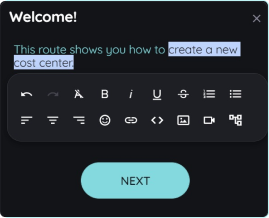
Several options to format text in a tooltip
Embed links
Very often, content already exists that can be used. Sometimes these lead a shadowy existence in knowledge databases and can be made available to the user - without a search - directly in a tooltip suitable for this purpose.
- Open the desired route in the Edit mode.
- Select the desired step in the "Flow" section.
- Click in the text in the tooltip and select the option "Link".
- Enter a text to be displayed and the respective URL.
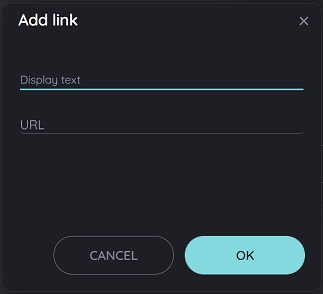
Add a link to your tooltip
If a description and the URL were entered, the link will appear in the tooltip for the user as follows:
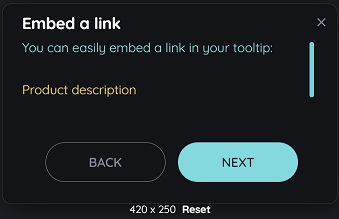
How an embedded link looks like for end users
Embed an image
Images can be embedded to support a message - or simply to make the content as engaging as possible. This has a significant impact on end-user acceptance.
- Open the desired route in the Edit mode.
- Select the desired step in the "Flow" section.
- Click in the text in the tooltip and select the option "Image".
Via URL
- Select the tab "Remote" (default).
- Enter a URL and the image will be shown as preview.
- Select the image size in % or pixels (px)
- Confirm with "OK" - or select "Cancel" to discard the changes.
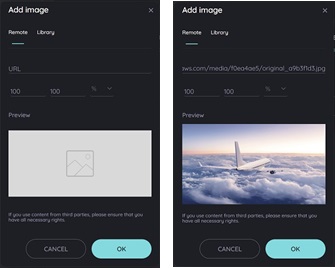
Dialog to add an image to a tooltip - empty and filled
Via Library
- Select the tab "Library".
- Select an image.
- Confirm with "OK" - or select "Cancel" to discard the changes.
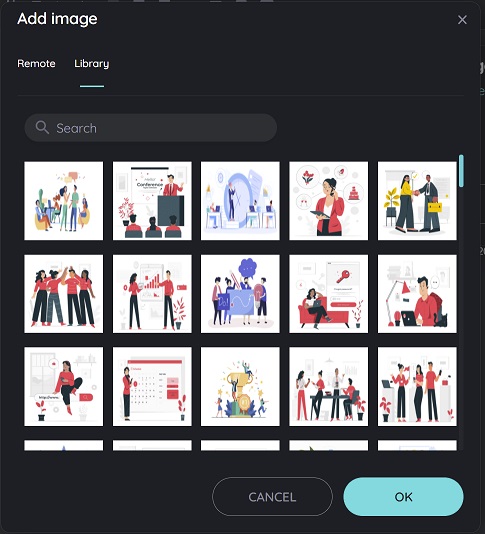
Add an image from the media library
Note: image formats
Images in .jpg and .png formats are uploaded to the media library when you insert them, are virus-checked, and are available for your content until you delete them from the media library. Other file formats may be used, but will not be uploaded to the media library. If the provider of an external link no longer makes the object available (under the path entered), the graphic will no longer be displayed in your content.
Note: copyrights
Please note that AppNavi does not check for any copyright infringements. Therefore, only upload content that can be used by you without any doubt without committing a copyright infringement.
Embed a video
Videos are also an important content type for communicating particularly explanation-intensive issues in a simple way.
- Open the desired route in the Edit mode.
- Select the desired step in the "Flow" section.
- Click in the text in the tooltip and select the option "YouTube Video".
- Enter a URL and the video will be shown as preview.
- Select the video size in % or pixels (px)
- Confirm with "OK" - or select "Cancel" to discard the changes.
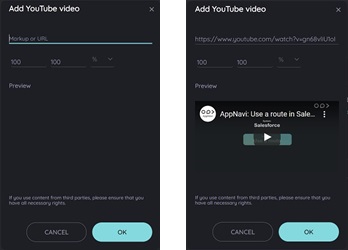
Embed a video in your tooltip - empty and filled
Embed an iframe
The integration of iframes in tooltips represents a particularly powerful functionality. Among other things, they allow the integration of content from knowledge databases, the use of surveys or even the integration of chat bot solutions. AppNavi thus offers the possibility to integrate mostly already established software solutions with low effort instead of additive solutions.
- Open the desired route in the Edit mode.
- Select the desired step in the "Flow" section.
- Click in the text in the tooltip and select the option "iframe".
- Enter a URL an the iframe will be shown as preview.
- Select the iframe size in % or pixels (px)
- Confirm with "OK" - or select "Cancel" to discard the changes.
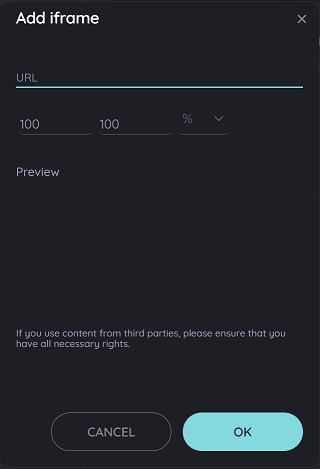
Embed an iframe für Surveys, Chat-Bots and many more ....
Add connected routes
Details about the integration of connected routes can be found here:
Updated 8 days ago