Guidance Filter
Overview
The Guidance filter functionality allows dashboard data to be refined based on organizational structure. It ensures that all displayed metrics and charts reflect the selected filter criteria in real time.
Filters help analyze user engagement and content performance more accurately by narrowing results to specific segments such as country, department, or organizational unit.
Available Filters
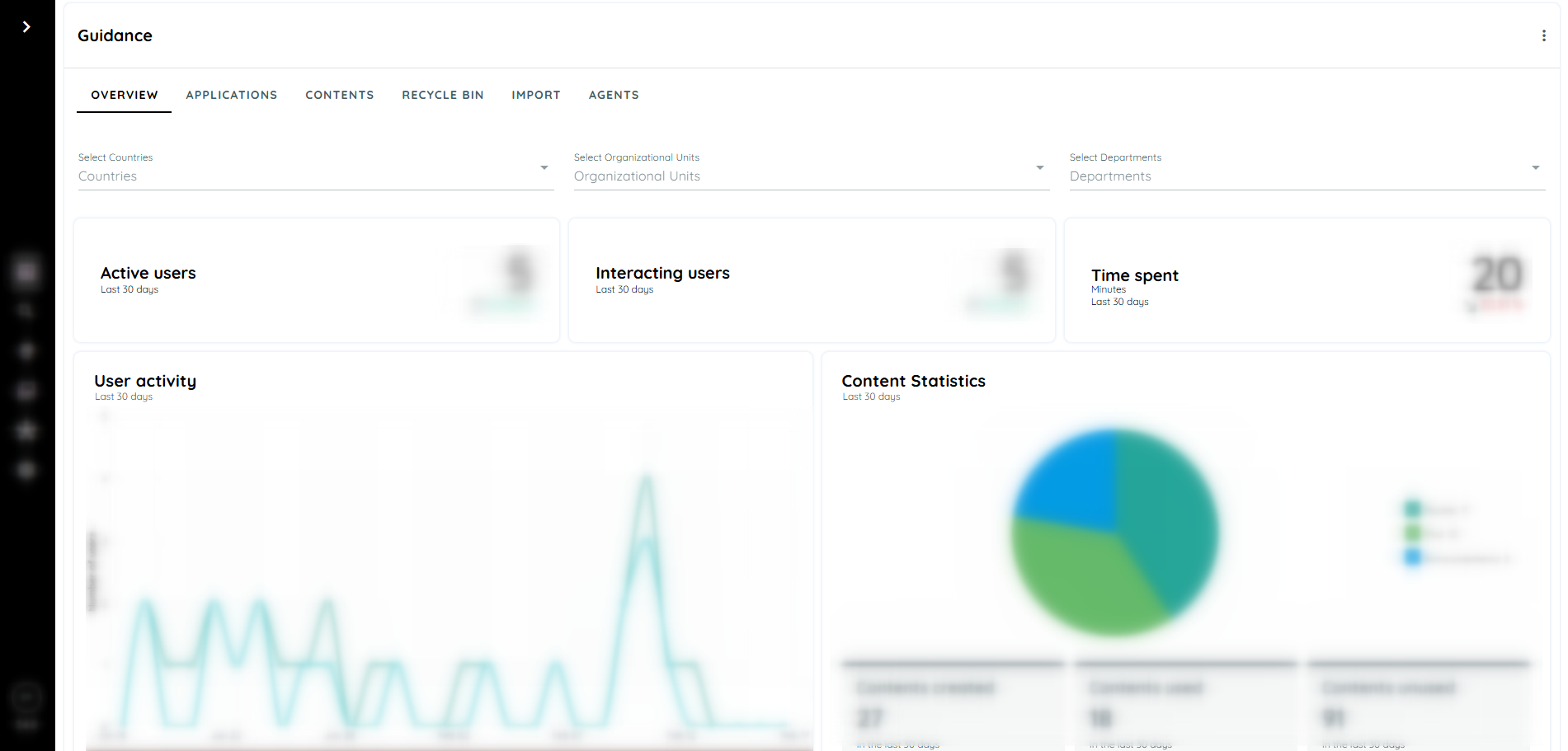
Filters are available on the Guidance Overview Dashboard.
The following filters can be applied:
- Countries
- Organizational Unit
- Departments
Each filter can be selected individually to segment the displayed data.
Guidance Filters
Steps
- Navigate to the Guidance module.
- Open the Overview Dashboard.
- Locate the filter section.
- Select a filter (Country, Organizational Unit, or Department).
- The charts and metrics will update according to the filter.
Benefits
- Enables targeted data analysis.
- Eliminates manual recalculation of metrics.
- Maintains filter continuity when moving forward between dashboards.
- Improves decision-making through segmented insights.
- Provides accurate reporting for organizational structures.
How the Filter Works
When a filter is selected on the Overview Dashboard:
- The system recalculates the dataset.
- All dashboard charts refresh automatically.
- Only the data matching the selected filter is displayed.
The update happens instantly without requiring page reload.
Dashboards Affected by Filters
Overview Dashboard
The following components update when a filter is applied:
- Active Users
- Interacting Users
- Time Spent
- User Activity
- Content Statistics
- Most Used Applications
- Users by Departments
- Users by Organizational Unit
Each widget reflects filtered results only.
Application Dashboard
When navigating from the Overview Dashboard to a specific application:
- The previously selected filter remains active.
- Application-level metrics adjust automatically.
- Content statistics inside the application reflect the same filter.
This ensures continuity between dashboards.
Filter Synchronization Behavior
Filter behavior follows a one-directional logic:
- Filters applied in the Overview Dashboard carry forward to the Application Dashboard.
- Filters applied directly in the Application Dashboard do not backtrack to the Overview Dashboard.
This means synchronization works only from Overview to Application, not in reverse.
Content-Level Filtering
If any of the following filters are applied:
- Country
- Organizational Unit
- Department
Then:
- Application performance metrics adjust.
- Content usage statistics update.
- User interaction data reflects only the selected segment.
- All related charts display filtered insights.
Example
Scenario:
Country filter selected: Germany
Step 1: Germany is selected from the Country filter on the Overview Dashboard.
Result on Overview Dashboard:
- Active Users shows only users from Germany.
- Time Spent reflects usage within Germany.
- User Activity graph displays Germany-specific trends.
- Most Used Applications lists applications most used by users in Germany.
Step 2: A specific application is selected from Most Used Applications.
Result on Application Dashboard:
- Germany remains selected automatically.
- Application-level Active Users reflect Germany only.
- Content statistics show interaction data limited to Germany.
- All charts display Germany-filtered insights.
Step 3: A Department filter is applied inside the Application Dashboard.
- If navigation returns to the Overview Dashboard:
- The Department filter will not remain selected.
- The Overview Dashboard will return to its default filter state.
- This behavior confirms that filter synchronization applies only when selection starts from the Overview Dashboard.
Updated 8 months ago