
Media Library
The Media Library is the central place in the AppNavi Portal where you store images for your guidance content. An image you add once can be reused in Routes, Pins, Posts and other content, so authors do not need to upload the same file again for every article or step.
Meaningful screenshots and graphics help end users understand a process or a step faster. Use the Media Library to keep these visuals in one place and reuse them consistently across your content.
Before you begin
- You need access to the AppNavi Portal with permission to create or edit content. [To confirm: which roles can upload and delete media]. See Role & Permission Model.
- Make sure you hold the license rights for every file you upload. See Licensing and usage rights below.
Open the Media Library
- Sign in to the AppNavi Portal.
- In the main menu on the left, select Media library.
- The library opens as a grid of all stored images. A Search field and a more-options menu (⋮) are shown in the top-right corner.
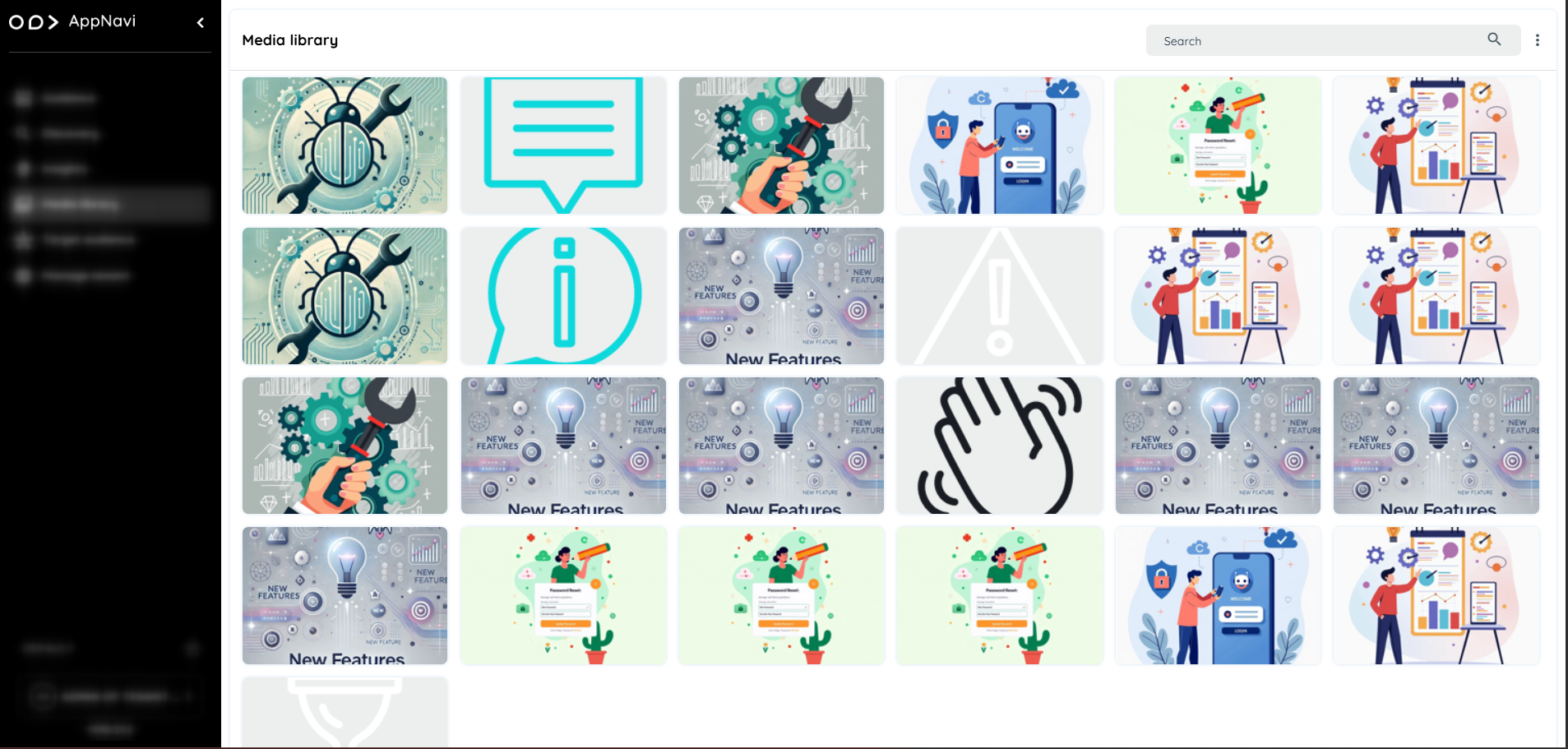
The Media library in the AppNavi Portal.
Add an image
- Open the Media library.
- Open the ⋮ menu in the top-right corner and choose the add option.
- Enter the title and keywords
- Select the image file on your computer.
- Confirm the upload.
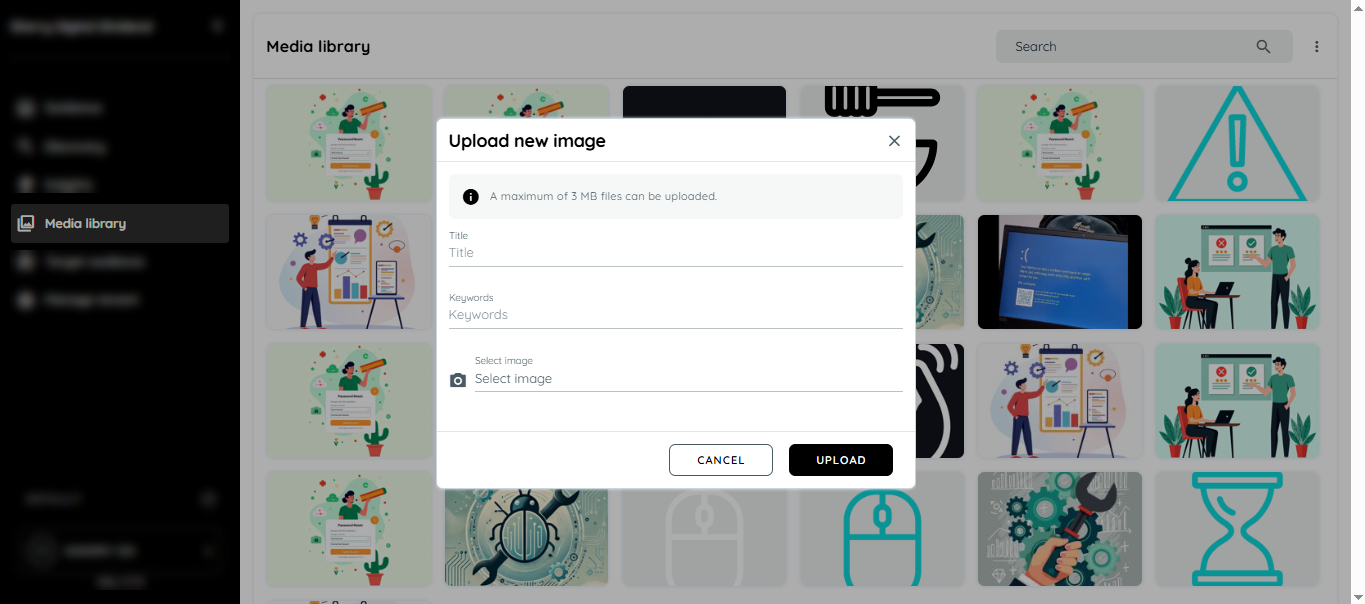
The Upload new image dialog in the Media library.
Find and reuse an image
- Enter a term in the Search field at the top of the library to filter the images.
- When you create or edit content in the AppNavi Editor, select an existing image from the Media Library instead of uploading the same file again.
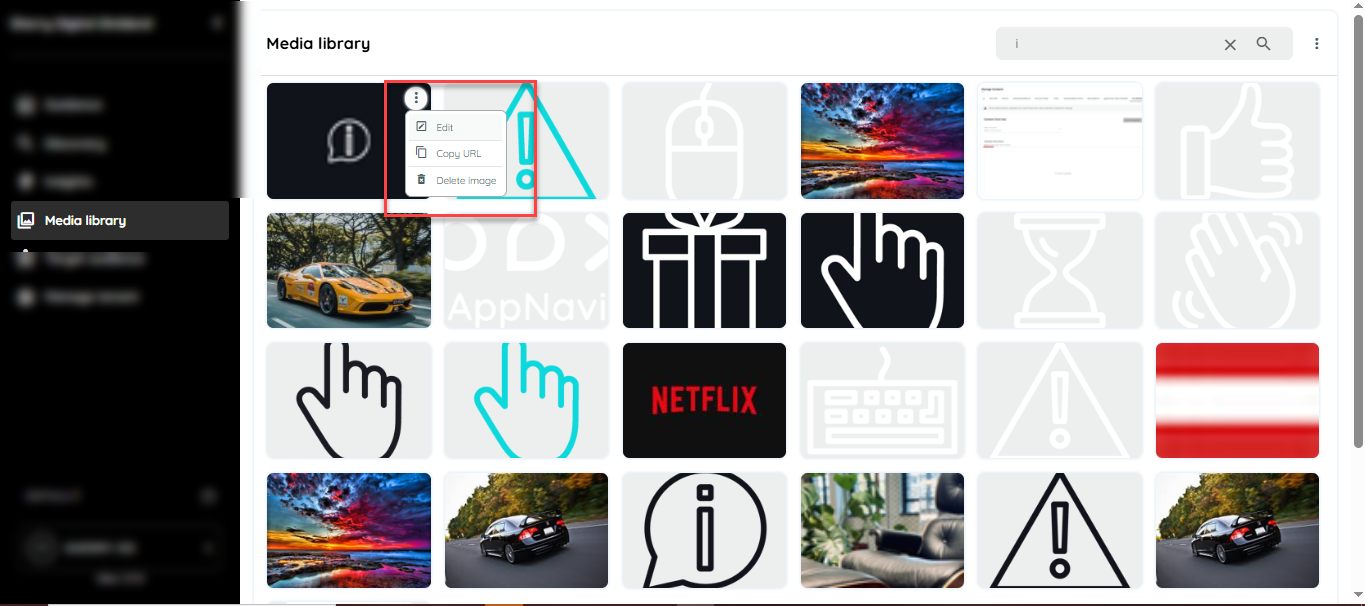
The context menu of an image in the Media library.
Edit an image
- In the main menu, select Media library.
- Find the image in the grid. You can type its title in the Search field to filter the images.
- Point to the image and select the ⋮ icon in its top-right corner.
- In the context menu, select Edit.
- Change the details, then save.
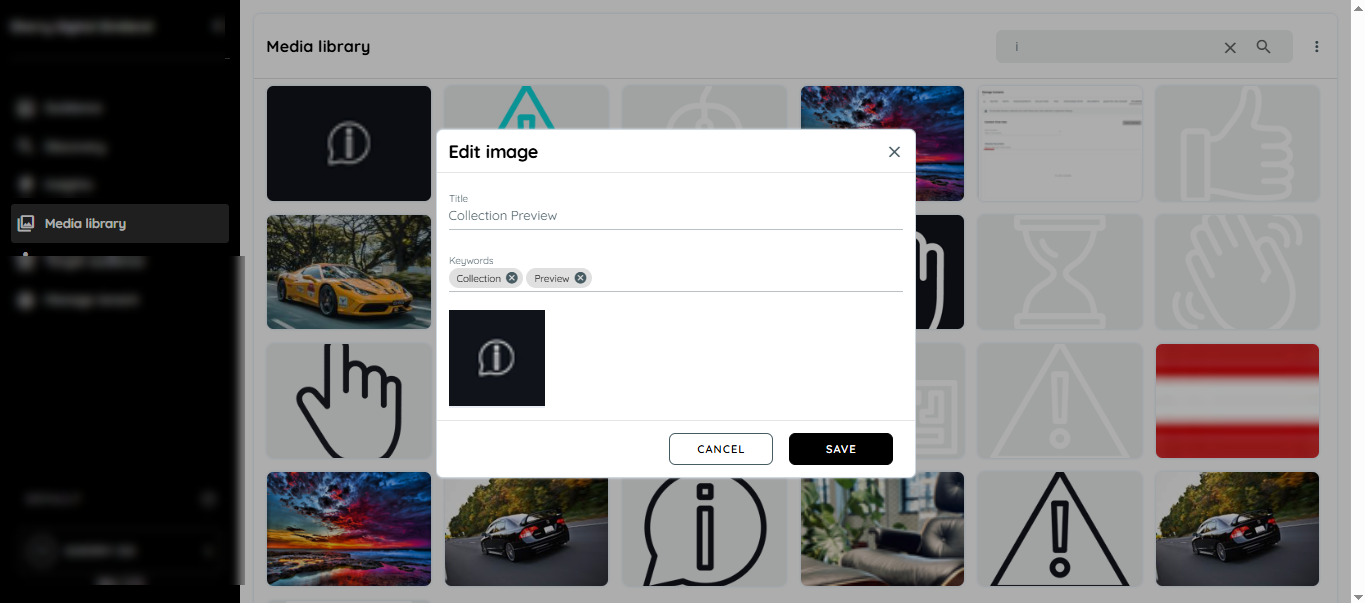
The Edit image dialog in the Media library.
Copy an image URL
- Find the image in the Media library.
- Point to the image and select the ⋮ icon in its top-right corner.
- Select Copy URL. The image’s URL is copied to your clipboard.
- Paste the URL wherever you need it, for example in your content.
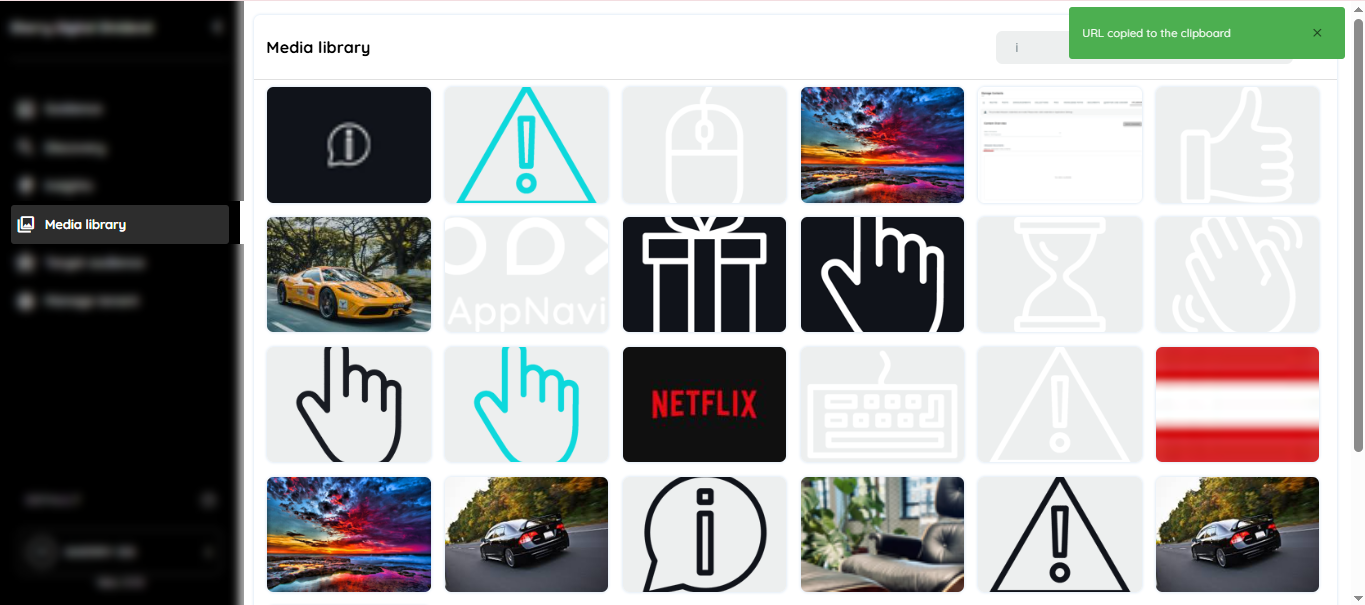
After you select Copy URL, the confirmation “URL copied to the clipboard”
Delete an image
- Find the image in the Media library.
- Point to the image and select the ⋮ icon in its top-right corner.
- Select Delete image.
- Confirm the deletion if you’re asked to. [To confirm: whether a confirmation dialog appears]
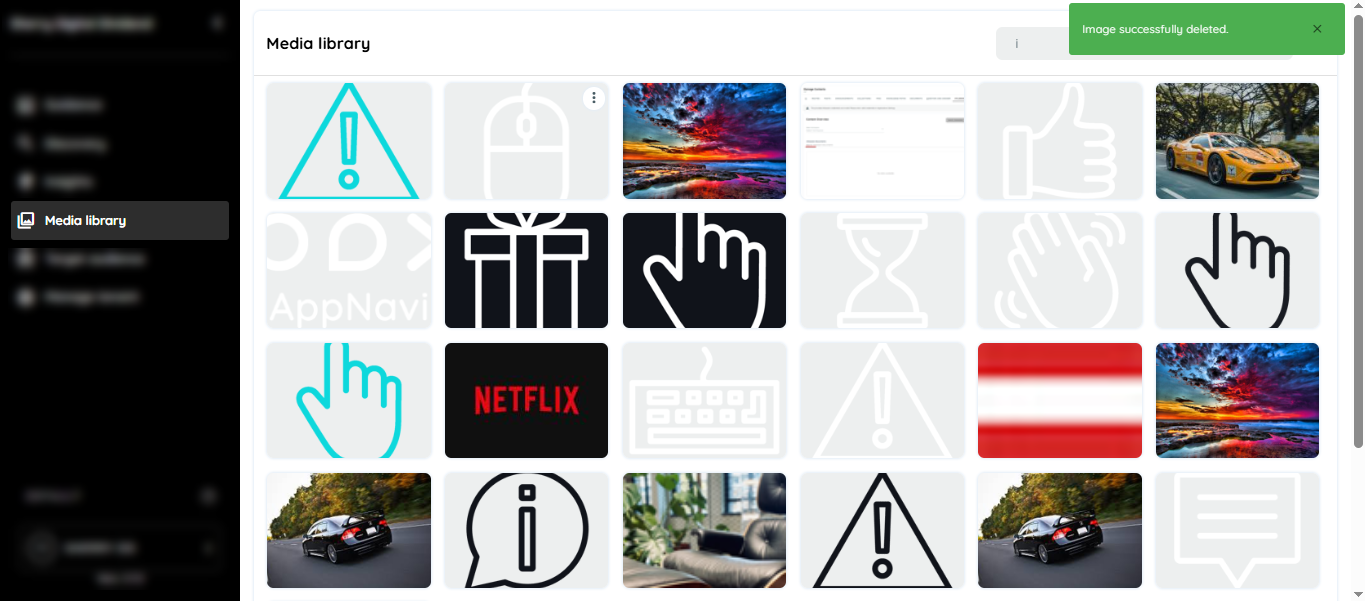
After you select Delete image, the confirmation “Image successfully deleted.”
Where media appears
Images from the Media Library can be used in guidance content, for example:
• Routes: illustrate individual steps of a guided process.
• Pins: add a visual hint to an element in your application.
• Posts: add screenshots or graphics to explanatory content.
[To confirm: any further places media can be used, e.g. Announcements or Collections] For details on each content type, see Contents.
Licensing and usage rights
Please observe license rights! Each customer is responsible for compliance with the terms of the license when uploading a file. Therefore, only upload media to the library whose explicit license rights you have purchased for this purpose.
Updated 5 days ago