Avatar Menu Items
Overview
Avatar Menu Customization allows the ordering of menu items in the AppNavi Avatar to be adjusted according to organizational preferences. This feature ensures that the most relevant contents appear first for users in the Avatar interface.
Through a drag-and-drop interface in the Application Settings, administrators can change the position of menu items, and these changes are reflected immediately in the Avatar.
Why This Feature Is Used
Customizing the Avatar menu improves user experience by:
- Prioritizing important items: Display frequently used contents at the top.
- Flexible interface: Adjust menu order according to business needs.
- Consistency: Changes in the settings automatically reflect in the Avatar.
How It Works in AppNavi
- Navigate to the Guidance Page in the portal.
- Go to Applications and select a specific application.
- Click on the three-dot (⋮) menu to open settings.
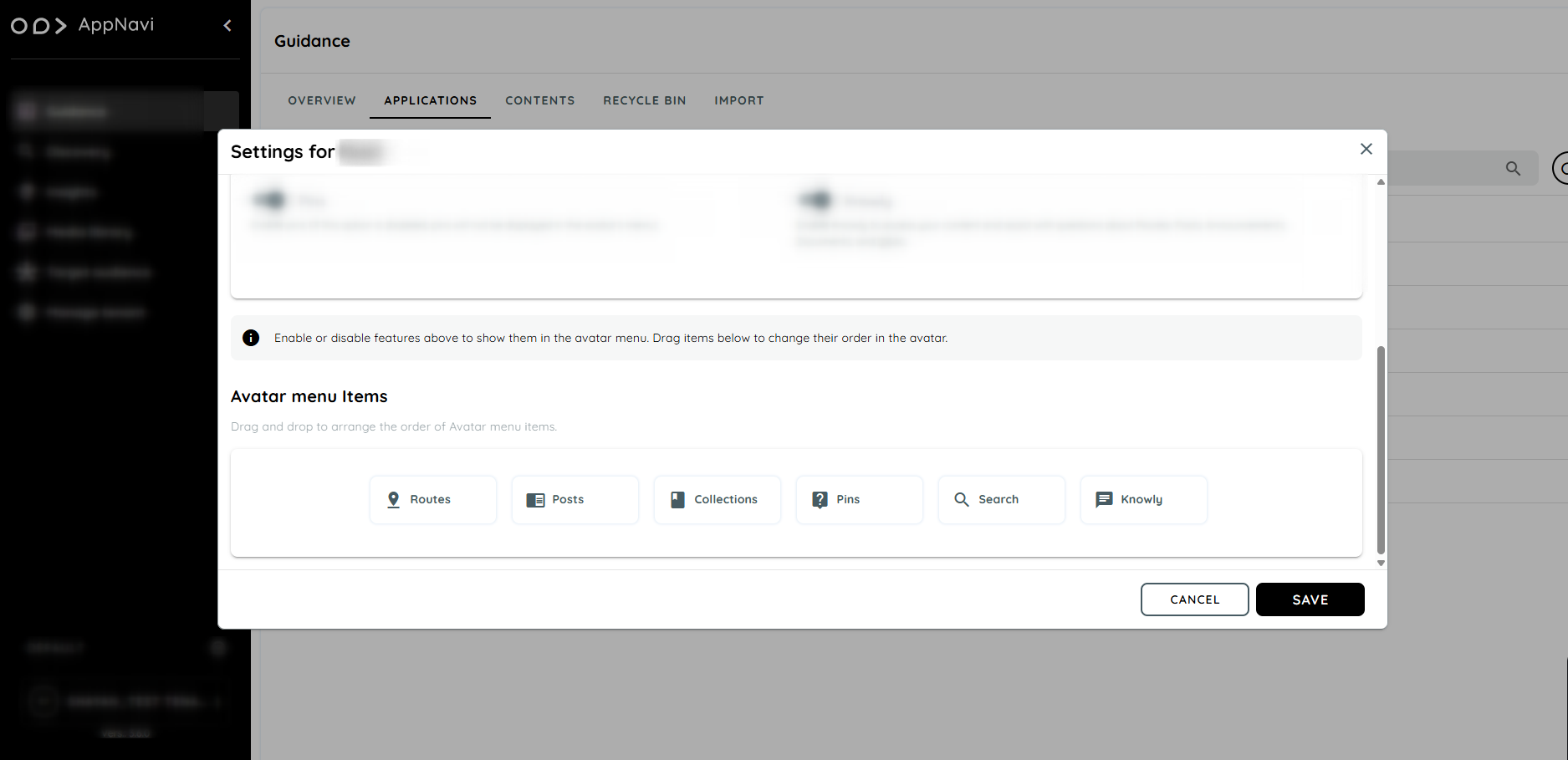
- Scroll down in the settings dialog to locate the Avatar Menu Items section.
Avatar menu item section:
- Only available menu items are shown (e.g., knowly, Routes, Search, Collections, Posts).
- Disabled items (e.g., if Routes is disabled) are not displayed.
- Menu items can be reordered using drag-and-drop.
- The new order is saved in the application settings.
- Data associated with the menu items includes the order number, which the Avatar uses to display items in the correct sequence.
How to Configure
- Open the Guidance Page in the AppNavi portal.
- Navigate to Applications.
- Select the desired application from the list.
- Click the three-dot (⋮) button to open the Application Settings dialog.
- Scroll down to the Avatar Menu Items section.
- Drag and drop the items to adjust their order according to preference.
- Save the changes.
Once saved, the Avatar interface will automatically reflect the new menu item order.
Example Scenario: How Avatar Menu Customization Works
- Access Settings
- Navigate to the Guidance Page → Applications → select an application → open settings.
- Reorder Items
- Scroll to the Avatar Menu Items section.
- Drag Routes to the top, Chat below it, and Posts to the bottom.
- Save Configuration
- The new order is saved in the application settings.
- Avatar Display
- The Avatar interface now displays menu items in the updated order.
- Users see items in the preferred sequence without any further action.
Summary
Avatar Menu Customization provides control over the menu layout in the Avatar. It ensures that the most relevant contents are displayed first, improves navigation, and allows administrators to adjust the interface easily through a drag-and-drop interface in the Application Settings.
Updated 11 months ago