Task Management
Overview
The Task Management feature allows users to create, manage, and track tasks for discovered applications. Each task is linked to a discovered application, making it easy to see who is doing what, what needs attention, and what’s completed all in one place. It provides a clear way to assign responsibilities, organize work, and monitor progress without relying on external tools.
Purpose
This feature exists to help teams stay organized and work smarter. By connecting tasks to specific discovered applications, users can:
- Know exactly what needs to be done.
- See who is responsible for each task.
- Track progress easily from start to finish.
- Avoid missing important steps or tasks.
It’s a central task board for all discovered apps simple, clear, and efficient.
Why It Is Used
- To assign tasks clearly to the right team members.
- To track task status, priority, and deadlines without confusion.
- To keep everything organized in one place, avoiding separate tools or messy spreadsheets.
- To improve teamwork and collaboration by giving visibility to every task linked to discovered apps.
- To automatically notify users about task creation, assignment, and weekly reminders.
Steps to Use Task Management
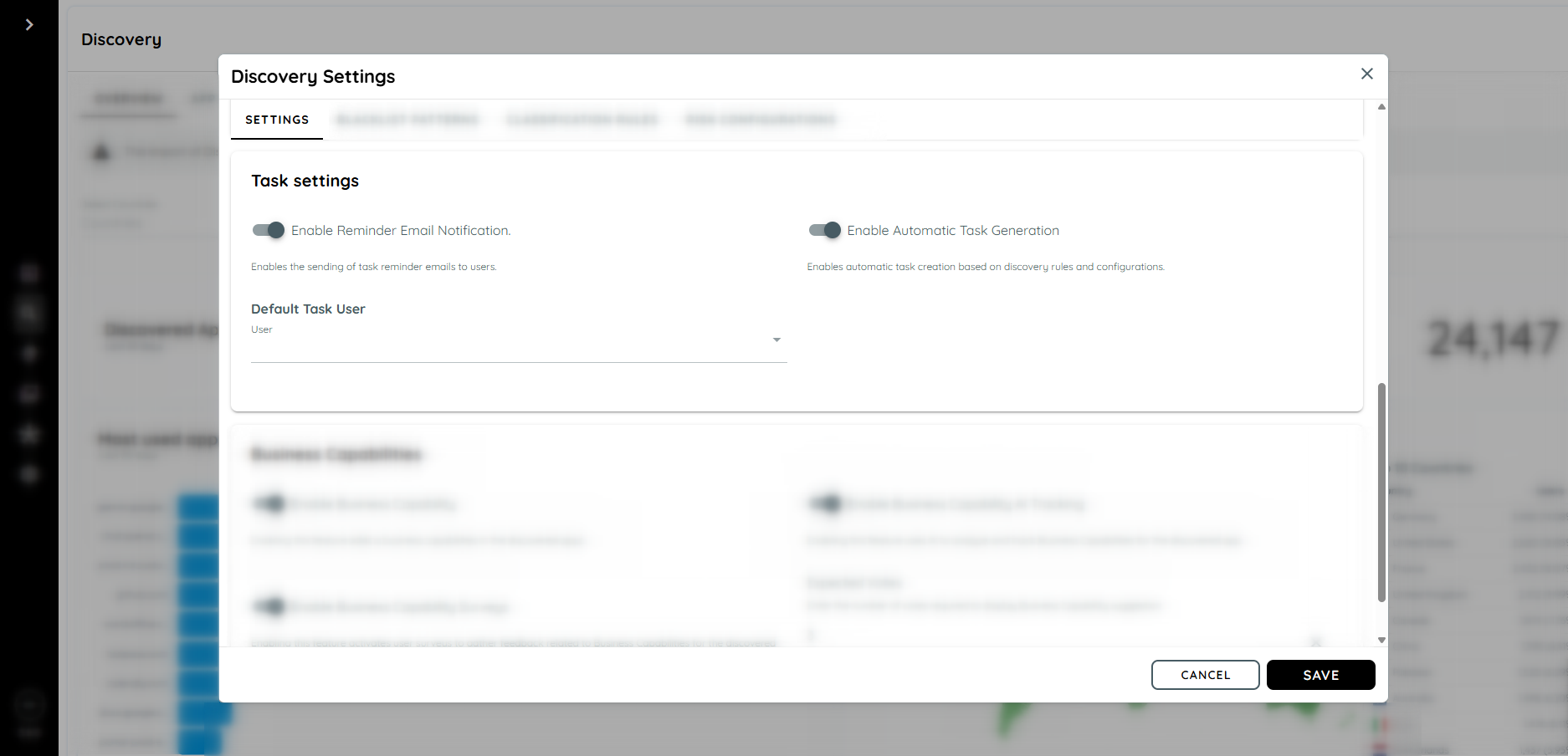
Configure Task Settings
- Navigate to the Discovery page.
- Click the three dots button to open Discovery Settings.
- Scroll down to the Task Settings section.
- Enable the toggles:
- Enable Reminder Email Notification: Sends task reminder emails to users.
- Enable Automatic Task Generation: Automatically creates tasks based on discovery rules.
- Select Default Task User from the dropdown.
Create a Task
- Navigate to the Task page.
- Click the three dots button to Add, Download, or Refresh tasks.
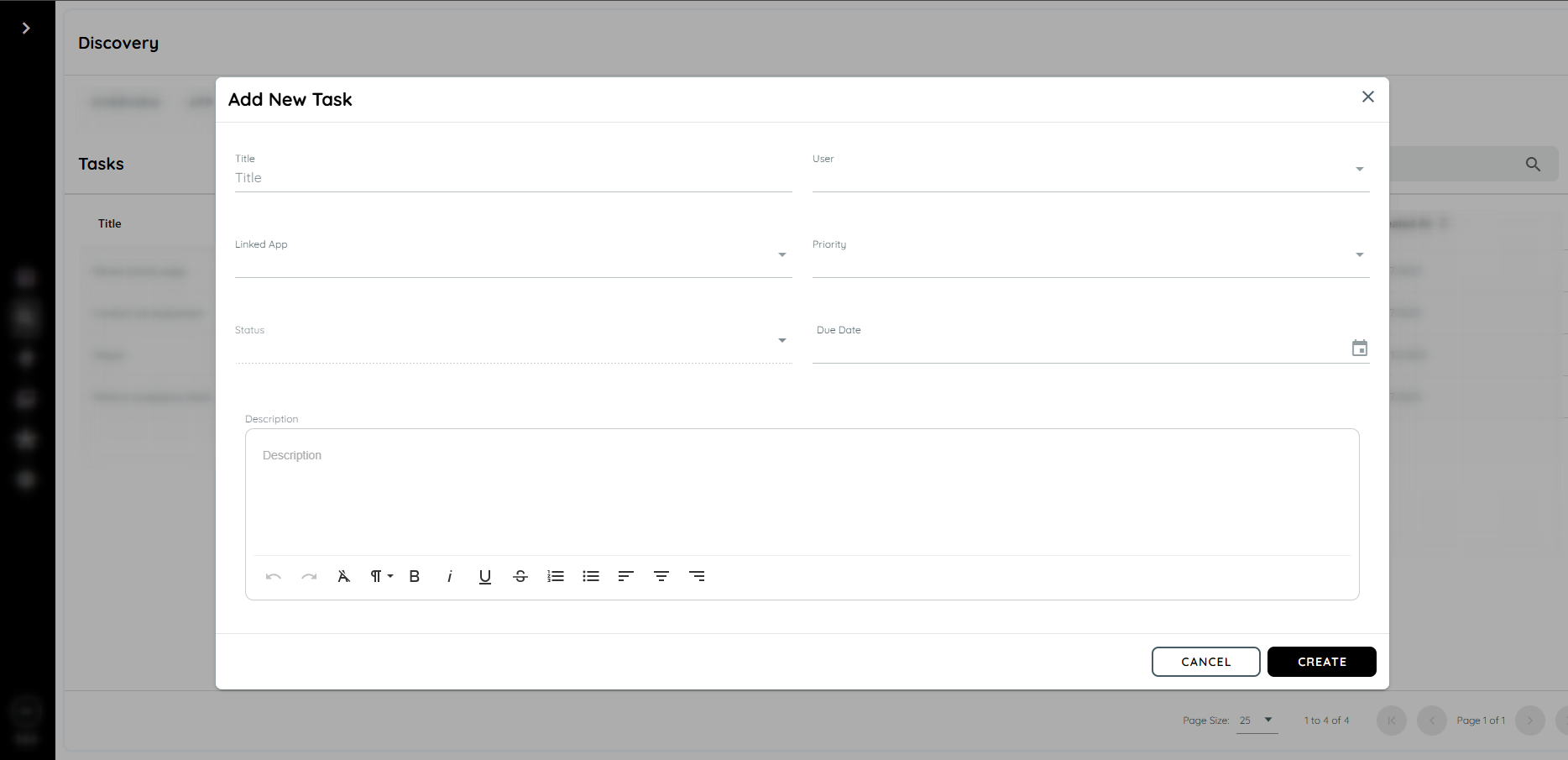
- To create a task:
- Enter Title
- Select Assigned User
- Choose Linked App
- Set Priority (High/Medium/Low)
- Set Status (Open/In Progress/Done)
- (Optional) Set Due Date
- Enter Description
- Click Create Task to add it.
- Click Create, the task will now appear in the Task List.
- After creation, the assigned user receives an email notification about the task.
- To create a task:
Manage Tasks
-
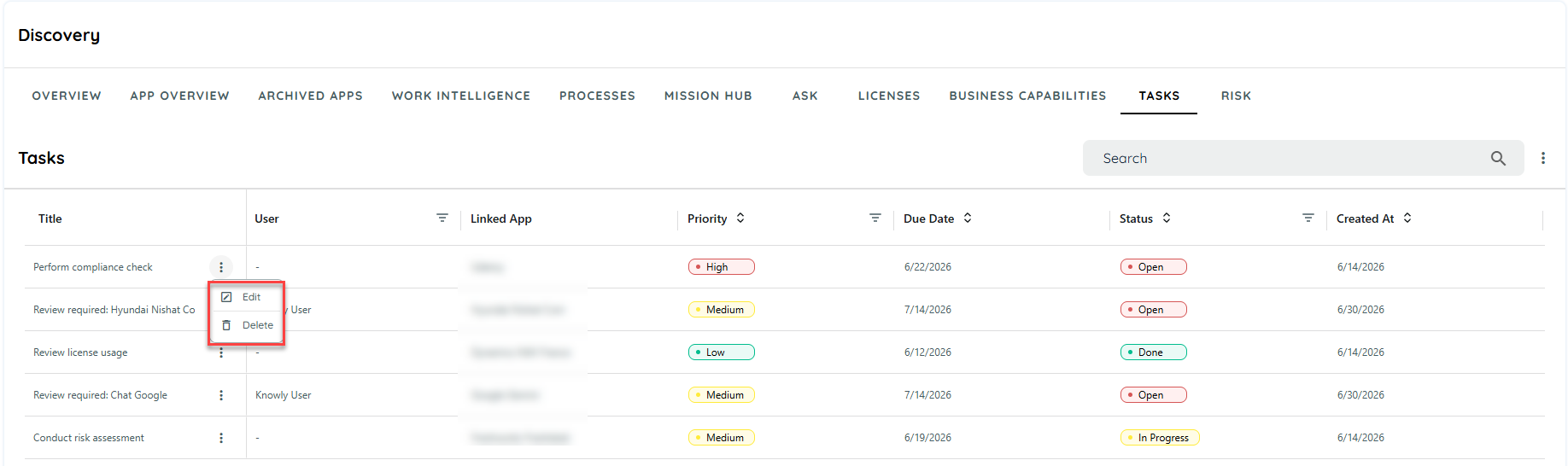
Edit, delete, filter, or sort tasks in the Task List as needed.
-
Use filters by Assigned User, Status, or Priority for easy tracking.
-
Search tasks by title, description, or linked application.
Task Interface
- Tasks are visible per discovered app in Edit View or in the Task Tab.
- Users can filter by Assigned User, Status, or Priority, search by title, description, or app name, and sort by due date, priority.
- The Task List provides an overview of the tasks currently available to the user and their current status, priority, assigned user, linked application, and due date.
Data Collected for a Task
Each task contains information that helps users understand what needs to be done and who is responsible for it.
The task information includes:
| Field | Description |
|---|---|
| Title | Identifies what the task is about. |
| Assigned User | Shows who is responsible for completing the task.Shows who is responsible for completing the task. |
| Linked App | Identifies the discovered application related to the task. |
| Priority | Indicates whether the task is High, Medium, or Low priority. |
| Status | Shows whether the task is Open, In Progress, or Done. |
| Due Date | Defines when the task should be completed, when provided. |
| Description | Provides additional information about what needs to be done. |
Tasks can be created manually or automatically through the configured Task Settings.
Task List, Filters and Search
The Task List is the main place to review and manage tasks.
Users can:
- Filter tasks by Assigned User, Status, or Priority.
- Search tasks by title, description, or linked application.
- Sort tasks by due date or priority.
- Review tasks associated with a discovered application from Edit View or the Task Tab.
Filters help users focus on the tasks that require attention instead of reviewing the complete task list.
For example, a user can filter by Status = Open and Priority = High to identify high-priority tasks that still need to be completed.
Download and Export
The Task page provides a Download option from the three dots menu.
Users can use this option when they need to take the task information outside the Task Management view, for example, for reporting, review, or further analysis.
Task Governance and Maintenance
Task Management also provides actions for keeping task information accurate and up to date.
Users can:
- Assign or reassign tasks to the appropriate user.
- Update task status as work progresses.
- Change task priority when the importance of the task changes.
- Add or update the due date when required.
- Edit task information when requirements change.
- Delete tasks that are no longer required.
- Use filters and sorting to review outstanding work.
- Use automatic task generation and reminder notifications to support ongoing task management.
These actions help teams maintain accurate ownership, status, and priorities for tasks related to discovered applications.
Example
For example, an organization discovers a new application that requires review.
A task can be created with:
- Title: Review newly discovered application
- Assigned User: Application Owner
- Linked App: Discovered application
- Priority: High
- Status: Open
- Due Date: Required review date
- Description: Review the application and confirm whether it should be approved, monitored, or removed.
The assigned user receives a notification and can update the task status to In Progress while reviewing the application. Once the review is complete, the status can be changed to Done.
This provides a simple workflow from task creation → assignment → review → completion.
Email Notifications
- Immediate notifications are sent when a task is manually or automatically created, or when it is assigned/reassigned.
- Weekly reminders notify users of:
- a. Overdue tasks (before the current week)
- b. Upcoming tasks (due in the current week)
- c. Emails contain task title, due date, priority, status, and a direct link to the task.
Updated 8 days ago