
Knoweldge Paths
Knowledge Paths
Knowledge Paths are step-by-step guides that help users complete tasks inside an application through Knowly.
A Knowledge Path contains an ordered sequence of steps. Each step is connected to a specific UI element, such as a button, form field, or navigation element, and includes instructions explaining what the user should do.
This allows Knowly to provide practical, application-specific guidance instead of only returning a general text answer.
How Knowledge Paths Work with Knowly
Knowledge Paths extend Knowly Chat from a question-and-answer experience into guided task assistance.
For example, instead of answering:
"How do I create a report?"
with general instructions, Knowly can use a Knowledge Path to provide the recorded sequence of actions for creating the report.
The user can then follow the steps in the context of the application.
The basic workflow is:
User asks a question → Knowly identifies a relevant Knowledge Path → Knowly presents the steps → User follows the guidance in the application
Because Knowledge Path steps are connected to actual UI elements, the guidance can correspond to what the user sees on screen.
When to Use Knowledge Paths
Knowledge Paths are useful when a task requires a specific sequence of actions and users need more than a general explanation.
Typical use cases include:
- Creating or submitting a business request
- Creating a report
- Completing an application workflow
- Updating records
- Following an internal business process
- Training users on a new application
- Supporting recurring tasks
- Guiding users through complex workflows
For example, an organization could create a Knowledge Path for:
"How to create a new customer record"
The path could guide the user through opening the customer section, selecting the required option, entering information, and saving the record.
Knowledge Paths in Knowly Content Management
Knowledge Paths are one of the content types managed through Knowly Content Management.
Knowly Content Management provides a centralized location for managing Knowly-related content, including:
- Knowledge Paths — Step-by-step workflow guidance based on captured user interactions
- Documents — Reference material, guides, and supporting content
- Q&A — Question-and-answer content used by Knowly
- Agent Triggers — Conditions or events that start Knowly Agents
- Knowly Actions — Actions that Knowly can perform as part of guided or automated experiences
This means Knowledge Paths are part of a broader Knowly knowledge-management structure rather than a standalone guidance feature.
Create a Knowledge Path
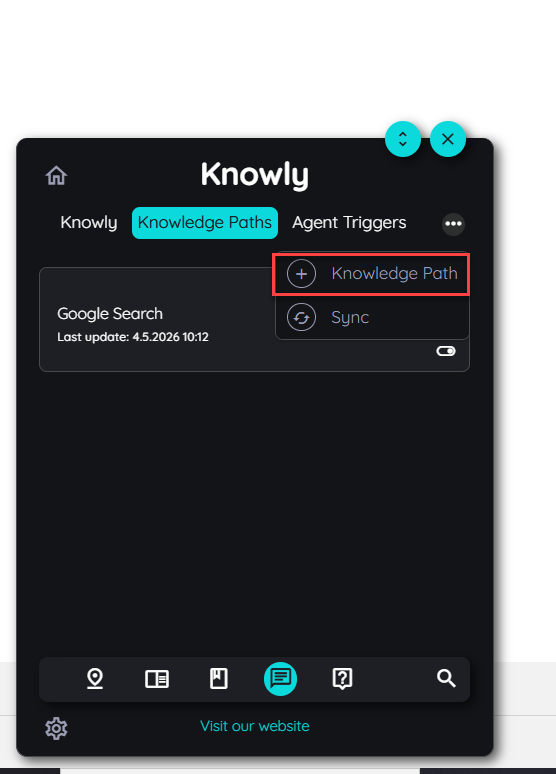
Knowledge Paths can be recorded directly from the AppNavi Avatar.
To start recording:
- Open the AppNavi Avatar.
- Open the Knowly section.
- Open Knowledge Path.
- Open the three-dot menu.
- Select Add Knowledge Path.
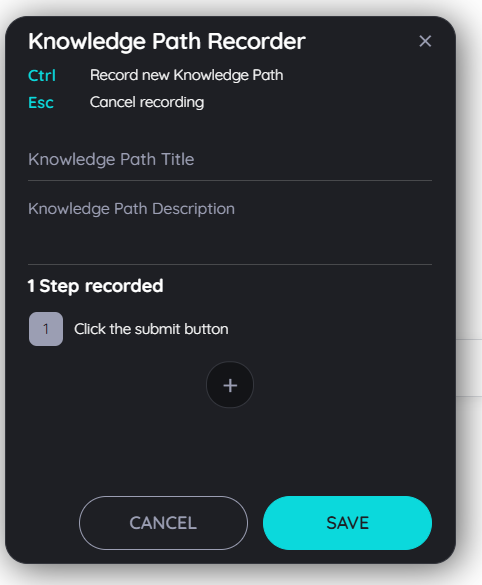
The Knowledge Path Recorder opens and provides fields for:
- Path Title
- Path Description
- Add Step (+)
The title should clearly describe the task, while the description should explain the purpose of the workflow.
Record a Knowledge Path
The Knowledge Path Recorder captures the actions required to complete a workflow.
To capture a step:
- Start the recorder by selecting the plus (+) icon.
- Move to the UI element that should be included in the step.
- Press and hold CTRL while hovering over the element.
- When the element is highlighted with a blue border, release CTRL.
- The element is captured as a Knowledge Path step.
- Enter a title and description for the step.
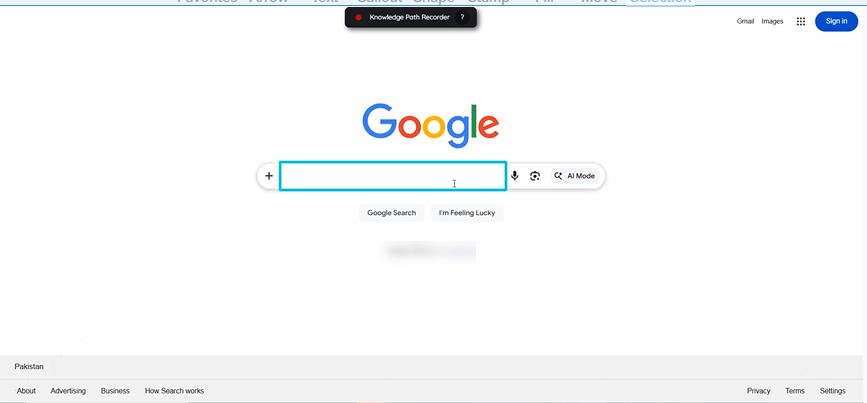
The recorded element is connected to the specific UI element in the application, while the title and description explain what the user should do.
This combination gives Knowly both the location of the action and the instruction that should be presented to the user.
Write Step Instructions
After an element is captured, a small input field appears for the step.
Add:
- A short title describing the action.
- A clear description explaining what the user should do.
For example:
Title: Select Report Type
Description: Select the report type you want to create before continuing.
Keep instructions focused on the action represented by the captured UI element.
AI-Powered Step Suggestions
If AI features are enabled, the recorder can suggest descriptions for captured steps.
The system analyzes the UI structure, rather than the user's data, to generate the suggested description.
You can:
- Use the suggested description.
- Edit the suggestion.
- Remove the suggestion and enter your own description.
According to the current documentation, AI step suggestions use UI structure only; personal data, business data, and input values are not shared for generating these suggestions.
Speech-to-Text
The recorder also provides a microphone option for step descriptions.
Instead of typing the description manually:
- Select the microphone icon.
- Dictate the step description.
- Review the generated text.
- Edit it if required.
- Save the step.
This can be useful when recording a workflow with many steps.
Save or Discard a Step
After recording a step, you can decide whether to keep it.
| Action | Result |
|---|---|
| Save | The recorded step is added to the Knowledge Path. |
| Discard | The recorded step is removed and is not added to the Knowledge Path. |
Review each step before saving it to make sure the correct UI element and instruction have been captured.
Review Recorded Steps
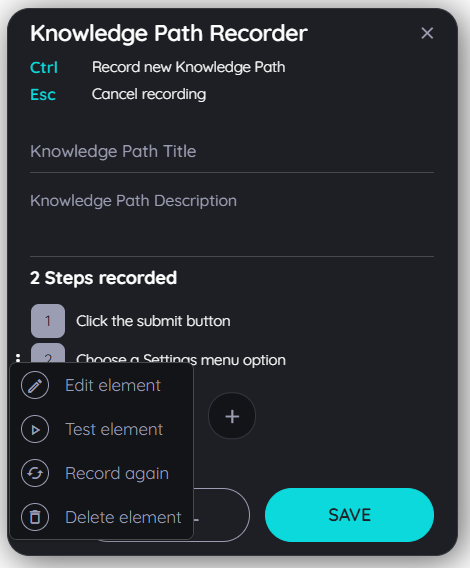
When you finish recording, select the red stop button in the recorder.
The Knowledge Path Recorder then displays the captured steps.
Each step provides actions for reviewing or changing the recorded workflow:
- Edit Element
- Test Element
- Record Again
- Delete Element
Edit Element
Use Edit Element to update the title or description of a recorded step.
This is useful when the captured UI element is correct but the written instruction needs improvement.
Test Element
Use Test Element to verify that the step points to the intended UI element.
The selected element is highlighted with a blue border so you can confirm that the recorded step targets the correct part of the application.
Record Again
Use Record Again when the wrong element was captured or the existing capture needs to be replaced.
The recorder opens again so you can capture the correct element.
Delete Element
Use Delete Element to remove a step from the Knowledge Path.
These actions allow you to refine the workflow before publishing it for use in Knowly.
Save and Test the Knowledge Path
After recording the required steps, save the Knowledge Path.
When you save:
- The recorded steps are compiled into a structured Knowledge Path.
- A confirmation dialog appears.
- The dialog provides an option to test the Knowledge Path.
- You can test the path through Knowly Chat.
Testing before relying on the path helps verify that the recorded workflow provides the expected guidance.
Test a Knowledge Path in Knowly
To test the Knowledge Path, open Knowly Chat and ask a question related to the recorded task.
For example:
How do I create a report?
If the Knowledge Path matches the question, Knowly uses the path to generate a structured response containing the recorded steps.
Review the response from an end-user perspective:
- Does Knowly identify the correct task?
- Are the steps presented in the correct order?
- Does each instruction clearly explain the required action?
- Does each step point to the intended UI element?
If the guidance is not clear, return to the Knowledge Path and refine the relevant steps.
Language Behavior
Knowledge Path responses support automatic language fallback.
For example, if a user asks a question in German, the response can be provided in the corresponding language according to the documented language behavior.
This allows the same Knowledge Path to support users who interact with Knowly in different languages.
Manage Knowledge Paths
The Manage Knowledge Paths experience provides a central place to review and maintain Knowledge Paths that you own or have permission to edit.
You can manage Knowledge Paths from both the Avatar and the Portal.
The main management actions are:
- View Knowledge Paths
- Edit Knowledge Paths
- Reorder steps
- Activate or deactivate paths
- Delete paths
- Review when a path was last updated
Manage Knowledge Paths from the Avatar
The Avatar management view displays accessible Knowledge Paths in a table.
The table includes:
| Column | Description |
|---|---|
| Title | Name of the Knowledge Path |
| Last Updated | Date and time when the path was most recently modified |
| Status | Indicates whether the path is Active or Inactive |
| Actions | Available management actions |
Available actions include:
- Edit
- Delete
- Toggle Active/Inactive
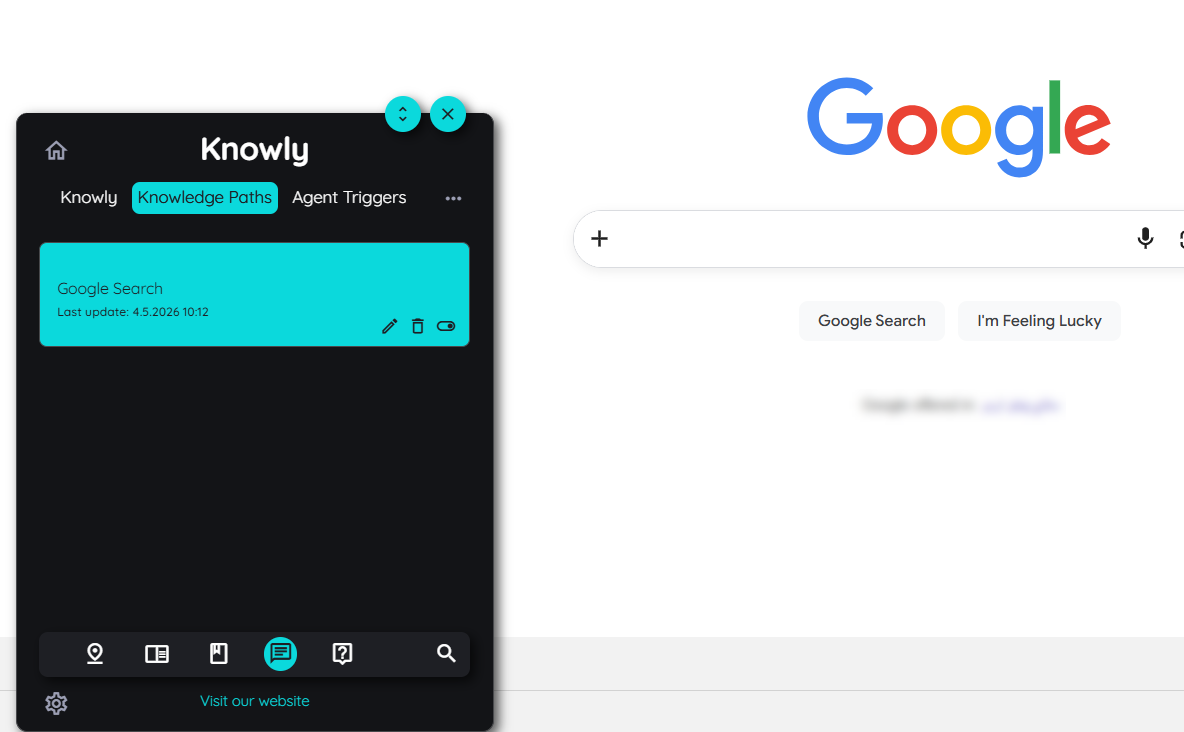
Active and Inactive Knowledge Paths
The status determines whether Knowly can use the Knowledge Path.
Active
An Active Knowledge Path is available for Knowly responses.
When a user's question matches the path, Knowly can provide guidance based on the Knowledge Path.
Inactive
An Inactive Knowledge Path is disabled.
Knowly does not display results based on that Knowledge Path while it is inactive.
You can deactivate a path without deleting it when the content should temporarily be unavailable. Reactivating the path makes it available again.
Manage Knowledge Paths from the Portal
Administrators and content owners can also manage Knowledge Paths from the Portal.
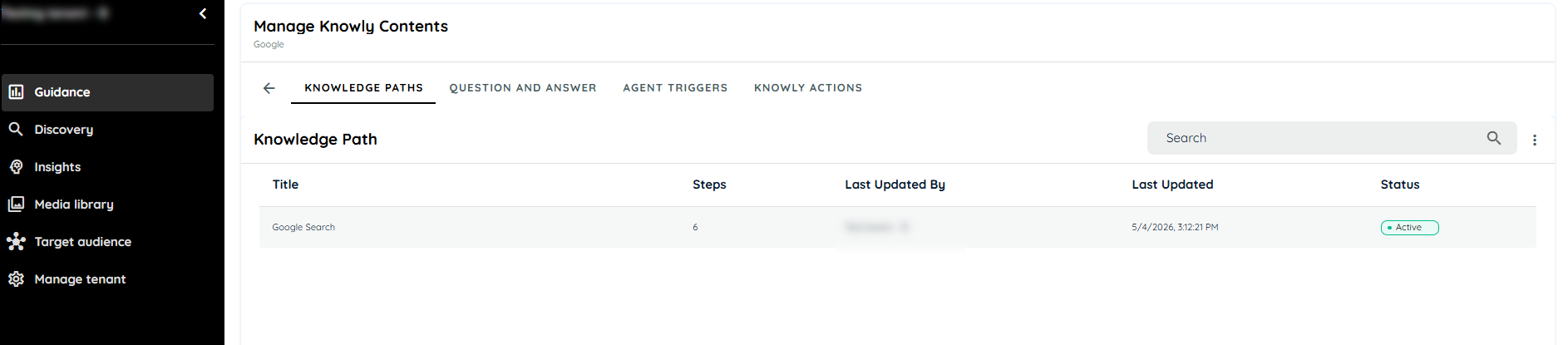
The Portal provides a centralized table for reviewing and maintaining Knowledge Paths.
The table includes:
- Title — Name of the Knowledge Path
- Author — User who created the path
- Last Updated By — User who most recently modified it
- Status — Active or Inactive
- Number of Steps — Total steps in the path
- Actions — Edit, Delete, or Toggle Active
This view is particularly useful for content governance because administrators can review ownership, status, and the size of each Knowledge Path from one place.
Edit a Knowledge Path
The Portal provides a step-based editor for refining an existing Knowledge Path.
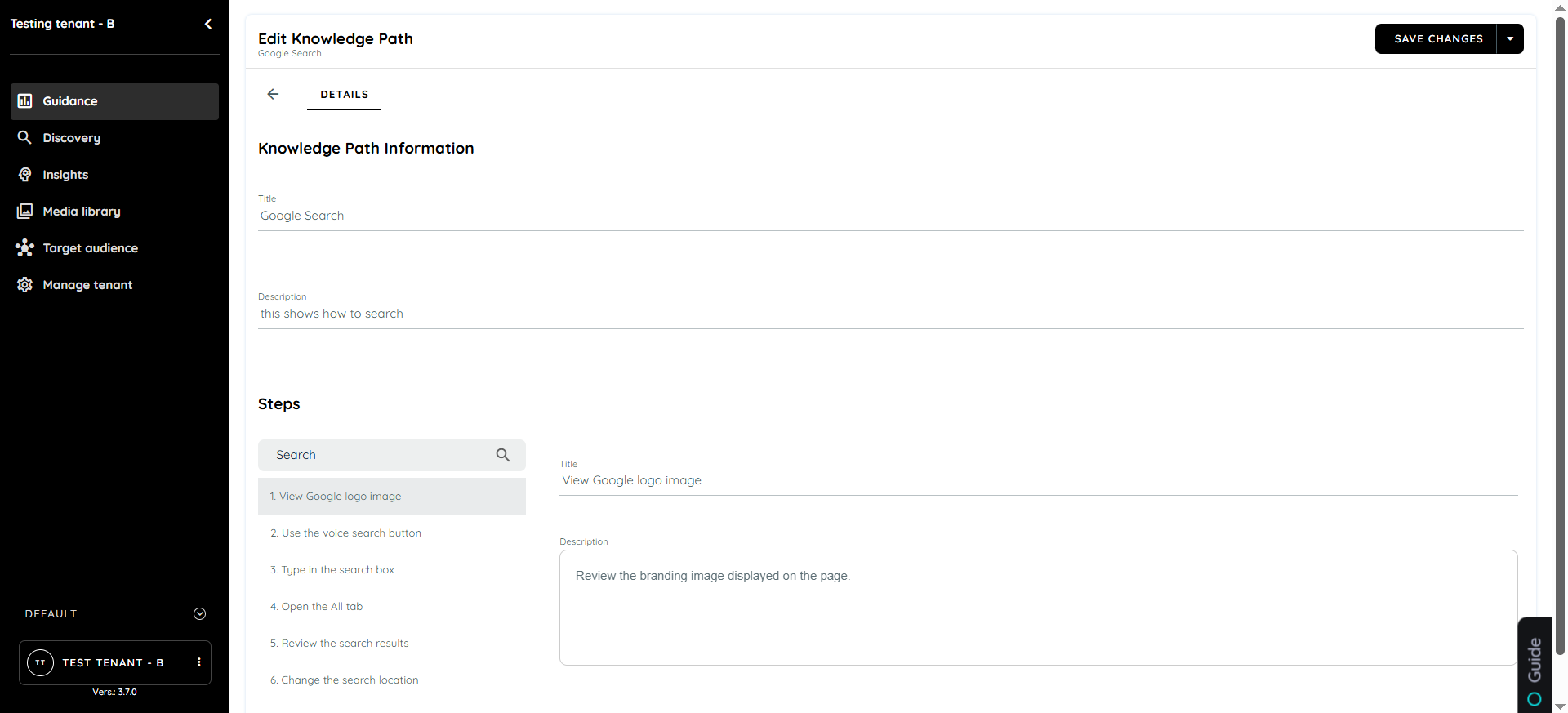
The editor displays all steps in the path and allows you to:
- Reorder steps
- Edit step text
- Update instructions
- Refine the sequence of the workflow
After saving changes, the updated Knowledge Path is persisted and the changes are reflected in the Avatar and Knowly Chat.
Visualize and Highlight Captured Elements
Knowledge Paths can also be reviewed through visual highlighting of captured UI elements.
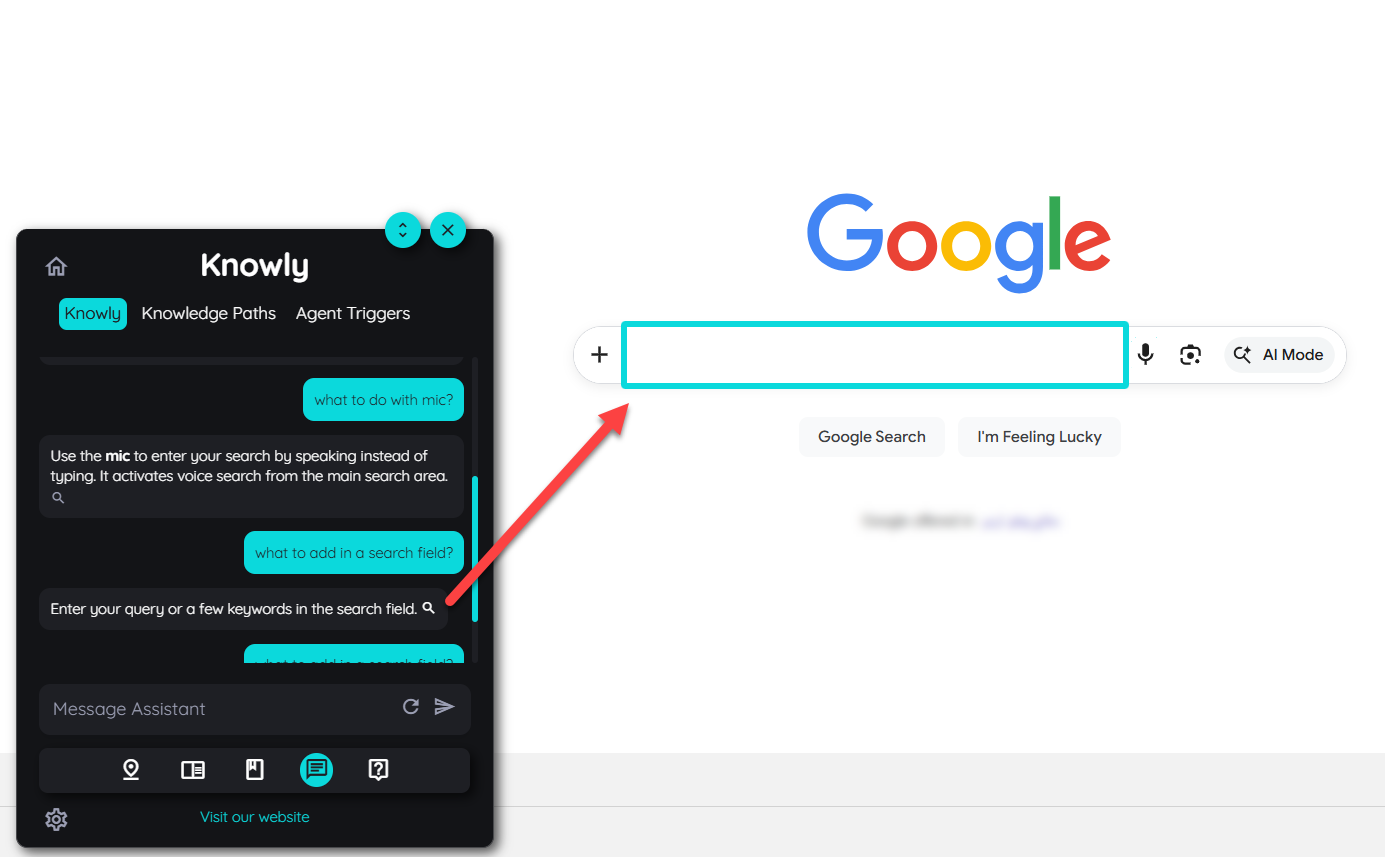
The Knowledge Path Planner provides a visual representation of the recorded elements.
When an element is highlighted:
- The corresponding UI element is shown with a blue border.
- Hovering over an element in the planner provides contextual information.
- Hovering over a captured element in the Knowledge Path chat can highlight the corresponding element in the application.
- Moving the cursor away removes the highlight.
This helps content owners verify that the recorded instructions correspond to the correct application elements.
Customer Use Cases
Knowledge Paths are most useful when users need to complete a task, rather than simply find information.
Employee Onboarding
Create paths for common tasks that new employees need to complete.
Examples:
- Create a user profile
- Submit a request
- Update employee information
- Create a first report
Business Process Training
Use Knowledge Paths to teach employees how to follow a standard process.
For example:
"How to process a customer request"
The path can guide the user through each required application step in the correct order.
Software Rollouts
When an organization introduces a new application or changes an existing workflow, Knowledge Paths can provide practical guidance for the new process.
For example:
"How to submit the new expense report"
Users can ask Knowly for help instead of searching through separate training material.
Recurring Tasks
Knowledge Paths can provide consistent instructions for processes users perform occasionally and may not remember.
Examples:
- Generate a monthly report
- Create a purchase request
- Update a customer record
- Complete an approval workflow
Support and Self-Service
Knowledge Paths can reduce the need for users to contact support for common "How do I...?" questions.
Instead, users can ask Knowly in natural language and receive structured guidance based on the recorded workflow.
Knowledge Paths and Other Knowly Content
Knowledge Paths are one part of the broader Knowly knowledge experience.
Different content types serve different purposes:
| Content type | Primary purpose |
|---|---|
| Documents | Provide reference material, guides, and supporting information |
| Q&A | Provide answers to defined questions |
| Knowledge Paths | Guide users through application tasks step by step |
| Agent Triggers | Start Agents based on defined UI interactions or events |
| Knowly Actions | Connect user intent with actions or workflows |
This allows customers to use the appropriate content type depending on whether the user needs information, an answer, guided task assistance, or an action.
Knowledge Paths vs. Routes
Knowledge Paths and Routes both provide step-by-step assistance, but they serve different parts of the AppNavi experience.
Routes are a core Guidance feature for directly guiding users through processes inside an application.
Knowledge Paths are designed specifically for Knowly, allowing users to reach guided workflows through natural-language questions.
For example:
Route:
A user selects a predefined onboarding Route from the Avatar.
Knowledge Path:
A user asks Knowly, "How do I submit an expense report?" and Knowly uses the relevant Knowledge Path to provide the recorded steps.
Both can support task guidance, but Knowledge Paths connect that guidance to the conversational Knowly experience.
Recommended Content Structure
When creating a Knowledge Path, use a structure that is easy for both users and content owners to understand.
Path title
Use the name of the task.
Good:
Create a Customer Report
Avoid:
Report Process 1
Path description
Briefly explain what the workflow accomplishes.
Example:
Use this path to create and save a new customer report.
Step title
Describe the action.
Example:
Select Report Type
Step description
Explain what the user should do and, where useful, why.
Example:
Select the report type you want to create before continuing.
This makes the resulting Knowly response easier to follow and maintain.
Content Maintenance
Knowledge Paths should be reviewed whenever the underlying application workflow changes.
For example, review a Knowledge Path when:
- A button moves to another location.
- A form field changes.
- A workflow adds or removes a step.
- A page is redesigned.
- The business process changes.
- The existing instructions no longer match the application.
Use Test Element or the visual highlighting features to verify captured elements, and use the Portal editor to update the sequence or instructions when required.
Updated 19 days ago