Avatar Position and Visibility
AppNavi allows you to configure where the Avatar appears in your application and control which users can see it. These settings are configured at the Application level and can be adjusted when creating or editing an application.
Note: Avatar Position controls where the Avatar appears. Avatar Visibility controls who can see the Avatar.
Overview
The Avatar is displayed on the configured application and provides users with access to AppNavi guidance, routes, posts, pins, and other available features.
You can configure:
- Avatar Position – Determines where the Avatar appears on the application screen.
- Avatar Visibility – Determines whether the Avatar is available to all users or only to users included in a restricted rollout.
- Avatar Appearance – Allows supported visual customization through the application's Design settings.
The default Avatar position is Bottom-Left, and the default visibility mode is Visible.
Configure Avatar Visibility for Applications
Avatar Visibility Mode lets you control whether the AppNavi avatar is shown to users within an application. This feature is commonly used to limit avatar visibility during testing, phased rollouts, or controlled enablement for specific user groups.
Two visibility modes are available:
• Visible
• Restricted
Visible Mode
When an application is set to Visible mode:
• The avatar is visible to all users of the application.
• No target audience configuration is required.
• All AppNavi features (Routes, Announcements, Insights, Custom Code) behave normally.
This mode is recommended for production environments where AppNavi should be available to everyone.
Restricted Mode
When Restricted mode is enabled, avatar visibility becomes conditional.
Default Behavior
• Restricted mode ON → Avatar is invisible for all users by default (including tenant owners).
• The application continues to function in the background.
Target Audience Configuration
• One or more Target Audiences (TA) can be added.
• The avatar becomes visible only for users who fall within the configured Target Audiences.
• Users not matching any TA will not see the avatar.
This allows precise control over who can access AppNavi within the application.
Choose a Visibility Mode
Choose a Visibility Mode
| Mode | Avatar visibility | Use when |
|---|---|---|
| Visible | All application users | AppNavi should be available to everyone, typically in production. |
| Restricted | Only users in a configured Target Audience; hidden for all users if none is configured | Testing, phased rollout, or controlled access is required. |
How to Set Avatar Visibility Mode
Visibility mode can be configured during application creation or edited later.
- Go to Applications.
- Select an application from the list.
- Click the three dots and choose Edit.
- Navigate to Avatar Visibility.
- Select Visible or Restricted from the dropdown.
- Optionally, add one or more Target Audiences when using Restricted mode.
- Save the changes.
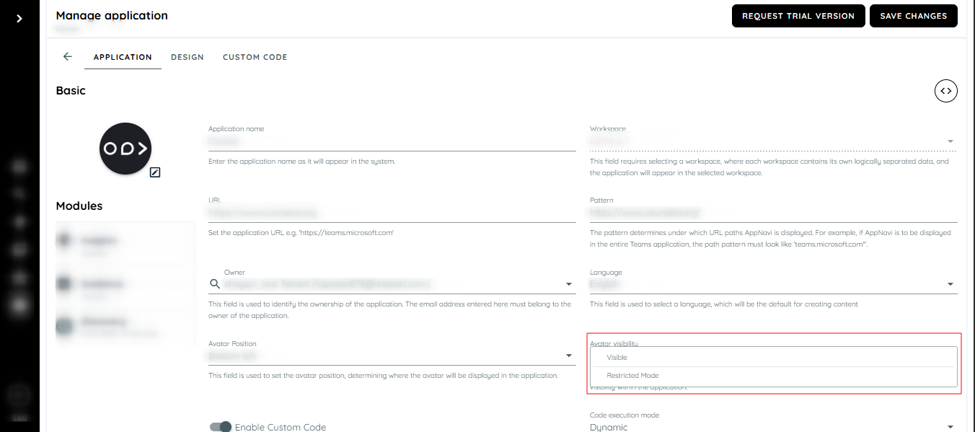
Select Visible or Restricted Mode from the Avatar visibility dropdown.
Related Documentation
https://docs.appnavi.com/docs/create-your-first-application
Restricted Mode - Feature Behaviour Overview
Restricted Mode - Feature Behaviour Overview
Restricted mode affects avatar visibility only. Other AppNavi functionalities may still operate depending on the scenario.
The following table shows the behavior of Restricted mode with and without Target Audiences.
| Feature | Without Target Audience | With Target Audience |
|---|---|---|
| Avatar visibility | Hidden for all users | Visible for users in TA |
| Routes | Cannot be started (avatar hidden) | Available to TA users |
| Pins | Displayed | Displayed |
| Announcements | Displayed | Displayed |
| Insights recording | Active | Active |
| Custom code execution | Active | Active |
| showAvatar() via custom code | Avatar shown | Avatar shown |
Routes with Restricted Mode
• Routes require the avatar to be visible in order to be launched.
• If Restricted mode is ON without a Target Audience, routes cannot be started because the avatar is hidden.
• If Restricted mode is ON with a Target Audience, routes are available only to users included in the TA.
Example:
• Application in Restricted mode
• Target Audience = QA Team
• Only QA users can see the avatar and play routes
PINS with Restricted Mode
• Pins do not require the avatar to be visible in order to be displayed.
• If Restricted mode is ON without a Target Audience, Pins continue to be displayed to end users.
• If Restricted mode is ON with a Target Audience, each Pin remains available according to its own configured Target Audience.
Announcements with Restricted Mode
• Announcements are not dependent on avatar visibility.
• Even when Restricted mode is ON and no avatar is visible, announcements will still be displayed to users.
Example:
• Application in Restricted mode
• No Target Audience configured
• Users will still receive announcements
Insights with Restricted Mode
• Insights recording works independently of avatar visibility.
• User interactions continue to be tracked even when the avatar is hidden.
Example:
• Restricted mode enabled
• No TA configured
• Avatar hidden, but Insights data is still captured
• Surveys will be displayed
Custom Code and Restricted Mode
Custom code execution is not blocked by Restricted mode.
• Custom code has higher priority than visibility mode.
• If Restricted mode is ON and custom code explicitly calls showAvatar():
o The avatar will be displayed, regardless of Target Audience configuration.
• Similarly, if Restricted mode is ON and custom code explicitly calls startRoute():
o The route will be played, regardless of Target Audience configuration.
NOTE:
• If a user is already logged in when application visibility is changed to Restricted mode, the avatar continues to be displayed until the user's session is refreshed.
• Restricted mode controls visibility only, not feature execution.
• Insights, Announcements, Surveys, Pins, and Custom Code continue to function even when the avatar is hidden.
• Custom code always takes precedence over visibility restrictions.
Configure Avatar Position
Step 1: Open the Application
Step 1: Open the Application
- Log in to the AppNavi Portal.
- Navigate to Manage Tenant → Applications.
- Locate the application you want to configure.
- Open the application's Edit option.
Step 2: Select the Avatar Position
Step 2: Select the Avatar Position
- Locate the Avatar Position setting.
- Open the position dropdown.
- Select the position that best fits your application's layout.
- Click Save Changes.
The selected position is applied when AppNavi loads in the target application.
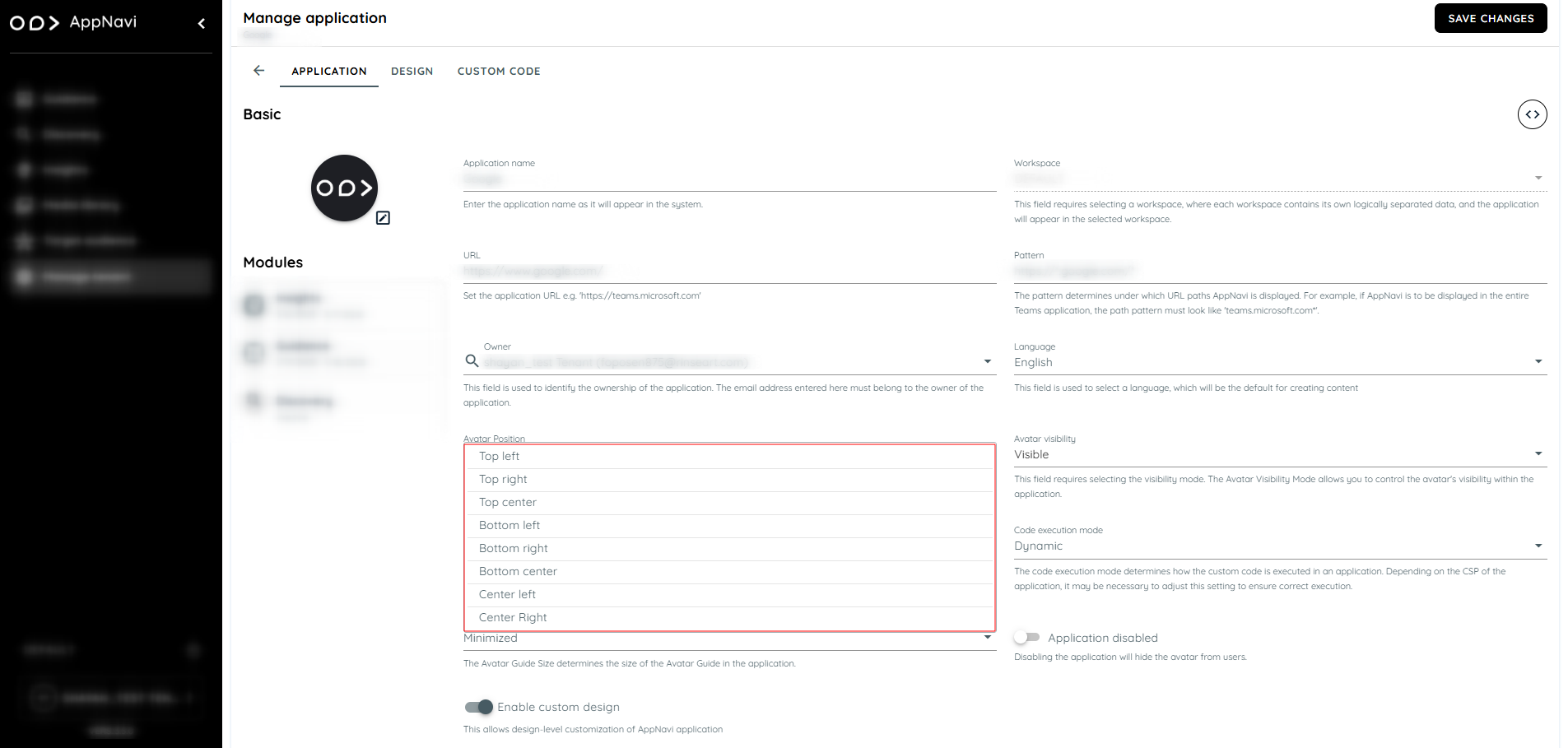
Avatar Position setting
Updated 9 days ago