
AppNavi Discovery – Microsoft Defender API Integration
Overview:
AppNavi Discovery is a powerful solution for montoring and understanding how applications are used across your organization. It works seamlessly with the AppNavi Chrome Extension, which offers smooth integration and rich insights. However, since deploying the extension across all devices may not suit every organization, we’ve also introduced an alternative integration method: Microsoft Defender API. This gives teams more flexibility while still benefiting from AppNavi’s core capabilities.
AppNavi can be configured to use Microsoft Defender API to discover applications and enrich them with usage metrics and organizational context.
Note: Only one integration type—either Chrome Extension or Defender API—can be active at a time.
How to Enable Defender API Integration
- Go to Manage Tenant in the AppNavi portal.
- Find the Discovery Settings section.
- In the Select Data Source dropdown, choose Defender API.
- You’ll see four additional fields:
- Defender Client ID (Required): The Client ID of your Defender API app in Microsoft Entra.
- Defender Client Secret (Required): The Client Secret of your Defender API app in Microsoft Entra.
- Defender Tenant ID (Required): The Tenant ID of your Defender API app in Microsoft Entra.
- Sync AD Users (Optional): If enabled, AppNavi will enrich discovered apps with department and country data from Active Directory.
AppNavi automatically validates the configuration. If there’s an issue, it will show an error message to help you identify and fix the problem.
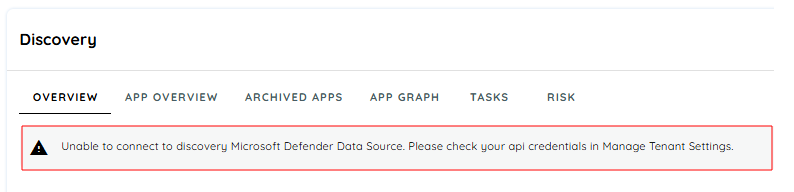
In case AppNavi runs into connectivity issues with Defender Api, it will display an error message in AppNavi Portal. Which will be useful for Tenant Owner to diagnose the issue and fix it.
Supported metrics in Discovery
Once enabled, AppNavi collects data from Defender API daily. Some metrics may appear empty if certain data points aren’t available through Defender
| Feature / Behavior | Chrome Extension | Defender API (AD User) |
|---|---|---|
| Discovery Events | Full events are captured (Business Capabilities, Copy-Paste count, all discovered app columns) | Extension events not captured – only AD user data ingested |
| Matrix in Discovery | Available (all application metrics shown) | Limited: only First Seen and Last Seen for users |
| App Graph | Generated (visual routing between apps) | Not generated |
| Risk Analytics | Available (application risk tab populated) | Not Available |
| Tasks | Can create tasks based on discovered applications | Can create tasks for AD user applications |
| Discovery App Data | All fields (Business Capabilities, Sessions, Time spent, etc.) | Limited: only First Seen and Last Seen for users |
| Data Classification | Available (can add classify data) | Available (can add classify data) |
| Data Processing Applications | Available (can add business process ) | Available (can add business process ) |
| Switching Sources | Works as normal (Chrome data processed) | Supported (Defender data processed, Chrome data discarded until switched back) |
| Privacy Handling | Extension-based pseudonymization | Defender API pseudonymization (no PII, only GUIDs, roles, country, dept if pseudonymized) |
Switching Discovery data source
You can switch to the Chrome Extension as your Discovery data source even after using Defender API for a while. When you make the switch, all previously discovered applications will remain visible in the portal. However, their metrics will now be updated based on data from the Chrome Extension.
As a result, you may notice a drop in some metrics after switching. This is expected—AppNavi does not combine data from different sources. Instead, it only uses metrics from the currently selected integration method.
Permissions for Defender API Client
To allow AppNavi to connect with the Microsoft Defender API and retrieve event data successfully, the API client must be granted the following permissions in Microsoft Entra:
| Permission Name | Purpose |
|---|---|
| User.Read.All | Allows access to user profile data across the organization |
| AdvancedQuery.Read.All | Enables AppNavi to make advanced queries call for detailed event and activity logs |
| AuditLog.Read.All | Optional – Grants access to audit logs for analyzing system activity. Required only if the Defender Metrics feature is enabled. This permission is needed to enrich SSO and MFA metrics. |
Make sure these permissions are assigned to the Defender API client before enabling integration in AppNavi. Without them, data collection may fail or return incomplete results.
Assign Required API Permissions in Microsoft Entra
- Sign in to Microsoft Entra Admin Center
- Go to Applications > Enterprise Applications
- Search and select your Defender API client
- Navigate to Permissions > API Permissions
- Click + Add a permission
- Choose Microsoft Graph > Application permissions
- Add:
User.Read.All, AdvancedQuery.Read.All, AuditLog.Read.All - Click Add permissions
- Click Grant admin consent for[ Your Organization]
- Confirm permissions show as Granted
- Test connectivity in AppNavi using the client credentials
- If it fails, verify client ID, secret, tenant ID, and permission consent status
Troubleshooting
| Issue | Possible Cause | Suggested Fix |
|---|---|---|
| Validation failed | Incorrect Client ID, Secret, or Tenant ID | Double-check values in Microsoft Entra. Make sure the app has corrected permissions. |
| No data appearing | Defender API access not granted or misconfigured | Ensure the Defender API app has permission to read usage data. Check that the app is active and not blocked by policy. |
| Empty metrics in portal | Defender API doesn’t provide all required metrics | This is expected for some metrics. Consider switching to Chrome Extension if full data is needed. |
| Countries and Departments missing | AD sync not enabled or missing attributes | Confirm that Sync AD User option is enabled and user attributes like department and country are available in Entra and mapped correctly. |
Updated 4 months ago