
Role Based Analytics
OVERVIEW
Role Based Analytics helps administrators understand how users with different roles interact with AppNavi Guidance content. It records user roles and displays content usage by role, helping organizations evaluate whether guidance is relevant and useful for different user groups.
For example, an administrator can compare how frequently Admin, Editor, and Viewer users interact with Routes, Posts, and Hints. This information can help identify training needs, improve guidance content, and understand differences in user behavior.
| Requirement | Description |
|---|---|
| Tenant Analytics | Analytics must be enabled at the tenant level. |
| Application Analytics | Analytics must be enabled for the application you want to analyze. |
| Advanced Analytics | Enable Advanced Analytics in the application's analytics settings. |
| Record User Role | Enable this option to allow AppNavi to record users' roles. |
| Custom Code | Implement the required custom code to submit each user's role to the Analytics Service. |
| User Role Data | Ensure the application provides the correct role value for each user. |
Important: Enabling Record User Role alone is not sufficient. The application must also submit the user's role through the required custom code. If roles are not submitted correctly, role-based usage data may be unavailable or incomplete.
Enable Role Based Analytics
- Navigate to manage tenant from left side bar menu
- Goto the Applications tab
- Select any specific application or create new one
- In the edit application scroll down to the Analytics settings section
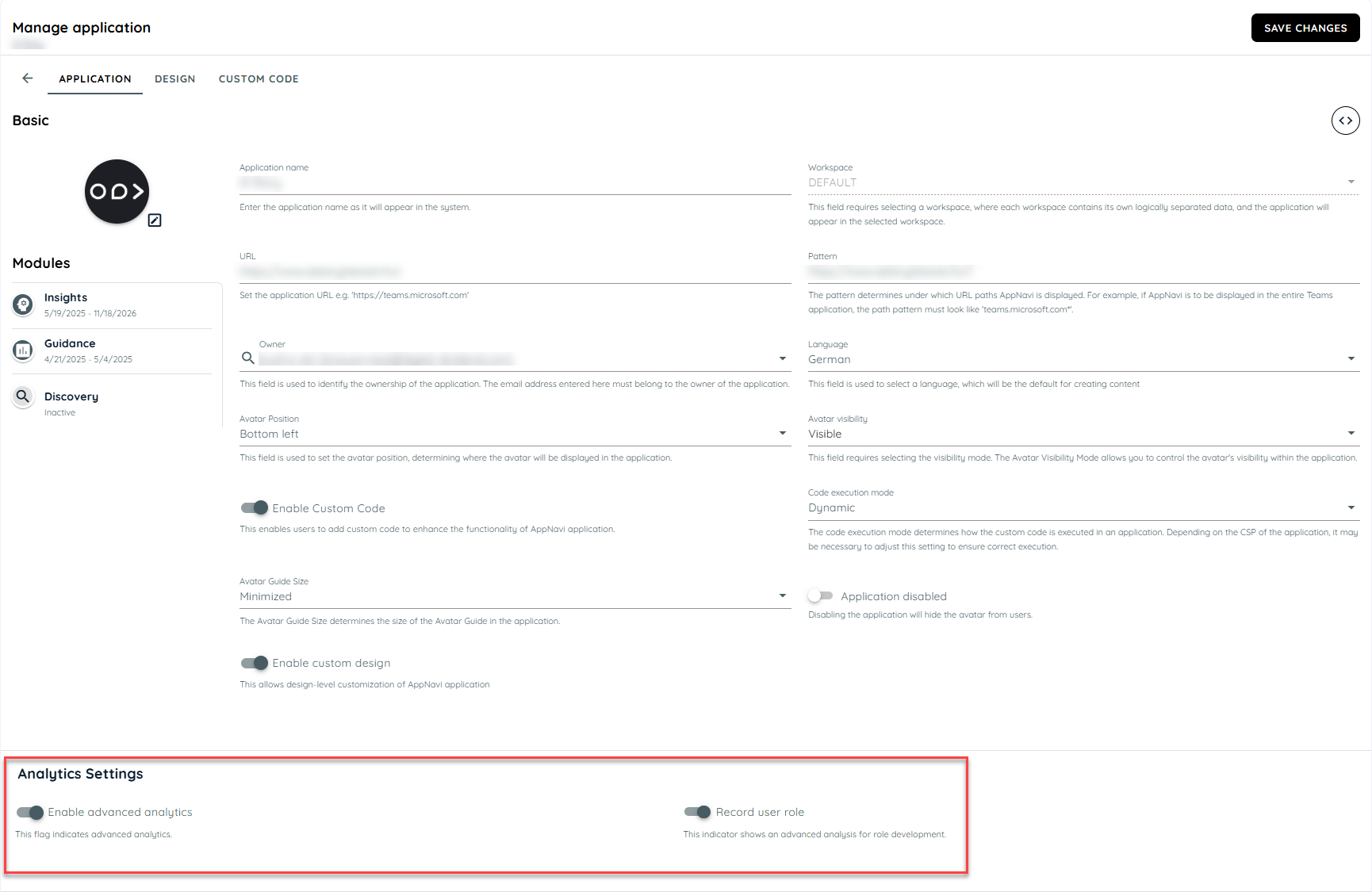
- Enable the role based analytics
The basic requirement for this feature is that analytics is activated at the tenant and application levels. advanced Analytics must then be activated in the advanced settings of the application afterward.
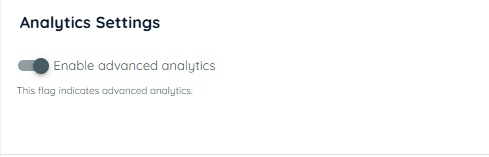
Activate Advanced Analytics
- Then enable activate the role recording. If this option is deactivated, no information about the roles of a user is recorded.
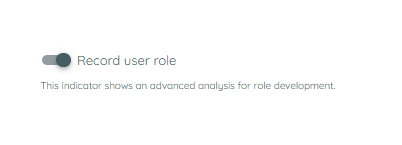
Activate the Record User Role switch
Submit the User Role
To submit a user's role to the Analytics Service, a Custom Code snippet must be implemented in the application custom code like explained set user role.
Display Role Based Usage Data
Role-based usage data is displayed in Object Analytics as a bubble chart for supported content types, including Routes, Posts, and Hints.
The chart helps administrators compare how frequently users with different roles interact with Guidance content.
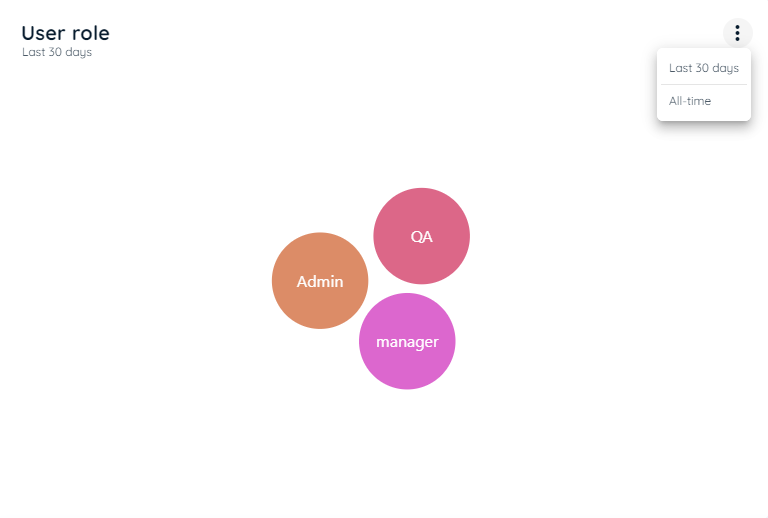
User Role
| Chart Element | Description |
|---|---|
| Bubble | Represents a recorded user role, such as Admin, Editor, or Viewer. |
| Bubble Size | Indicates the relative frequency of content usage for that role. |
| Role Name | Identifies the user role associated with the recorded activity. |
| Content Type | Indicates the supported Guidance content being analyzed. |
| Interpretation | Larger bubbles indicate more recorded usage than smaller bubbles. They do not necessarily indicate more users, better performance, or a higher completion rate. |
Updated 7 days ago