
Agent Actions
This article describes every action you can add to an agent flow, with its settings and examples. For an introduction to agents, see Agents. To connect a flow to n8n or Zapier, see the Agent Connector Setup Guides. If an action does not behave as expected, see Agent Troubleshooting and Logs.
Settings common to every action
Every action opens a settings panel when you select it on the canvas. The following settings and controls appear on all of them:
• Node Title: A descriptive name that identifies the step on the canvas, in the Debug Log and in the execution logs.
• Step ID: The short ID shown under the panel title (for example, 97326f65). Use it to reference the step's output from later steps.
• Active: Turn on to run the step. When it is off, the step is saved but skipped during execution.
• Delete Node / Done: Remove the step from the flow, or save the settings and close the panel.
Prompt
Prompt is used to interact with users by asking questions, collecting input, or displaying important messages during the workflow. It helps guide users through the process by requesting required information at the right step. This action is useful for validations, confirmations, and user responses. It ensures the workflow continues based on the provided input.
Prompt settings
• Node Title : A node title is a clear and descriptive name assigned to a node that identifies its role or purpose within a workflow.
• Instruction: The instruction defines what the agent should do with the provided input and how results should be returned. It controls the agent’s processing behavior within the flow.
• Output Type: Output Type defines the response format expected from the prompt. It can be either Text or JSON depending on the workflow requirement.
• Inject Source Prompt: Inject Source Prompt can be enabled or disabled. When enabled, it retrieves data from the input field and uses it in the prompt response. When disabled, it does not use the input field data.
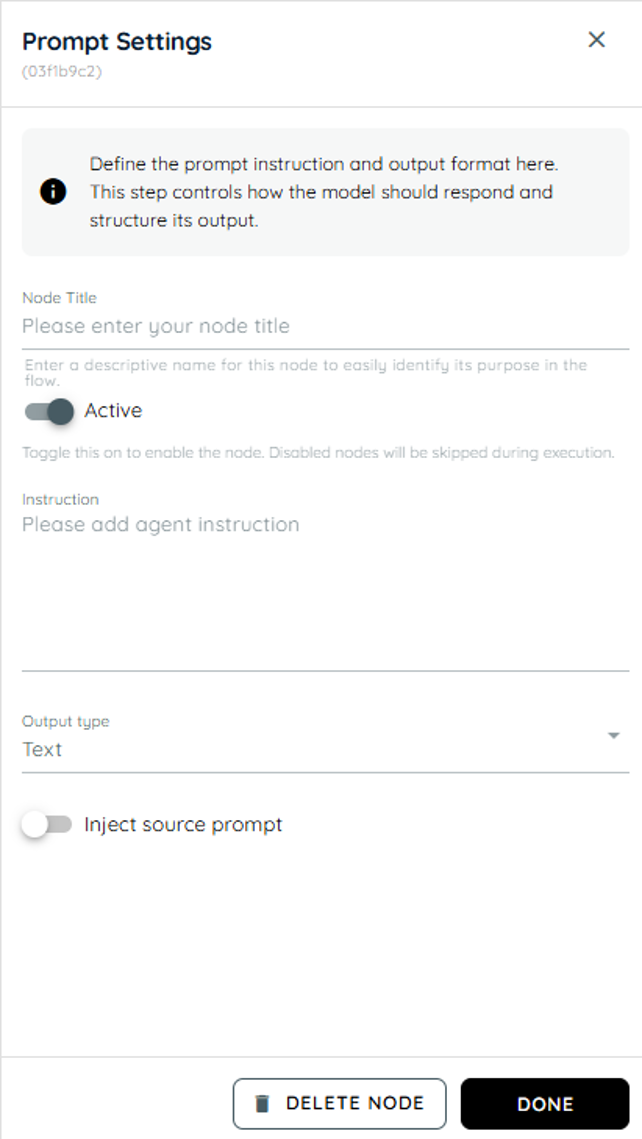
Prompt Settings panel
Document
Document is used to manage document-related tasks within the workflow, such as referencing, or validating files. It helps handle business processes that require document verification or information extraction. This action ensures documents are properly linked to the workflow. It is commonly used in approval and compliance processes.
• Node Title : A node title is a clear and descriptive name assigned to a node that identifies its role or purpose within a workflow.
• Upload Document: The Upload Document section allows users to add files into the system. These documents are then made available for reading, extraction, or processing within the flow.
• Instruction: The instruction defines what the agent should do with the provided input and how results should be returned. It controls the agent’s processing behavior within the flow.
• Output Type: Output Type defines the response format expected from the prompt. It can be either Text or JSON depending on the workflow requirement.
• Inject Source Prompt: Inject Source Prompt can be enabled or disabled. When enabled, it retrieves data from the input field and uses it in the prompt response. When disabled, it does not use the input field data.
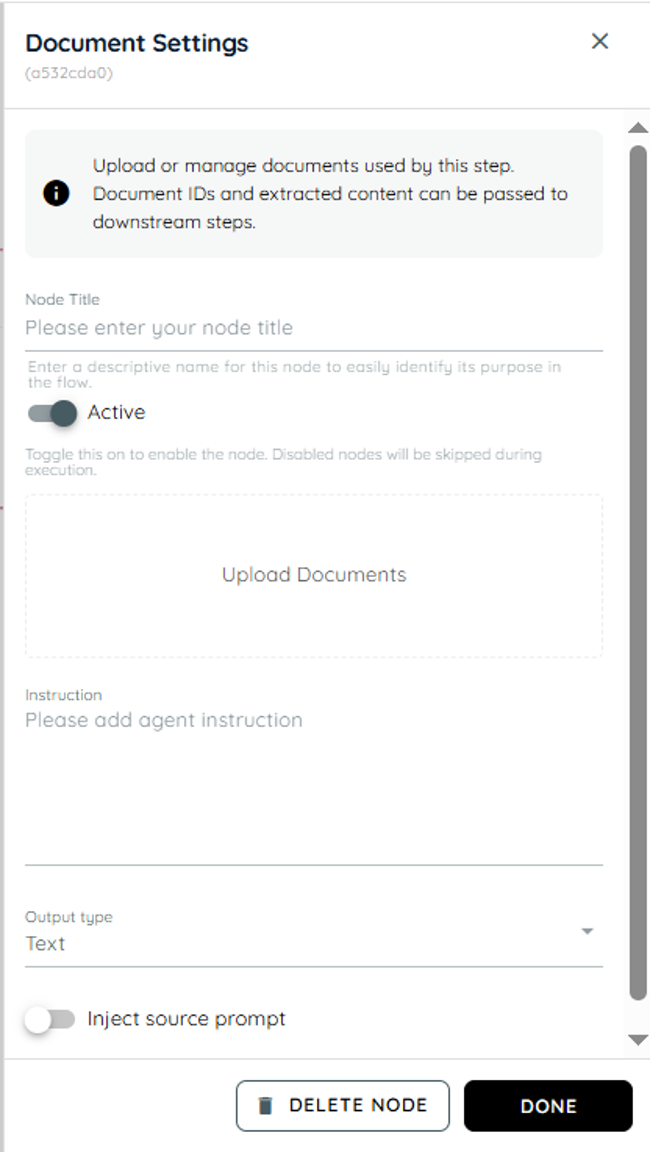
Document Settings panel
Web Service Call
Web Service Call is used to connect the agent with external systems or backend APIs to send or retrieve data. It allows the workflow to interact with real-time business information from other applications. This action helps automate tasks like checking order status or fetching customer details. It improves integration and reduces manual work.
• Node Title : A node title is a clear and descriptive name assigned to a node that identifies its role or purpose within a workflow.
• Endpoint: The Endpoint field specifies the exact URL of the web service or API that will be called. It acts as the target address where the request is sent. This is required for identifying which backend service should process the request.
• Http Method: The HTTP method defines the type of operation to be performed on the endpoint. It determines whether data will be fetched, created, updated, or deleted.
- Get: GET is used to retrieve data from a server or API.
- Post: POST is used to send new data to the server. It is commonly used for creating new records or submitting information.
- Put: PUT is used to update existing data on the server. It replaces or modifies the complete existing resource with the new data provided.
- Delete: DELETE is used to remove existing data from the server. It permanently deletes the specified resource identified in the request. Once executed successfully, the data is no longer available.
• Payload: The Payload field contains the data sent in the body of the request. It is mainly used in POST and PUT requests where information needs to be submitted to the server. This data is structured in formats like JSON or form data.
• Headers: Headers in a WebService API are additional pieces of information sent along with the API request and response. They help define how the request should be processed, what type of data is being sent, and how the server should respond. Headers act as instructions between the client and the server, ensuring proper communication and successful data exchange. - Content-Type → application/json
This header specifies the format of the data being sent in the request body. When set to application/json, it tells the server that the request payload is structured in JSON format. This is commonly used when sending data such as user details, form submissions, or transaction information. - Accept → /
This header defines the type of response the client is willing to receive from the server. When set to /, it means the client can accept any response format, such as JSON, XML, text, or others. - Cache-Control → no-cache
This header controls how caching should be handled. When set to no-cache, it ensures that the request fetches fresh data from the server instead of using previously stored or cached responses. - User-Agent → WebServiceActionClient
This header identifies the application, system, or client making the API request. It helps the server recognize the source of the request for logging, monitoring, debugging, or security purposes. - Accept-Encoding → gzip, deflate, br
This header tells the server which compression formats the client supports for the response. Compression helps reduce response size, improve performance, and speed up data transfer.
gzip → Common compression format
deflate → Another compression method
br → Brotli compression (more efficient in many cases)
• Params: Params are key-value pairs used to pass additional data with the request, usually for filtering or customizing results. They are often appended to the URL as query parameters. Each parameter has a defined key and its corresponding value. - Params Key: The params key is the name of a parameter that defines what kind of data you want to send or filter in the API request. It acts as an identifier for the value you are passing.
- Params Value: The params value is the actual data assigned to the key. It provides the specific input the server uses to process or filter the request based on the given key.
• Authentication Type: Authentication type defines how the request is secured and verified before access is granted. It ensures that only authorized users or systems can interact with the API. - No Auth: No Auth means the API does not require any authentication to access it. Anyone can send a request and receive a response without providing credentials like username, password.
- Basic: Basic Authentication is a simple security method used to verify the identity of a user or system when calling an API. It requires a username and password, which are encoded and sent with each request in the header.
Username And Password: The server checks these credentials to confirm access before processing the request. If the credentials are correct, the request is allowed; otherwise, it is rejected. It is commonly used for simple or internal APIs but is less secure compared to token-based authentication.
- Bearer Token: Bearer Token is a secure authentication method where access is granted using a token instead of username and password. The token is generated by an authentication system and is included in the request header to verify access. This token is a unique string issued to the user or system after successful login or authorization. It is sent with every API request to prove identity and access rights without repeatedly sending credentials.
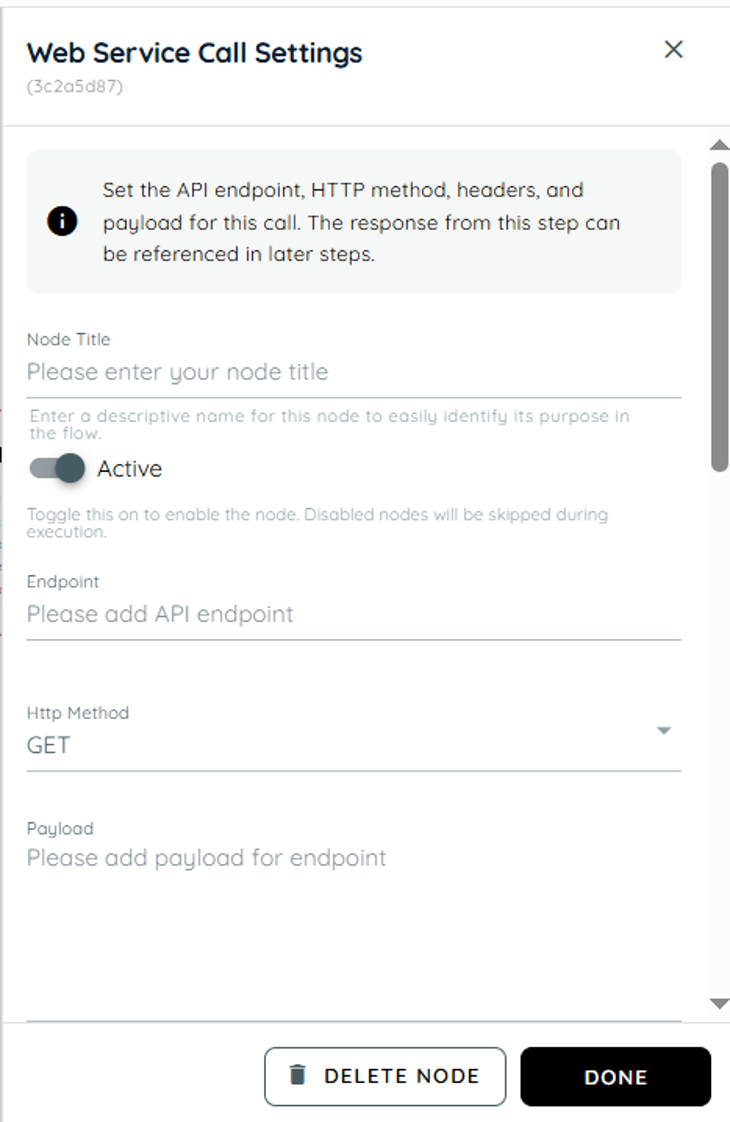
Web Service Call Settings panel
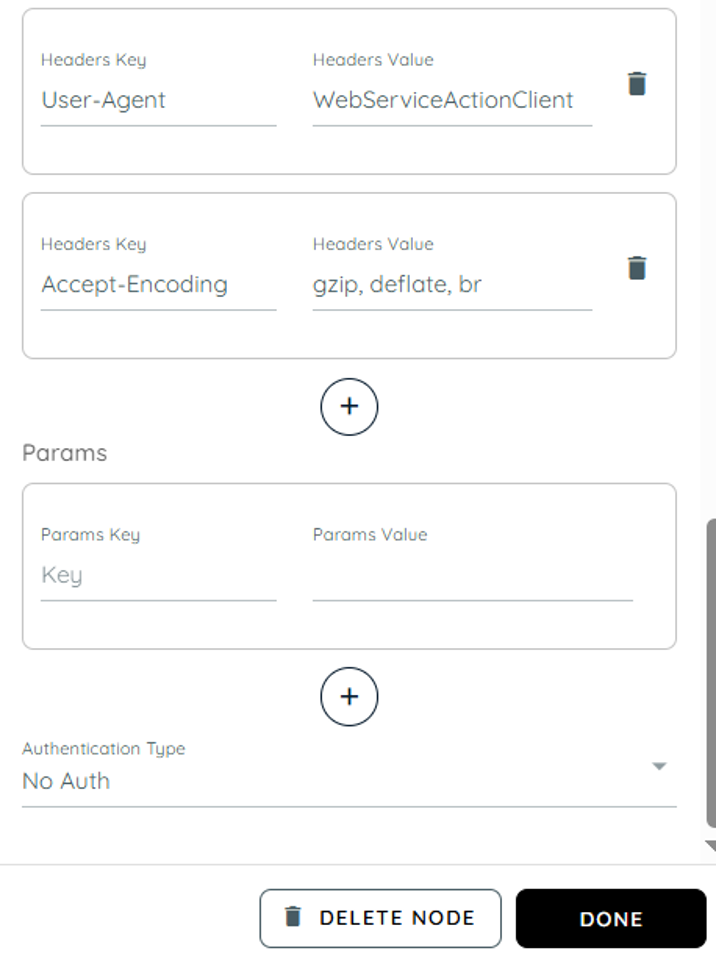
Web Service Call headers (User-Agent, Accept-Encoding), Params key/value fields
Teams Activity
Teams Activity is used for sending notifications or updating communication activities to the Microsoft Teams. It helps keep users informed during workflow execution. This action supports collaboration by connecting workflow events with Teams interactions. It is useful for alerts, reminders, and status updates.
| Title | Description |
|---|---|
| Node Title | Enter a name for the node so it can be easily identified in the workflow. |
| Active | Enable the Active toggle to allow this step to run in the workflow. If the toggle is disabled, the node will be saved but will not execute. |
| Webhook URL | Enter the Microsoft Teams Incoming Webhook URL. This webhook connects the workflow with a specific Teams channel where the card will be posted. |
| Card Name | Select the type of card you want to send to Teams. Available options: |
| Title | Enter the title of the card. This title will appear at the top of the card in Microsoft Teams. |
| Message | Enter the main message text that will be displayed in the Teams card. |
| Image URL | Enter a public image URL if you want to display an image in the card. |
| Status | Select a status indicator for the card. Success This helps users quickly understand the result or state of the notification. |
| Facts (Information Blocks) | Facts allow you to display structured key-value information inside the card. |
| Actions | Actions allow you to add buttons to the card. When a user clicks the button in Microsoft Teams, the configured URL will open. |
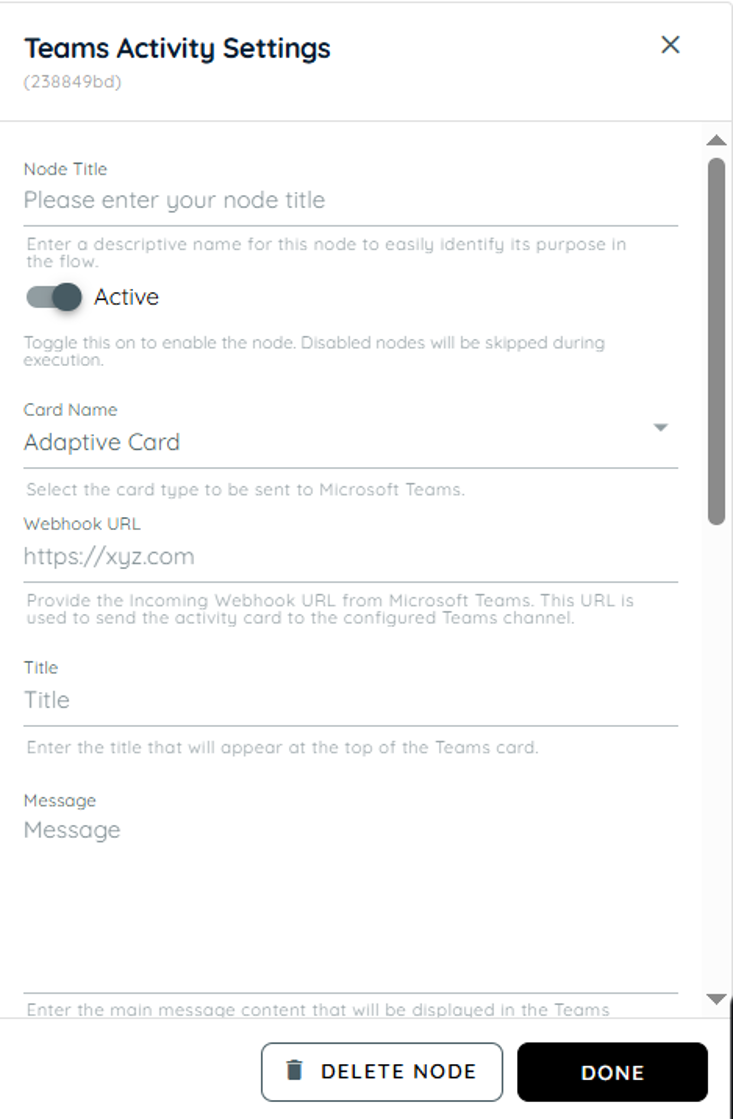
. Teams Activity Settings panel
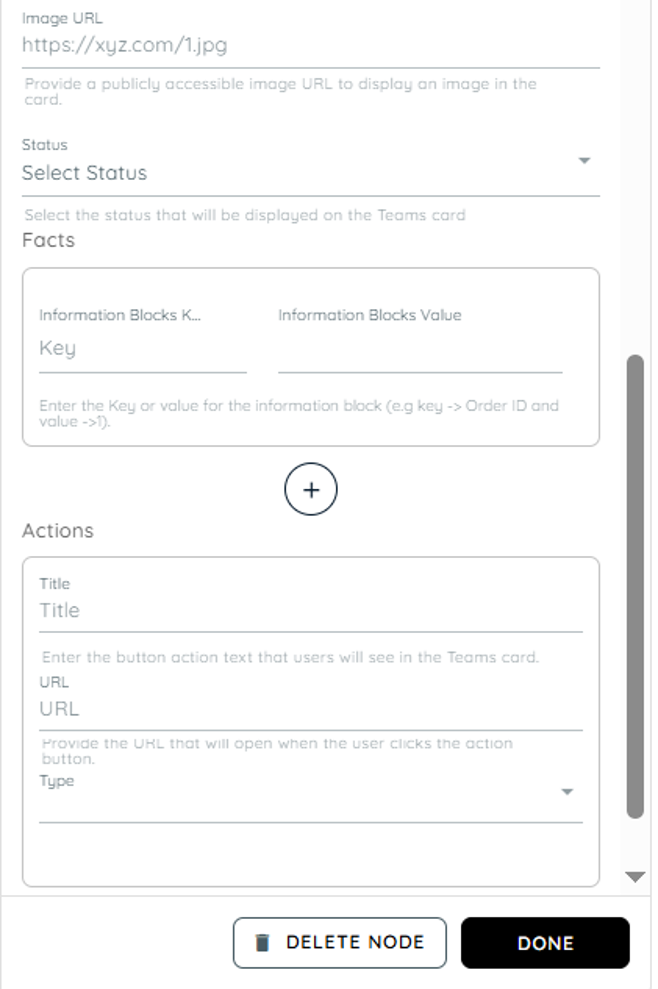
Lower part of Teams Activity Settings
Branching
Branching is used to create decision-based paths in the workflow depending on conditions or user responses. It helps the agent decide which step to follow next based on specific logic. This action makes workflows dynamic and flexible instead of following a single fixed path. It improves process accuracy by handling different scenarios automatically.
• Node Title : A node title is a clear and descriptive name assigned to a node that identifies its role or purpose within a workflow.
• Branch Name: Branch Name is used to name a specific branch in branching logic. It helps distinguish different branches in a clear and organized way.
• Branch Rule: Branch Rule specifies the logic that determines when a branch is executed. If the defined condition matches the output, the workflow proceeds through that branch.
• Default Branch: The Default Branch is the fallback path in the workflow. If no conditions are satisfied, the flow automatically proceeds through this branch.
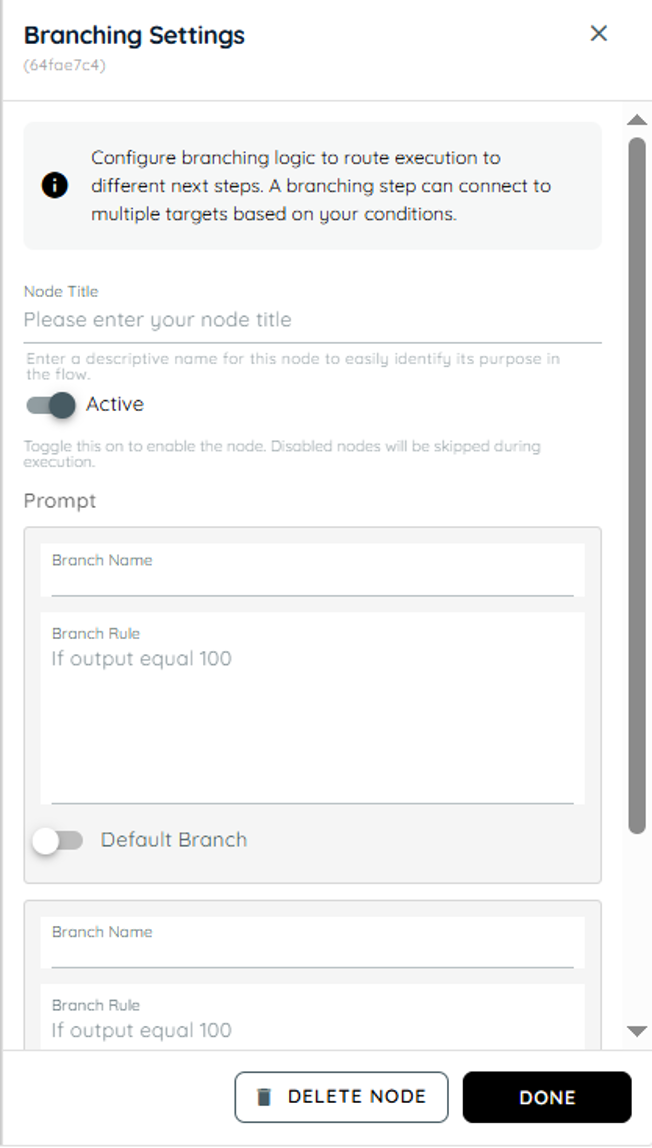
Branching Settings panel
Knowly Interaction
Knowly Interaction is used to create meaningful communication between the agent and the user throughout the workflow. It helps the system guide users, provide relevant information, and handle interactions in a clear and efficient way. This action improves the overall user experience by making the process more interactive and responsive. It ensures the workflow progresses smoothly while keeping the user informed at each step.
• Node Title : A node title is a clear and descriptive name assigned to a node that identifies its role or purpose within a workflow.
• Answer: The Answer type is used when we provide a direct response to the user’s query. It can also be used to display the previous output or already generated information. This interaction focuses on delivering information clearly without requiring additional input from the user.
• Use Previous Output: This answer uses the output from a previous step.
• Message: In this field, the text you enter will be displayed directly to the user as the response.
• Ask Follow Up: This type is used when additional information is needed from the user. In this interaction, we write a question to collect more details, clarify the request, or continue the conversation flow before proceeding to the next step.
• Question: This field is used to enter the question that will be displayed to the user for further input or details.
• Confirmation Request: The Confirmation Request type is used when user confirmation is required before moving forward. In this interaction, we provide a prompt based on the action or decision, and two buttons are displayed for the user: Confirm and Cancel. This is used to ask the user for final confirmation before continuing with an action or decision, using Confirm and Cancel buttons.
• Prompt: This field contains the message that asks the user to confirm or cancel the requested action.
• Confirm: The Confirm button is used when the user agrees to proceed with the action or approves the request.
• Cancel: The Cancel button is used when the user wants to stop the process or does not approve the requested action.
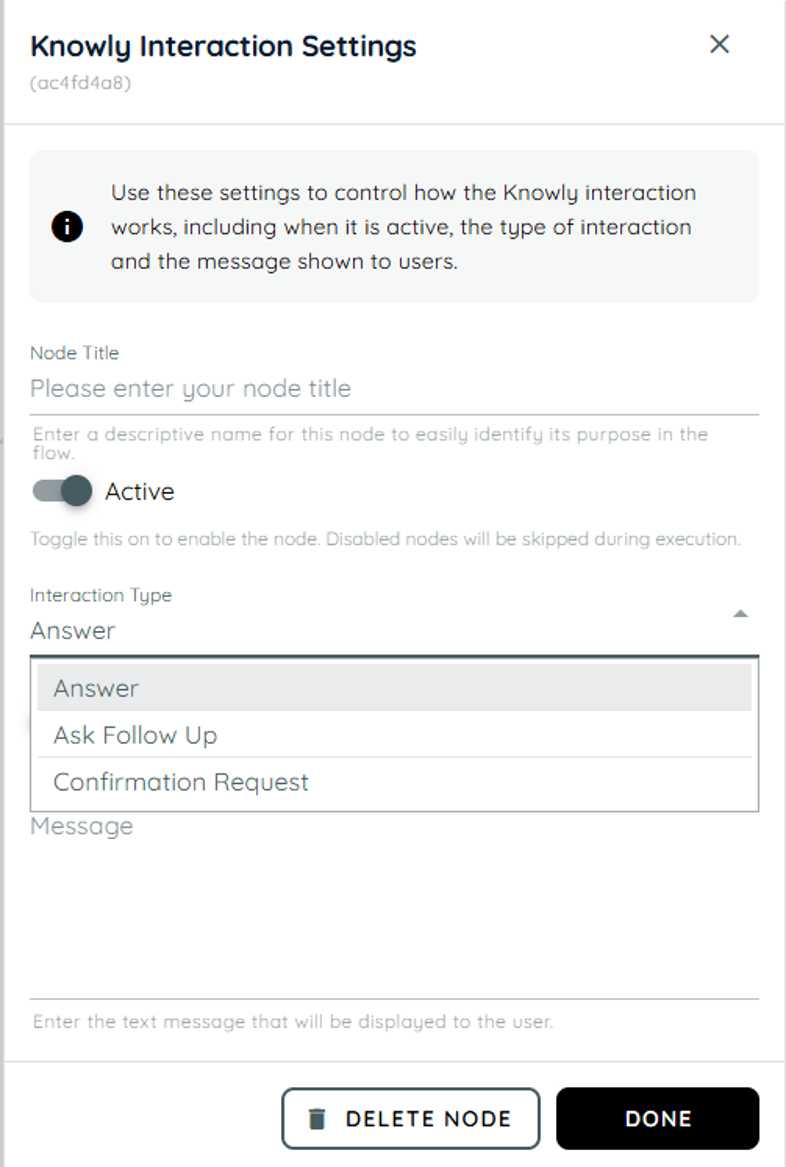
. Knowly Interaction Settings Panel
HTML Capture
HTML Capture is used to capture specific page elements, values, or content directly from the application interface. It helps extract UI information for validation, tracking, or automation purposes. This action is useful when the workflow needs to read data from the screen dynamically. It improves accuracy by using real-time page information.
• Node Title : A node title is a clear and descriptive name assigned to a node that identifies its role or purpose within a workflow.
• Instruction: This field is used to define instructions for the agent about what should be captured. You can guide the system to extract specific content such as form data, inner text, or full HTML structure. It helps clarify the purpose of extraction, such as retrieving visible text, structured data, or converting content into HTML format.
• CSS Selector: This field is used to define the target HTML element using a valid CSS selector. It supports selectors like class names, IDs, or combinations that uniquely identify an element on the page. A correct selector ensures accurate data extraction.
• Output Type: This option defines the format of the extracted data. You can choose between Text, or JSON depending on how you want the output to be structured. The selected format determines how the captured content will be stored and used later in the flow.
- Text: Output is written in natural human-readable language for users, without any structured format, keys, or brackets, and presented as plain sentences or descriptions.
- JSON: Output is structured for machine processing, designed for system use, and represented using key-value pairs.
• Enable Fallback: This toggle provides an alternative extraction method when the primary selector fails. If enabled and the element is not found or returns empty, the system will capture the full page content instead to avoid data loss.
• Use raw HTML: This option controls whether the system captures raw HTML or processed content. When enabled, it returns the complete unprocessed HTML of the selected element. When disabled, it returns cleaned or formatted content instead.
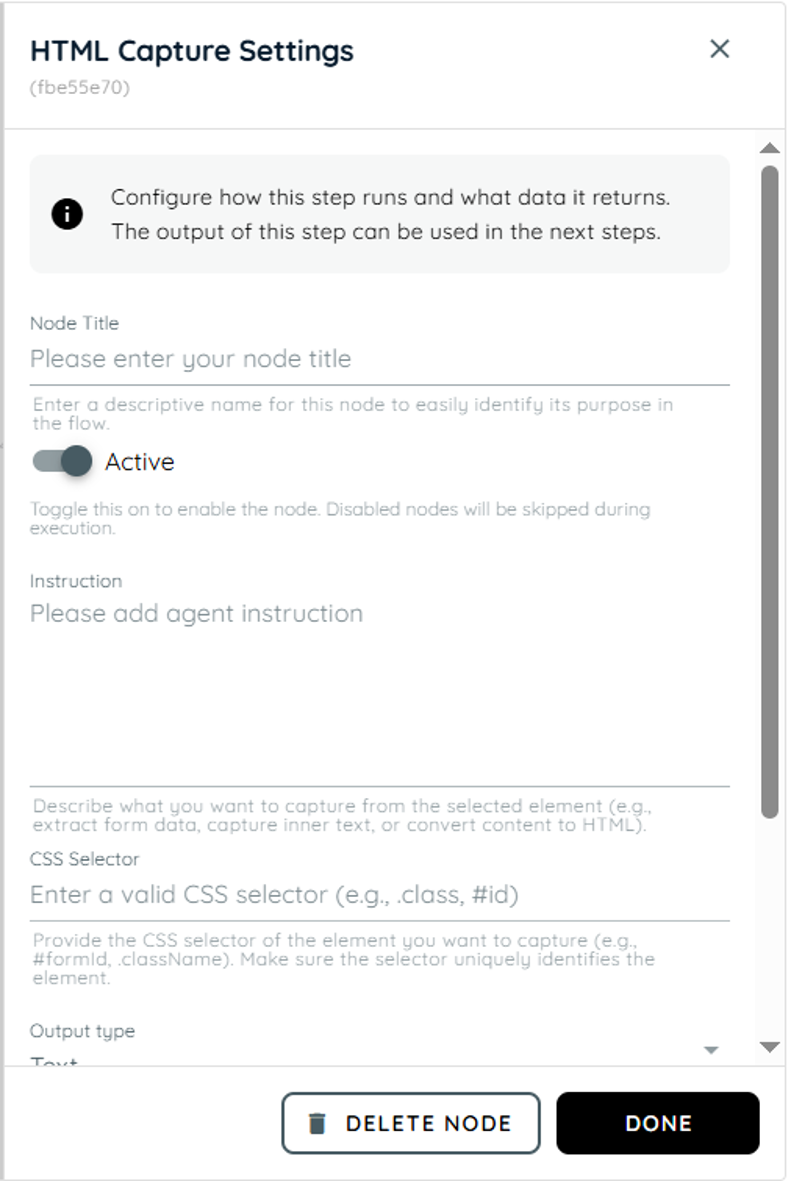
HTML Capture Settings panel showing Node Title, Active, Instruction, CSS Selector and Output type.
Outlook Email Send
Outlook Email send is used to send emails using an agent in any scenario where it is required. Users can connect their Microsoft accounts to integrate their desired emails and send to any user just like a normal email sender. It helps reduce manual work and automatically handles scenarios where emails are to be sent.
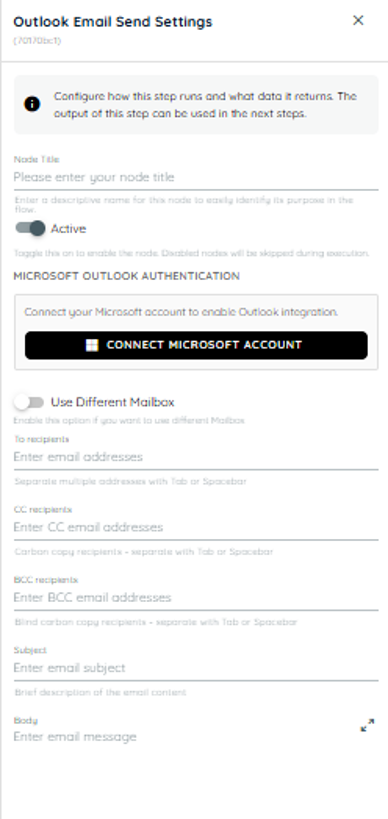
Outlook Email Send Settings panel
• Node Title : A node title is a clear and descriptive name assigned to a node that identifies its role or purpose within a workflow.
• Connect Microsoft Account: On clicking this button a popup appears from Microsoft to select an existing account or add a new account to use for sending emails.
• To Recipients: Specify the primary recipient email address(es) for the message. Multiple email addresses can be added by separating them with tabs or spaces.
• CC Recipients: Enter the email address(es) of recipients who should receive a copy of the email for visibility purposes. Multiple addresses are supported.
• BCC Recipients: Provide the email address(es) of recipients who should receive a blind copy of the email. These recipients will not be visible to other recipients.
• Subject: Enter the title or subject line of the email. This helps recipients understand the purpose of the message before opening it.
• Body: Compose the main content of the email message. This field supports detailed communication intended for the recipients.
Select the format in which the email body should be sent:
Plain: Sends the email as simple text without formatting.
HTML: Sends the email with rich formatting support such as styling, colors, links, tables, and images.
• Importance: Select the importance of the email to notify the receiver.
• Upload Document: Add an attachment to the email.
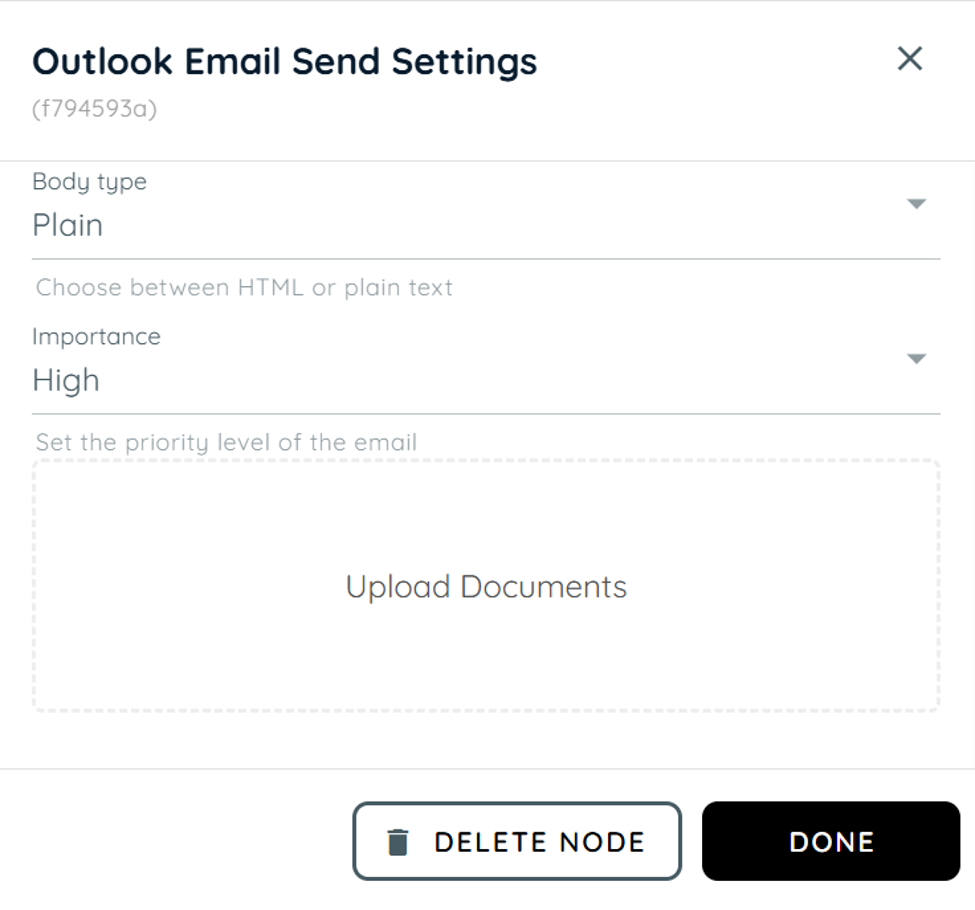
Lower part of Outlook Email Send Settings
Outlook Email Read
Outlook Email Read is used to retrieve and process emails through an agent in scenarios where email data needs to be accessed automatically. Users can connect their Microsoft accounts to integrate their desired mailboxes and read incoming emails just as they would through a standard email client. This helps reduce manual effort by automatically monitoring, retrieving, and handling email-based workflows, enabling agents to react to incoming messages and extract relevant information when needed.
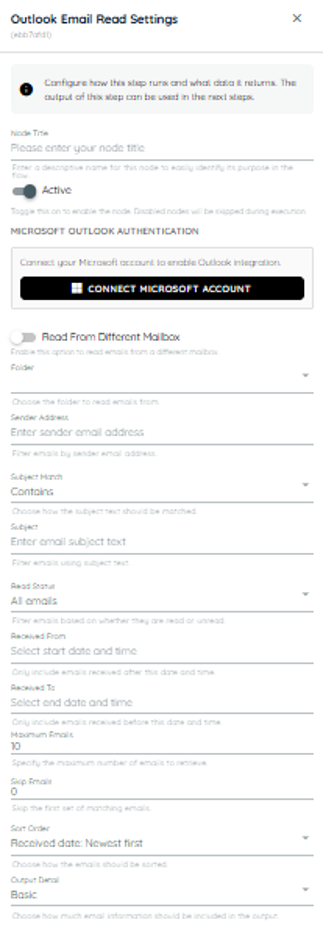
Outlook Email Read Settings panel
• Node Title : A node title is a clear and descriptive name assigned to a node that identifies its role or purpose within a workflow.
• Connect Microsoft Account: On clicking this button a popup appears from Microsoft to select an existing account or add a new account to use for sending emails.
• Folder: Select the Outlook mailbox folder from which emails should be retrieved, such as Inbox, Sent Items, Drafts, or a custom folder.
• Sender Address: Filter emails by the sender's email address. Only emails received from the specified address will be included.
• Subject Match: Defines how the subject filter should be applied. For example, you can check whether the subject contains, equals, starts with, or search with the specified text.
• Subject: Enter the subject text to use when filtering emails. The matching behavior is determined by the Subject Match setting.
• Read Status: Filter emails based on whether they have been read or remain unread. You can choose to retrieve all emails, only read emails, or only unread emails.
• Received From: Specify the earliest date and time from which emails should be included. Emails received before this date and time will be ignored
• Received To: Specify the latest date and time up to which emails should be included. Emails received after this date and time will be ignored.
• Maximum Emails: Specifies the maximum number of matching emails to retrieve. Use this setting to limit the volume of emails processed by the agent in a single execution.
• Skip Emails: Specifies the number of matching emails to skip before retrieval begins. This can be useful for pagination or when you want to ignore the first set of results.
• Sort Order: Determines the order in which matching emails are returned. For example, emails can be sorted by received date, with the newest or oldest emails appearing first.
• Output Detail: Controls how much email information is returned. Basic includes key email properties, Standard adds message content and additional metadata, and Full returns all available email data, including headers, attachments, and complete message details.
Shared mailboxes
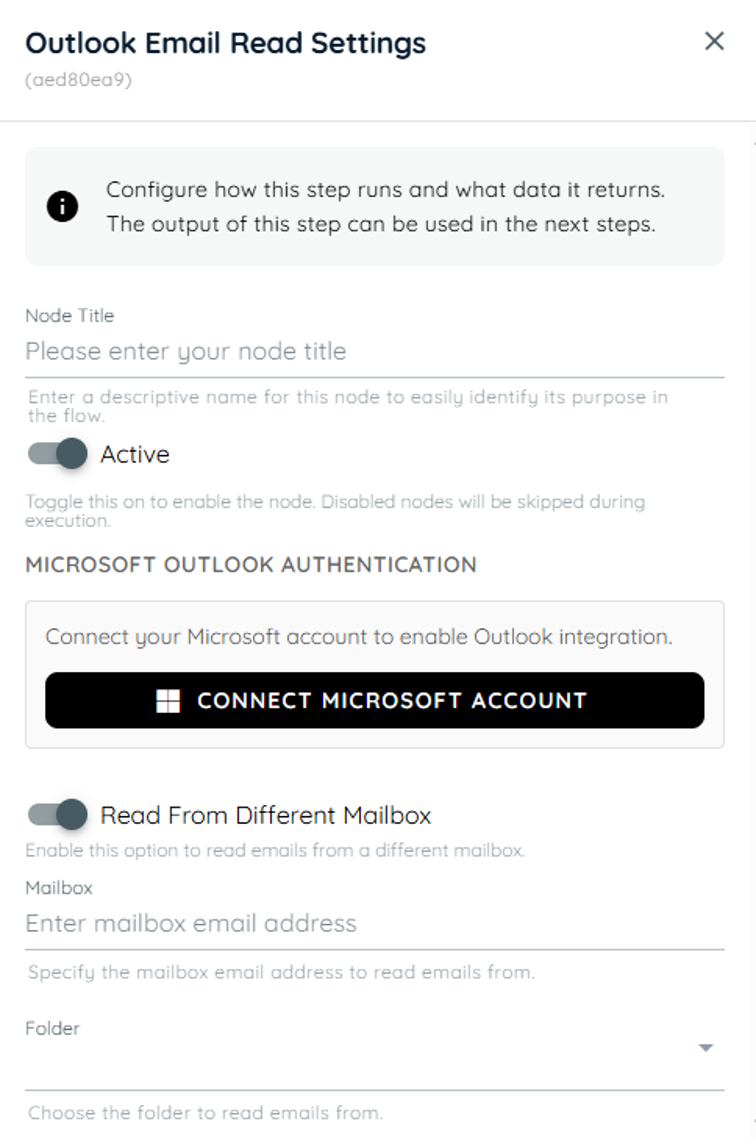
Outlook Email Read Settings
• Read From Different Mailbox: Enables the agent to retrieve emails from a mailbox other than the currently connected account. Specify the target mailbox to access and read emails from that mailbox.
• Mailbox: Specifies the email address of the mailbox to access or retrieve data from. This can be the primary user mailbox or a shared mailbox, depending on the configured permissions. The system will use this address as the target source for reading emails or performing mailbox-related operations.
Loop
The Loop Activity in the Agentic Engine is designed to automate repetitive workflow execution by iterating through structured JSON arrays within a flow. It allows the system to process each item in an iterable JSON collection individually and execute one or more child activities for every iteration. This enables flow builders to efficiently handle bulk operations, repeated actions, and data-driven processes without manually duplicating activities. Once all items in the array have been processed, the workflow automatically continues through the normal downstream flow.
Array Path: The Array Path allows users to configure and specify the exact JSON path from which the loop should extract the iterable collection for processing. The system validates the provided array path to ensure it exists within the JSON structure and contains a valid array before loop execution begins. This ensures that the Loop Activity processes only correctly structured data and prevents failures caused by missing, invalid, or non-array inputs.
Empty Array Behavior:
-
Skip And Continue: If the configured array is empty, the Loop Activity automatically skips the loop execution and proceeds to the next downstream action in the workflow.
-
Fail Execution: In this mode, if an empty array is encountered during processing, an error message is displayed and the loop execution is immediately terminated, preventing any further steps from running.
Output Type: -
None: In this mode, no output is displayed from the actions executed inside the loop. Even if each iteration produces a result, nothing is returned or shown as the final output.
-
Aggregated Result: In this mode, all outputs generated from each iteration of the loop actions are collected and combined into a single consolidated result. The final output represents the complete set of results from all iterations.
-
Last Result: In this mode, only the output from the final iteration of the loop is displayed. All previous iteration results are ignored, and the system returns the last action’s output as the final result.
Error Handling: -
Stop on first error: In this mode, if an error occurs in any single iteration of the loop, the execution is immediately stopped. The loop does not continue further, and the error is displayed right away.
-
Continue on error: In this mode, if an error occurs in an iteration, that error is recorded and shown, but the loop continues executing the remaining iterations without interruption.
-
Collect Item status: In this mode, if an error occurs in any iteration, it is shown for that specific item, and the loop continues executing the remaining iterations. Along with continuing execution, the system collects the success or failure status of each item. In the end, it returns a complete report showing the result of every individual iteration, including both successful and failed items.
Add Action: In this option, all available agent actions can be added inside the loop. These actions can be selected and used based on different scenarios and workflow requirements within the loop.
Drag and Drop: Actions can be easily moved into the loop by dragging them from the designer view. Similarly, actions inside the loop can also be dragged out and placed back into the designer view for better workflow arrangement.
Sorting: Within the loop, actions can be rearranged and sorted according to the required execution order. This helps in organizing the workflow so that actions run in a sequence that matches the use case or business logic.
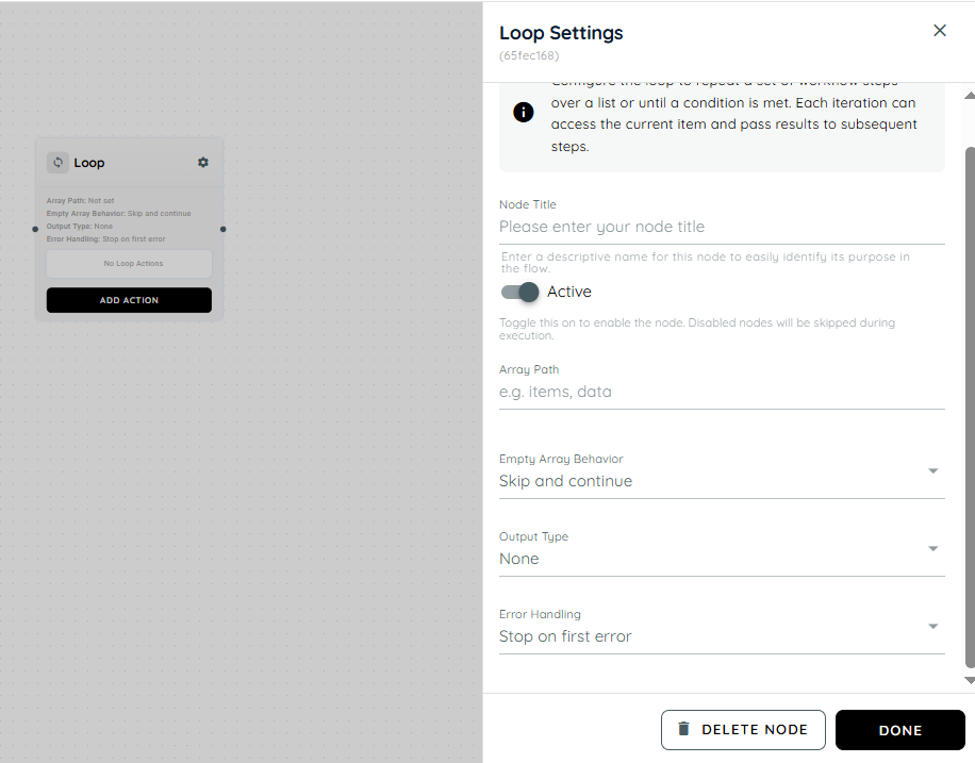
Loop Settings panel next to the loop node on the canvas
Example: send each collected contact to Microsoft Teams
We collect the user’s name and email from the user and forward them to Microsoft Teams.
-
In the Knowly interaction, we are prompting the user to provide their username and email address.
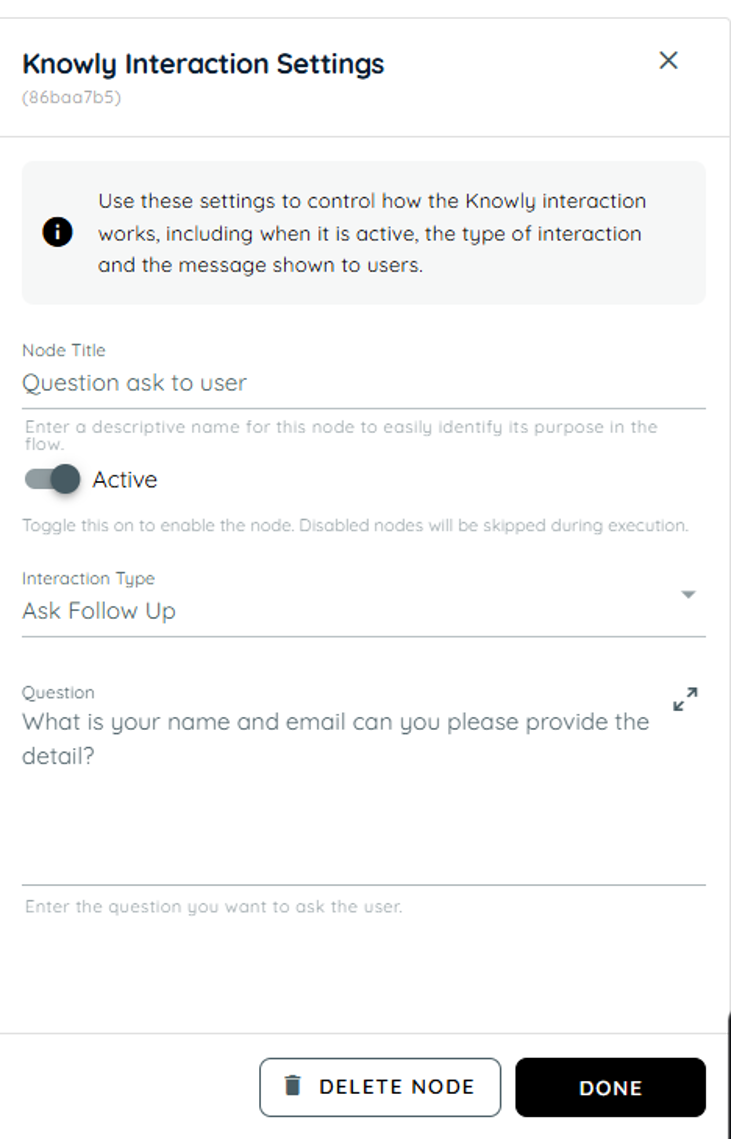
Knowly Interaction (Ask Follow Up) asking the user for their name and email.
2. In this action, we extract the output from the previous step and storing it in the specified array path, and return the result in a properly structured JSON format.
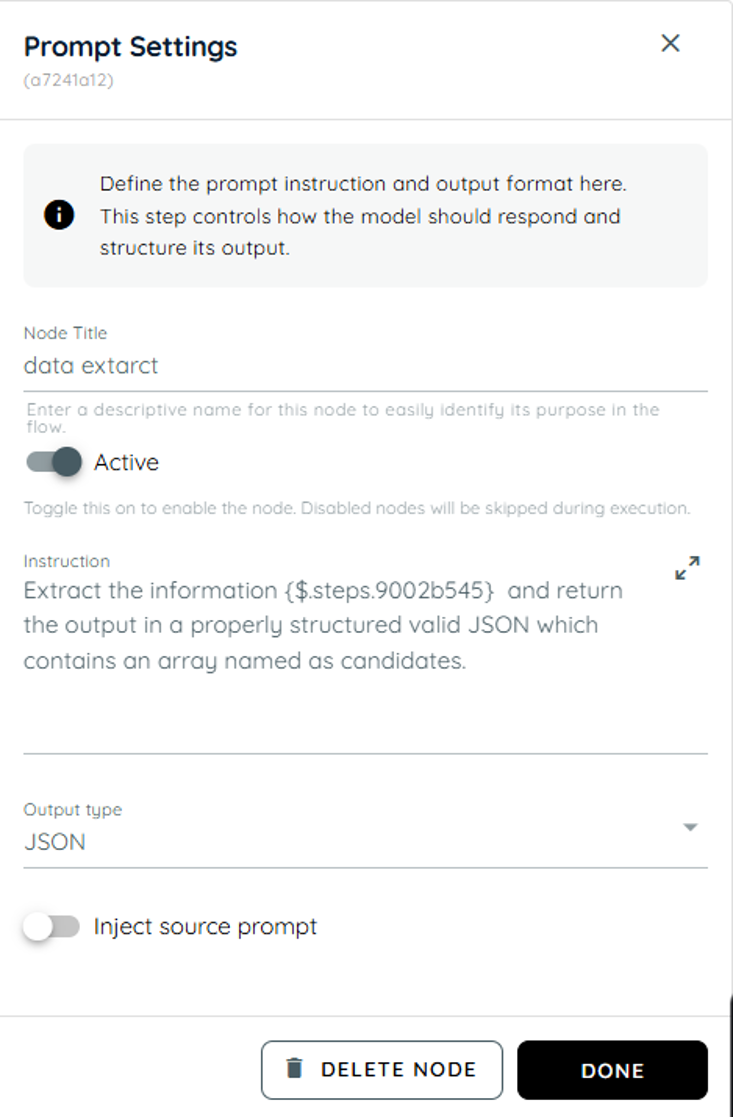
Prompt that extracts the previous answer and returns JSON containing an array named candidates.
3. In this action, we use the team activity within the loop and reference the candidates array path. The name and email from each item are passed into the team activity, where they are used to send the corresponding details.
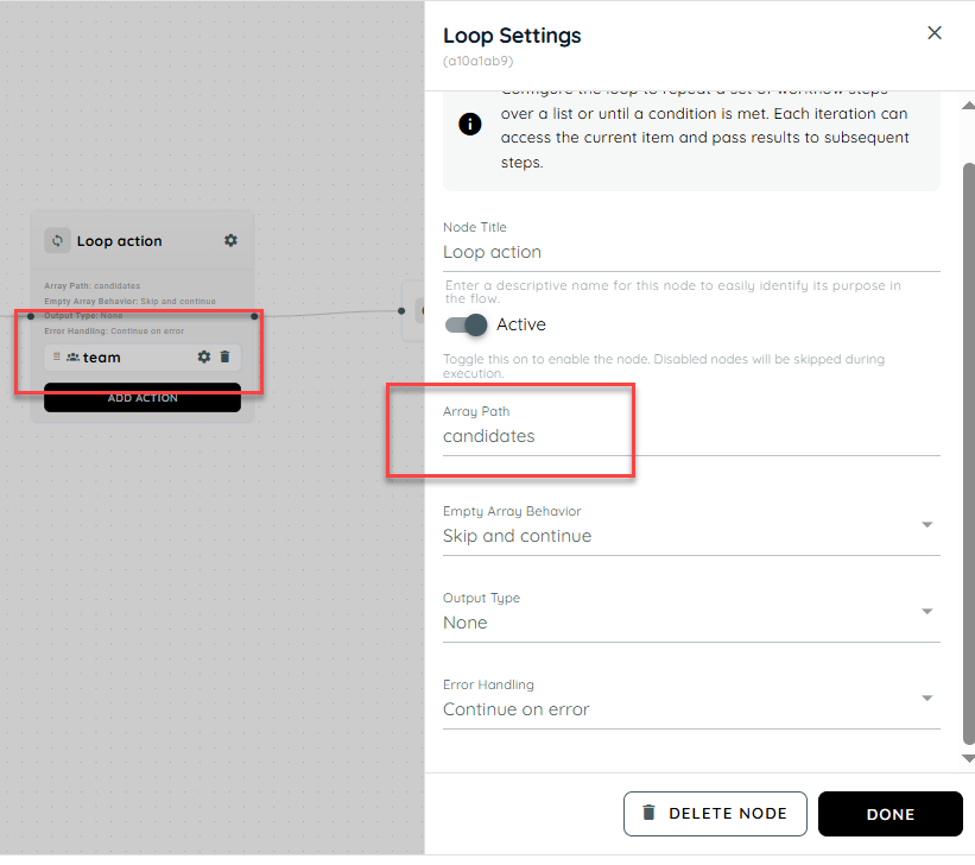
Loop action with Array Path set to candidates and a Teams activity placed inside the loop.
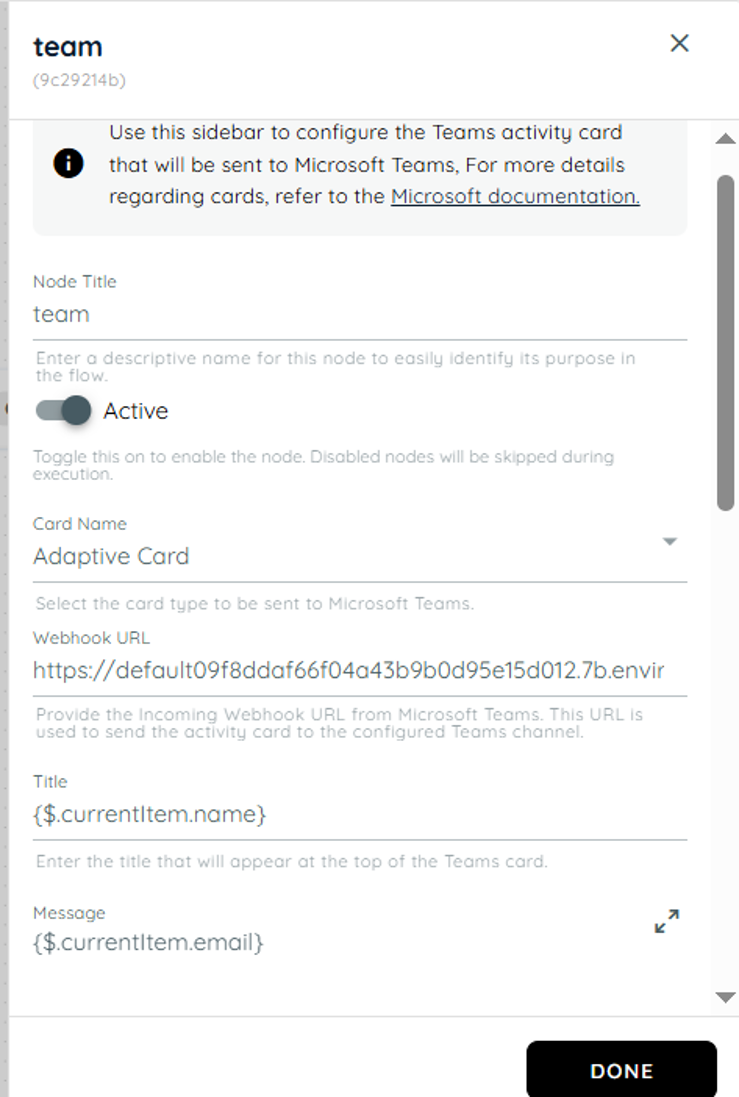
Teams activity inside the loop using {$.currentItem.name} as the card title and {$.currentItem.email} as the message.

Canvas of the loop example flow: Start, follow-up question, data extract prompt, Loop action and End.
Result
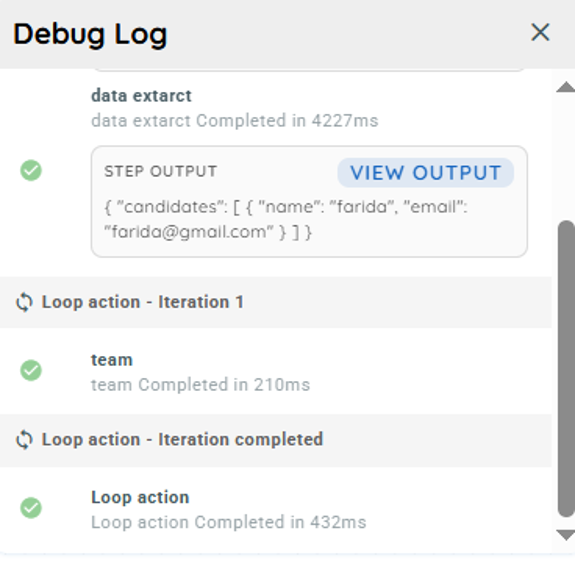
Debug Log showing the data extract output with the candidates array, loop iteration 1 running the team step, and the loop completing.
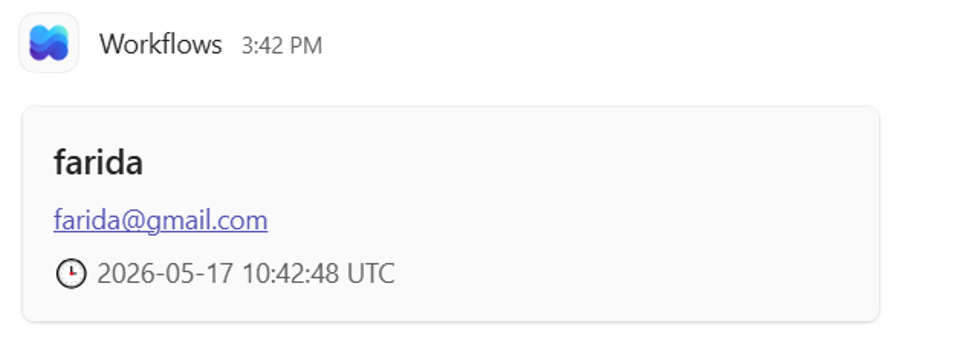
Microsoft Teams card posted by the workflow showing the name and email taken from the loop item.
Outlook Calendar Create Event
Outlook Create Event Activity enables flow builders to automatically create calendar events in Microsoft Outlook using a connected Microsoft account. It supports creating events in primary or shared calendars, adding required and optional attendees, setting locations, reminders, and time zones, and generating online meeting links such as Microsoft Teams meetings. The activity returns structured JSON output containing event details, making it easy to use in downstream workflow automation.
-
Microsoft Outlook Authentication: This refers to the login and authorization process with Microsoft Outlook services that verifies the user’s identity before allowing access. It ensures that only authenticated users can access mailbox and calendar data through secure protocols like OAuth or Microsoft Graph. Without successful authentication, actions such as creating or editing events are not permitted.
-
Create Event in Different Mailbox: This allows users to create calendar events in a mailbox other than their primary one, such as shared or delegated mailboxes.
-
Mailbox: It can be a personal mailbox or a shared one depending on the configuration. When creating events, selecting the correct mailbox ensures the event is stored in the intended account.
-
Calendar: The calendar is a scheduling component within a mailbox where events are created and managed. A mailbox can include multiple calendars such as primary, shared, or group calendars, and selecting the correct one ensures the event is placed in the appropriate context. The email entered in the mailbox determines the corresponding available calendars, which are then shown in the dropdown. The user can choose from these options and create an event in the selected calendar.
-
Subject: The subject is the title or heading of a calendar event that briefly describes its purpose. It is displayed in calendar views and invitations sent to attendees.
-
Start Date and Time: This defines when the event begins, including both the date and specific time. It is a mandatory field that determines the starting point of the scheduled meeting.
-
End Date and Time: This specifies when the event ends and must always be later than the start time. It defines the total duration of the meeting or appointment.
-
Timezone: The timezone determines the regional time context in which the event is scheduled. It ensures that meeting times are correctly converted for attendees in different locations. Outlook uses this setting to maintain consistency across global calendars.
-
Required Attendees: These are the participants who must attend the meeting and are sent mandatory invitations. They are expected to respond with acceptance or rejection of the invite.
-
Optional Attendees: Optional attendees are invited to the meeting but are not required to attend. They receive the same invitation but have the flexibility to join based on availability. This is useful for stakeholders who need awareness but not mandatory participation
-
Body: The body contains detailed information about the event such as agenda, notes, and instructions. It supports additional context beyond the subject line.
-
Body Type: Body type defines the format in which the event description is displayed, such as plain text or HTML. It controls how formatting like links, colors, and structure appear in the event body. Choosing the correct type ensures proper rendering across clients.
-
Location: Location specifies where the meeting will take place, either physically or virtually. It can include an address, room name etc.
-
Show as: This setting defines the availability status during the event such as Busy, Free, or Tentative. It affects how the time slot appears on calendars for other users. It helps indicate whether the user is available during the scheduled period.
-
Reminder: Reminder is a notification set before the event starts to alert participants. It can be configured in minutes, hours, or days depending on requirements. Outlook triggers alerts based on this setting to ensure timely awareness. It helps prevent missed meetings.
-
Category: Categories are labels used to organize and group calendar events, often shown in different colors. They help users classify meetings based on type, project, or priority. Multiple categories can be assigned depending on configuration.
-
All Day Event: An all-day event is scheduled without specific start or end times and typically spans an entire day. Such events appear at the top of the calendar view.
-
Importance: Importance indicates the priority level of an event such as Low, Normal, or High. High importance events are visually highlighted in Outlook to draw attention. It helps recipients understand the urgency or critical nature of the meeting.
-
Online Meeting: This setting determines whether the event includes a virtual meeting option. When enabled, it automatically generates a link for platforms like Microsoft Teams. Attendees can join remotely using the provided link.
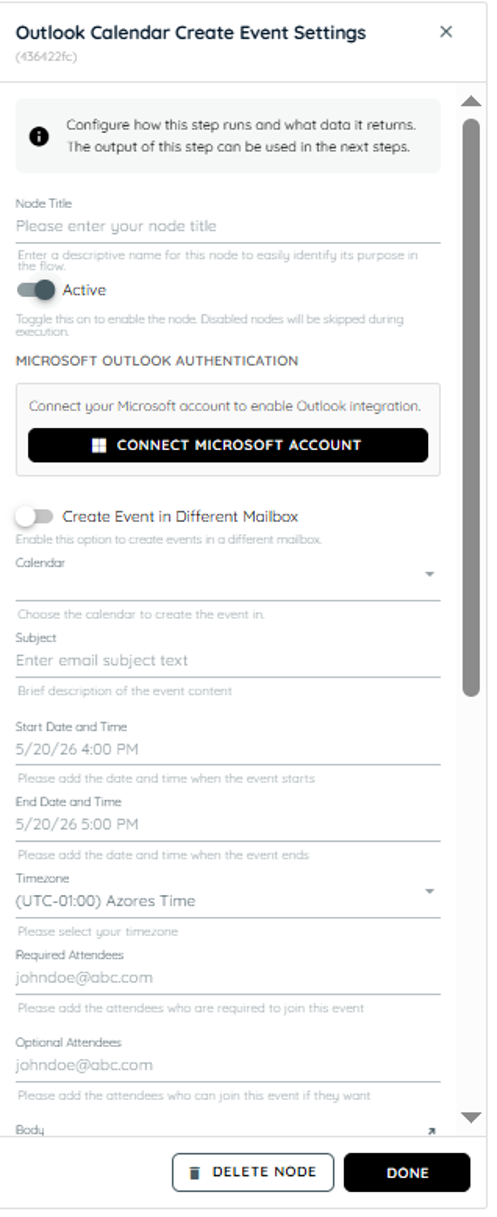
Outlook Calendar Create Event Settings
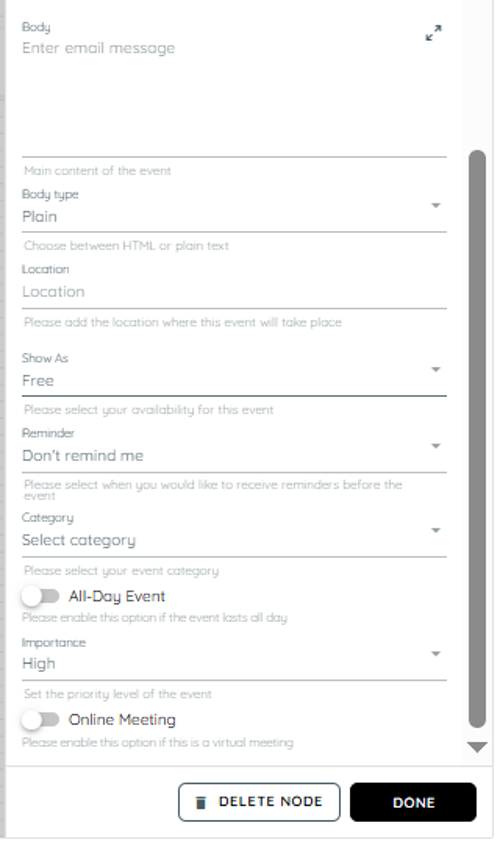
Lower part of Outlook Calendar Create Event Settings
Example: create an event from an uploaded document
-
In the first action, a document is uploaded containing details such as the recipient's name, job information, and the email addresses to be used in the To and CC fields and we are extracting these details from the document.
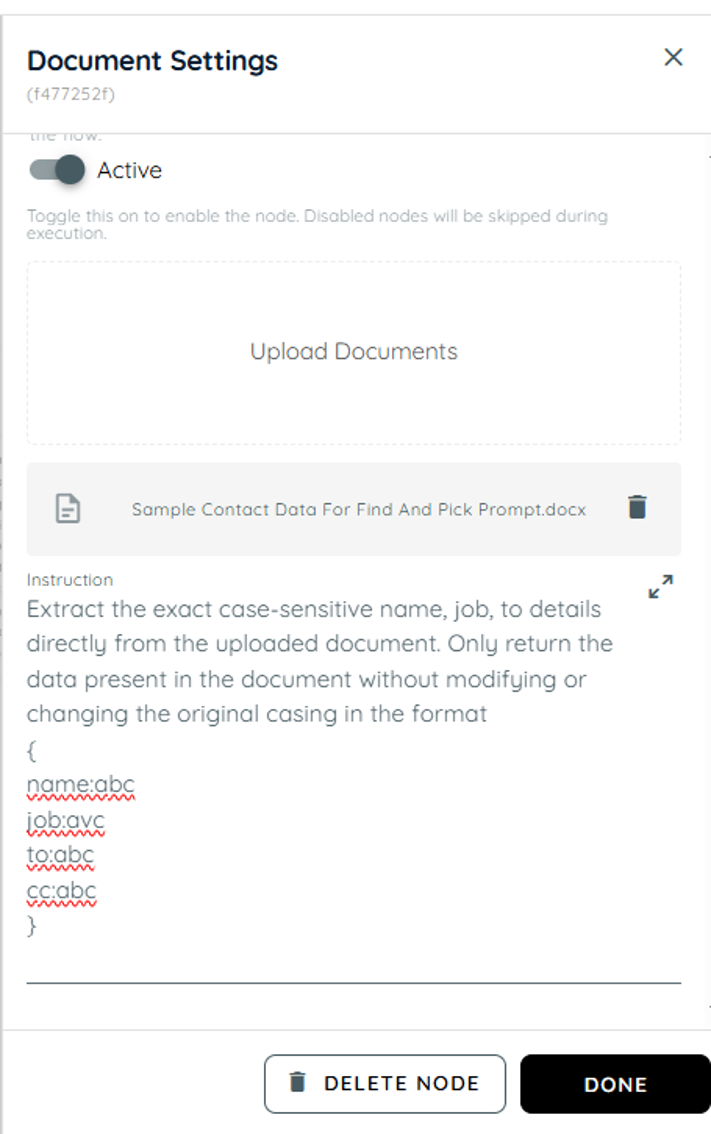
Document action with an uploaded .docx and an instruction to extract name, job, to and cc as JSON.
-
In the second action, the extracted details from the uploaded document are processed and the resulting information is stored in the Answer
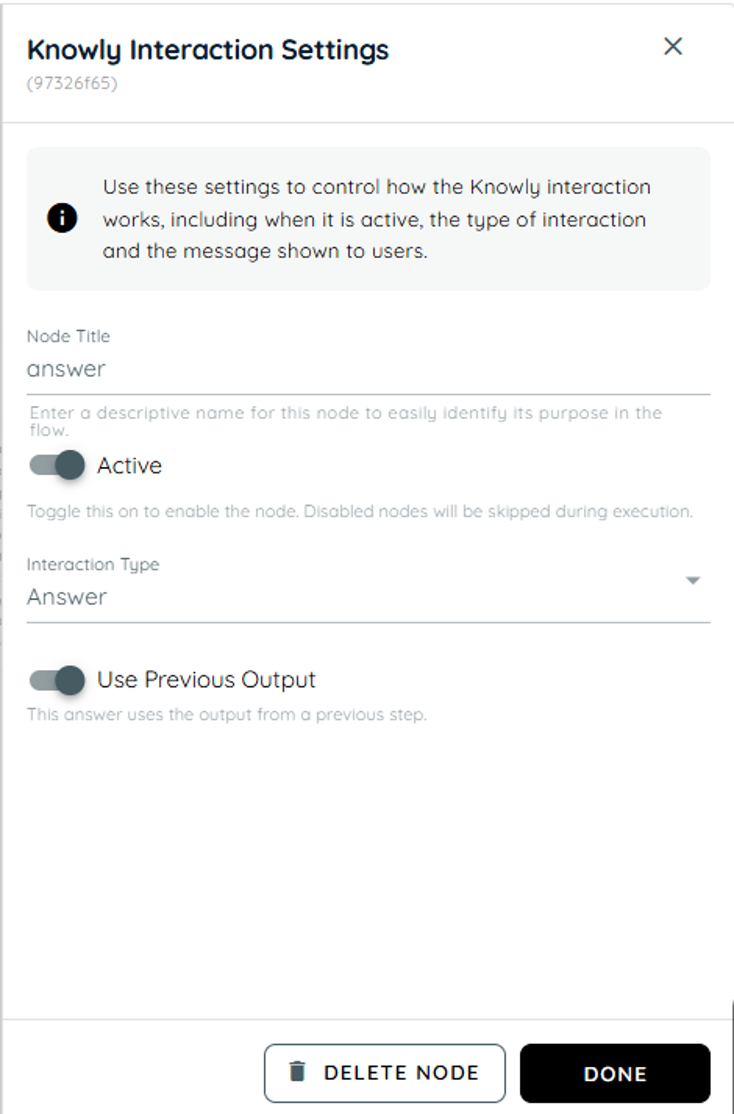
Knowly Interaction (Answer) with Use Previous Output turned on.
-
In the third action, the extracted data is mapped to the event fields: the Name is passed into the Subject, the To email addresses are added as Required Attendees, the CC email addresses are added as Optional Attendees, and the Job information is populated in the Body of the event.
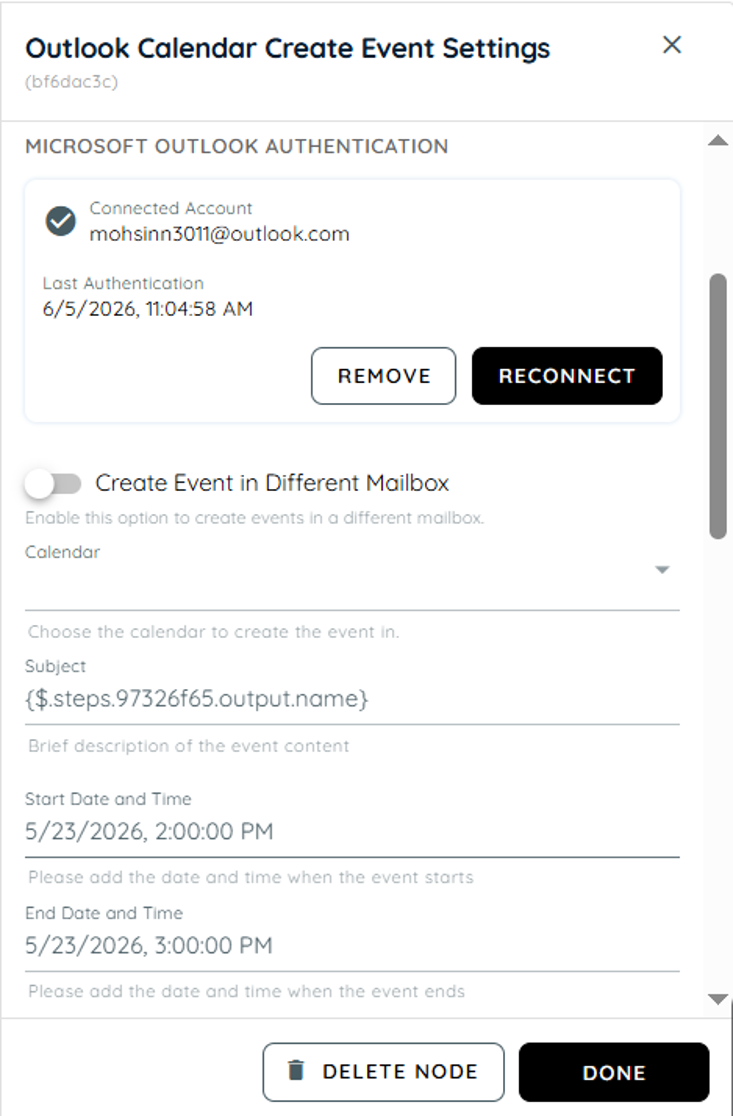
Create Event settings with a connected account, Subject mapped to the extracted name, and start and end times.
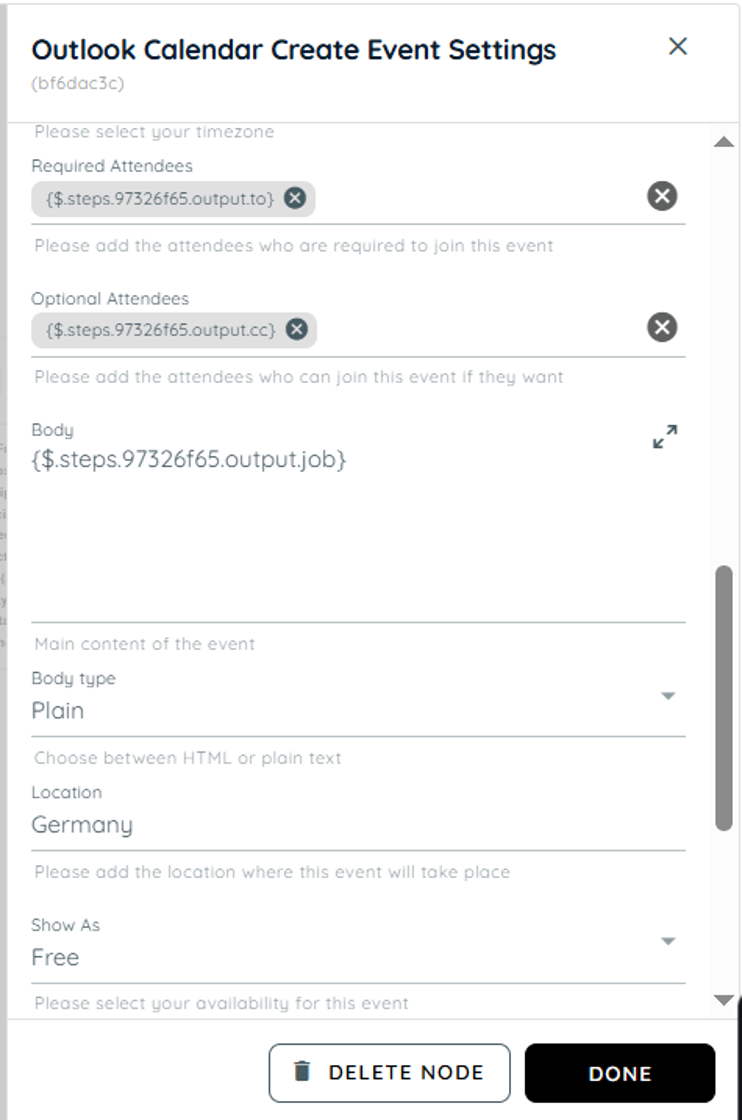
Required and optional attendees mapped to the extracted to and cc values, Body mapped to job, Location set to Germany.
Result
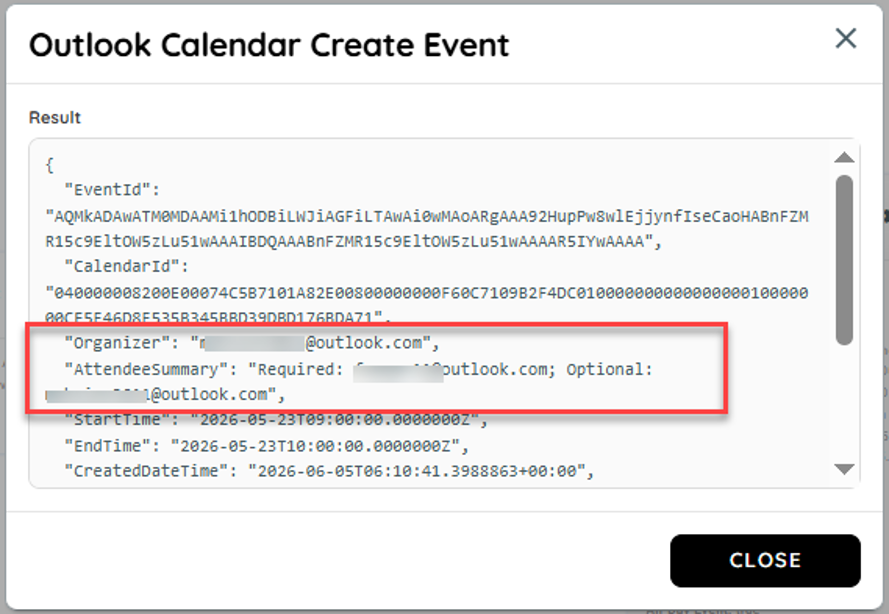
Result dialog with the JSON returned by Outlook Calendar Create Event; the organizer and attendee summary are highlighted.
Example: loop with Knowly, Teams and Outlook Email Send
- In the first action we are generating a random object containing 2 random human names.
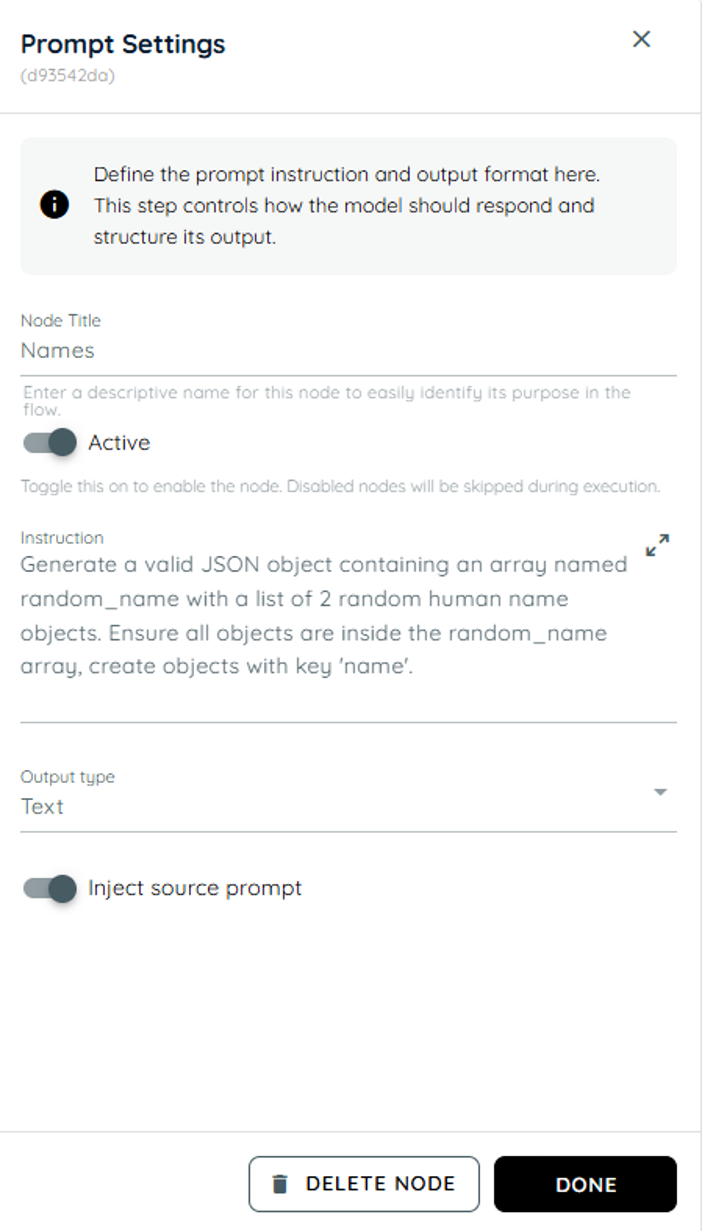
Prompt named Names that generates a JSON array random_name with two random human names.
- In the second action a loop is running in which in the first action of the loop it shows a random name and in the second action it confirms if the user likes these names or not.
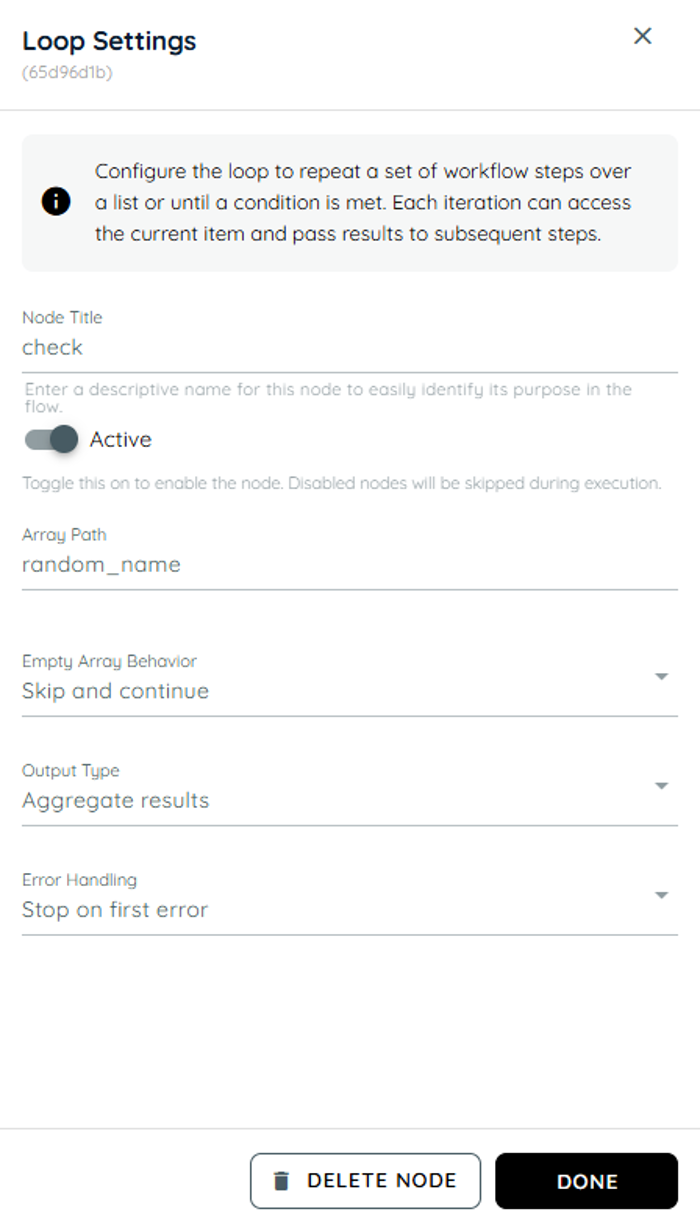
Loop named check that iterates over random_name and returns aggregated results.
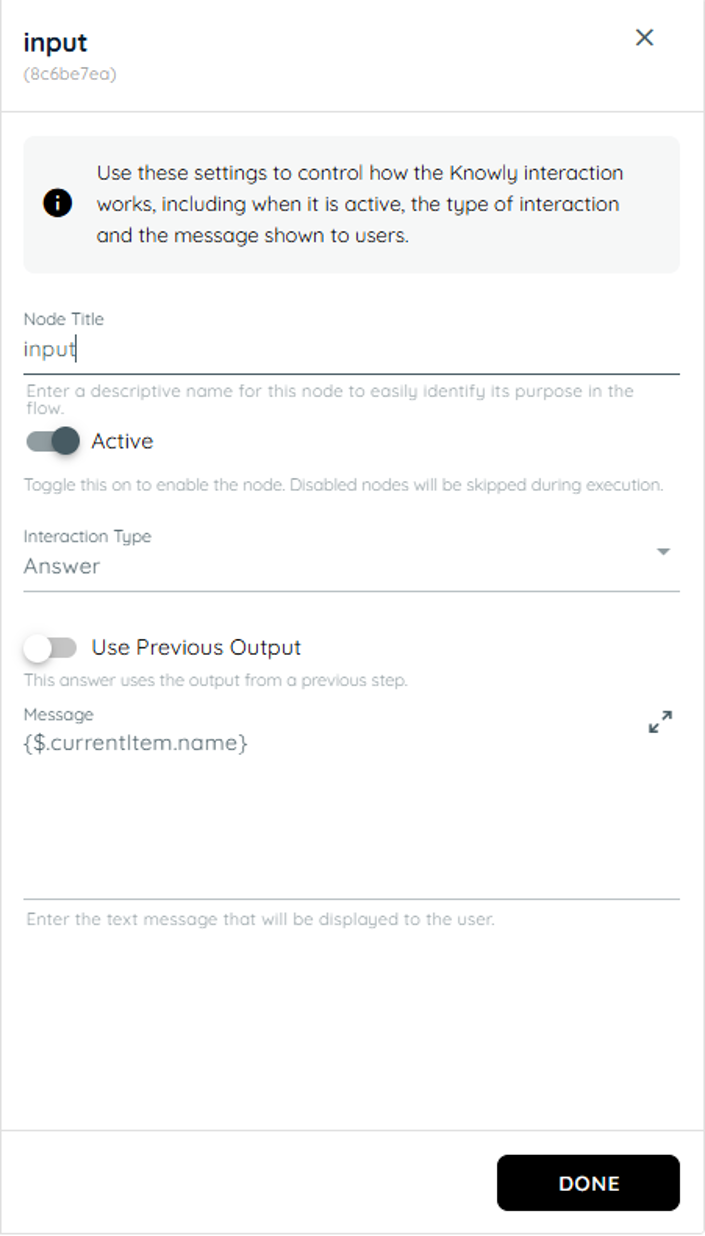
Knowly Interaction (Answer) inside the loop that displays {$.currentItem.name}.
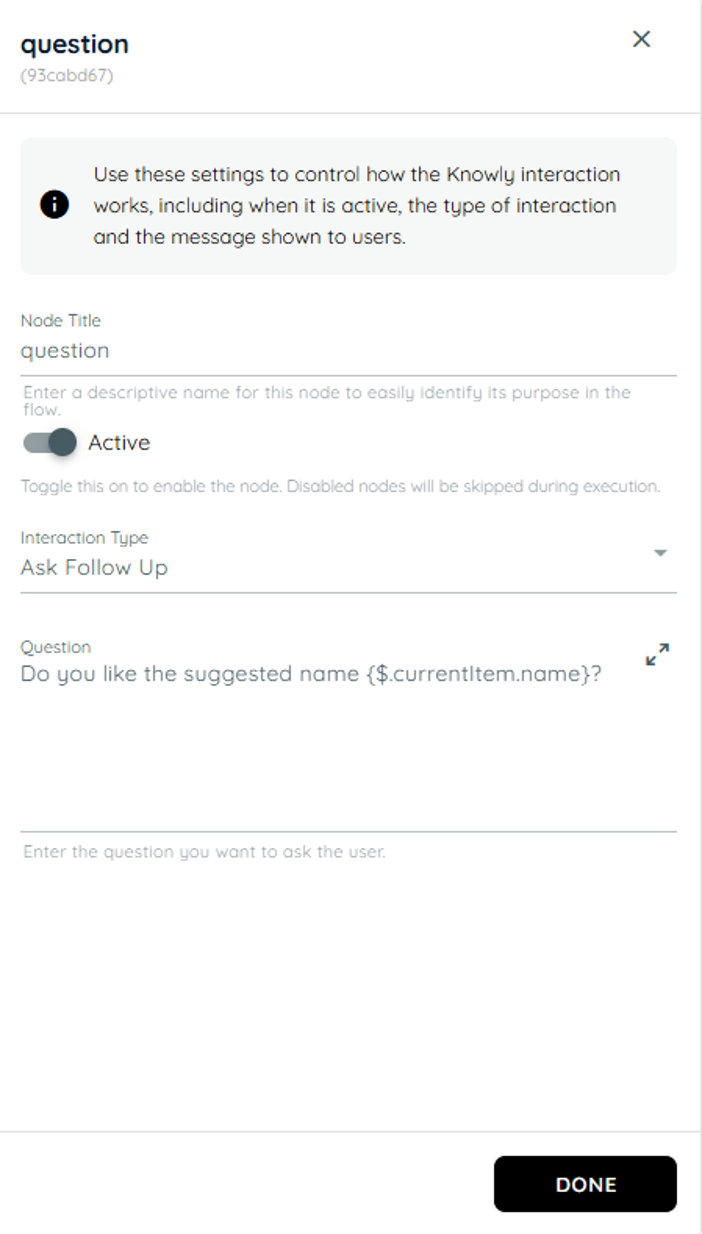
Knowly Interaction (Ask Follow Up) inside the loop asking whether the user likes the suggested name.
-
In the third action the stored name and result taken from user is stored in an object.
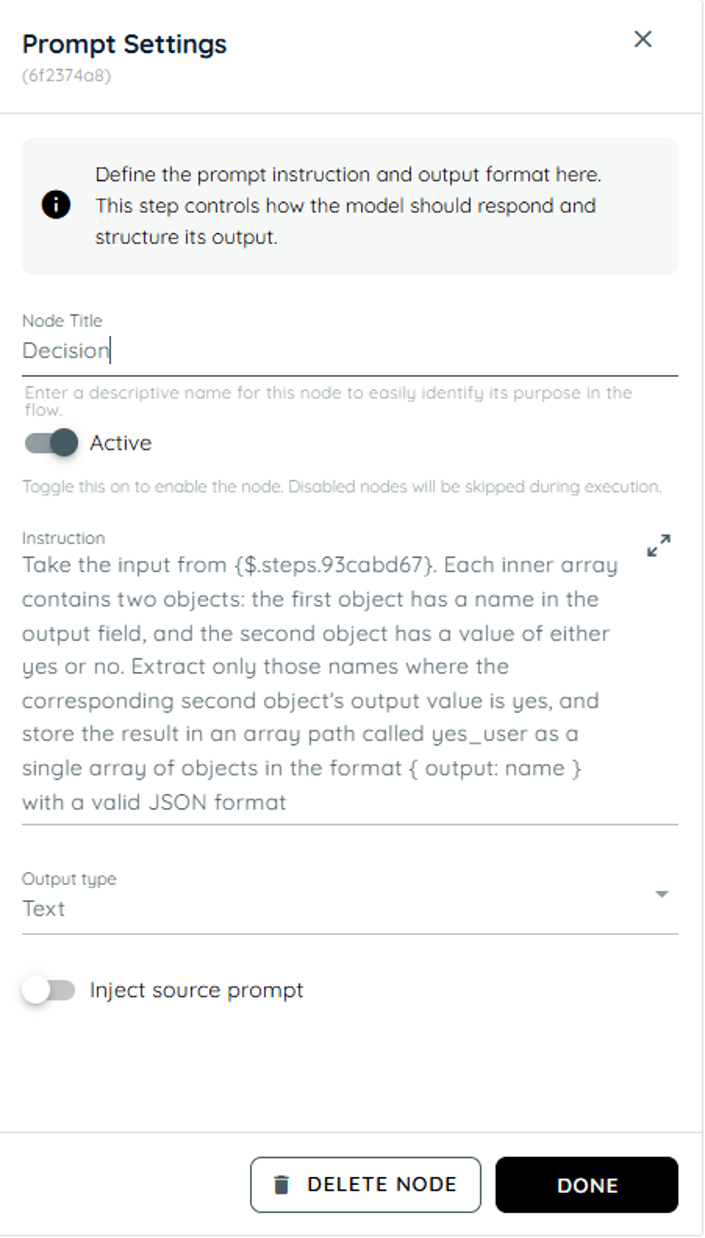
Prompt named Decision that builds a yes_user array of the names the user accepted.
-
In the fourth action the all actions are in a loop and knowly interaction asks from the user about their email address then stores the value from the previous input and passes it to the teams card and sends an team informative card and also sends an email to the selected user id of that stored object names.
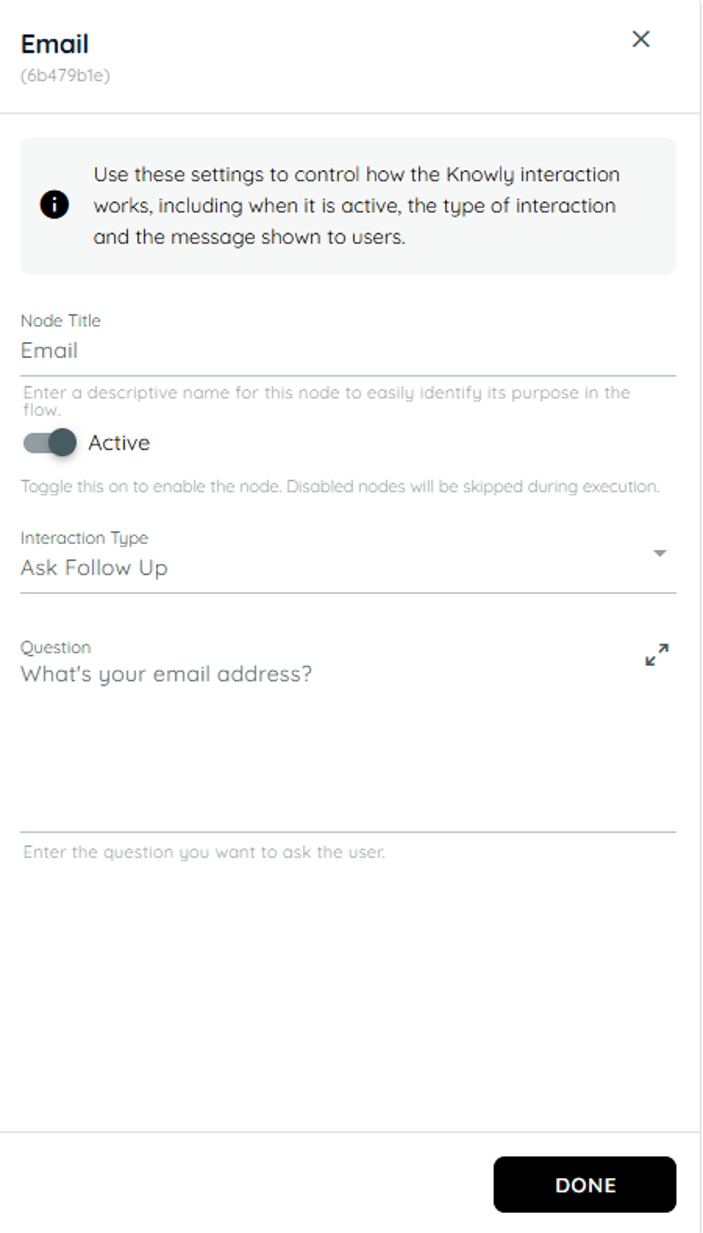
Knowly Interaction (Ask Follow Up) asking for the user's email address.
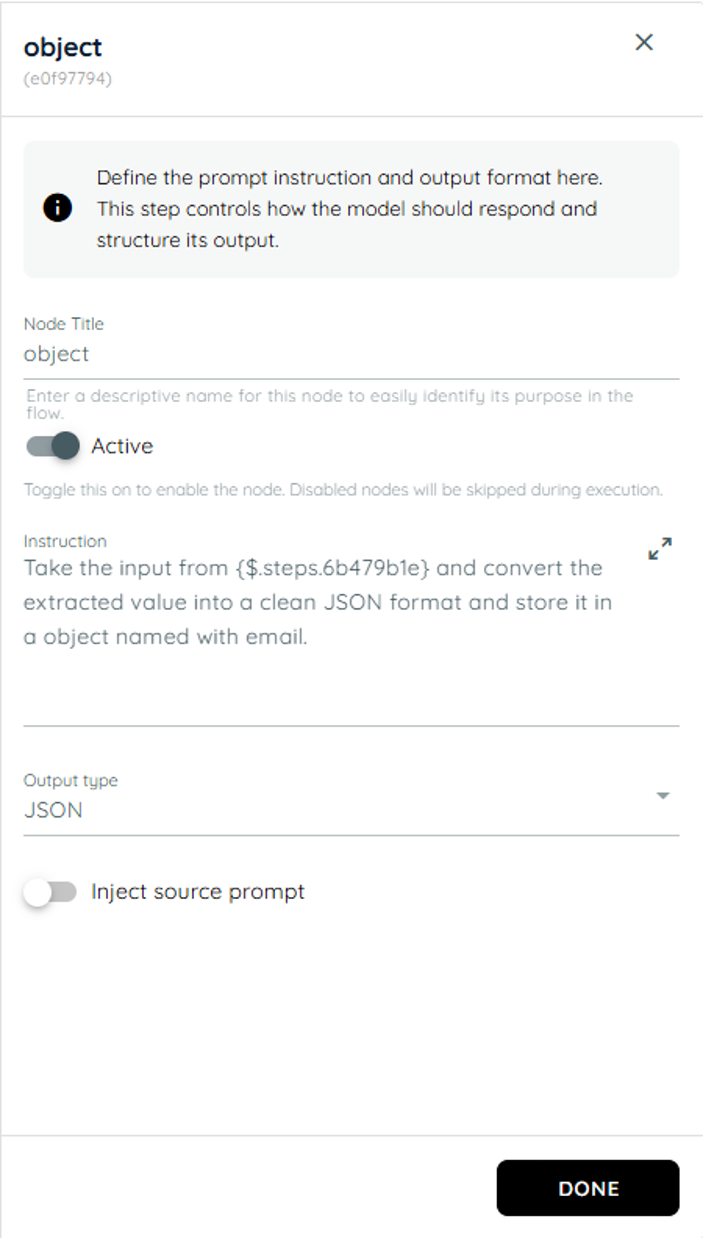
Prompt named object that converts the email answer into a JSON object.
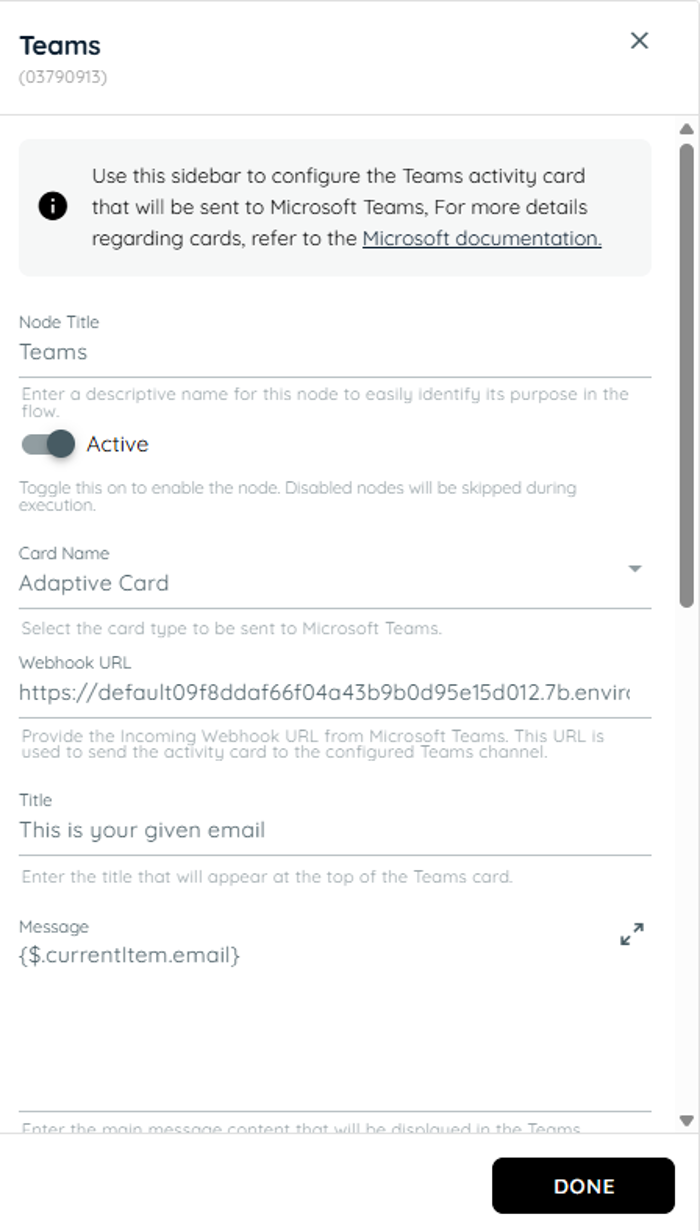
Teams activity sending an Adaptive Card titled This is your given email with {$.currentItem.email} as the message.
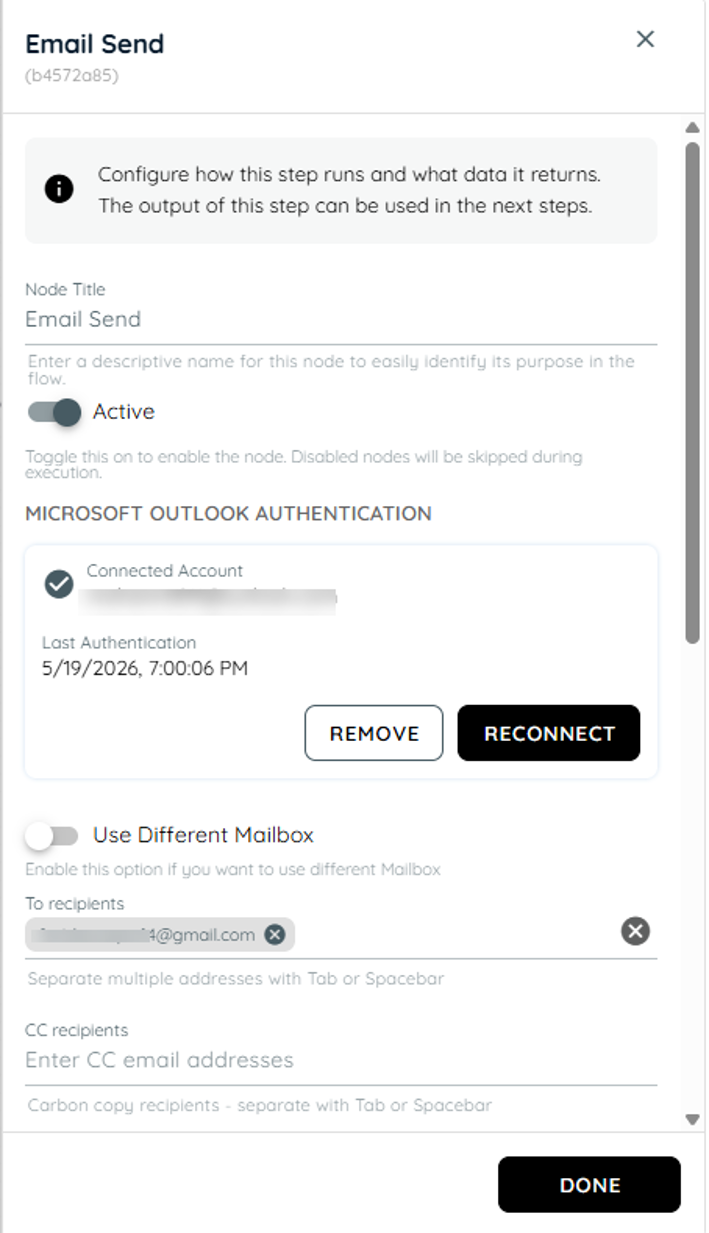
Outlook Email Send step with a connected Microsoft account and a To recipient filled in.
For more ways to control execution inside a loop, see Route Execution in Loops.
Dynamic Data Referencing
In the Agent workflow, dynamic data referencing allows values from previous steps or initial inputs to be reused across different actions. These references can be used in any configurable field within the agent (e.g., payload, headers, message body, prompts, URLs, or documents).
The agent executes multiple actions such as knowly interaction, prompt, document processing, loop, and webservices. Each action generates output data that can be reused in subsequent steps.
To enable this, we use dynamic variables to reference:
• Initial input data
• Outputs from previous steps
This ensures seamless data flow across the entire workflow without hardcoding values.
How data is accessed
-
$.input
o Refers to the initial data provided at the start of the agent execution.
o Can be used in any field where input data is required.
o The syntax used to access data from the initial input data in the agent workflow is {$.input}.Example Use Cases:
• Displaying user input in interaction responses
• Sending input data in API requests
• Using input values inside prompts
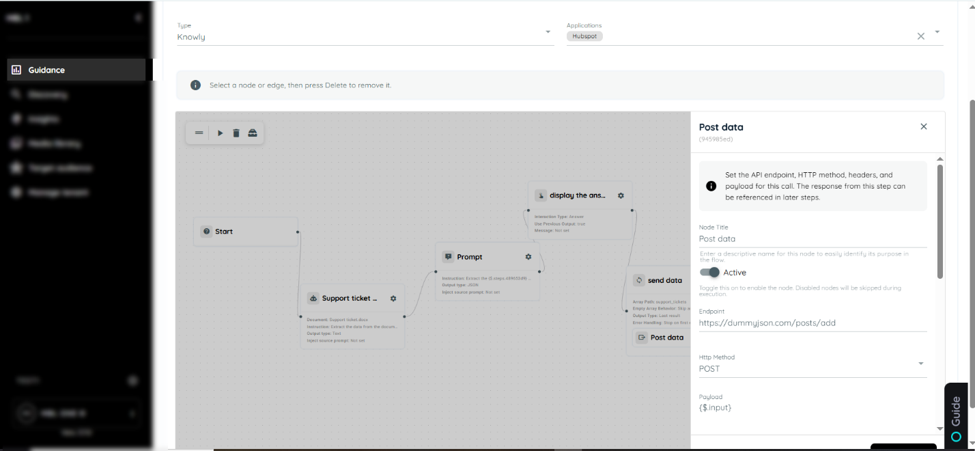
Agent designer showing a field that references the initial input with {$.input}.
2. $.steps.stepId
o Refers to the output of a specific step using its Step ID.
o Enables accessing processed or transformed data from earlier steps.
o The syntax used to access data from previous steps in the agent workflow is {$.steps.stepId}.
Example Use Cases:
• Using prompt output in a webservice request
• Passing document data into another step
• Displaying processed results in interaction responses
• Using loop results in notifications
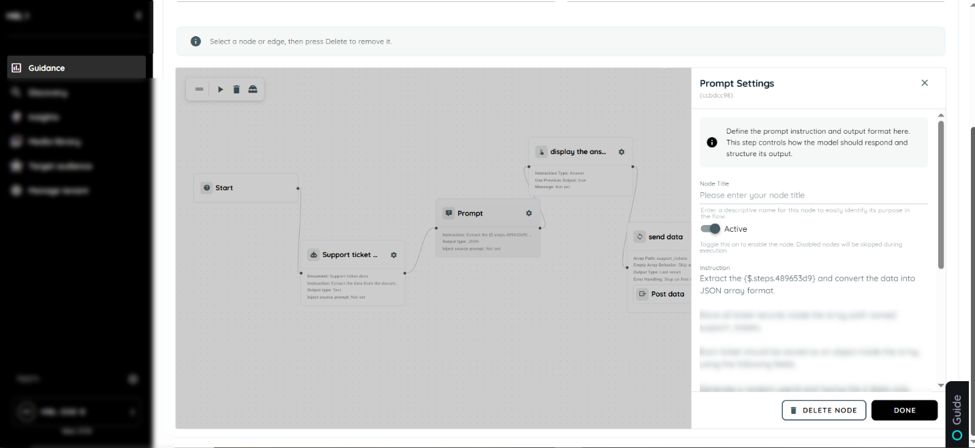
Agent designer showing Prompt Settings that reference a previous step's output with {$.steps.stepId}.
Worked example: deal registration agent
The user is on the correct deal creation page and checks if a valid deal has been successfully detected. Once the deal is identified, the agent extracts the relevant deal information and displays it in Knowly in a clean, user-friendly format instead of raw JSON. The agent then asks the user whether the deal should be registered. If the user confirms, the deal information is automatically posted to Microsoft Teams, completing the registration workflow successfully.
Agent workflow example
-
The first action is a Knowly interaction using the Confirmation Request type. It is used to verify that the user is on the correct page and to confirm them to proceed with filling in the required form data.
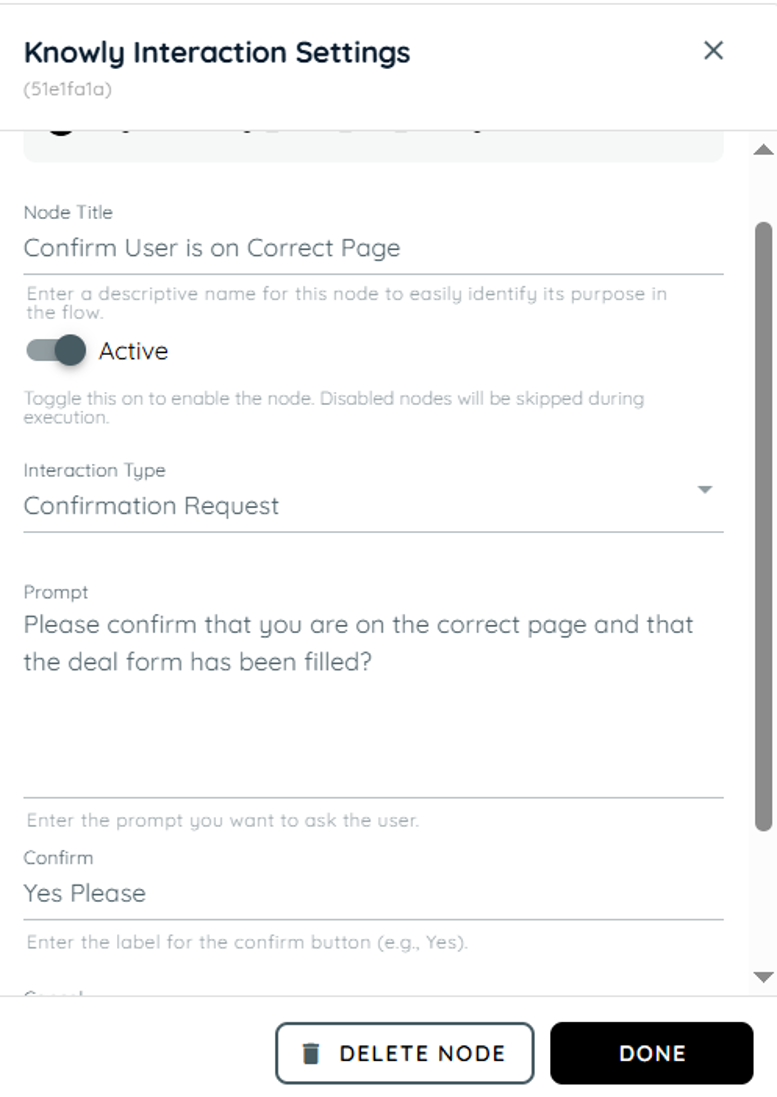
Knowly Confirmation Request asking the user to confirm the request
2. In the second action, the HTML Capture is used with a prompt to extract information from the form element. The extracted data is then formatted and presented in a user-friendly Markdown structure for better readability and clarity.
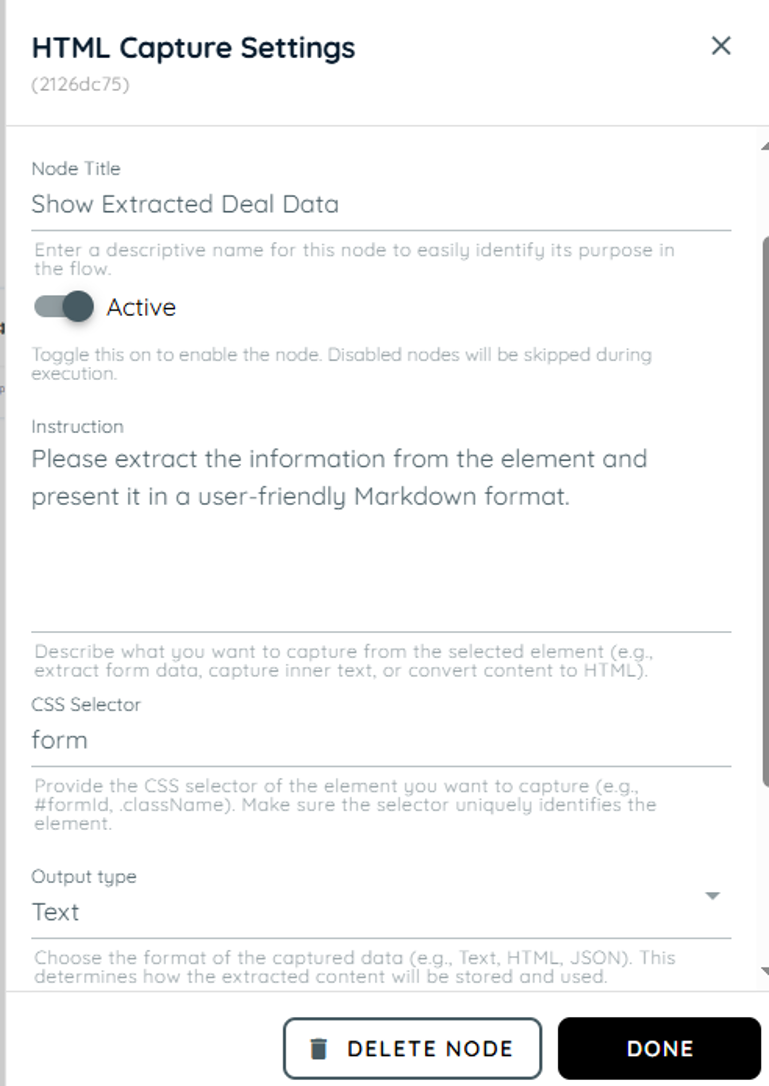
HTML Capture with CSS selector form and an instruction to present the extracted deal data as Markdown.
3. In the third action we are using the knowly interaction where we take the output from the previous action and present it as the answer.
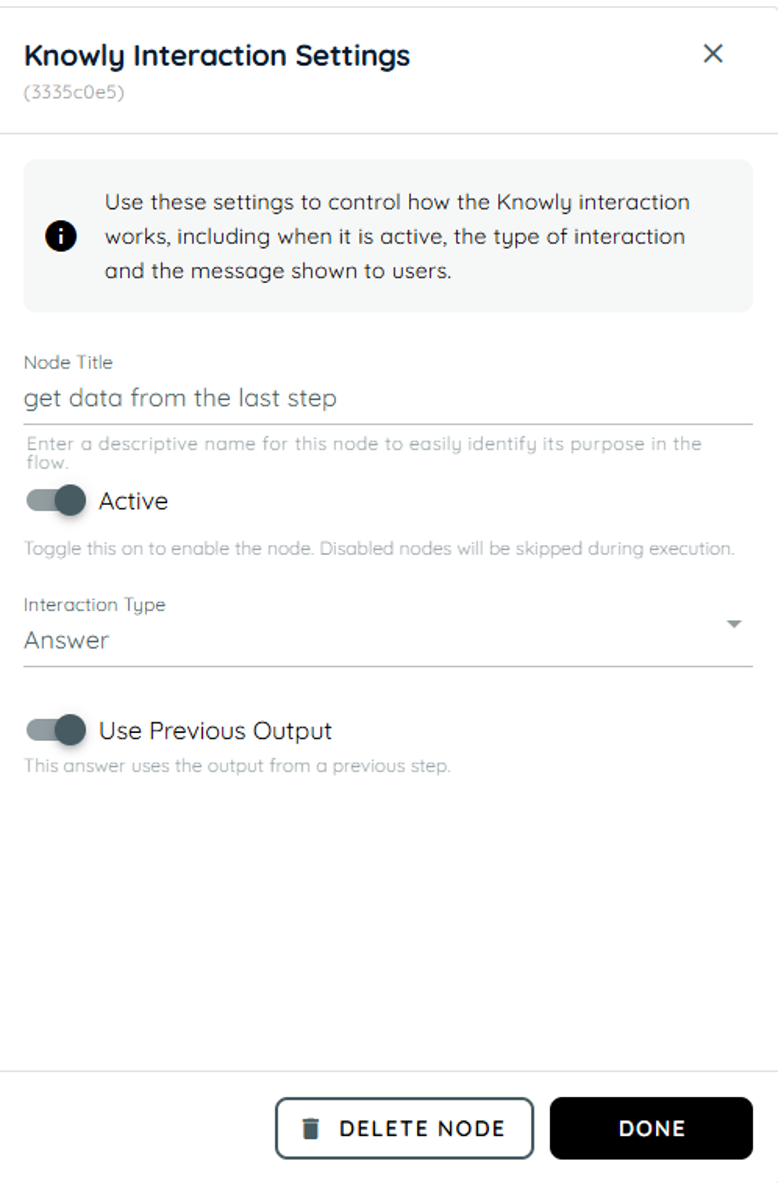
Knowly Answer with Use Previous Output turned on.
-
The fourth action is a Knowly interaction using the Confirmation Request type. It is used to verify that the user successfully registered the deal.
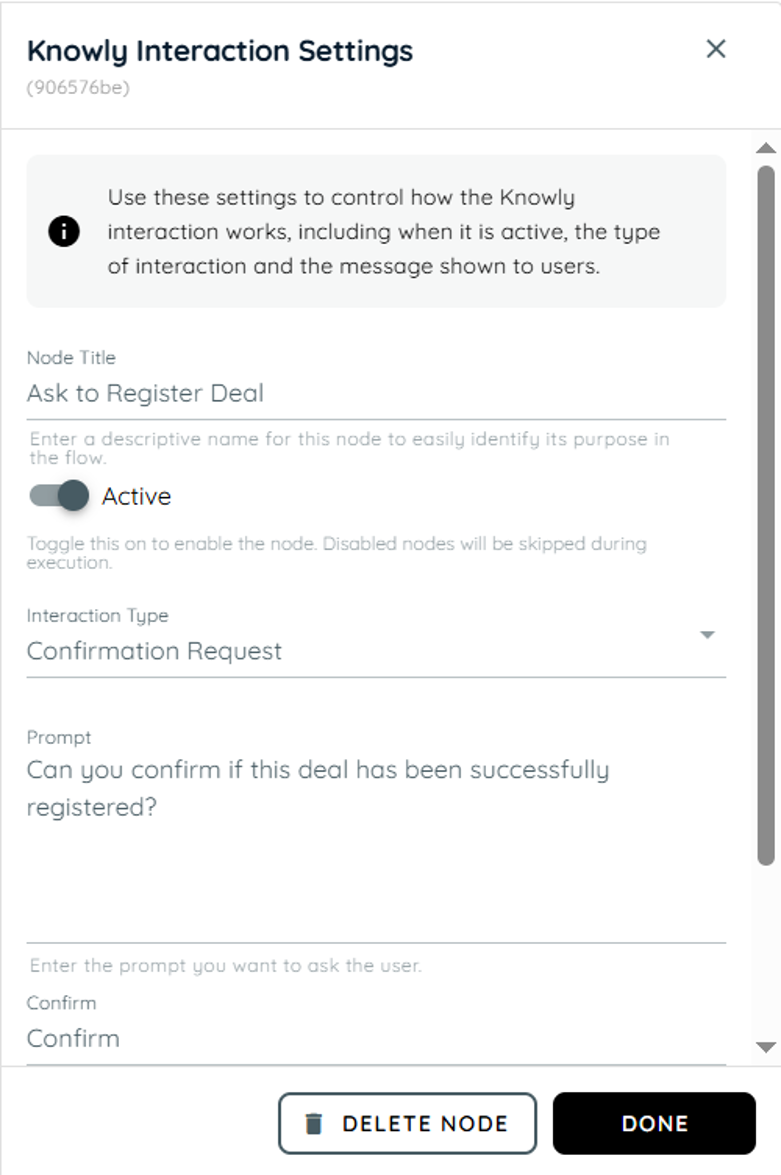
Knowly Confirmation Request asking whether the deal was registered successfully.
-
In the fifth action, branching is used to handle the user’s response from the confirmation message. If the user selects “Yes,” a message is displayed on the team indicating successful confirmation. If the user selects “No,” the system responds that the deal has not been registered.
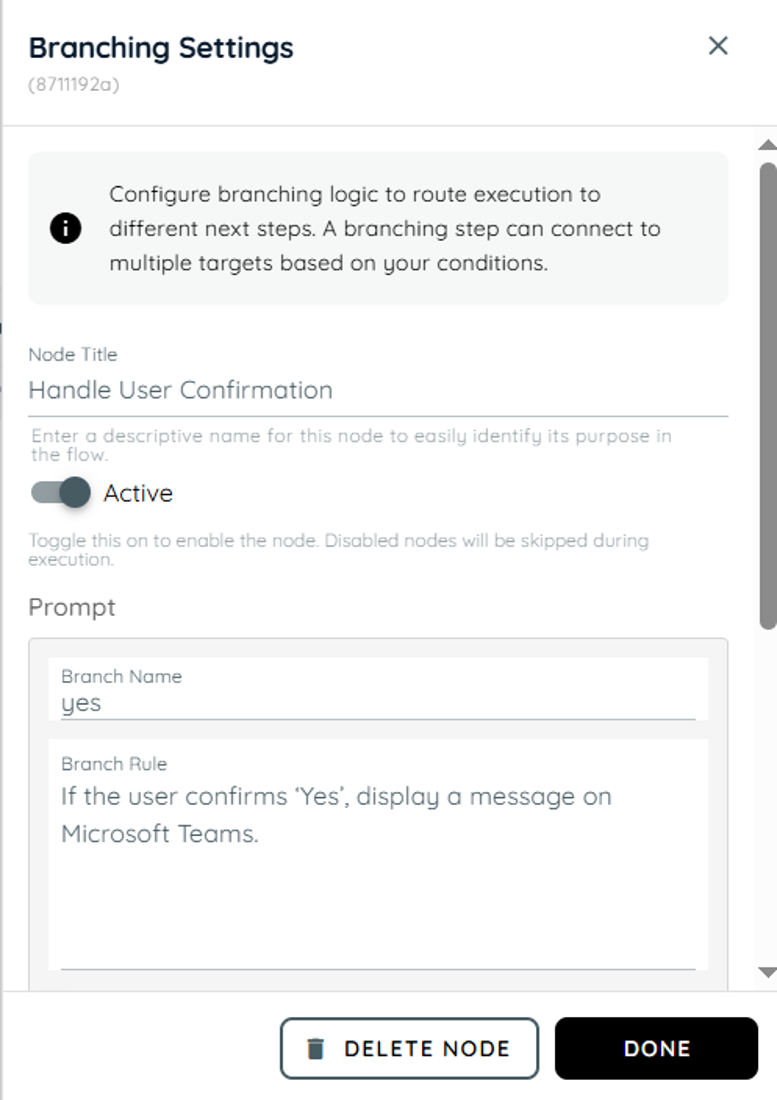
Branching named Handle User Confirmation with the yes branch rule.
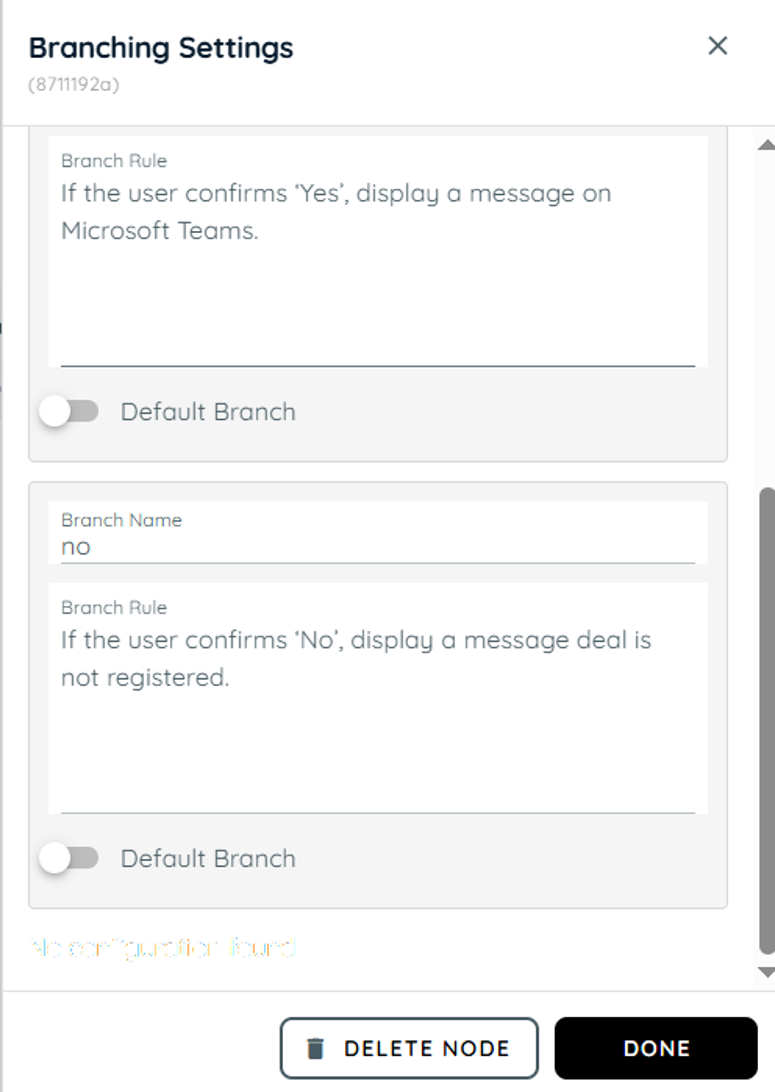
Branching settings continued, showing the no branch rule.
6. In this action, Team Activity is used to send updates based on the user’s confirmation. When the response is “Yes,” the result from Step 2 is shared with the team along with a message confirming that the deal has been successfully registered.
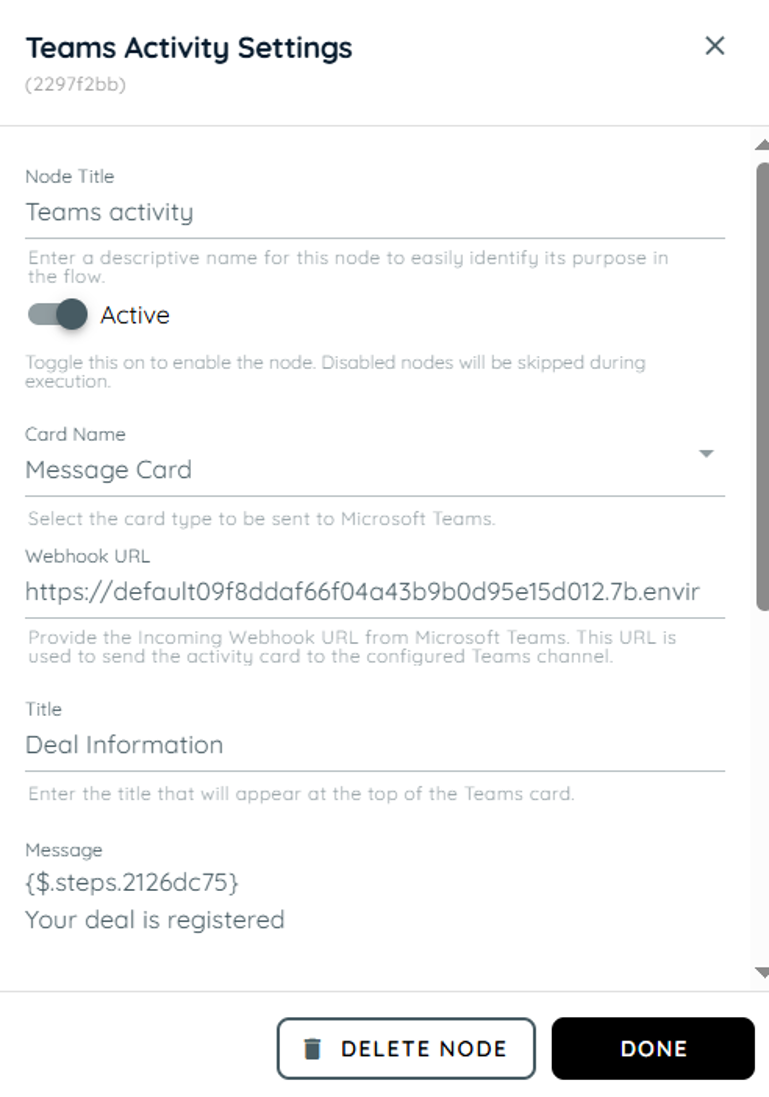
Teams Activity sending a Message Card titled Deal Information with the step 2 output and Your deal is registered.
7. In this action, a Knowly Interaction Answer is used to handle the negative confirmation. If the user selects “No,” a message is displayed indicating that the deal has not been registered.
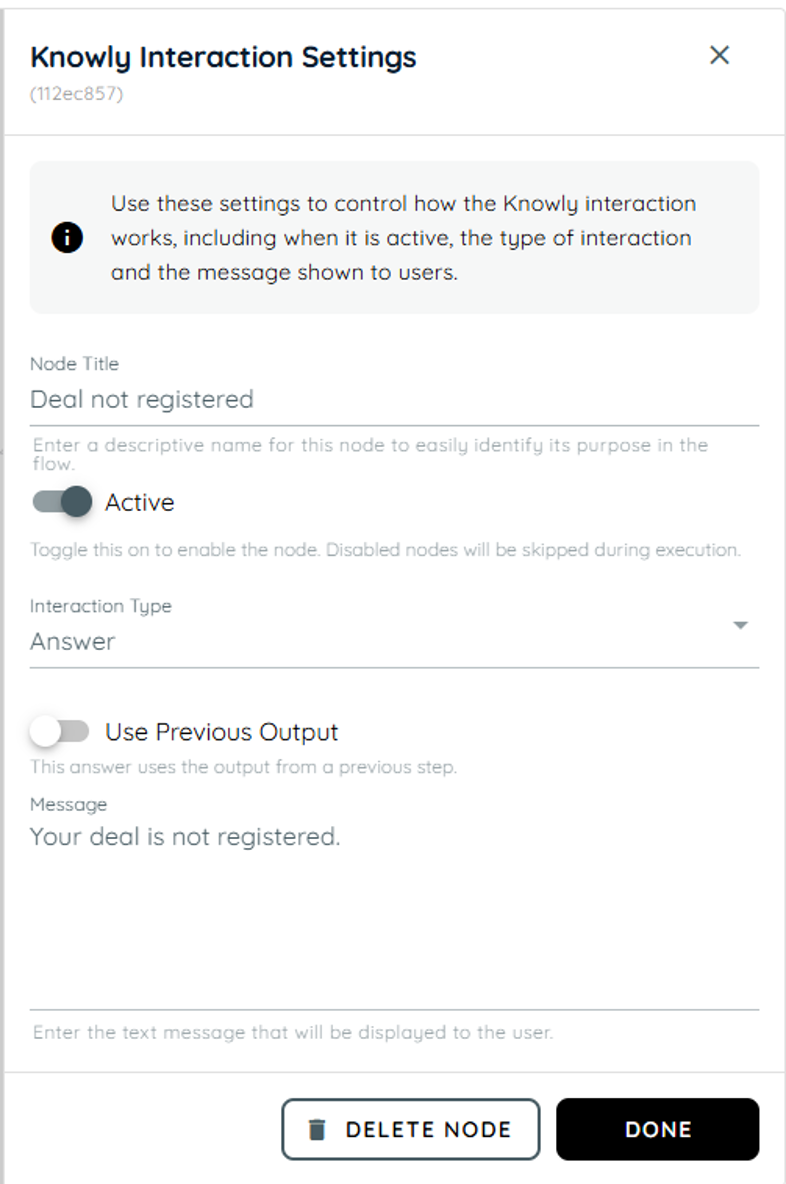
Knowly Answer with the message Your deal is not registered.
Once all actions are configured, connect the complete agent flow by linking each step in sequence. Then, use the debug mode to execute and test the agent’s workflow.
Output of the agent workflow example
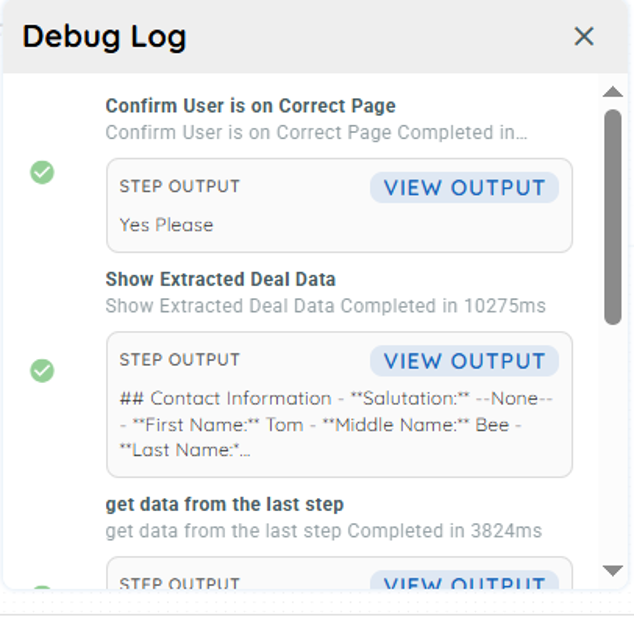
Debug Log showing the outputs of the first steps of the deal registration agent.
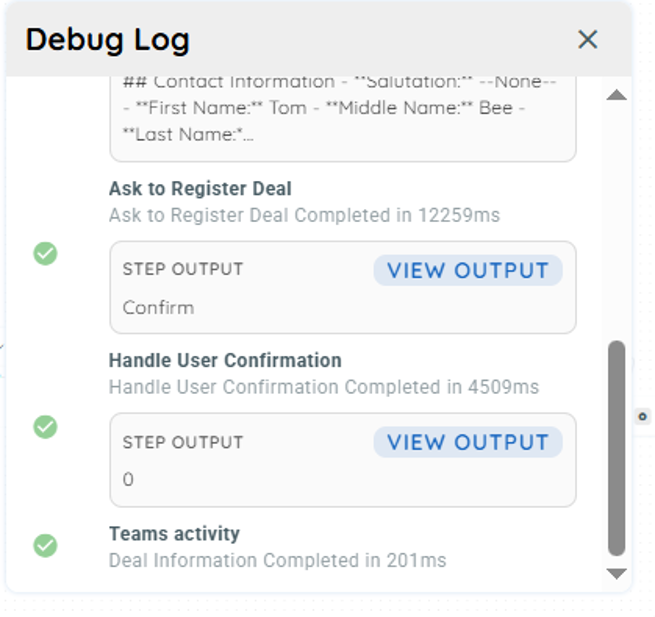
Debug Log showing Ask to Register Deal, Handle User Confirmation and the Teams activity completing.
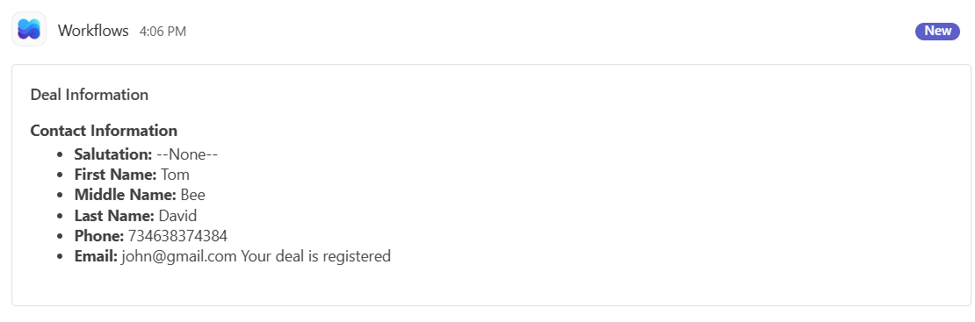
Microsoft Teams message titled Deal Information listing the contact fields and Your deal is registered.
Complete workflow overview
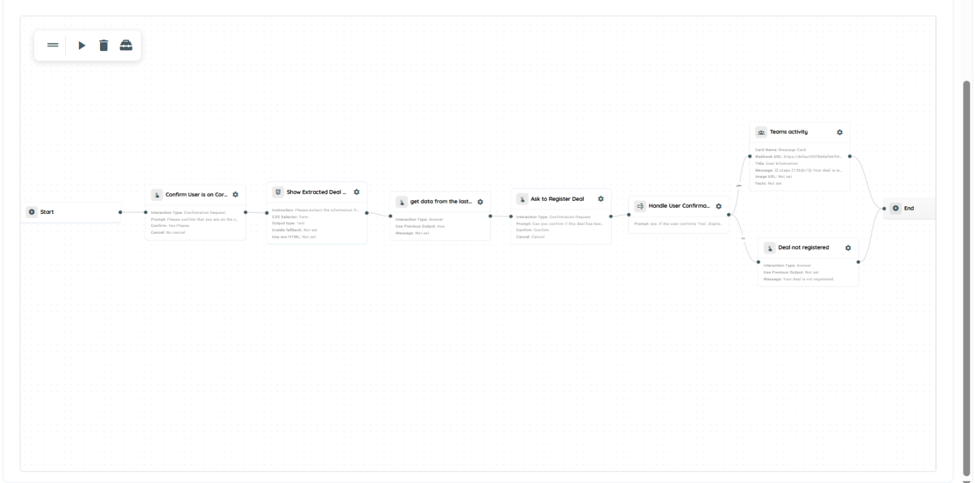
Full canvas of the deal registration agent from Start through the branching step to the Teams activity and the not-registered answer.
For help with a step that fails or returns unexpected output, see Agent Troubleshooting and Logs.
Related articles
• Agents
• Agent Connector Setup Guides
• Agent Troubleshooting and Logs
• Agent Triggers
• Knowly Actions
• Route Execution in Loops
Updated 38 minutes ago