
PII Exposure Detection (Copy & Paste)
Overview
PII Exposure Detection helps Security and Compliance Administrators find applications where personally identifiable information (PII) is moved through the clipboard. When a user copies text from or pastes text into a monitored application, AppNavi checks the text locally for three kinds of PII:
- Email addresses
- Phone numbers
- IBANs
AppNavi never collects or transmits the clipboard content. It sends only how many items of each type it found, for example "2 email addresses, 0 phone numbers, 1 IBAN
PII Exposure Detection is part of the Discovery module. User can turn it on in the Discovery settings and can then turn it off for individual applications.
Configuring PII Exposure Detection
Administrators can enable or disable PII Exposure Detection at two levels:
The feature is controlled from the main Discovery Settings.
- Setting: Enable PII Data Exposure (Copy & Paste)
- Default state: OFF
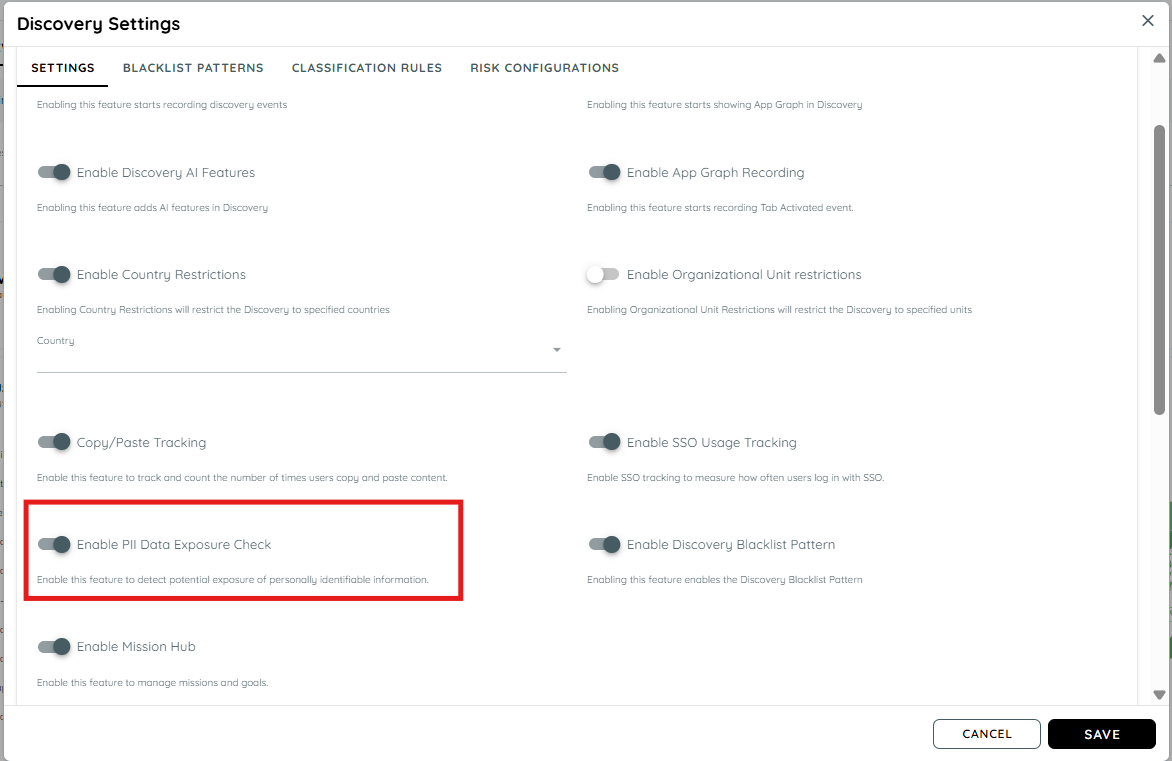
Global Level
After the global setting is enabled, administrators can configure the feature for individual applications.
Each application inherits the global setting. If the global setting is ON, administrators can enable or disable PII Exposure Detection for a specific application.
Important
PII detection runs only when both settings are enabled:
Global setting ON + Application setting ON = PII detection enabled
If either setting is OFF, PII detection does not run for that application.
Note: The PII detector appears enabled by default at the application level when the global setting is enabled.
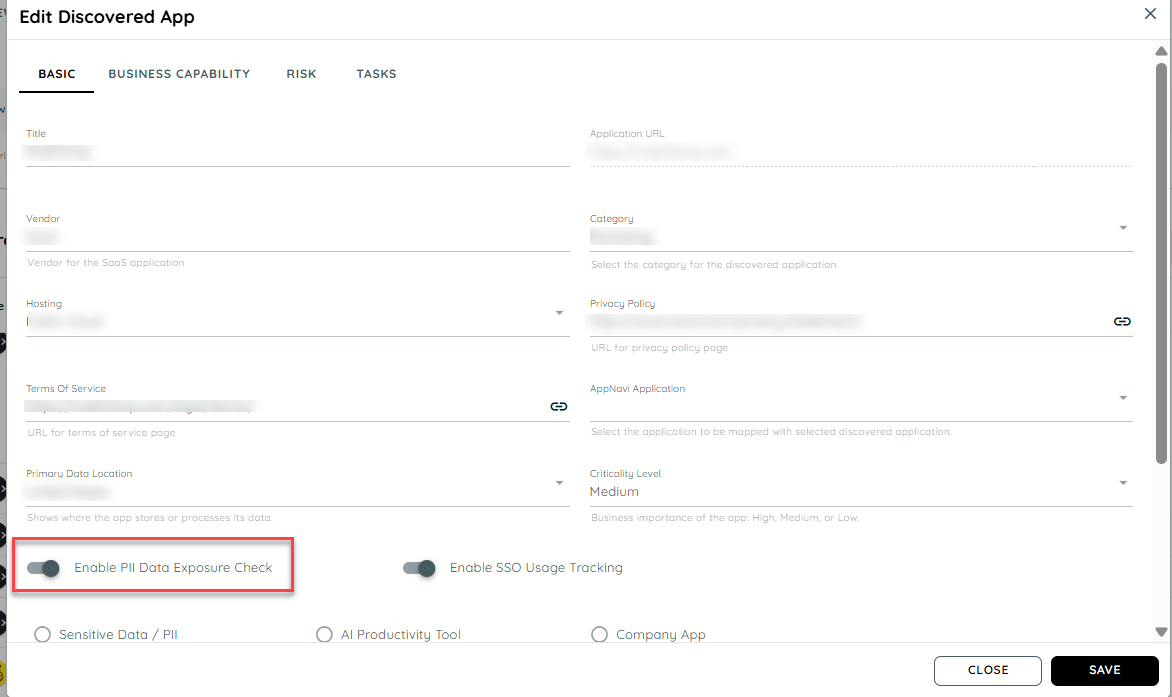
Application-level- toggle
How PII Detection Works
PII detection runs for an application only when both of these settings are on:
| Setting | Location | By Default |
|---|---|---|
| Global setting | Discovery settings | off |
| Application setting | Each discovered application | On, as soon as the global setting is turned on |
To activate PII detection, both the global Discovery setting and the application-level setting must be enabled.
Global Discovery Setting
First, enable PII Data Exposure (Copy & Paste) from the main Discovery settings.
Application-Level Setting
After enabling the global setting, enable PII detection for the required application.
Once PII Exposure Detection is enabled, AppNavi monitors copy and paste actions performed within the discovered application.
The detector identifies the presence of:
- Email addresses
- Phone numbers
- IBANs
The detector does not collect or transmit the actual clipboard content.
For example:
- A user copies text containing an email address → an email PII count is recorded.
- A user pastes text containing a phone number → a phone PII count is recorded.
- A user copies text containing an IBAN → an IBAN PII count is recorded.
Each time a user copies or pastes detected PII, the corresponding count increases.
These counts are processed by the backend to calculate the application's PII exposure level.
The results are displayed in the Discovery module in the Discovered Apps table using two risk columns:
PII Inflow Risk — risk associated with PII being pasted into the application.
PII Outflow Risk — risk associated with PII being copied from the application.
Each risk is displayed as:
- High
- Medium
- Low
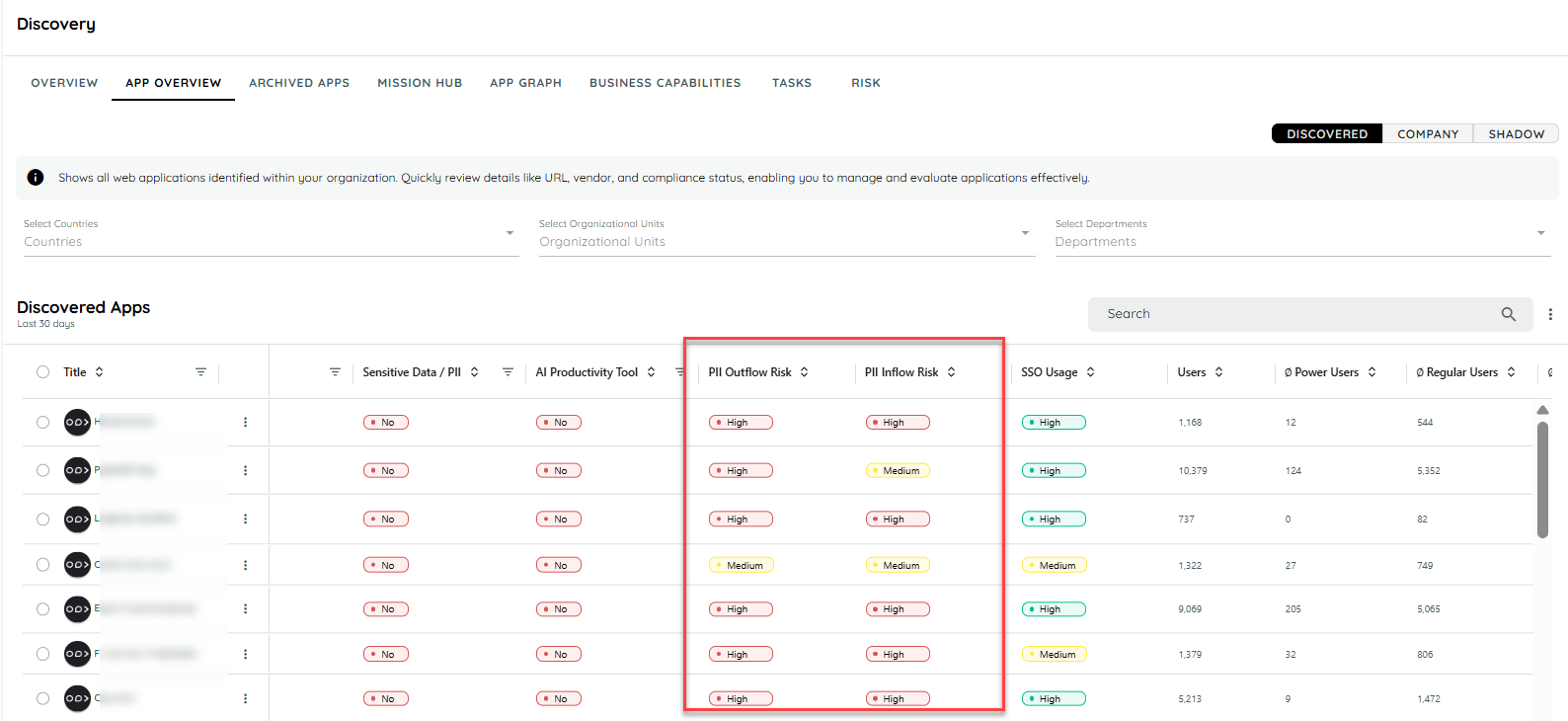
PII risk in the Discovered Apps table
Viewing PII Counts
Administrators can click a PII risk badge to view the total detected PII counts for the selected date range.
Click the PII risk badge to view the number of detected email addresses, phone numbers, and IBANs within the selected date range.
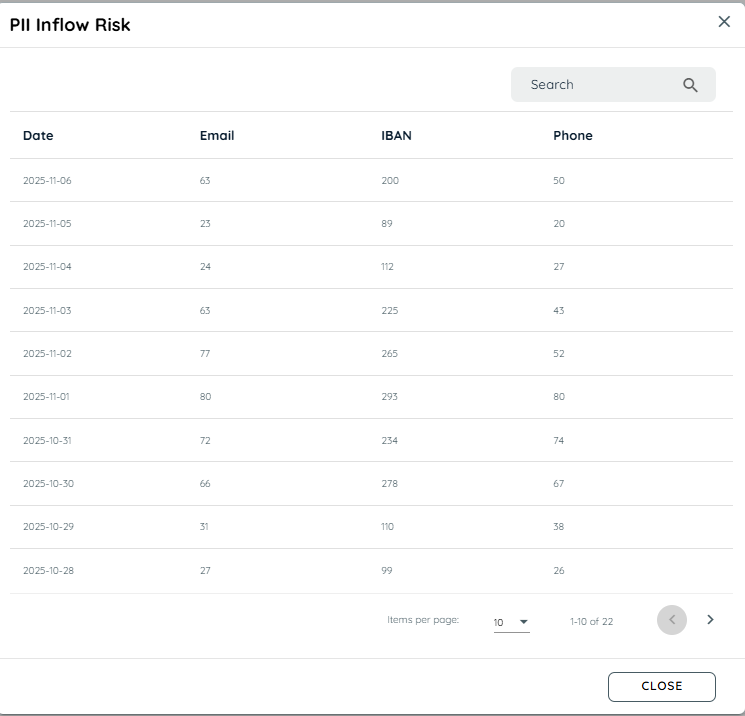
PII count details
How Risk is Measured
The backend aggregates detection counts to determine the exposure level for each application.
Each PII type contributes differently to the overall risk:
| PII Type | Weight |
|---|---|
| 1 | |
| Phone | 2 |
| IBAN | 5 |
The raw score is calculated as:
RAW Score = (Emails × 1) + (Phones × 2) + (IBANs × 5)
For example, if an application has:
10 detected emails
5 detected phone numbers
2 detected IBANs
the raw score is calculated using the corresponding weights.
The raw score is normalized against the total clipboard activity.
R100 = (100 × RAW Score) / Total Actions
This allows applications with different levels of clipboard activity to be compared more consistently.
The platform converts the density value into a normalized risk score between 0 and 100.
The normalization uses a reference level of 50 by default.
Normalized Score = Normalization of R100 into a 0–100 scale
The normalized score determines the risk level displayed in the Discovered Apps table.
| Normalized Score | Level |
|---|---|
| ≥ 50 | High |
| 20–49 | Medium |
| < 20 | Low |
Note : User can click over the badge to view total detected PII counts within selected date range.
PII Exposure Trend – App Dashboard
Overview
Overview
The PII Exposure Trend helps Security and Compliance Administrators track potential sensitive-data exposure over time for an individual application.
The trend provides a visual summary of:
- Inflow risk — PII entering the application through paste actions.
- Outflow risk — PII leaving the application through copy actions.
This helps administrators identify patterns and changes in how sensitive information is handled over time.
PII Data Flow Section
Each application's Analytics dashboard includes a dedicated section labelled PII Data Flow.
The section is displayed only when PII Detection is enabled:
- Globally, and
- For the specific application.
Key Features
- PII Exposure Trend Section
- Each application Analytics dashboard includes a dedicated section labelled "PII Data Flow".
- The section is only visible if PII detection is enabled globally and for the specific application.
- Line Chart Visualization
- The trend is displayed as a line chart showing normalized PII exposure scores over time.
- X-axis: Time (based on the selected dashboard range)
- Y-axis: Normalized Score (0–100)
- Lines:
- Inflow Score (paste actions)
- Outflow Score (copy actions)
- Interactive Tooltips
- Hovering over the chart shows detailed information:
- Exact Inflow and Outflow scores
- Corresponding timestamp
- Behavior
- The chart adapts to the selected time range on the dashboard.
- If PII detection is turned off globally or for the app, the chart is hidden.
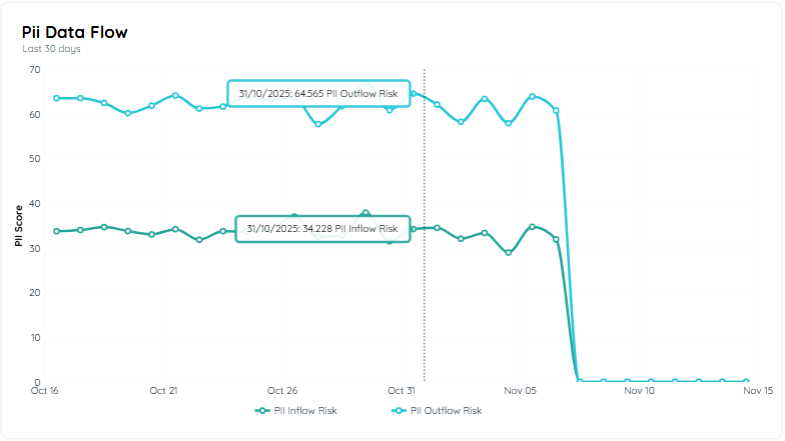
The chart allows administrators to compare inflow and outflow exposure and identify changes over the selected period.
Updated 13 days ago