Discovered App Compliance & AI Tagging
Overview
Application Metadata Fields let you tag each discovered application with compliance and innovation attributes like where its data is stored, whether it handles sensitive information, and whether it's an AI tool. This gives you visibility into risk and AI usage across your app inventory, and lets you filter and report on it.
Who can set these fields
Available to Tenant Owners and users with Discovery Admin or Discovery Analyst access.
Before you start
The application must already appear in your Discovered Apps Table. If it's also listed in AppNavi's App Catalog, Sensitive Data and AI Productivity Tool will pre-fill automatically from that catalog entry — you can always change them.
Default values
- Criticality/Impact and Data Location: blank ("Not Assigned") until you set them.
- Contains Sensitive Data/PII and AI Productivity Tool: "No" until the catalog match fills them in, or you set them yourself.
Setting values
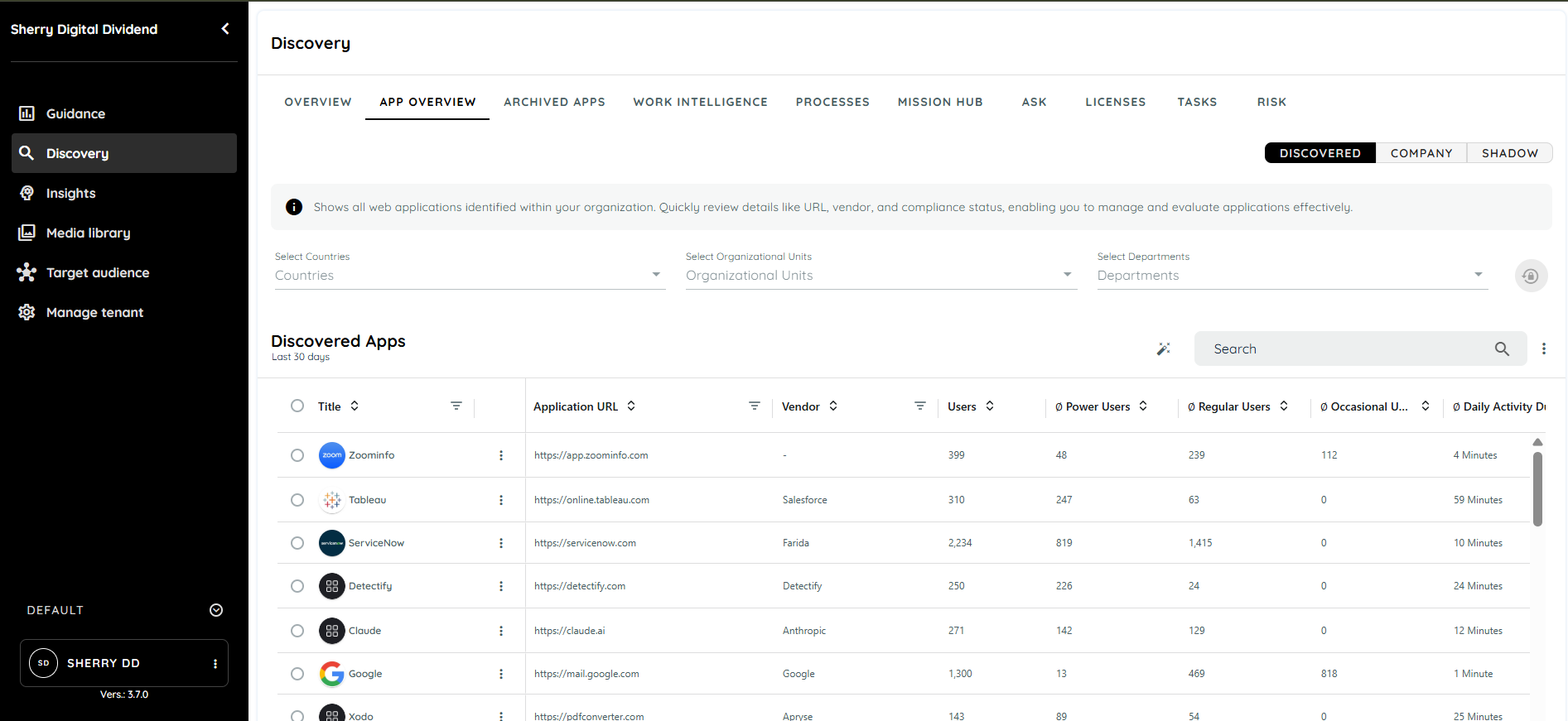
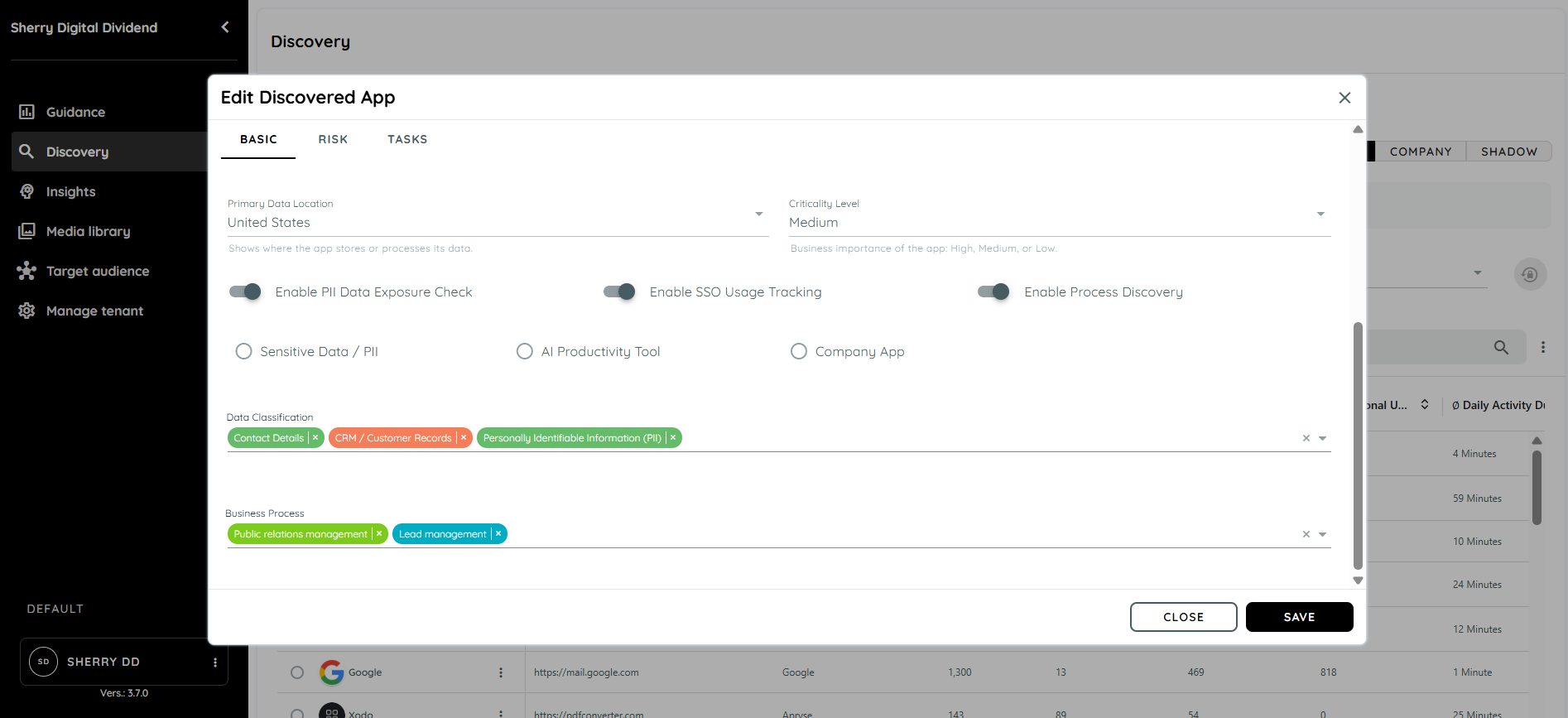
Open the app's detail view (⋮ menu → Edit) and go to the Basic tab — the fields sit alongside the app's other details (Hosting, Privacy Policy, etc.), not in a separate section. Each dropdown offers a fixed list of options — free text isn't supported.
A note on overrides
If you manually change Sensitive Data/PII or AI Productivity Tool, that value sticks — a later catalog sync won't overwrite it. Change it again yourself if it needs to change.
Why this matters
These fields help you spot apps that store data in specific regions, handle personal or sensitive information, or use AI — so compliance and security reviews can focus where it counts.
Related reading
See the Discovered Apps Table guide for how to find and open an application's detail view.
Purpose
The feature exists to:
- Track compliance-related attributes such as data residency, personal data, and sensitive information.
- Capture innovation-related attributes, such as AI productivity tools.
- Provide visibility and filterability of these attributes in the Discovered Apps Table.
- Ensure clear inheritance and override logic for data coming from the app catalog.
These fields enhance operational transparency, support regulatory compliance, and improve insights for application management.
Fields and Attributes
Criticality/Impact
- Type: Single-select
- Value Options: High, Medium, Low
- Editable: Only in the discovered application's detail view
- Display: Appears in the Discovered Apps Table
- Default: Not Assigned, until set manually
Data Location / Residency
- Type: Single-select
- Editable: Only in the discovered application's detail view
- Value Options:
- Germany
- EU (excluding Germany)
- EEA (non-EU Europe)
- United Kingdom
- United States
- Multi-region / Global
- Other
- Unknown
- Default: Not Assigned, until set manually
Contains Sensitive Data / PII (Personally Identifiable Information)
- Type: Boolean (Yes/No)
- Editable: Both in the app catalog and the discovered application's detail
view - Where the value comes from: Inherited from the app catalog unless yo umanually change it on the discovered app — once changed manually, it won't be overwritten by a later catalog sync
- Display: Appears in the Discovered Apps Table
- Default: No
AI Productivity Tool
- Type: Boolean (Yes/No)
- Editable: Both in the app catalog and the discovered application's detail view
- Where the value comes from: Inherited from the app catalog unless yo umanually change it on the discovered app — once changed manually, it won't be overwritten by a later catalog sync
- Display: Appears in the Discovered Apps Table
- Default: No
Steps to Use Compliance and Innovation Fields
Configure Fields in Discovered Application Detail View
-
Open the Discovered Apps Table.
-
Select a discovered application to open its Detail View.
-
Open the Basic tab — the compliance and innovation fields appear alongside
the app's other details (Hosting, Privacy Policy, etc.). -
Edit fields as needed:
- Criticality/Impact: Choose High, Medium, or Low.
- Data Location / Residency: Select the appropriate location.
- Contains Sensitive Data / PII: Toggle Yes/No.
- AI Productivity Tool: Toggle Yes/No.
-
Save your changes.
Updated about 1 month ago