
Integrate AppNavi in ServiceNow
This guide provides a step-by-step process to integrate AppNavi into ServiceNow, supporting Classic View and Workspace View. Follow the instructions carefully to enable seamless AppNavi functionality within your ServiceNow instance.
Integration Overview
AppNavi is integrated into ServiceNow by injecting a script that loads the AppNavi client. The integration differs based on the interface:
AppNavi Integration Options Overview
| Integration Method | Interface Supported | Injection Approach | Strengths | Limitations |
|---|---|---|---|---|
| UI Script | Classic UI (Desktop) | UI Script injects AppNavi loader via script tag | Simple to implement; loads automatically on all classic pages | Does not work in Workspace; limited timing control; always runs globally |
| Client Script | Workspace (Forms only) | onLoad Client Script injects external AppNavi loader | Works reliably on Workspace Forms; easy setup | Only executes on Forms; does not work on lists, home pages, UI Builder pages, or the app shell |
| Now Experience Component | Workspace (All pages) | Custom component injects AppNavi loader globally | Works on every Workspace page; most reliable workspace integration; full control | Requires component development; typically needs CLI deployment; CSP must allow external script |
Classic View Integration (UI Script)
Steps:
-
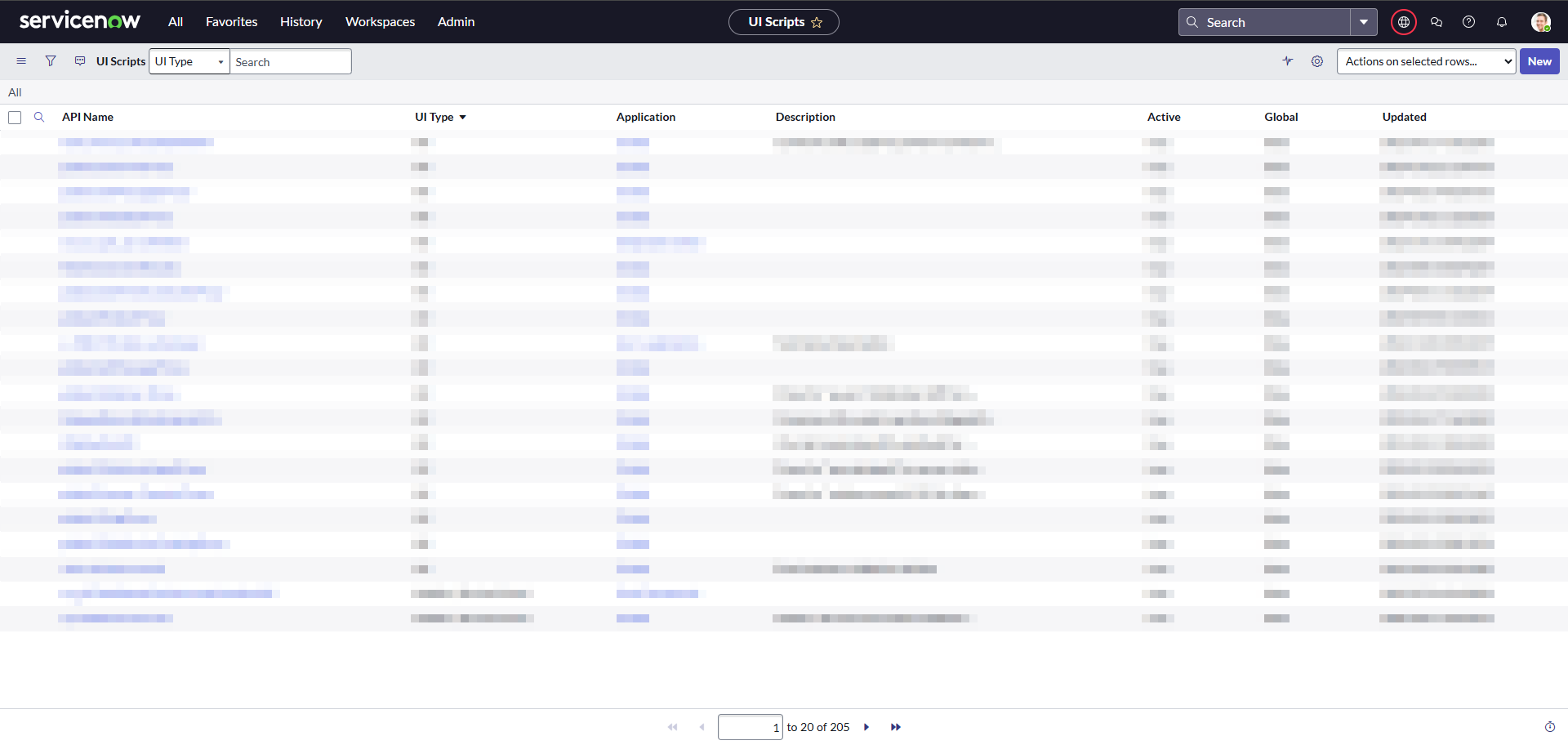
Navigate to UI Scripts
- In your ServiceNow instance, go to:
System UI > UI Scripts
- In your ServiceNow instance, go to:
-
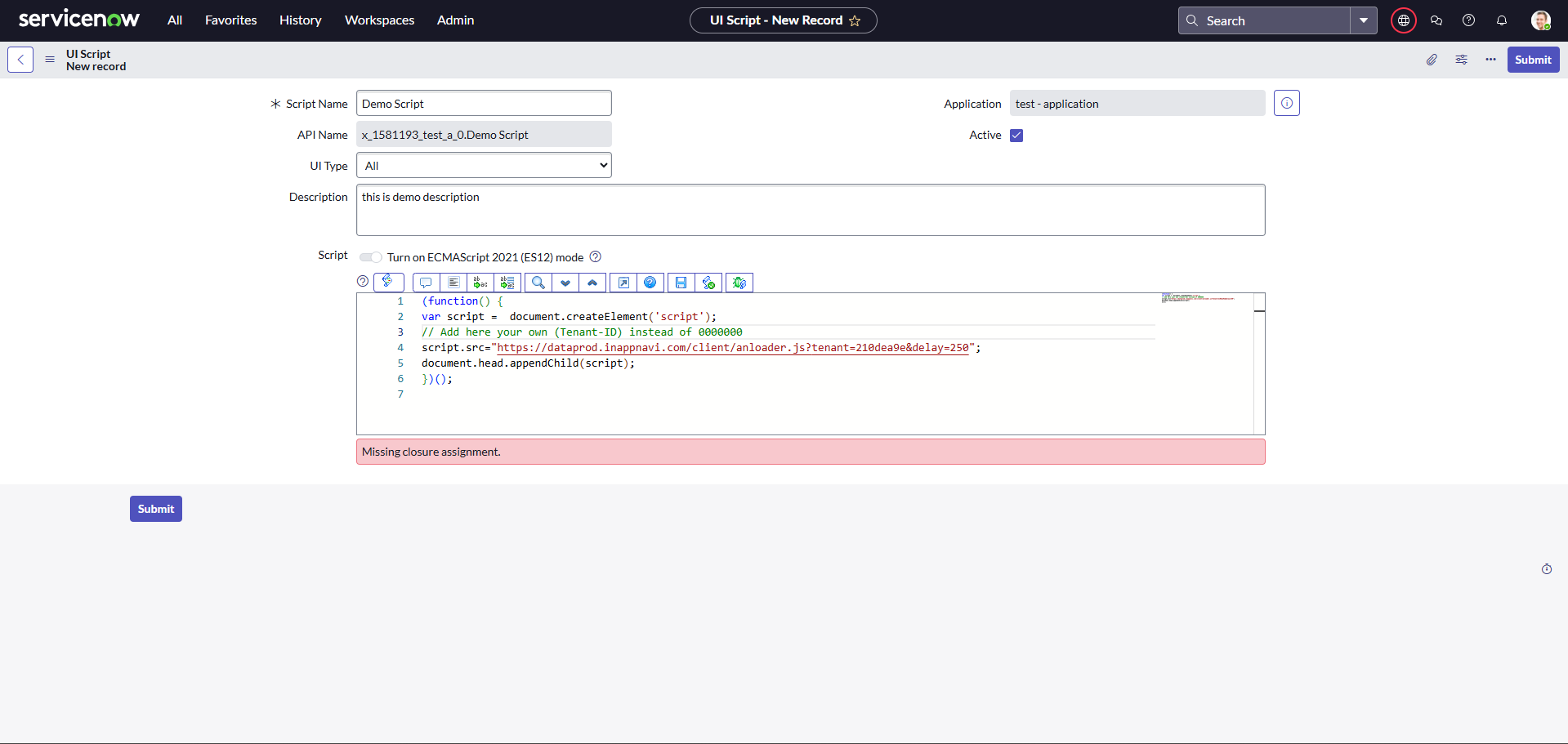
Create a New UI Script
- Click New.
- UI Type: Select Desktop (or All if you want wider coverage).
- Scope: Ensure it includes Global.
- Name & Description: Enter a meaningful name (e.g., AppNavi_Integration) and a clear description.
-
Add the Integration Code
(function() {
    var script = document.createElement('script');
    // Replace with your actual Tenant ID
    script.src = "https://data-prod.inappnavi.com/client/an-loader.js?tenant=00000000&delay=250";
    document.head.appendChild(script);
})();
Important:
- Replace 00000000 with your unique Tenant ID.
- delay=250 (milliseconds) can be adjusted to control when the script loads.
Workspace View Integration (Client Script)
Classic UI Scripts do not work in Workspace View. For Workspace, use a Client Script that dynamically injects the AppNavi loader.
Steps:
- Navigate to Client Scripts
- Go to: System Definition > Client Scripts
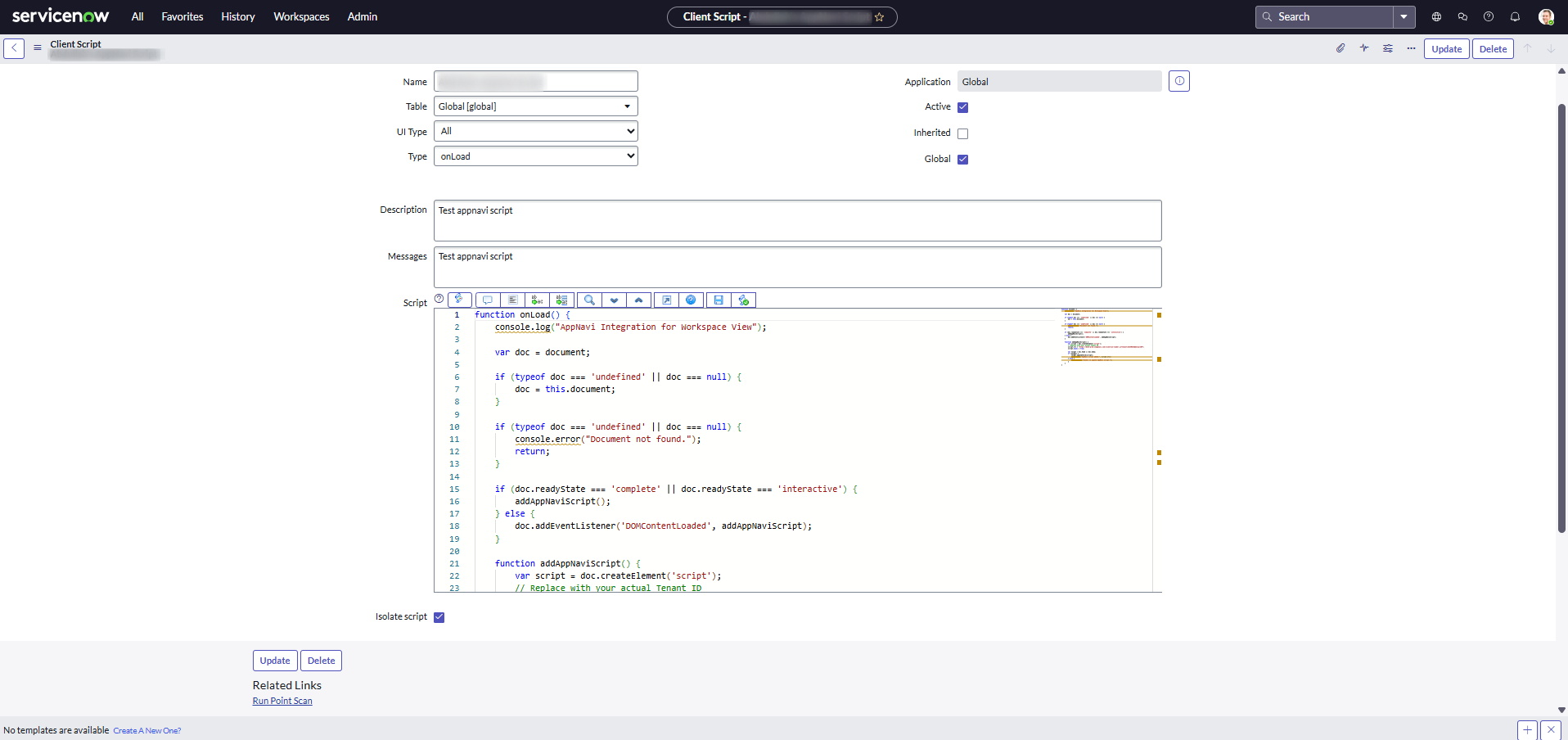
- Create a New Client Script
- Click New.
- UI Type: Select Mobile / Service Portal (or the relevant workspace type).
- Type: Select onload()
- Table Scope: Set to Global (or all Task tables if Global isn’t available).
- Provide a Name and Description.
- Insert the Script
Paste the following JavaScript code:
function onLoad() {
    console.log("AppNavi Integration for Workspace View");

    var doc = document;

    if (typeof doc === 'undefined' || doc === null) {
        doc = this.document;
    }

    if (typeof doc === 'undefined' || doc === null) {
        console.error("Document not found.");
        return;
    }

    if (doc.readyState === 'complete' || doc.readyState === 'interactive') {
        addAppNaviScript();
    } else {
        doc.addEventListener('DOMContentLoaded', addAppNaviScript);
    }

    function addAppNaviScript() {
        var script = doc.createElement('script');
        // Replace with your actual Tenant ID
        script.src = "https://data-prod.inappnavi.com/client/an-loader.js?tenant=18140616&delay=250";
        script.async = true;

        var target = doc.head || doc.body;
        if (target) {
            target.appendChild(script);
            console.log("AppNavi script added:", script.src);
        } else {
            console.error("Unable to append AppNavi script.");
        }
    }
}
Important:
- Replace 0000000 with your Tenant ID.
Limitations
- Classic View and Workspace View require separate scripts.
- Workspace View integration is client-side only, so ensure permissions allow script injection.
Related Resources
- Enhance Security – Direct Integration
Learn how to securely integrate AppNavi using direct integration methods, ensuring compliance with your organization’s security policies. - Ways to Integrate AppNavi into Your Application
Explore all available integration options for AppNavi, including script injection, API-based integration, and advanced configurations to meet diverse application needs.
ServiceNow User ID Integration
AppNavi can retrieve the ServiceNow User ID (sys_id) of the currently authenticated user and make it available to AppNavi Analytics, for example in Insights.
This can be useful whenever ServiceNow-specific user information needs to be added to the AppNavi analytics dataset.
The integration consists of two steps:
- Retrieve the current ServiceNow User ID.
- Pass the User ID to AppNavi using an Analytics Custom Field.
1. Retrieve the ServiceNow User ID
ServiceNow provides the sys_id of the currently authenticated user through:
gs.getUserID();Since this function runs server-side, we recommend exposing the value through a Client Callable Script Include and retrieving it in the browser using GlideAjax.
Create a Script Include
Navigate to:
System Definition → Script Includes
Create a new Script Include with the following settings:
| Setting | Value |
|---|---|
| Name | AppNaviUser |
| Application | Global |
| Active | Enabled |
| Client callable / Glide AJAX enabled | Enabled |
Add the following JavaScript code:
var AppNaviUser = Class.create();

AppNaviUser.prototype = Object.extendsObject(AbstractAjaxProcessor, {

    getUserID: function() {
        return gs.getUserID();
    },

    type: 'AppNaviUser'
});
The function returns the sys_id of the currently authenticated ServiceNow user.
Example:
6816f79cc0a8016401c5a33be04be441Note:
A ServiceNowsys_idis a unique 32-character identifier.
If the Script Include is created inside a scoped ServiceNow application, you may need to extend:
global.AbstractAjaxProcessorinstead of:
AbstractAjaxProcessor2. Make the User ID Available in the Browser
The Script Include can now be called from a ServiceNow UI Script or Client Script using GlideAjax.
(function() {

    var ga = new GlideAjax('AppNaviUser');

    ga.addParam('sysparm_name', 'getUserID');

    ga.getXMLAnswer(function(userId) {

        if (userId) {

            window.localStorage.setItem(
                'appnaviUser',
                userId
            );

        } else {

            console.error(
                'AppNavi: Unable to retrieve ServiceNow User ID.'
            );

        }

    });

})();
The User ID is stored in the browser using:
window.localStorageAppNavi can then access the value using:
window.localStorage.getItem('appnaviUser');For example:
var userId = window.localStorage.getItem('appnaviUser');

console.log(userId);
Alternative: Retrieve the User ID Using g_user
g_userIn supported ServiceNow client-side contexts, the current User ID may also be available through:
g_user.userID;Example:
var userId = g_user.userID;

window.localStorage.setItem(
    'appnaviUser',
    userId
);
However, g_user is only available in supported ServiceNow client-side contexts.
Using a Script Include together with GlideAjax provides a more explicit and reusable integration approach and can be used across different ServiceNow integration scenarios.
3. Access the User ID from AppNavi
Once the ServiceNow User ID has been stored in localStorage, it can be accessed from AppNavi Custom Code.
var userId = window.localStorage.getItem('appnaviUser');

if (userId) {

    console.log(
        'ServiceNow User ID:',
        userId
    );

}
This value can now be used by AppNavi or passed to supported AppNavi APIs.
4. Pass the ServiceNow User ID to AppNavi Analytics
AppNavi provides Custom Fields that can be added to Analytics events.
The ServiceNow User ID can therefore be passed to AppNavi Analytics using:
var userId = window.localStorage.getItem('appnaviUser');

if (userId) {

    var configuration = {
        customField_1: userId
    };

    window.appnaviApi.analytics.setCustomFieldValue(
        configuration
    );

}
This adds the ServiceNow User ID to subsequent AppNavi Analytics events.
The value is then also available in analytics data generated by products such as AppNavi Insights.
AppNavi provides the following Custom Fields:
customField_1
customField_2
customField_3
Each Custom Field supports up to 32 characters.
Since a ServiceNow sys_id is also 32 characters long, it can be stored directly without transformation.
Recommended Initialization Order
When using GlideAjax, retrieving the ServiceNow User ID is asynchronous.
The recommended initialization sequence is therefore:
ServiceNow Page
      ↓
Retrieve User ID
      ↓
Store User ID in localStorage
      ↓
Initialize AppNavi
      ↓
Read User ID
      ↓
Set AppNavi Analytics Custom Field
This ensures that the User ID is available when AppNavi initializes its Analytics configuration.
Using the Existing AppNavi Integration
If AppNavi is already loaded through a UI Script or Workspace Client Script, the User ID retrieval can simply be added before the AppNavi loader is initialized.
Example:
var ga = new GlideAjax('AppNaviUser');

ga.addParam('sysparm_name', 'getUserID');

ga.getXMLAnswer(function(userId) {

    if (userId) {

        window.localStorage.setItem(
            'appnaviUser',
            userId
        );

    }

    // Continue with AppNavi initialization here

});
This ensures that the ServiceNow User ID is available before AppNavi starts processing Analytics events.
Test the Integration
You can verify that the ServiceNow User ID has been stored correctly by opening the browser developer console and running:
window.localStorage.getItem('appnaviUser');A successful result should return a ServiceNow sys_id, for example:
6816f79cc0a8016401c5a33be04be441You can also manually test passing the value to AppNavi:
window.appnaviApi.analytics.setCustomFieldValue({
    customField_1:
        window.localStorage.getItem('appnaviUser')
});
Important:
- The Script Include must be configured as Client callable / Glide AJAX enabled.
- Administrative permissions are required to create and configure the Script Include.
- End users do not require administrative permissions to retrieve their own User ID.
- Ensure that the Script Include and its Access Controls allow execution for the intended ServiceNow users.
- If using a scoped application, verify that the Script Include can be accessed from the calling scope.
- Retrieve the ServiceNow User ID before initializing AppNavi whenever possible.
- AppNavi Custom Code requires Expert Mode.
- Make sure the selected AppNavi Custom Field is not already used for another purpose.
- The ServiceNow
sys_ididentifies an individual ServiceNow user. Consider applicable privacy and organizational requirements before adding it to Analytics data.
Limitations
g_user.userIDis not available in every ServiceNow execution context.GlideAjaxis asynchronous, so initialization order must be considered.- ServiceNow Classic View and Workspace View may require separate client-side integration scripts.
- The value stored in
localStorageis scoped to the ServiceNow browser origin. - Changing or impersonating users in an already open browser session should be considered when implementing the integration.
Updated 11 days ago