
The AppNavi Portal
The AppNavi Portal is where you set up and run AppNavi for your organization. In the portal, you manage your tenant, users and applications, create guidance content, configure sign-in security, and review usage data.
When your organization signs a contract with AppNavi, it receives a tenant. The first user becomes the tenant owner, who has full access to the portal and can give other users access.
Who This Is For
New customers, tenant owners and administrators who are setting up AppNavi, and authors who need to find their way around the portal.
Before You Begin
• Your organization has an AppNavi contract and a tenant.
• You have received your login details by email and have set your password. See Add Additional Authors for how the invitation emails work.
Main Areas of the Portal
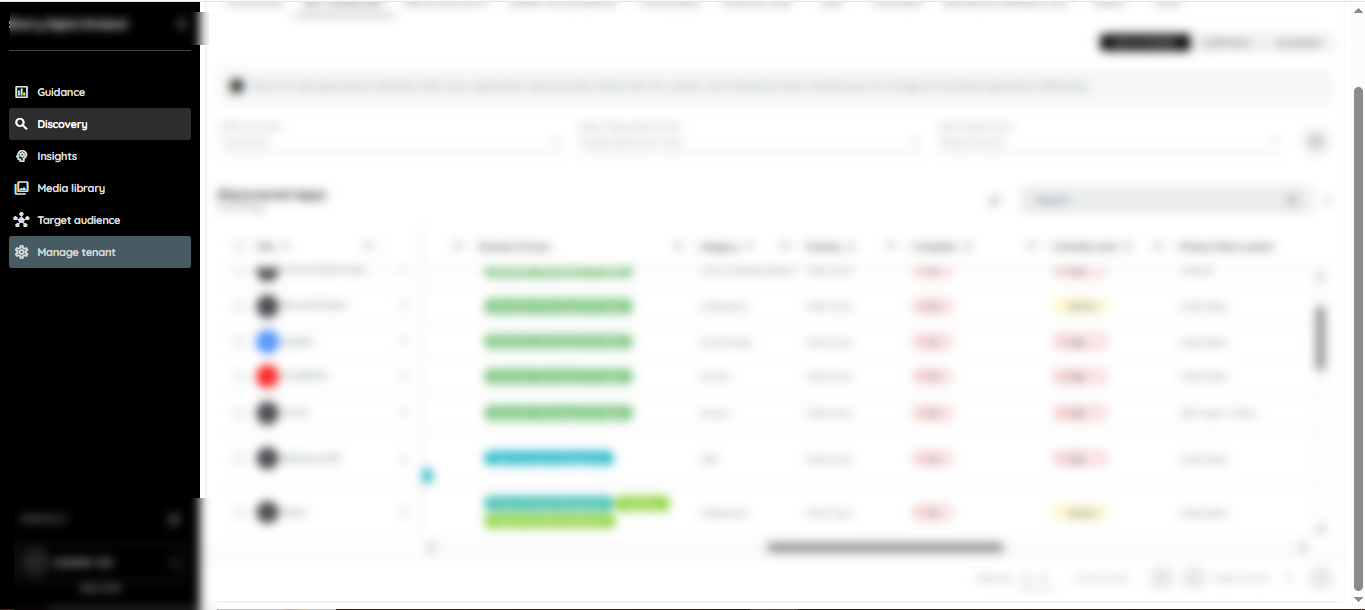
The portal main navigation
- Manage Tenant: tenant settings, overview, contracts, users, workspaces, applications, profile and OAuth. See Manage Tenant.
- Applications: the web applications AppNavi supports in your organization. Applications are the basis for all AppNavi content. See Applications.
- Users: create users and assign their roles and permissions. See User Management.
- Discovery: see which web applications are used in your organization and how. Requires a Discovery contract. See Discovery.
- Insights: analyze how applications and content are used, and build reports. Requires an Insights contract. See Insights.
Roles in the Portal
Roles in the Portal
What a user can do in the portal depends on their role:
• Tenant owner: full access to the entire tenant, including security settings. Give this role to as few people as possible.
• Owner: can change all content in the workspaces assigned to them.
• Extended Contributor: can manage applications and their content.
• Contributor: can manage content in one or more applications within one workspace.
• Translator: can translate content but not change it otherwise.
For details, see Role & Permission Model.
Sign-In and Security
The portal supports several sign-in methods, including login with ID and password, single sign-on (SSO) with your corporate credentials, and two-factor authentication. These help you protect the portal and control who can access it. See Authentication, Single Sign-On (SSO) Setup Guide and 2 Factor Authentication.
Common First Actions
As a new tenant owner, you typically do the following:
-
Sign in to the portal with the login details from your welcome email.
-
Check your tenant settings in Manage Tenant.
-
Add your applications so that you can create content for them. See Applications.
-
Add authors and assign their roles. See Add Additional Authors.
-
Set up sign-in security, such as SSO or two-factor authentication. See Authentication.
-
Create guidance content such as routes, pins and posts. See AppNavi Editor.
-
Review usage in Insights or Discovery, if they are part of your contract.
Expected Result
Once you have completed these steps, your applications are set up, your authors can sign in with the right roles, and you can start creating content and reviewing how it is used.
Related Documentation
• Getting Started: start here if you are new to AppNavi.
• Short introduction: the basic structure of AppNavi.
• Manage Tenant: tenant settings and administration.
• Tenant Types: customer and partner tenants.
Updated 26 days ago