
Blacklist
The Blacklist controls which web applications are excluded from AppNavi App Discovery.
AppNavi automatically discovers web applications used by employees through the AppNavi Chromium Extension. The blacklist helps keep these discovery results focused on applications that are relevant to the business by excluding applications that are known to be non-business related.
For example, an organization may not want private entertainment, streaming, or gaming applications to appear in its business application discovery results. These applications can be excluded through the AppNavi blacklist.
How the Blacklist Works
The Blacklist has two levels:
- Global Blacklist — maintained by the AppNavi Product Team and used as the central classification of applications that are considered non-business relevant.
- Tenant Blacklist — managed within a customer's tenant through Discovery Settings and allows customer-specific patterns to be created, changed, activated, deactivated, or deleted.
The overall workflow is:
Application usage → App Discovery evaluates the application → Blacklist is checked → Matching applications are excluded → Relevant applications remain available in Discovery
An application that matches an active blacklist pattern is not identified as a discovered application on the client side. If an application was already discovered and is subsequently added to the blacklist, it stops exhibiting activity on the client side.
When to Use the Blacklist
Use the Blacklist when you want to prevent applications that are not relevant to business analysis from appearing in App Discovery.
Common examples include:
- Private entertainment websites
- Private streaming services
- Gaming applications
- Other applications that are not relevant to the organization's business analysis
- Organization-specific applications or URL patterns that should not participate in Discovery
For example, if employees use a public gaming website during working hours, the organization may choose to blacklist that application so that it does not appear as a business-relevant discovered application.
Global Blacklist
AppNavi maintains a Global Blacklist containing applications classified as non-business relevant.
The Global Blacklist is curated and maintained by the AppNavi Product Team. It is continuously improved using multiple input sources.
Global Blacklist Input Sources
| Source | How it contributes |
|---|---|
| Public Data Sources | AppNavi monitors available internet sources and known industry lists to identify applications such as private entertainment, streaming, and gaming services. |
| Customer Feedback | Customer blacklist activity provides signals that can be used to improve application classification. |
| Product Team Expert Review | Ambiguous or low-confidence applications are manually reviewed and classified by the AppNavi Product Team. |
How Customer Feedback Is Used
Customer blacklist activity can contribute to improvements in global application classification.
AppNavi evaluates customer signals against:
- The current global classification
- Signal density and frequency across tenants
- Historical behavior trends
When the available signals provide sufficient confidence, AppNavi may automatically adopt the classification. When confidence is not sufficient, the signal is forwarded to the Product Team for review.
This means that the tenant blacklist is not only a local configuration mechanism. Customer feedback can also contribute to improving blacklist classification over time.
Manage the Tenant Blacklist
Tenant-level blacklist management is available from Discovery Settings.
Administrators can manage blacklist patterns without changing the global blacklist directly.
The available actions are:
- Create a pattern
- Edit a pattern
- Activate a pattern
- Deactivate a pattern
- Delete a pattern
Access Blacklist Settings
To open the blacklist configuration:
- Open the Discovery overview.
- Click the three-dot menu.
- Open Discovery Settings.
- Locate the Discovery blacklist pattern setting.
- Enable the setting.
- The Blacklist Pattern section becomes available.
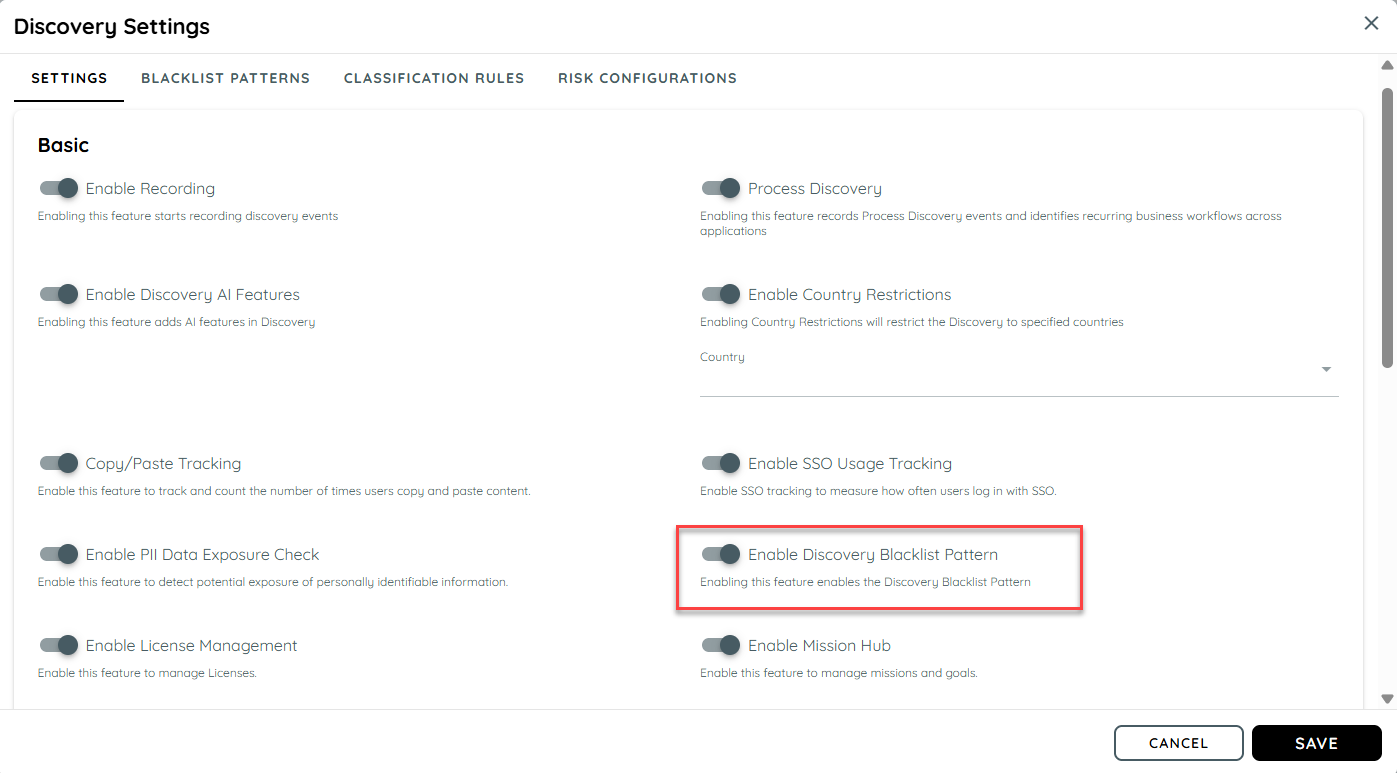
Discovery Settings
Create a Blacklist Pattern
Create a pattern when you want AppNavi Discovery to exclude applications matching a specific application or URL pattern.
A typical workflow is:
- Open Discovery Settings.
- Enable Discovery blacklist pattern if it is not already enabled.
- Open the Blacklist Pattern section.
- Select the option to add a pattern.
- Enter the required pattern details.
- Set the pattern to the required active state.
- Save the configuration.
- Verify the pattern appears in the blacklist list.
The current documentation confirms that users can create new patterns but does not define a complete field-by-field schema for the pattern dialog.
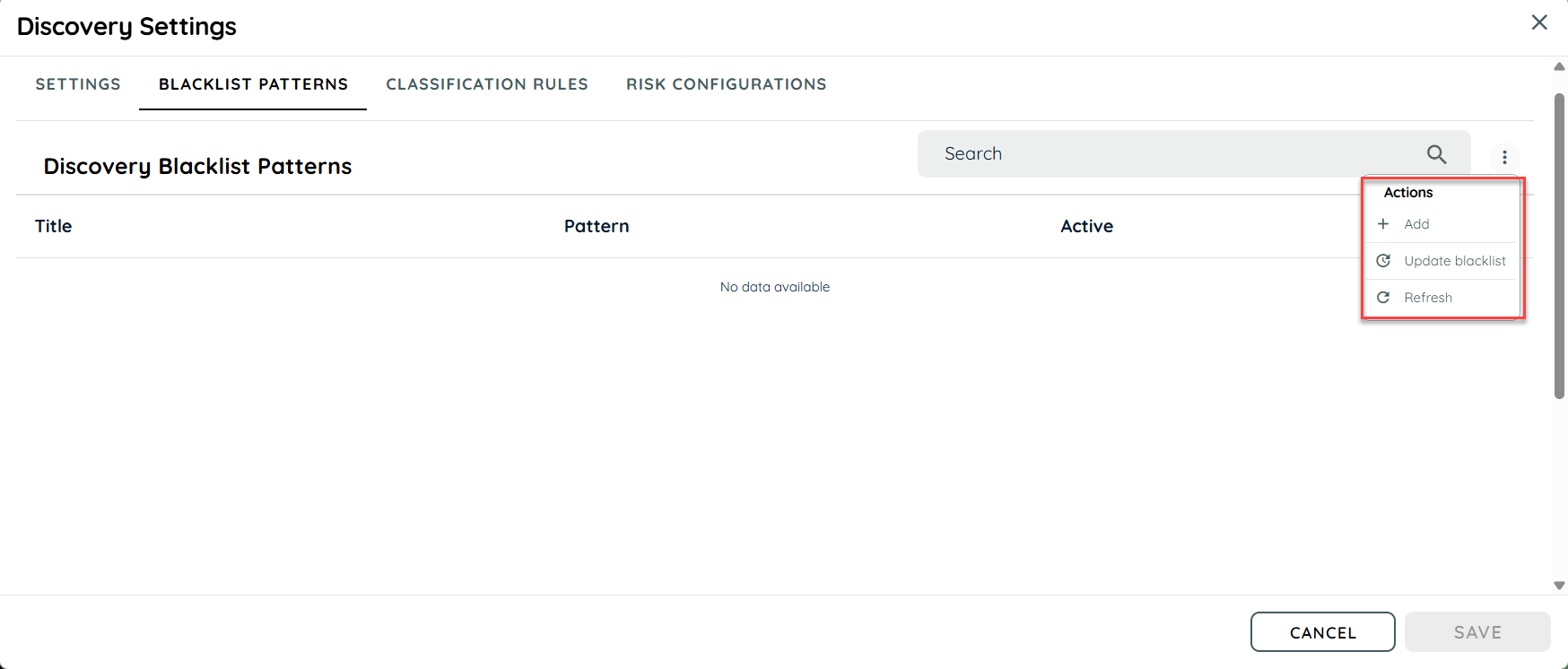
Add Blacklist Pattern
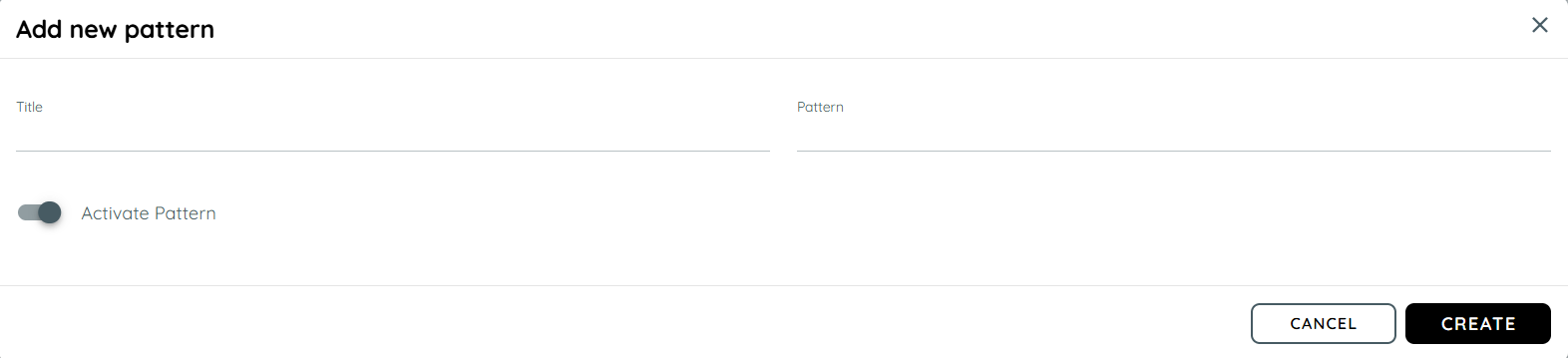
Edit a Pattern
Use Edit when an existing blacklist pattern needs to be changed.
For example, an organization may initially blacklist one application URL and later need to update the pattern because the application has changed its URL structure.
After editing a pattern:
-
Review the updated value.
-
Confirm that the pattern still represents the intended application or URL.
-
Save the change.
-
Verify that the updated pattern appears in the blacklist configuration.
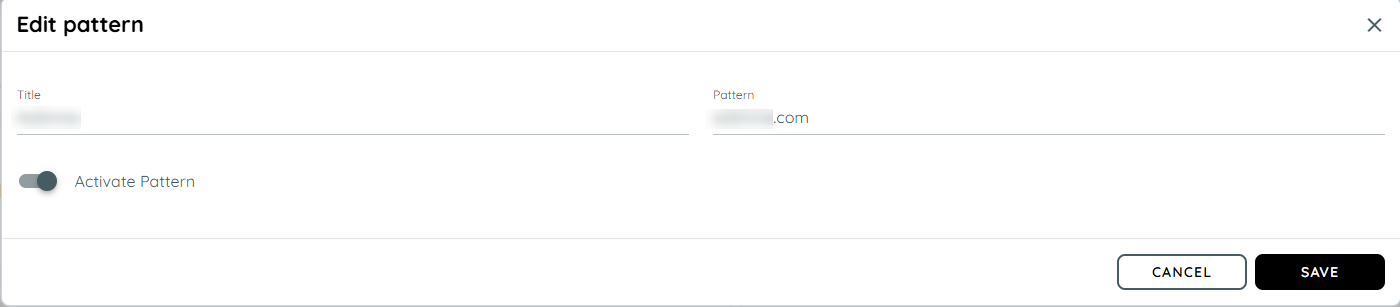
Edit Pattern
Activate or Deactivate a Pattern
Each blacklist pattern can be activated or deactivated.
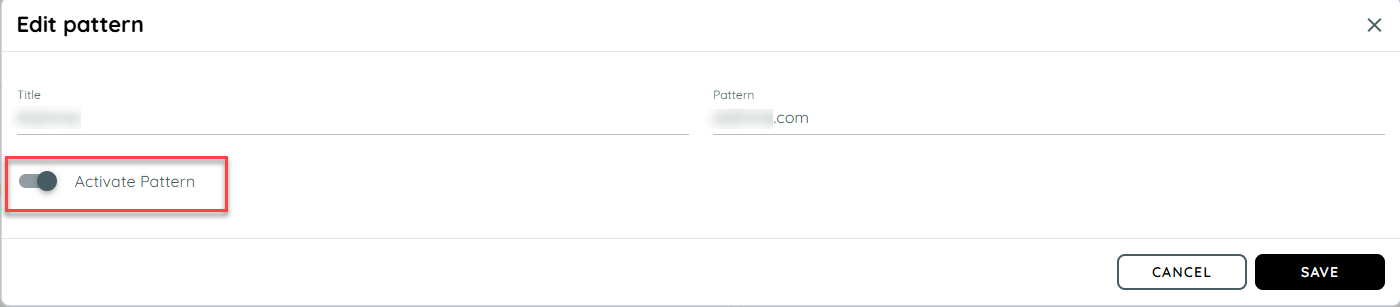
Active pattern
An active pattern participates in the blacklist mechanism.
Applications matching the pattern are excluded from App Discovery.
Inactive pattern
A deactivated pattern does not participate in the blacklist mechanism. Discovery can therefore operate normally for applications that would otherwise match that pattern.
This is useful when an organization wants to temporarily stop applying a rule without removing its configuration.
Delete a Pattern
Tenant-level users can delete blacklist patterns.
However, deletion has an important limitation:
A pattern deleted at the tenant level may reappear when the blacklist is updated.
Therefore, deleting a pattern should not automatically be interpreted as permanently removing the rule from all future blacklist updates.
If a pattern originates from the global blacklist, administrators should consider whether the requirement is to locally modify the pattern rather than simply delete it.
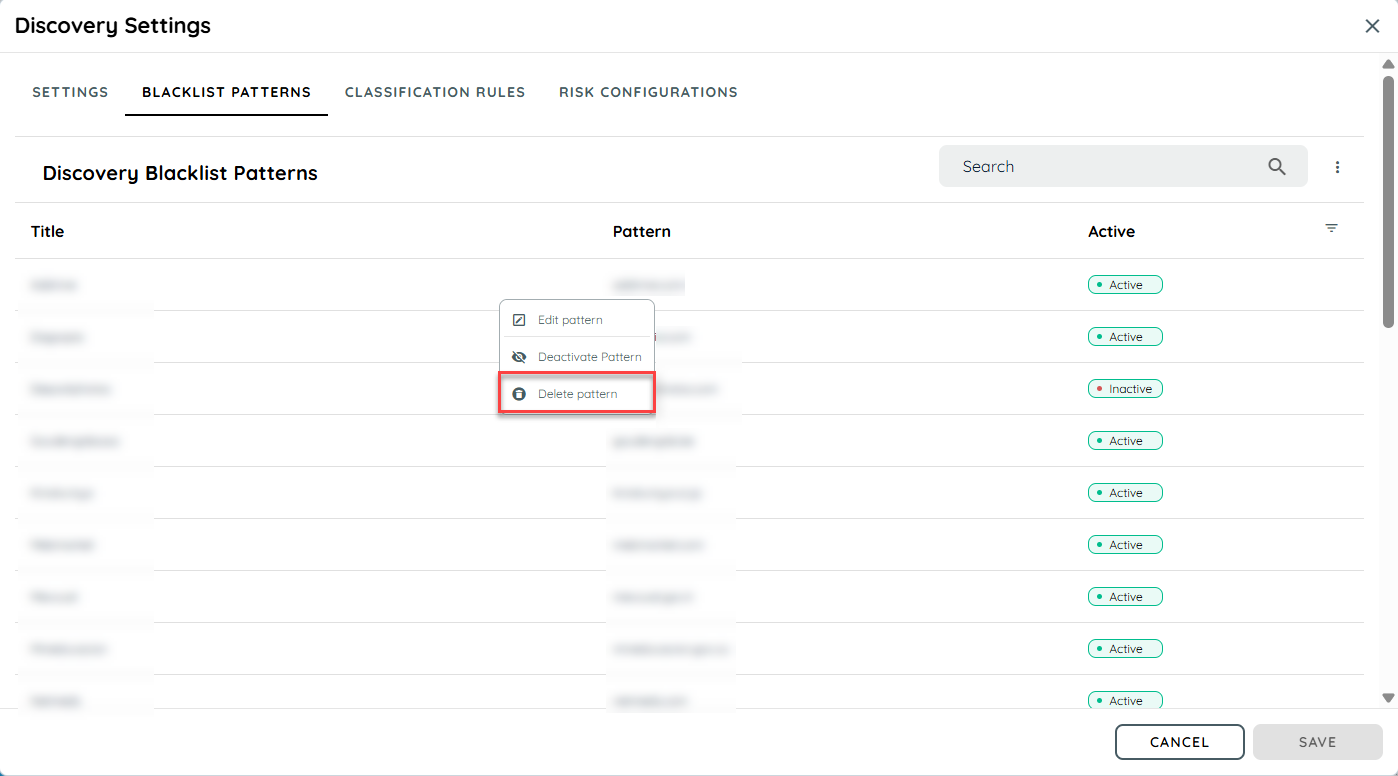
Delete Pattern
Global and Tenant Blacklist Behavior
Global and tenant-level changes interact according to predefined rules.
Duplicate Patterns
Duplicate patterns are not allowed.
Users cannot create duplicate patterns that already exist locally or globally.
Globally Deleted or Disabled Patterns
If a pattern has been deleted or disabled globally and the tenant has not modified or interacted with that pattern, it will not be included in the updated blacklist for that tenant.
Tenant-Modified Global Patterns
If a globally deleted or disabled pattern has been modified or interacted with at the tenant level, it can be included in the tenant's updated blacklist.
This distinction is important when reviewing why a pattern appears in the tenant blacklist after a blacklist update.
What Happens to Discovered Applications?
The blacklist affects the App Discovery process.
Application is not yet discovered
If an application matches an active blacklist pattern, it is not identified as a discovered application on the client side.
Application was already discovered
If an application has already been discovered and is later added to the blacklist, the application stops exhibiting activity on the client side.
This allows administrators to apply blacklist rules even after an application has already appeared in Discovery.
What Data Is Involved?
The Blacklist page does not define a separate blacklist data collection model.
The blacklist primarily defines which applications are allowed to participate in App Discovery.
For context, App Discovery collects discovery events for applications that are not blacklisted. The documented discovery event can contain information such as:
- Browser
- Browser language
- Country code
- Application URL
- User ID
- Session ID
- Timestamp
- Activity time
App Discovery sends the discovery event once within a 24-hour period for an application and user context.
The Blacklist therefore acts as an exclusion mechanism before an application participates in this discovery process.
Example: Exclude a Non-Business Application
Suppose employees frequently access:
https://example-gaming.com
The organization does not consider this application relevant to business application discovery.
An administrator can create an appropriate blacklist pattern for the application.
Expected result
When the blacklist rule is active:
- The matching application is not identified as a discovered application on the client side.
- If it had already been discovered, it stops exhibiting activity on the client side.
- Other applications that do not match the pattern continue through the normal Discovery process.
Example: Temporarily Disable a Rule
Suppose an organization has a blacklist rule for an application but wants to temporarily allow Discovery activity for that application.
Instead of deleting the pattern:
- Open the blacklist configuration.
- Locate the pattern.
- Deactivate the pattern.
- Save the configuration.
The pattern remains available for future use while it is no longer active in the blacklist mechanism.
Example: Application URL Changes
Suppose an application originally uses:
https://example.com
and the organization creates a blacklist pattern for it.
Later, the application moves to:
https://portal.example.com
The administrator should review the existing blacklist pattern and determine whether it still matches the application.
If required, edit the pattern so that the blacklist continues to represent the intended exclusion.
Blacklist and App Discovery Analytics
The Blacklist is an input to App Discovery, rather than an analytics dashboard itself.
App Discovery provides analytics for applications that are discovered, including application usage and user-related metrics.
Because blacklisted applications are excluded from discovery, they should not be treated as normal discovered applications in Discovery analytics.
For example:
| Application | Blacklist status | Discovery result |
|---|---|---|
| Business CRM | Not blacklisted | Can be discovered |
| Internal HR system | Not blacklisted | Can be discovered |
| Public gaming site | Blacklisted | Excluded from Discovery |
| Private streaming site | Blacklisted | Excluded from Discovery |
Filters and Time Ranges
The Blacklist page does not document dedicated filters or reporting time ranges for blacklist management.
Filters such as Country, Organizational Unit, and Department belong to App Discovery analytics rather than the blacklist configuration itself. These filters affect how discovered application analytics are analyzed.
Therefore:
- Use Blacklist Patterns to control which applications participate in Discovery.
- Use Discovery Analytics filters to analyze the applications and users that remain in Discovery.
Exports
The current Blacklist documentation does not specify a dedicated Blacklist Export function.
Do not interpret the blacklist configuration as an exportable analytics report.
If an organization needs application discovery data for reporting, App Discovery provides its own analytics and export capabilities separately from blacklist management. The Blacklist determines which applications are excluded from the discovery process.
Blacklist vs. URL Blacklist
The Blacklist and URL Blacklist serve different purposes.
| Feature | Blacklist | URL Blacklist |
|---|---|---|
| Module | Discovery | Insights |
| Main purpose | Exclude applications from App Discovery | Exclude pages from Insights tracking |
| Configuration | Discovery Settings | Insights Settings |
| Scope | Discovered applications | Pages/URLs within an Insights application |
| Effect | Matching applications are excluded from Discovery | Matching pages are excluded from Insights tracking |
| Example | Exclude a public streaming application | Exclude /settings from Insights tracking |
The Discovery Blacklist should be used when the goal is to prevent an application from participating in App Discovery. URL Blacklist should be used when the goal is to prevent specific pages from participating in Insights tracking.
A pattern disappeared
Check whether the pattern was:
- Deleted or disabled globally.
- Not modified at the tenant level.
- Removed as part of a blacklist update.
The documented global and tenant synchronization rules determine whether the pattern remains available.
A deleted pattern appeared again
Tenant-level deletion does not necessarily permanently remove a globally sourced pattern. A deleted pattern can reappear when the blacklist is updated.
Review whether the pattern originated from the global blacklist and whether it has been modified at the tenant level.
An application was discovered before it was blacklisted
This is expected behavior.
Once an already discovered application is added to the blacklist, it ceases to exhibit activity on the client side according to the documented blacklist behavior.
Customer Workflow
Use this workflow when implementing and maintaining the Blacklist:
1. Identify irrelevant applications
Determine which applications should not appear in the business application inventory.
2. Review the existing blacklist
Check whether the application is already covered by a global or tenant-level pattern.
3. Configure the tenant rule
Open Discovery → Settings → Discovery blacklist pattern.
4. Create or modify the pattern
Add a new pattern or update an existing one.
5. Activate the pattern
Enable the pattern when it should participate in Discovery filtering.
6. Validate the result
Confirm that matching applications are excluded from Discovery while unrelated applications continue to be processed.
7. Review periodically
Review active patterns and consider changes to application URLs, business requirements, and global blacklist updates.
Summary
The Blacklist helps organizations keep AppNavi Discovery focused on business-relevant applications.
The key concepts are:
- AppNavi maintains a Global Blacklist of applications classified as non-business relevant.
- Customers can manage tenant-level blacklist patterns through Discovery Settings.
- Patterns can be created, edited, activated, deactivated, and deleted.
- Duplicate patterns are not allowed.
- Matching applications are excluded from client-side App Discovery.
- Applications that were already discovered and are subsequently blacklisted stop exhibiting activity on the client side.
- Customer blacklist activity can provide signals for improving global application classification.
- Deleted tenant-level patterns may reappear when the blacklist is updated.
- The Blacklist itself does not provide a separate dashboard, filter, or export function in the current documentation; those capabilities belong to the broader App Discovery analytics experience where applicable.
Recommended customer flow:
Identify → Configure → Activate → Validate → Review
This makes the Blacklist a governance control for keeping the AppNavi application discovery inventory relevant and manageable.
Updated 19 days ago