
Basic Settings
Copy/Paste Tracking
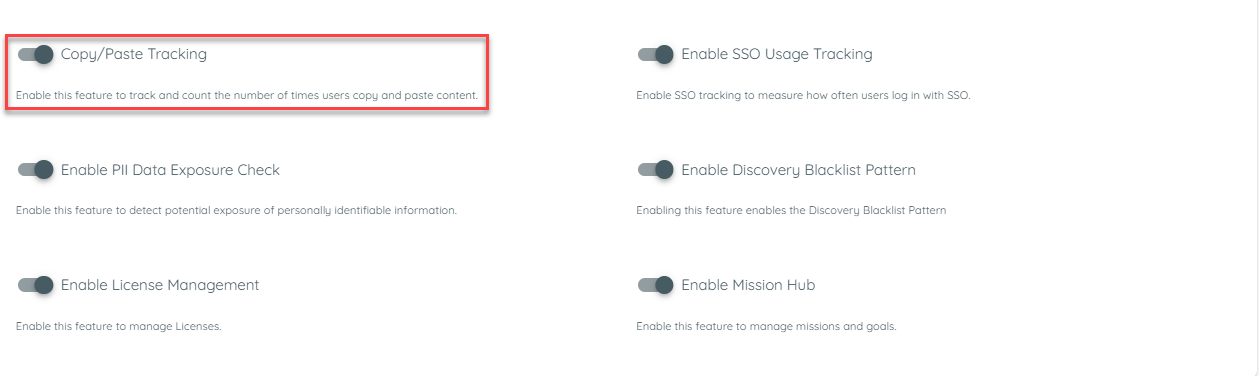
The system is designed to record the number of copy/paste events. Users can enable or disable this feature through the discovery settings within the tenant. To facilitate this, new columns for Copy/Paste events will be added to the discovered apps table. These recorded values will also be included in Export.
A tenant Owner can enable the copy paste events from the discovery settings and then a copy/paste count will be recorded for an application
The Tenant Owner must first enable the Discovery option. Once Discovery is enabled, the Tenant Owner can then select the Recording option. If both Discovery and Recording are enabled, the Tenant Owner can activate the Copy/Paste toggle to start recording copy/paste events.
Once copy paste is enabled from here, it will record it for all apps being discovered.
SSO Usage Tracking
SSO Usage Tracking is a Discovery feature that shows how much each discovered application uses Single Sign-On (SSO) for login. It detects which identity providers (IdPs) are used and records login events for analysis.
This feature helps organizations see SSO adoption clearly, without changing any existing event data or login flows.
Why This Feature Is Used
Understanding SSO adoption is vital for security and compliance teams. It allows organizations to:
- Know SSO adoption: See which applications are using secure login with SSO.
- Identify providers: Find out which IdPs are being used most.
- Monitor security: Make sure logins happen through trusted identity systems.
- Plan improvements: Understand usage trends to improve SSO adoption.
This feature provides a simple and standardized approach to track authentication methods at scale, helping organizations move toward centralized identity management.
How It Works in AppNavi
When SSO Usage Tracking is enabled, the Discovery feature evaluates event patterns that match valid authentication flows. Only complete flows where a user session transitions from an application to an identity provider and then back to the same application are considered valid.
- Discovery checks login events on already discovered applications.
- If a user logs in using SSO, the system records the event.
- Discovery identifies the IdP and client ID for that login.
- The system counts SSO events and calculates the SSO Usage Index:
This ratio is normalized into an SSO Usage Index and displayed in the Discovery table and dashboards. The following logic is used for normalization:
| Priority level | Meaning |
|---|---|
| Low | Minimal use of SSO |
| Medium | Partial use of SSO |
| High | Strong SSO adoption |
Purpose of This Feature
The goal is to give clear insight into which discovered apps use SSO and how often. This helps with:
- Security checks: Make sure users log in via trusted IdPs.
- Usage reports: See trends and adoption rates.
- Better planning: Decide where to encourage SSO adoption.
No passwords or sensitive data are saved. Only SSO login events and provider information are recorded.
How to Configure
- Navigate to the Discovery Overview page within the portal.
- Click on the three-dot (⋮) menu to open the settings panel.
- Enable the SSO Usage Tracking toggle.
- Save the changes.
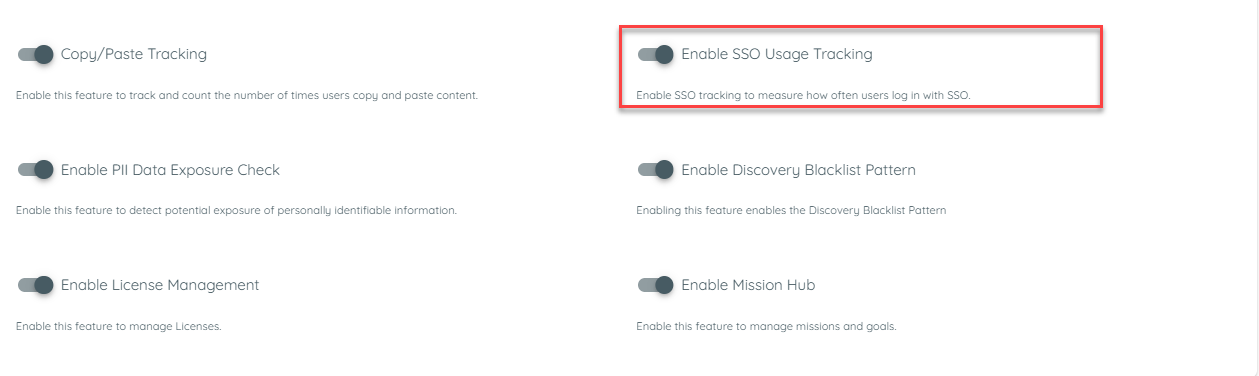
Once enabled, Discovery begins analyzing authentication flows for detected applications. When users access applications using SSO, corresponding events are captured automatically.
Supported Identity Providers
The feature currently supports the following identity providers:
- GitHub
- GitLab
- Microsoft
- Auth0
- Azure B2C
- Okta
- Amazon Cognito
- Keycloak
- Ping Identity
The architecture allows new providers to be added easily through future updates.
Example Scenario: Tracking SSO Usage in Discovery
An organization enables SSO Usage Tracking to understand authentication adoption across its internal applications.
Steps
- Enablement
In the Discovery overview, the administrator activates the SSO Usage Tracking toggle and saves the configuration.
- Event Capture
- A user accesses an application integrated with AppNavi.
- The user logs in through an identity provider such as Okta or Google.
- Discovery detects a valid SSO flow (App → IdP → App) and enriches the event with provider name and client ID.
- Data Aggregation
- Over time, Discovery aggregates login data and calculates the ratio of SSO logins to total app logins.
- The ratio is normalized into an SSO Usage Index (Low, Medium, High).
- Visualization
- Discovery table shows a new SSO Usage column.
- Hovering over it shows a tooltip, e.g., “72 of 120 user–app–days with SSO (60%) in last 30 days.”
- Provider breakdown is also shown, e.g., “Entra 70%, Google 30%.”
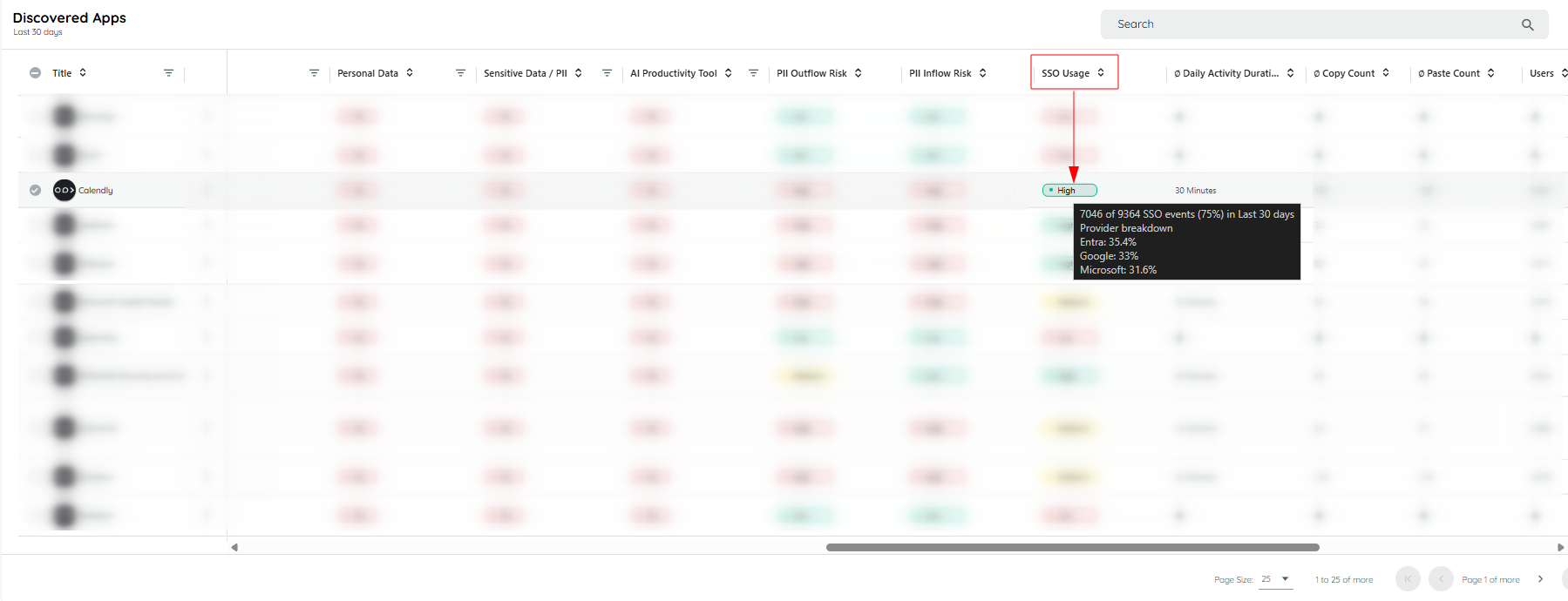
Hovering on the SSO chip
Clicking on the SSO Usage chip opens a dialog that lists all identity providers used, along with their respective percentages.
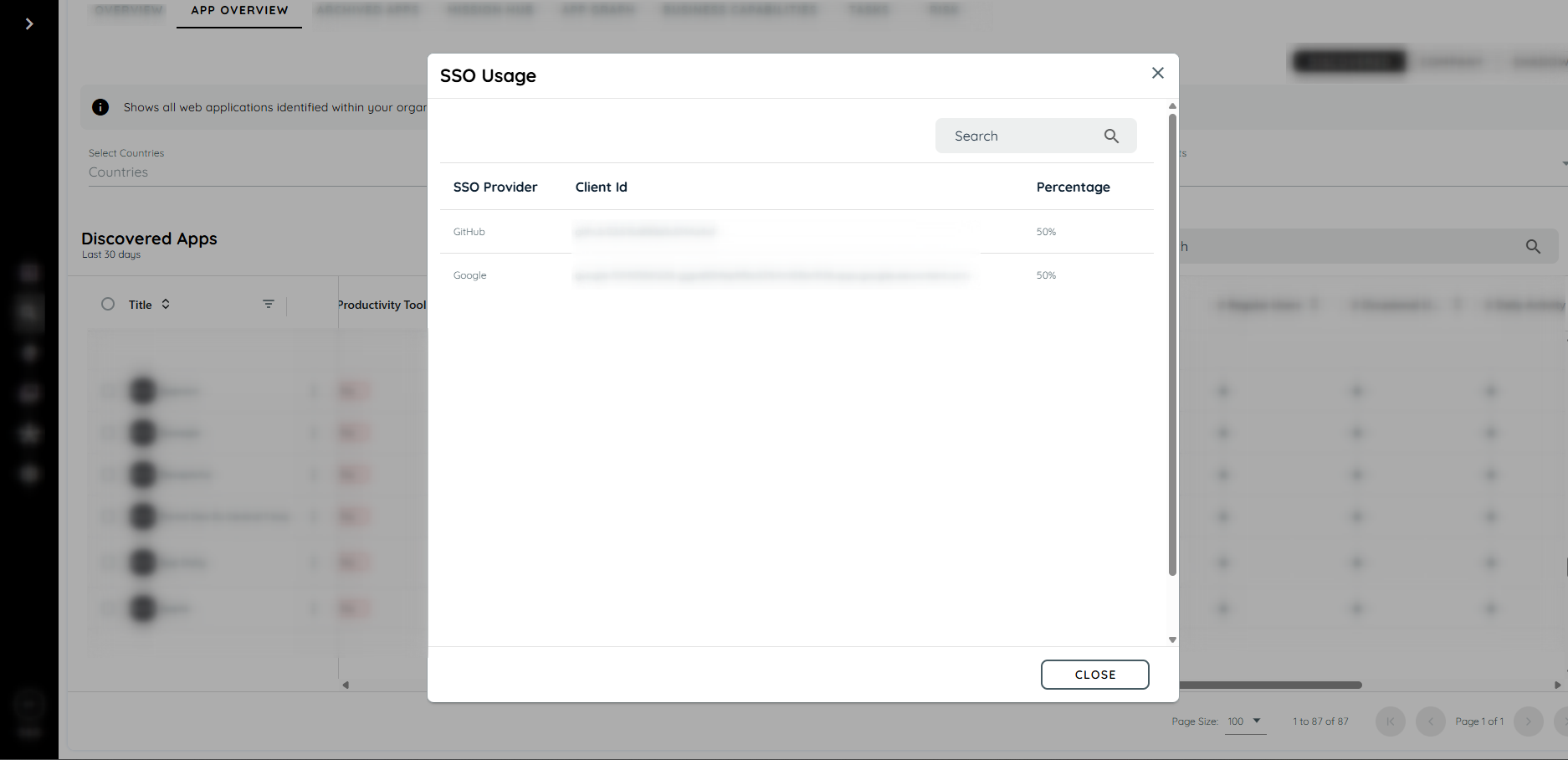
SSO information dialog
PII Exposure Detection
The PII Exposure Detection feature helps Security and Compliance Administrators identify potential risks related to sensitive information being copied or pasted within monitored applications. The system identifies possible PII elements: email addresses, phone numbers and IBANs during clipboard actions, without ever collecting or transmitting the actual clipboard content.
The feature is privacy preserving and fully configurable through global or per application settings in the Discovery module.
The system only sends numerical counts of detected PII items:
- Number of email addresses
- Number of phone numbers
- Number of IBANs
Configurable Controls
Administrators can enable or disable the feature at two levels:
- Global Level (Discovery Settings)
- Global Toggle: Enable PII Data Exposure (Copy & Paste)
- Default state: OFF
- Application Level
- Each application inherits the global setting.
- If the global toggle is ON, admins can enable/disable the feature per app.
Detection only runs when both the Global and App toggles are ON.
How PII Detection Works
- Enabling the PII Detector
To activate PII detection, two settings must be enabled:
Global Discovery Setting
The feature must first be turned ON from the main Discovery settings.
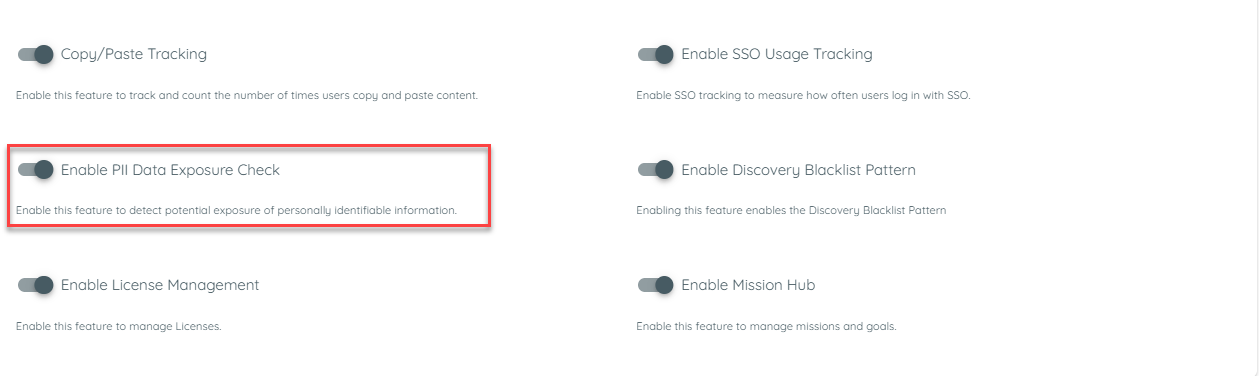
Application-Level Setting
After the global toggle is enabled, you must also enable the feature for each specific application.
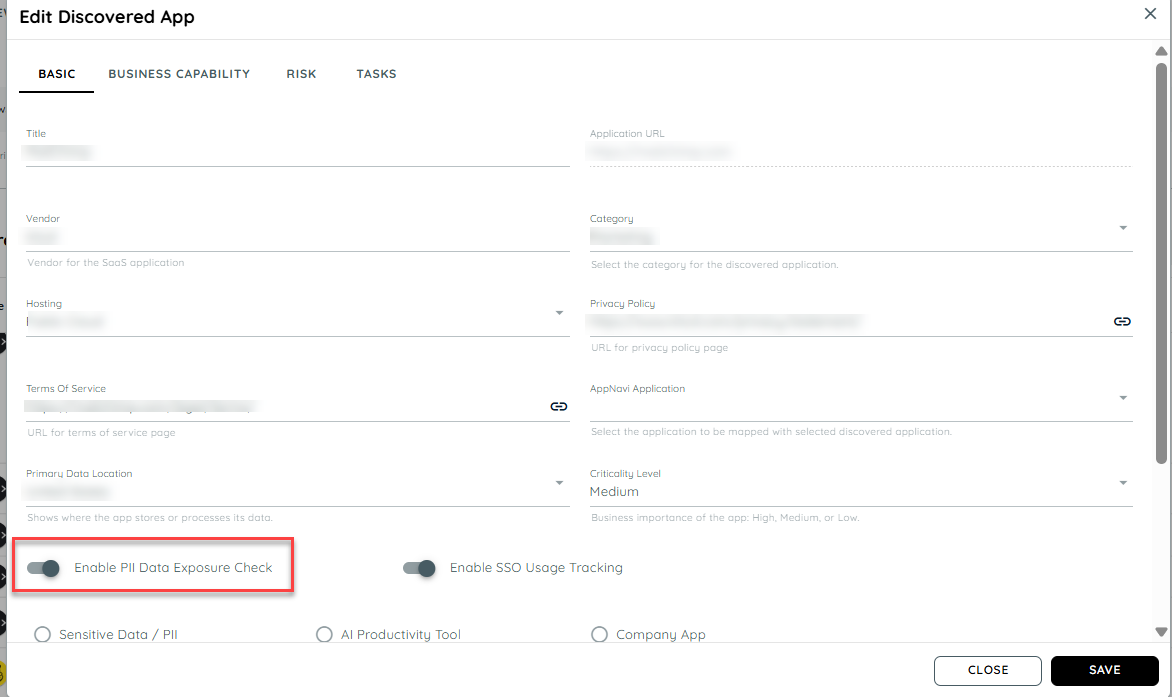
PII detection will only run when both settings are ON.
By default, the PII detector appear enabled.
- Detection Behaviour
Once enabled:
- The system monitors copy (outflow) and paste (inflow) actions performed within the discovered application.
- If a user copies or pastes any of the following:
- Email address
- Phone number
- IBAN
The detector will identify the presence of these PII elements.
- Counting & Displaying Results
- Each time a user copies or pastes PII, the corresponding PII count increases.
- These counts are then processed in the backend to calculate the application’s PII exposure level.
- The result is displayed to users in the Discovery module on the Discovered Apps table as two columns
PII Inflow Risk and PII Outflow Risk (High, Medium, Low) , based on the total detected PII activity.
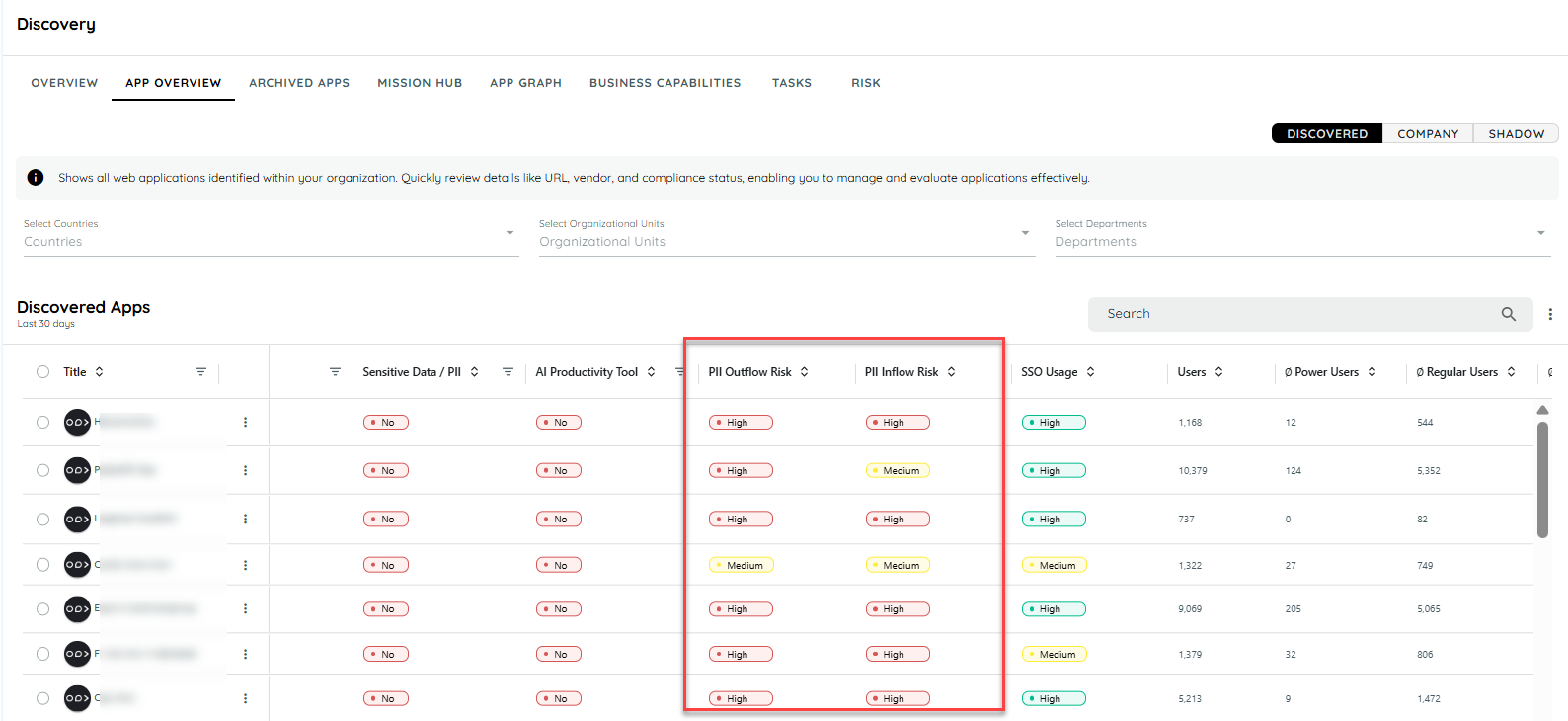
User can click over the badge to view total detected PII counts within selected date range
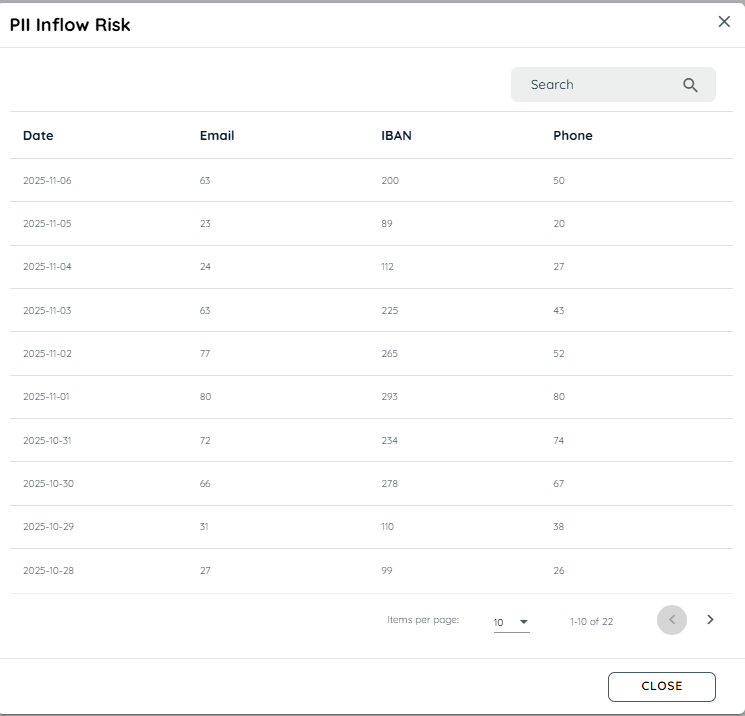
How Risk is Measured
The backend aggregates detection counts to determine the exposure level for each application.
- Raw Weighted Score
Each PII type contributes differently to the overall risk:
| PII Type | Weight |
|---|---|
| 1 | |
| Phone | 2 |
| IBAN | 5 |
RAW Score = (Emails × 1) + (Phones × 2) + (IBANs × 5)
- Density per 100 Actions
Risk is normalized based on total clipboard activity:
R100 = (100 × RAW) / Total Actions
- Normalized Score (0–100)
The platform converts density into a normalized risk score based on a reference level (default: 50):
Score = normalization of R100 into a 0–100 scale
- Risk Levels Displayed in the Apps Table
| Normalized Score | Level |
|---|---|
| ≥ 50 | High |
| 20–49 | Medium |
| < 20 | Low |
Note : User can click over the badge to view total detected PII counts within selected date range.
PII Exposure Trend – App Dashboard
Overview
The PII Exposure Trend feature helps Security and Compliance Administrators track the evolution of potential sensitive data exposure over time for each application. It provides a visual summary of inflow (paste) and outflow (copy) risks based on PII detection scores, helping you identify patterns and trends in data handling.
Key Features
- PII Exposure Trend Section
- Each application Analytics dashboard includes a dedicated section labelled "PII Data Flow".
- The section is only visible if PII detection is enabled globally and for the specific application.
- Line Chart Visualization
- The trend is displayed as a line chart showing normalized PII exposure scores over time.
- X-axis: Time (based on the selected dashboard range)
- Y-axis: Normalized Score (0–100)
- Lines:
- Inflow Score (paste actions)
- Outflow Score (copy actions)
- Interactive Tooltips
- Hovering over the chart shows detailed information:
- Exact Inflow and Outflow scores
- Corresponding timestamp
- Behavior
- The chart adapts to the selected time range on the dashboard.
- If PII detection is turned off globally or for the app, the chart is hidden.